1. Bubuka
Thank you for choosing the Trust Halyx 5-in-1 USB-C Hub. This manual provides essential information for the proper setup, operation, and maintenance of your device. This hub is designed to expand the connectivity of your PC, laptop, or MacBook Pro by adding four USB-C data ports and one USB-C Power Delivery (PD) port.
2. Produk Langkungview
The Trust Halyx 5-in-1 USB-C Hub (Model 25136) features a durable aluminum housing and a compact design. It connects to your host device via an integrated 10cm USB-C cable.
2.1 Fitur konci
- 5-Port Connectivity: Adds 4 USB-C data ports and 1 USB-C Power Delivery port.
- 100W USB-C PD Power Port: Allows pass-through charging for your laptop (additional charger required).
- Transfer Data Kecepatan Tinggi: Supports data transfer speeds up to 5 Gbps.
- Desain awét: Constructed with an aluminum housing for enhanced durability.
- Nyolok sareng Puter: Teu aya supir anu diperyogikeun pikeun kalolobaan sistem operasi.
2.2 Eusi pakét
- Trust Halyx 5-in-1 USB-C Hub
- Manual pangguna (dokumén ieu)

Image: The Trust Halyx 5-in-1 USB-C Hub showing its five convenient ports and integrated USB-C cable.

Gambar: A lengkep view of the five USB-C ports on the Trust Halyx hub, including the Power Delivery port.
3. Parentah Setup
Follow these steps to set up your Trust Halyx 5-in-1 USB-C Hub:
- Nyambung ka Alat Host: Plug the integrated USB-C cable of the hub into an available USB-C port on your PC, laptop, or MacBook Pro.
- Sambungan Daya (Opsional): If you wish to charge your laptop through the hub, connect your laptop's USB-C power adapter to the dedicated 100W USB-C PD port on the hub. Note: An additional charger is required for pass-through charging.
- Sambungkeun Periferal: Plug your USB-C devices (e.g., external drives, keyboards, mice, other USB-C accessories) into the four USB-C data ports on the hub.
- Pariksa sambungan: Your operating system should automatically detect the hub and connected devices. No additional drivers are typically needed.

Image: The Trust Halyx hub connected to a laptop, demonstrating how to plug in additional USB-C devices.

Image: The 100W USB-C Power Delivery port on the Trust Halyx hub, with a power cable connected for laptop charging.
4. Parentah Operasi
Once connected, the Trust Halyx hub operates as a direct extension of your computer's USB-C capabilities.
4.1 Nyambungkeun Alat
- Simply plug your USB-C peripherals into any of the four available USB-C data ports.
- The hub supports data transfer speeds of up to 5 Gbps, suitable for most external storage devices, keyboards, mice, and other accessories.
4.2 Power Delivery Functionality
- The dedicated USB-C PD port allows you to charge your laptop while using the hub. Connect your laptop's original USB-C power adapter to this port.
- The hub supports up to 100W pass-through power delivery. Ensure your power adapter is compatible with your laptop's charging requirements.

Image: A complete workstation setup utilizing the Trust Halyx hub to connect various peripherals to a laptop and external monitor.
5. Pangropéa sarta perawatan
To ensure the longevity and optimal performance of your Trust Halyx USB-C Hub, follow these guidelines:
- beberesih: Use a soft, dry cloth to clean the hub. Avoid liquid cleaners or abrasive materials.
- Panyimpenan: Simpen hub dina tempat anu tiis sareng garing nalika henteu dianggo. Ukuranna anu kompak ngajadikeun éta cocog pikeun perjalanan.
- Penanganan: Avoid dropping the hub or subjecting it to strong impacts. Do not bend the integrated cable excessively.
- Suhu: Operate the hub within normal room temperatures. Avoid extreme heat or cold.
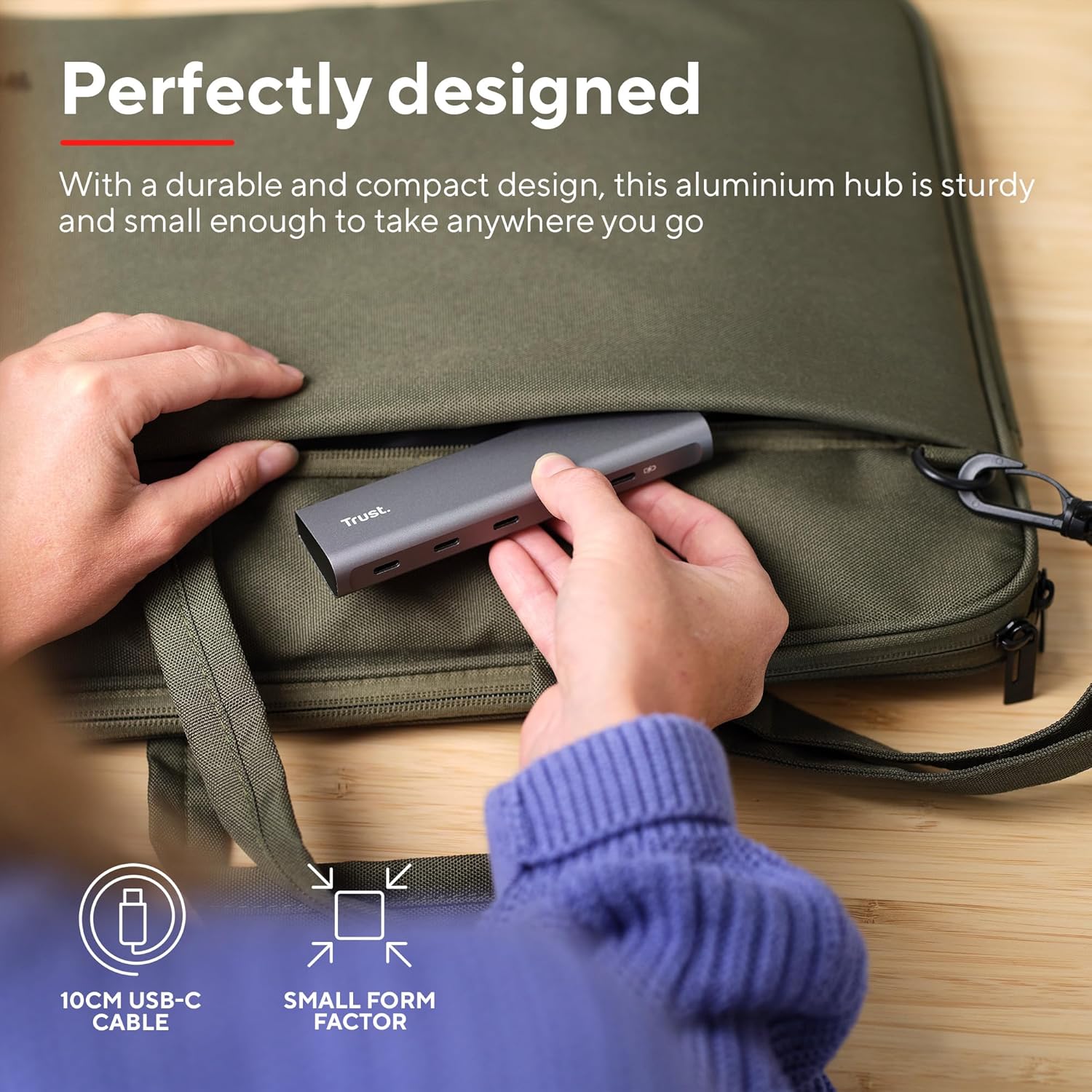
Image: The compact and durable design of the Trust Halyx hub, shown being placed into a laptop bag for portability.
6. Cara ngungkulan
If you encounter issues with your Trust Halyx USB-C Hub, refer to the following common solutions:
6.1 Devices Not Detected
- Pariksa sambungan: Ensure the hub's USB-C cable is securely plugged into your host device and that peripherals are firmly connected to the hub.
- Restart Host Device: Sometimes, a simple restart of your computer can resolve detection issues.
- Test Peripherals Directly: Connect the peripheral directly to your computer's USB-C port (if available) to confirm it is functioning correctly.
- Coba Port Béda: If your computer has multiple USB-C ports, try connecting the hub to a different one.
6.2 Charging Not Working
- Pariksa adaptor kakuatan: Ensure your USB-C power adapter is correctly connected to the hub's PD port and is capable of providing sufficient power for your laptop.
- Pariksa Kompatibilitas Laptop: Confirm your laptop supports USB-C Power Delivery for charging.
- Integritas kabel: Ensure the USB-C cable from your power adapter to the hub is not damaged.
6.3 Transfer Data Lambat
- Kasaluyuan alat: Ensure the connected peripheral supports USB 3.0 (5 Gbps) speeds. Older USB 2.0 devices will operate at their native slower speeds.
- Laju Port Host: Verify that the USB-C port on your computer supports USB 3.0 or higher data transfer rates.
- Hindarkeun Overloading: While the hub provides multiple ports, extremely demanding devices might perform better when connected directly to the host device if possible.
7. Spésifikasi
| Fitur | Rincian |
|---|---|
| Nomer modél | 25136 |
| merek | Amanah |
| Konektipitas | 1x USB-C Host Connector (integrated cable), 4x USB-C Data Ports, 1x USB-C Power Delivery Port |
| Laju Transfer Data | Nepi ka 5 Gbps (USB 3.0) |
| Pangiriman kakuatan | Ngecas pass-through nepi ka 100W |
| Bahan Perumahan | alumunium |
| Panjang kabel | 10 cm |
| Ukuran (L x W x H) | 1.26 x 5 x 0.63 inci (32 x 127 x 16 mm) |
| Beurat | 2.86 ons (81 gram) |
| Sistem Operasi cocog | Chrome OS, Windows 10 or 11, macOS 11, 12 or 13 |
8. Garansi jeung Rojongan
Kanggo inpormasi garansi sareng dukungan téknis, mangga tingal ka Yayasan resmi websitus atanapi ngahubungan layanan palanggan maranéhanana langsung. Simpen bukti pameseran anjeun pikeun klaim garansi.
Dukungan Online: www.trust.com/support


