Brother MFC-L8390CDW Multifunction Color LED Printer User Manual
Modél: MFC-L8390CDW
1. Bubuka
The Brother MFC-L8390CDW is a high-performance multifunction color LED printer designed for efficient printing, scanning, copying, and faxing. This device offers fast print speeds, advanced duplex capabilities, and versatile connectivity options to meet various office and home office needs.
- Print speeds up to 30 pages per minute (ppm).
- Duplex printing at up to 12 sides per minute.
- Single-pass duplex scanning up to 56 frames per minute.
- Features a 3.5-inch color touchscreen for intuitive control.
- Connectivity includes Gigabit Ethernet, 5GHz WiFi, and USB.
- Equipped with 512 MB of internal memory.
2. Setélan
Follow these steps to set up your Brother MFC-L8390CDW printer.
2.1 Ngabongkar bungkusan sareng Penempatan Awal
Carefully remove the printer from its packaging. Place the printer on a stable, level surface with adequate space for ventilation and access to power and network connections.
2.2 Installing Toner Cartridges and Drum Unit
The printer requires the installation of toner cartridges and a drum unit. Refer to the quick setup guide for detailed instructions on how to correctly install these components.
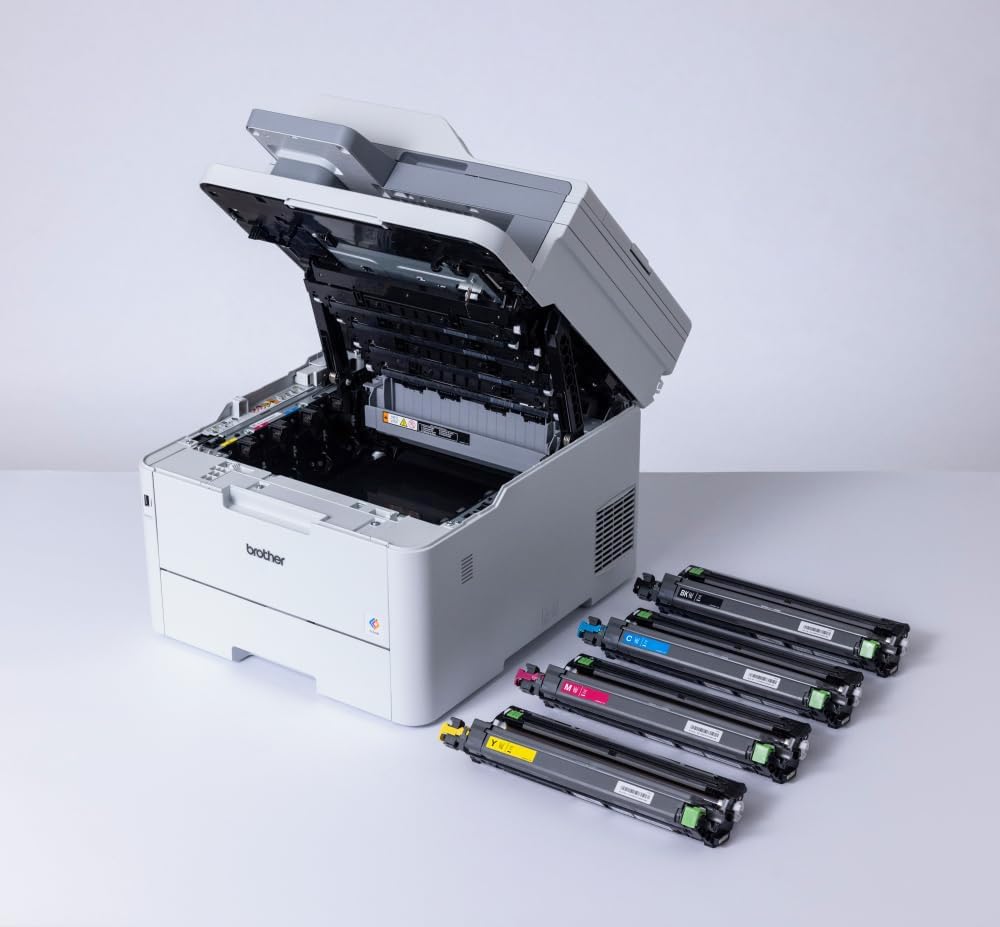
Image: The printer with its top cover open, showing the toner and drum area. Separate toner cartridges are displayed, ready for installation.
2.3 Loading Paper
Open the paper tray and adjust the paper guides to fit your paper size. Load the paper stack into the tray, ensuring it is flat and below the maximum fill line.
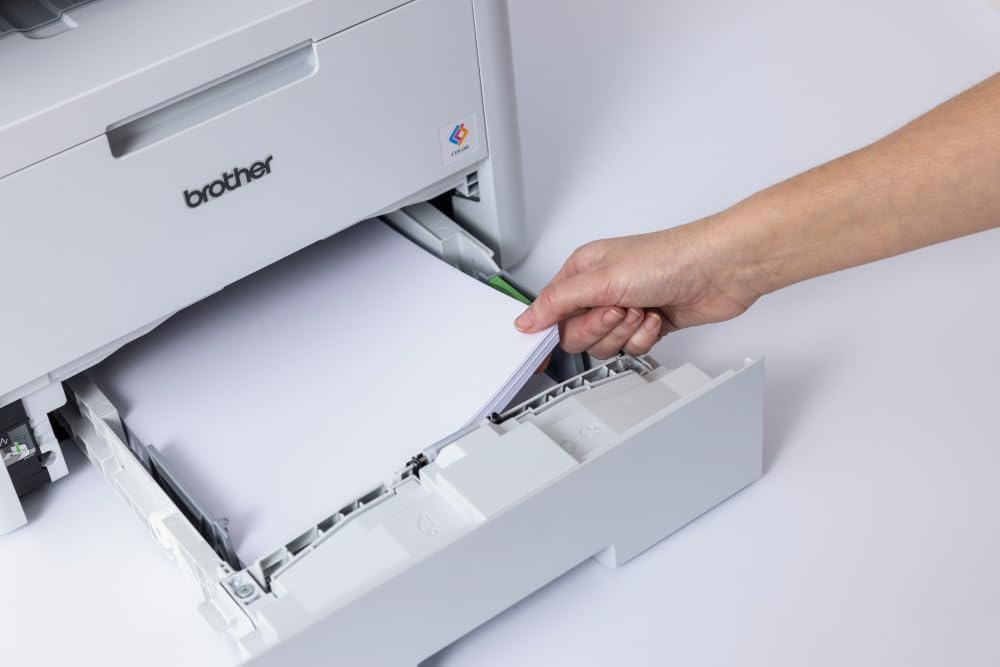
Image: A hand loading paper into the printer's paper tray.
2.4 Connecting to Power and Network
Connect the power cord to the printer and then to a power outlet. For network connectivity, you can use an Ethernet cable for a wired connection or configure the 5GHz WiFi connection through the printer's control panel. Alternatively, connect directly via USB to a computer.
3. Parentah Operasi
This section provides guidance on using the various functions of your multifunction printer.
3.1 Using the Touchscreen Control Panel
The 3.5-inch color touchscreen allows you to navigate menus, select functions, and adjust settings. Tap icons to access different features like Print, Scan, Copy, and Fax.

Image: A hand operating the printer's touchscreen control panel.
3.2 Nyitak Dokumén
To print, ensure the printer is connected to your device. Select the print option from your application and choose the Brother MFC-L8390CDW. You can configure settings such as color/monochrome, single-sided/duplex, and paper type. The printer supports various media, including A4, Legal, and Labels, with a maximum media size of A3.

Image: The printer in operation, with a document being printed.
3.3 Nyeken Dokumén
Place your document on the scanner glass or in the automatic document feeder (ADF) for single-pass duplex scanning. Use the touchscreen to select the 'Scan' function and choose your desired destination (e.g., computer, email, network folder).

Image: A hand placing a document on the scanner glass.
3.4 Nyalin Dokumén
Place the document on the scanner glass or in the ADF. Select 'Copy' from the touchscreen, adjust settings like number of copies, color/monochrome, and duplex options, then press Start.
4. Pangropéa
Pangropéa rutin mastikeun kinerja optimal sareng umur panjang printer anjeun.
4.1 Replacing Toner Cartridges and Drum Unit
When a toner cartridge or the drum unit reaches the end of its life, the printer will display a notification. Follow the instructions on the touchscreen or in the detailed user guide to replace these consumables. Always use genuine Brother replacement parts.
4.2 Ngabersihan Printer
Periodically clean the exterior of the printer with a soft, lint-free cloth. For internal cleaning, refer to the comprehensive user manual for specific instructions on cleaning the scanner glass, corona wire, and other components.
5. Cara ngungkulan
Upami anjeun ngalaman masalah sareng printer anjeun, pertimbangkeun léngkah-léngkah ngungkulan masalah umum ieu:
- Henteu aya kakuatan: Pastikeun kabel listrik disambungkeun sacara aman ka printer sareng stop kontak listrik anu tiasa dianggo.
- Kertas macét: Follow the on-screen instructions to clear any paper jams. Open all access covers to locate and gently remove jammed paper.
- Masalah Kualitas Cetakan: Check toner levels and drum unit life. Perform a print quality test from the printer's menu and clean the print head if necessary.
- Masalah Konektipitas Jaringan: Verify network cable connections or Wi-Fi settings. Restart your router and the printer.
- Pesen Kasalahan: Consult the detailed user manual or Brother's support website for specific error code explanations and solutions.
For more complex issues, contact Brother customer support or visit their official websitus pikeun pituduh ngungkulan lengkep jeung FAQs.
6. Spésifikasi
| Fitur | Spésifikasi |
|---|---|
| Ukuran produk (DxWxH) | 46.2D x 40.1W x 41H cm |
| Tipe Controller | Layar cabak |
| Ukuran Média Maksimum | A3 (for scanning), A4/Legal (for printing) |
| Komponén Kaasup | Machine, toner, drum, transfer belt, toner receptacle, power cord, quick setup guide, warranty card. (PC interface cable not included) |
| Rojongan Media Print | Labels, Standard Paper (up to 163g/m²) |
| Jenis scanner | Sheetfed |
| Max Input Lambaran Kamampuh | 530 lembar |
| Kagancangan Salin Maks. (Hideung jeung Beureum) | 30 ppm |
| Alat nu cocog | Smartphone, Komputer |
| Resolusi Cetak Maks (Warna/B&W) | 600 x 600 dpi |
| Jerona Warna | 24 bpp |
| Percetakan dua sisi | Sumuhun |
| Salinan Maksimum Per Jalankeun | 99 |
| Wattage | 50 watt |
| Téhnologi konektipitas | Ethernet, USB, 5GHz WiFi |
| Téhnologi percetakan | Laser |
| Fitur husus | Jaringan-Siap |
| Kaluaran printer | Warna |
| Laju Nyitak Maks (Warna) | 30 ppm |
| Max Monochrome Printing Speed | 30 ppm |
| Item Beurat | 21.9 kg |
| Mémori internal | 512 MB |
7. Garansi jeung Rojongan
Your Brother MFC-L8390CDW printer comes with a warranty. Please refer to the warranty card included in the packaging for details on coverage and terms. For technical support, driver downloads, and additional resources, visit the official Brother support websitus.
Dukungan Online: saderek.com


