
FOAOOD DQ201-B2
FOAOOD 2K Wireless Outdoor Solar Security Camera Instruction Manual
Model: DQ201-B2
1. Bubuka
This manual provides detailed instructions for the installation, operation, and maintenance of your FOAOOD 2K Wireless Outdoor Solar Security Camera (Model DQ201-B2). Please read this manual thoroughly before using the product to ensure proper functionality and safety.
The FOAOOD DQ201-B2 is a 2K QHD resolution, 360° Pan-Tilt-Zoom (PTZ) outdoor security camera featuring solar power, color night vision, PIR motion detection, and two-way audio. It is designed for continuous outdoor surveillance with IP66 weather resistance.
2. Eusi Paket
Pastikeun yén sadaya komponén aya dina pakét anjeun:
- FOAOOD 2K Wireless Outdoor Solar Security Camera (x2)
- Panel surya (x2)
- Pamasangan Bracket sareng Screws
- Kabel Ngecas USB
- Manual pangguna (dokumén ieu)

Image: Two FOAOOD DQ201-B2 cameras with solar panels, illustrating the main product components.
3. Spésifikasi
| Fitur | Rincian |
|---|---|
| Modél | DQ201-B2 |
| Resolusi Capture Video | 3 MP (2K QHD) |
| Téhnologi konektipitas | Wireless (2.4GHz Wi-Fi only) |
| Tipe Pamasangan | Tembok Gunung |
| Fitur husus | 360° PTZ, 2-Way Audio, Color Night Vision, PIR Motion Detection, IP66 Waterproof |
| Sumber Daya | Solar Powered with Rechargeable Lithium Polymer Battery |
| Kasaluyuan System Operasi | Android, ios |
| Bahan | logam |
| Suhu Operasi | -20°C nepi ka 60°C |
4. Setup Guide
4.1 Ngecas Awal
Before installation, fully charge the camera using the provided USB cable. Connect the cable to the camera's charging port and a standard 5V USB power adapter (not included). The charging indicator will show the status.
4.2 Pamasangan Aplikasi sareng Nyiptakeun Akun
Download the companion mobile application to your smartphone. The app is available for both Android and iOS devices.
- Pikeun Android: Download from Google Play Store
- Pikeun ios: Download from Apple App Store
After installation, open the app and follow the on-screen instructions to create a new user account or log in if you already have one.

Image: A smartphone displaying the camera's mobile application, indicating app functionality.
4.3 Camera Pairing with App
- Open the app and select "Add Device" or the '+' icon.
- Choose your camera model or scan the QR code on the camera/packaging.
- Ensure your phone is connected to a 2.4GHz Wi-Fi network. 5GHz Wi-Fi is not supported.
- Follow the app's instructions to connect the camera to your Wi-Fi network. This typically involves scanning a QR code generated by the app with the camera lens.
- Once connected, name your camera and complete the setup.
4.4 Masang Kaméra sareng Panel Surya
Select a mounting location that provides a clear view daérah anu anjeun hoyong pantau sareng tampi ample direct sunlight for the solar panel. The camera is IP66 waterproof, suitable for outdoor use.
- Posisi: Mount the camera at a height that offers optimal coverage and detection. The solar panel should be positioned to maximize sun exposure throughout the day.
- Pangeboran: Use the mounting bracket as a template to mark drill holes. Drill pilot holes and insert wall anchors if necessary.
- Pamasangan Aman: Attach the camera and solar panel mounting brackets securely to the wall or desired surface using the provided screws.
- Sambungkeun Panel Surya: Sambungkeun kabel panel surya ka port ngecas kaméra.

Image: A FOAOOD camera mounted outdoors, showing its 360-degree rotation capability and remote control via a mobile app.

Image: An outdoor camera installation on a wooden surface, illustrating the solar panel connection for continuous power and 2.4GHz Wi-Fi requirement.
5. Parentah Operasi
5.1 Hirup View jeung Kontrol PTZ
Open the app and select the desired camera to view the live feed. Use the on-screen controls to pan (horizontal rotation) and tilt (vertical rotation) the camera for a 360° coverage. You can also zoom in on the live feed.
5.2 Audio Dua Arah
The camera features a built-in microphone and speaker. Tap the microphone icon in the app to speak through the camera, and listen to audio from the camera's location.

Image: A user interacting with the two-way audio feature on the mobile app, demonstrating communication with someone near the camera.
5.3 Deteksi Gerak sareng Siaga
The camera uses PIR (Passive Infrared) human detection to minimize false alarms. When motion is detected, the camera can trigger various alerts:
- Mobile Notifications: Nampi bewara langsung dina smartphone anjeun.
- Alarm lampu: The camera's built-in light will activate.
- Sirineu Alarm: The camera will emit an audible siren.
You can customize detection zones, sensitivity levels, and alarm schedules within the app settings.

Image: An illustration of the camera's smart features, including customizable detection zones, scheduling, siren, and sensitivity settings.

Image: A night scene showing the camera's light alarm activated by a detected person, with a notification pop-up on a phone.
5.4 Modeu Visi Peuting
The camera supports both color night vision and infrared night vision for clear monitoring in low-light conditions.
- Warna Night Vision: Utilizes built-in spotlights to provide full-color video at night.
- Infrabeureum Night Vision: Uses infrared LEDs for black and white video in complete darkness, conserving power.
You can switch between these modes or set the camera to automatically select the appropriate mode based on ambient light.
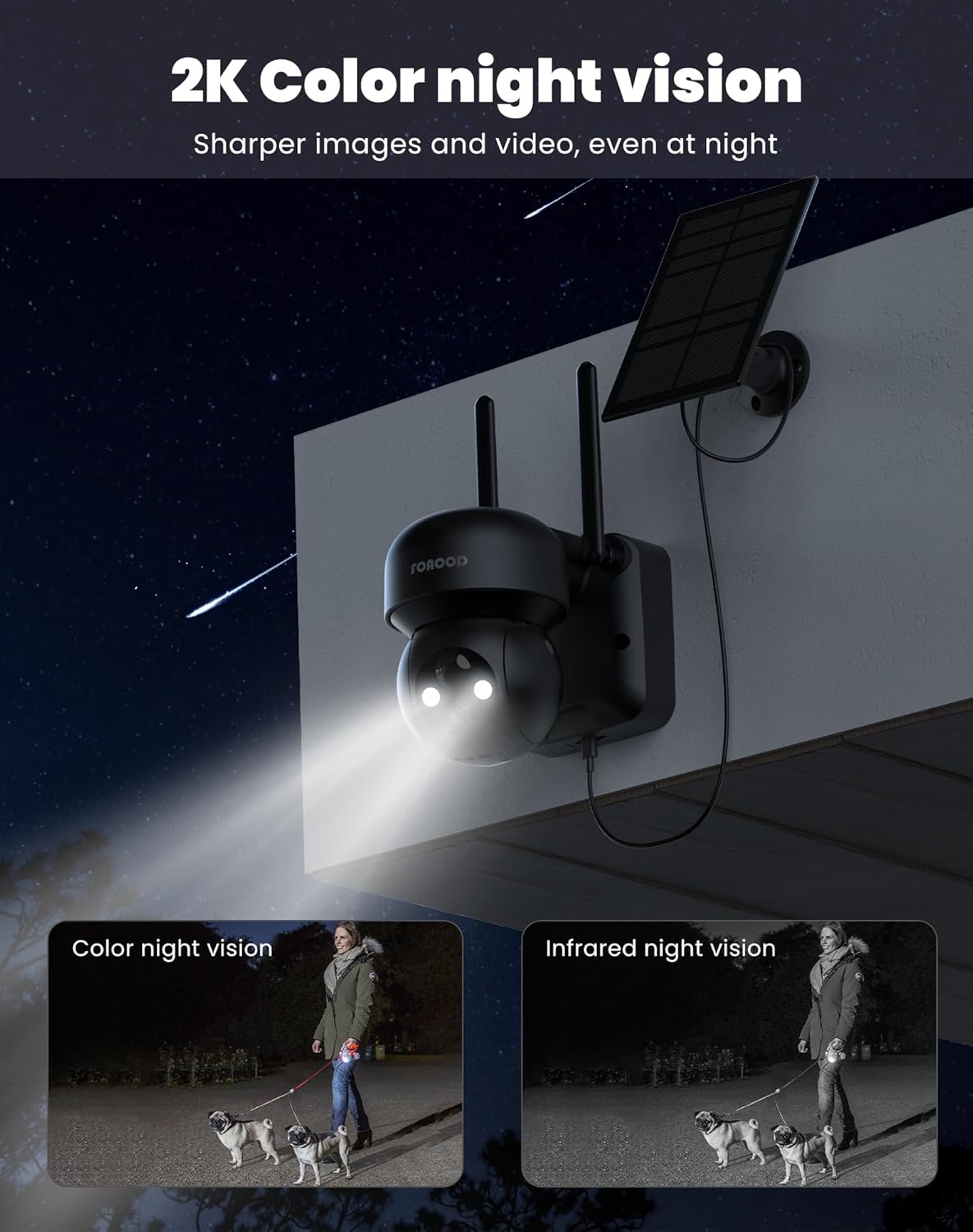
Image: A night view of the camera with its lights on, demonstrating the clarity of color night vision compared to infrared night vision.
5.5 Pilihan Panyimpenan
The camera supports local storage via an SD card (not included) and cloud storage (subscription may be required). Recorded footage bisa diaksés jeung ulangviewed through the mobile app.
5.6 Babagi kulawarga
You can share camera access with up to 5 family members or trusted individuals through the app, allowing multiple users to view live feeds and recordings simultaneously.

Image: A graphic depicting the family sharing function, where multiple users can access the camera feed from different locations.
6. Pangropéa
- beberesih: Périodik ngabersihan lénsa kaméra jeung panel surya ku lemes, damp cloth to ensure optimal performance. Avoid abrasive cleaners.
- Kaséhatan batré: The solar panel is designed to keep the battery charged. In prolonged periods of low sunlight, the camera can operate for 60-90 days on a full charge. If the battery level drops significantly, consider temporarily charging it via USB.
- Pembaruan firmware: Check the app regularly for firmware updates to ensure your camera has the latest features and security enhancements.
7. Cara ngungkulan
- Kaméra teu nyambung ka Wi-Fi:
- Pastikeun jaringan Wi-Fi anjeun 2.4GHz. Jaringan 5GHz teu dirojong.
- Pariksa kakuatan sinyal Wi-Fi di lokasi kaméra.
- Balikan deui router anjeun sareng kaméra.
- Pastikeun kaméra aya dina jangkauan router Wi-Fi anjeun.
- Kualitas gambar goréng:
- Ngabersihan lénsa kaméra.
- Pariksa laju sambungan internét anjeun.
- Pastikeun teu aya halangan di hareup lensa.
- Solar panel not charging:
- Ensure the solar panel is positioned to receive direct sunlight for several hours daily.
- Ngabersihan permukaan panel surya.
- Check the connection cable between the solar panel and the camera.
- Deteksi gerak teu jalan atanapi seueur teuing alarm palsu:
- Adjust the PIR sensitivity settings in the app.
- Konpigurasikeun zona deteksi pikeun ngaluarkeun daérah anu sering aya gerakan anu teu relevan (contona, jalan anu rame, tangkal anu oyag).
- Pastikeun lénsa kaméra beresih.
8. Garansi jeung Rojongan
FOAOOD provides technical support for its products. For any issues not covered in this manual, or for warranty inquiries, please contact FOAOOD customer service.
Email Kontak: foaood@520newice.com
Mangga tingal dokuméntasi pameseran Anjeun pikeun istilah jeung kaayaan jaminan husus.
Ask a question about this manual
Ask about setup, troubleshooting, compatibility, parts, safety, or missing instructions. Manuals+ will review the question and use this page’s manual context to help answer it.