
Cuifati Cuifati9ue1rxghng
Cuifati B75 S Mining Mainboard User Manual
Model: Cuifati9ue1rxghng
Bubuka
This manual provides comprehensive instructions for the installation, operation, and maintenance of your Cuifati B75 S Mining Mainboard. This ATX DDR3 LGA1155 Desktop Motherboard is designed to support various Intel Core processors and offers robust performance for desktop computing and mining applications. It features dual-channel DDR3 memory slots, multiple output interfaces including VGA, DVI, and HD Multimedia Interface, and Gigabit Ethernet support.

Gambar 1: Leuwihview of the Cuifati B75 S Mining Mainboard.
Setup sareng Instalasi
Follow these steps to properly install your B75 S Mining Mainboard into your computer system.
1. Nyiapkeun Motherboard
Ensure you are working in a static-free environment. Place the motherboard on an anti-static mat or in its original anti-static bag before installation.
2. Masang CPU
- Tangtukeun lokasi stop kontak LGA1155 CPU dina motherboard nu.
- Gently angkat tuas beban tur buka panutup stop kontak CPU.
- Align the CPU with the socket, ensuring the golden triangle on the CPU matches the triangle on the socket. Do not force the CPU into place.
- Lower the CPU into the socket, close the cover, and secure it with the load lever.

Figure 2: Diagram illustrating the various components and interfaces on the B75 S Mainboard, including the LGA1155 CPU socket.
3. Installing RAM (DDR3 Memory)
The motherboard features dual-channel DDR3 memory slots for enhanced performance.
- Buka klip dina kadua tungtung slot mémori DDR3.
- Align kiyeu dina modul memori DDR3 jeung konci dina slot memori.
- Pencét pageuh dina kadua tungtung modul mémori dugi ka jepitan dipasang dina tempatna.

Figure 3: The DDR3 dual channel memory slots, designed to significantly improve motherboard performance.
4. Nyambungkeun Power Supply
- Connect the 24-pin ATX power connector from your power supply unit (PSU) to the corresponding port on the motherboard.
- Connect the 4-pin CPU power connector (ATX_12V) to its designated port near the CPU socket.
5. Nginstal Alat Panyimpenan (SATA)
Connect your SATA hard drives or SSDs to the SATA ports on the motherboard. This motherboard supports SATA 2.0 and SATA 3.0.

Figure 4: Illustrates the process of connecting a SATA cable for storage devices.
6. Nyambungkeun Konektor Panel Hareup
Connect the power switch, reset switch, HDD LED, and power LED connectors from your PC case to the corresponding pins on the motherboard's front panel header. Refer to the motherboard diagram for exact pin locations.
7. Nyambungkeun périferal
Connect your monitor to the appropriate video output (VGA, DVI, or HD Multimedia Interface) on the motherboard's rear I/O panel. Connect USB devices, keyboard, and mouse to the available ports.
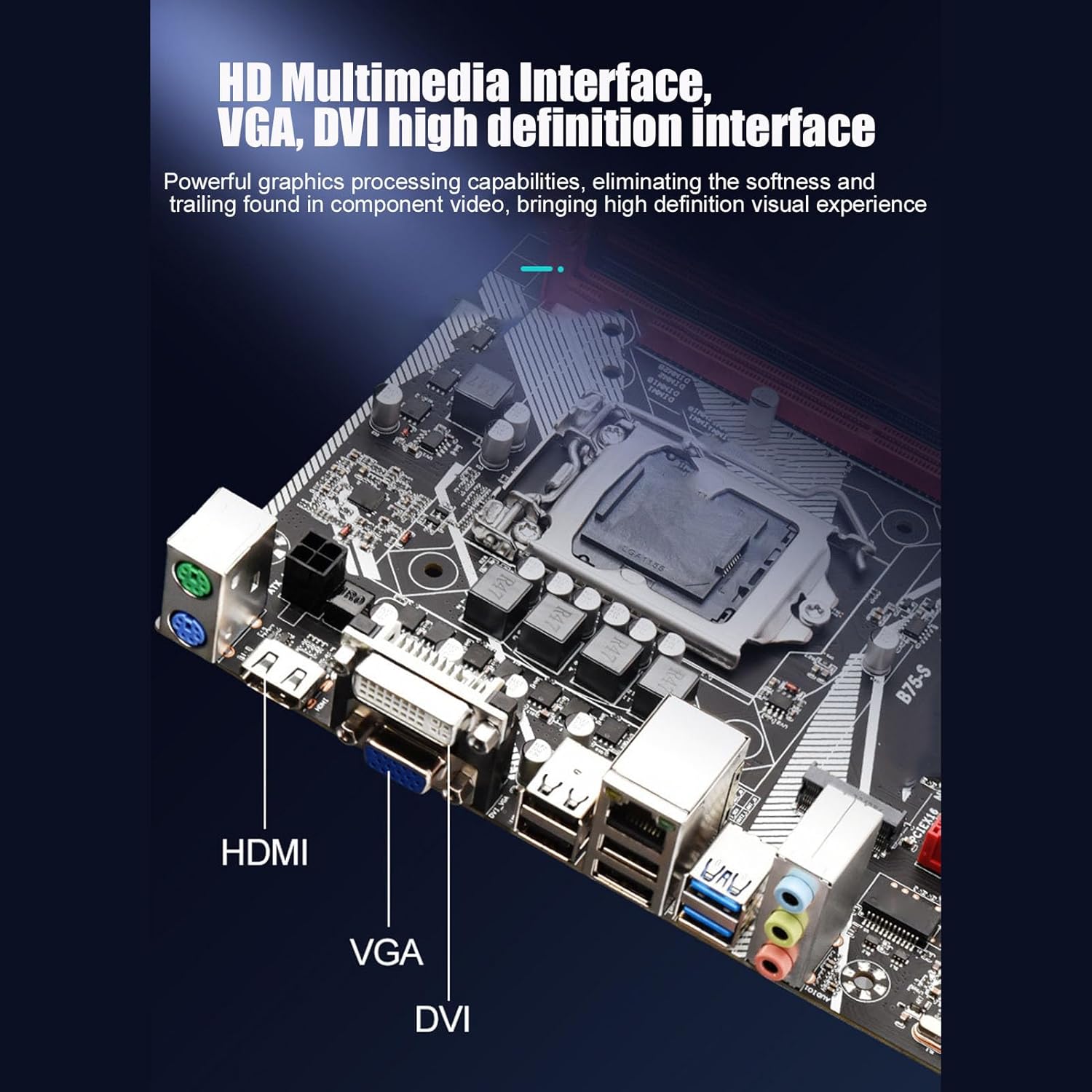
Figure 5: The rear I/O panel featuring HD Multimedia Interface, VGA, and DVI ports for high-definition visual output.

Gambar 6: Detil view of the rear I/O ports, including USB 2.0, USB 3.0, Gigabit Ethernet, and audio jacks.
Parentah Operasi
Sakali sadaya komponén dipasang sareng disambungkeun, anjeun tiasa ngaktipkeun sistem anjeun.
1. Boot munggaran
- After connecting all necessary cables, turn on the power supply.
- Pencét tombol daya dina kasus PC Anjeun.
- The system should boot up and display the BIOS/UEFI screen or begin the operating system installation process.
2. Konfigurasi mios / UEFI
During the initial boot, press the designated key (usually DEL or F2) to enter the BIOS/UEFI setup. Here you can configure boot order, system time, and other advanced settings. Ensure your storage devices are recognized and set the correct boot priority for your operating system installation media.
3. Pamasangan Sistem Operasi
Insert your Windows 10 (or other compatible OS) installation media (USB drive or DVD) and follow the on-screen prompts to install the operating system. After installation, install the necessary drivers for the motherboard components, including chipset, audio, LAN, and graphics drivers.
4. Utilizing Features
- Front USB 3.0 Interface: Connect compatible devices to the front USB 3.0 ports for faster data transfer speeds (up to 10x faster than USB 2.0).
- Ethernet Gigabit: For high-performance network connectivity, connect your Ethernet cable to the Gigabit LAN port. This is ideal for online gaming and high-speed data transfer.
- Antarmuka Multimédia HD: Use the HD Multimedia Interface port for high-definition audio and video output to compatible displays.
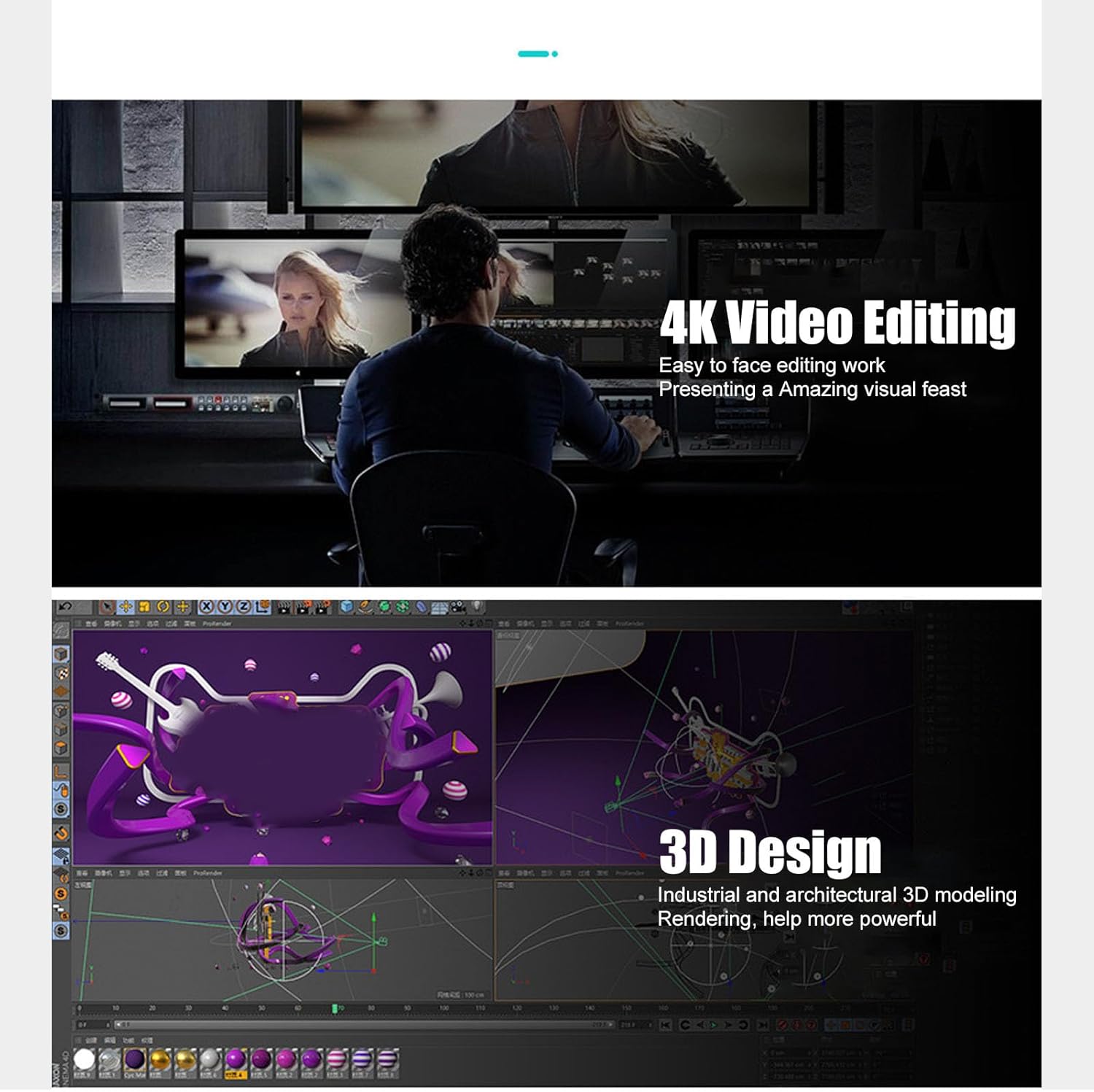
Figure 7: The motherboard's capabilities support demanding tasks such as 4K video editing and 3D design, providing a powerful visual experience.
Pangropéa
Pangropéa anu leres mastikeun umur panjang sareng kinerja optimal motherboard anjeun.
- Ngaleungitkeun lebu: Regularly clean dust from inside your PC case, especially around the motherboard, CPU cooler, and fan vents. Use compressed air for best results. Ensure the system is powered off and unplugged before cleaning.
- Pangimeutan Suhu: Monitor CPU and chipset temperatures using system monitoring software to prevent overheating. Ensure adequate airflow within the PC case.
- Pembaruan supir: Keep your motherboard drivers (chipset, audio, LAN, etc.) updated to the latest versions from the manufacturer's website for improved stability and performance.
- Solid Capacitors: The motherboard utilizes all solid-state capacitors, which contribute to its stability and extended lifespan. While these are highly durable, proper cooling and power supply are still essential.
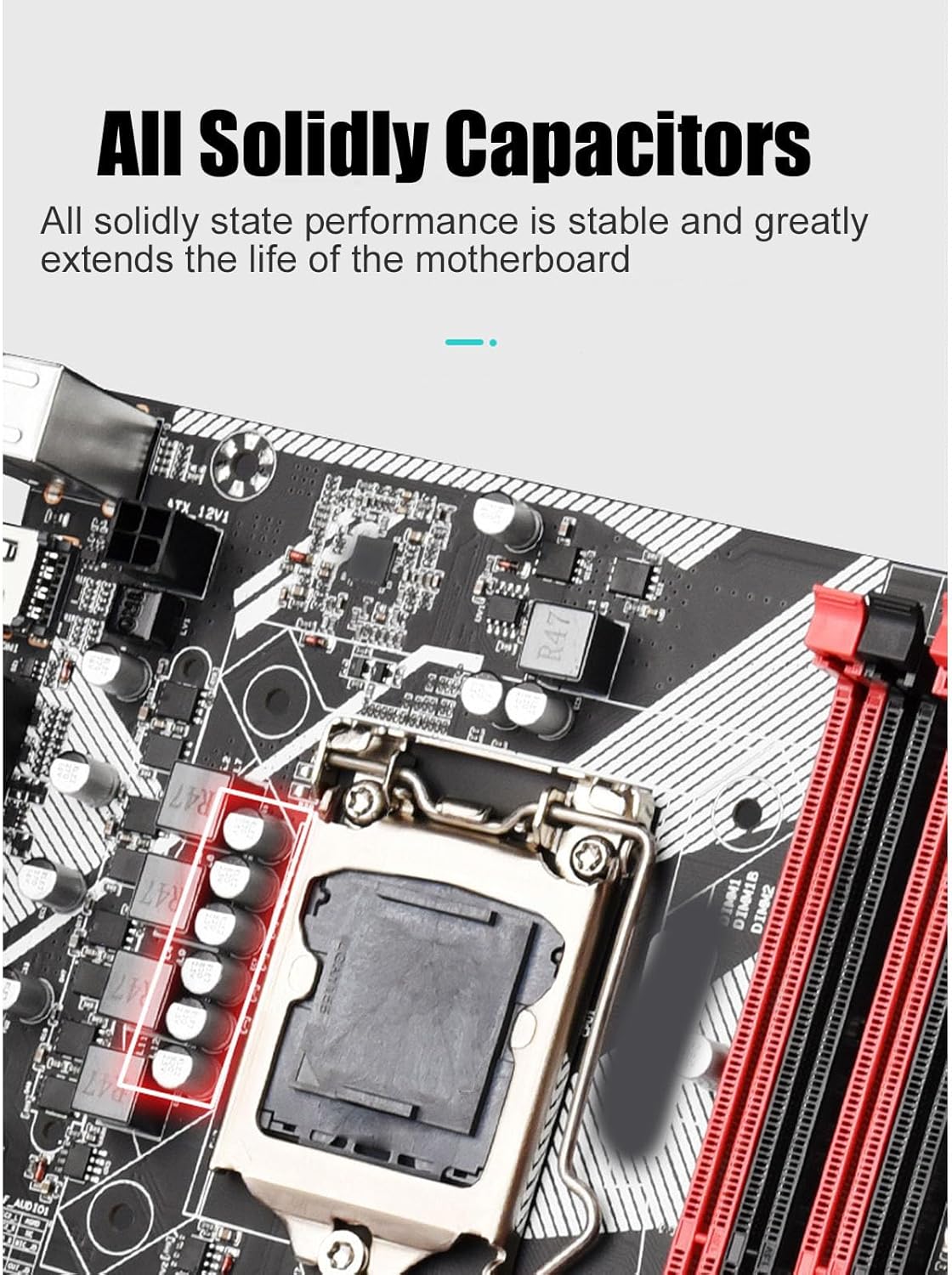
Figure 8: The all solid-state capacitors on the motherboard ensure stable performance and extended durability.
Pamérésan masalah
Bagian ieu ngabahas masalah umum anu anjeun tingali.
- Henteu Kakuatan / Henteu Boot:
- Check if the power supply unit (PSU) is properly connected to the motherboard (24-pin ATX and 4-pin CPU power).
- Ensure the front panel power switch connector is correctly attached to the motherboard.
- Verify the PSU is switched on and receiving power from the wall outlet.
- Henteu aya tampilan:
- Ensure the monitor is properly connected to the motherboard's video output (VGA, DVI, or HD Multimedia Interface) and is powered on.
- Reseat the RAM modules. Incorrectly seated RAM is a common cause of no display.
- Lamun make kartu grafik dedicated, pastikeun eta leres seated dina slot PCIe sarta boga kakuatan nyukupan.
- Instabilitas Sistem / Kacilakaan:
- Check for overheating. Ensure CPU cooler is properly installed and fans are working.
- Jalankeun alat diagnostik mémori pikeun mariksa RAM anu lepat.
- Update motherboard chipset drivers and BIOS/UEFI firmware.
- Alat USB Teu Dipikawanoh:
- Pastikeun panggerak USB parantos dipasang.
- Coba sambungkeun alat ka port USB anu béda.
- Pariksa setélan BIOS/UEFI pikeun mastikeun port USB diaktipkeun.
spésifikasi
| Fitur | Rincian |
|---|---|
| merek | Cuifati |
| Ngaran modél | Cuifati9ue1rxghng |
| CPU Socket | LGA 1155 |
| Prosesor cocog | Intel Core i3-3xxx, Intel Core i5-3xxx, Intel Core i7-3xxx, Intel Core i3-4xxx, Intel Core i5-4xxx, Intel Core i7-4xxx |
| Téhnologi Mémori RAM | DDR3 |
| Mémori Jam Speed | 2400 MHz |
| Kapasitas Panyimpen Mémori (Max) | 64 GB |
| Tipe Chipset | Intel B75 Express |
| Alat nu cocog | Komputer Pribadi |
| Platform | Windows 10 |
| Interfaces kaluaran | HD Multimedia Interface, VGA, DVI |
| Ethernet | Gigabit Ethernet |
| Antarbeungeut USB | Front USB 3.0, USB 2.0 |
| Kapasitor | All Solid State Capacitors |
| Ukuran Paket | 11.57 x 9.53 x 2.4 inci |
| Item Beurat | 1.67 pon |
| Produsén | Cuifati |
| Tanggal Kahiji Sadia | 18 Juli 2023 |

Figure 9: Key performance features of the Cuifati B75 S Mainboard.
Garansi sareng Rojongan
For warranty information and technical support, please refer to the official Cuifati websitus atanapi hubungi pangecér anjeun. Simpen resi pameseran anjeun salaku bukti pameseran pikeun klaim garansi.
- Kabijakan pamulangan: The product typically comes with a 30-day return/replacement policy from the date of purchase.
- Rencana panyalindungan: Additional protection plans (e.g., 3-Year or 4-Year Protection Plans) may be available for extended coverage. Please check with your retailer for details.
Ask a question about this manual
Ask about setup, troubleshooting, compatibility, parts, safety, or missing instructions. Manuals+ will review the question and use this page’s manual context to help answer it.