Bubuka
This manual provides essential instructions for setting up, operating, maintaining, and troubleshooting your new Tesla 65-inch 4K UHD Smart TV (Model 65E635SUS). Please read this manual thoroughly before using the television to ensure proper operation and to maximize your viewpangalaman. Simpen manual ieu pikeun rujukan ka hareup.
Inpormasi Kaamanan Penting: Always follow basic safety precautions when using this product to reduce the risk of fire, electric shock, and injury. Do not attempt to service this product yourself. Refer all servicing to qualified service personnel.
1. Setélan
1.1 Ngabongkar jeung Mariksa Eusina
Cabut TV sacara saksama tina bungkusanna. Pastikeun yén sadaya komponén aya:
- Tesla 65-inch 4K UHD Smart TV
- Kadali jauh
- Batré AAA pikeun Remote Control
- Stand TV (2 buah)
- Screws pikeun TV Stand
- Kabel listrik
- Manual pangguna (dokumén ieu)

Gambar 1.1: Hareupeun view of the Tesla 65-inch Smart TV with its stand.
1.2 Ngagantelkeun TV Stand
- Teundeun TV nyanghareup ka handap dina permukaan datar nu lemes pikeun nyegah karuksakan layar.
- Sejajarkeun unggal potongan nangtung sareng slot anu cocog dina handapeun TV.
- Ngamankeun unggal sapotong nangtung kalawan screws disadiakeun. Pastikeun aranjeunna tightened pageuh.

Gambar 1.2: Tukangeun view TV, anu ngagambarkeun titik-titik pamasangan stand.
Catetan: If you plan to wall-mount the TV, refer to the wall-mount kit instructions (sold separately) and skip this step. Ensure proper ventilation when wall-mounting.
1.3 Nyambungkeun Daya
Sambungkeun kabel daya kana input daya TV teras kana stop kontak. TV bakal asup kana modeu siaga.
1.4 Setup Awal
Saatos diaktipkeun heula, TV bakal ngabimbing anjeun dina prosés pangaturan awal:
- Pilihan Basa: Pilih basa anu anjeun pikaresep.
- Sambungan jaringan: Sambungkeun ka jaringan Wi-Fi Anjeun atawa pake kabel Ethernet pikeun sambungan kabel.
- Asup Akun Google: Sign in with your Google account to access Google Play Store, Google Assistant, and other Android TV features.
- Scan Channel: Pilari saluran TV anu sayogi upami anjeun nganggo anteneu atanapi sambungan kabel.
- Setélan Privasi: Review sareng saluyukeun setélan privasi sakumaha anu dipikahoyong.
2. Parentah Operasi
2.1 Jauh Control Leuwihview
The provided remote control allows you to navigate the TV's features. Insert the AAA batteries into the remote control before use.

Image 2.1: Bluetooth remote control for the Tesla Smart TV.
- Tombol Daya: Ngahurungkeun atanapi mareuman TV (mode sayaga).
- Pad Navigasi (Kaluhur/Turun/Kénca/Katuhu/OK): Navigates ménu jeung milih item.
- Tombol Balik: Mulih ka layar saméméhna.
- Tombol imah: Ngaksés layar utama Android TV.
- Volume Kaluhur/Turun: Saluyukeun tingkat polumeu.
- Tombol Bisu: Ngajempékeun atanapi nganonaktipkeun sora.
- Tombol Asisten Google: Ngaktipkeun kadali sora.
- Tombol potong kompas aplikasi: Aksés langsung ka layanan streaming populér (contona, Netflix, YouTube).
2.2 Android TV 11 Interface Navigation
The Android TV 11 interface provides access to apps, settings, and content. Use the navigation pad on your remote to move through the home screen.
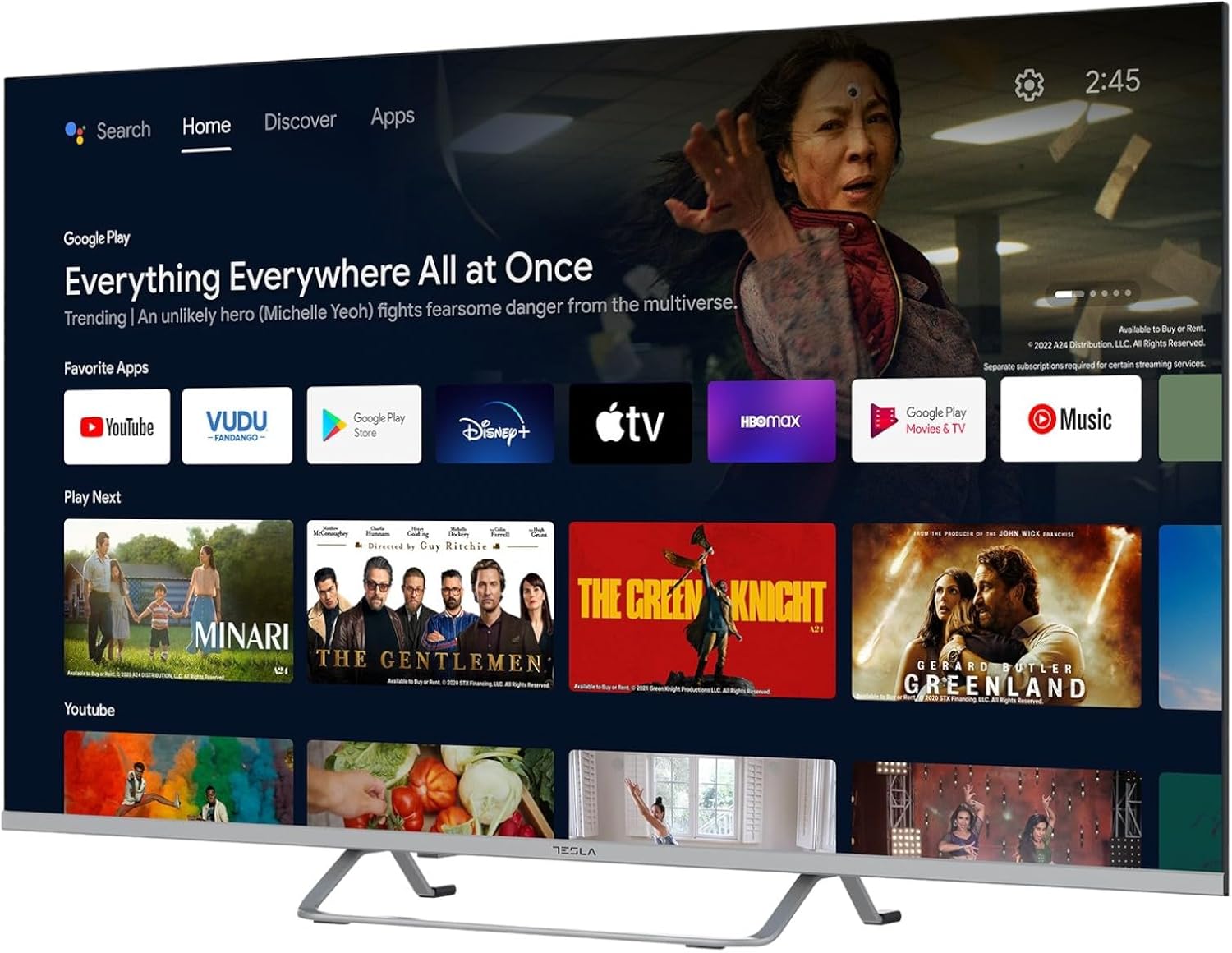
Image 2.2: The Android TV 11 home screen, displaying various applications and content suggestions.
- Layar Utama: Nampilkeun eusi anu disarankeun, aplikasi anu dipasang, sareng sumber input.
- Apps Section: Aksés sadaya aplikasi anu dipasang.
- Setélan: Configure TV settings, network, accounts, and device preferences.
2.3 Ngagunakeun Asisten Google
Press the Google Assistant button on your remote and speak into the microphone to control your TV, search for content, get information, and more.
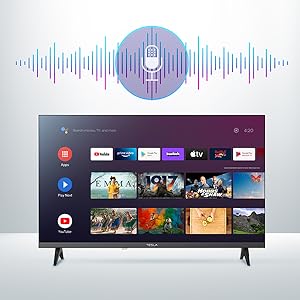
Image 2.3: Visual representation of Google Assistant activation on the TV screen.
Exampsababaraha paréntah:
- "Buka Netflix"
- "Milarian pikeun pilem aksi"
- "Sapertos kumaha kaayaan hawa na?"
- "Turn up the volume"
2.4 Chromecast Diwangun-di
Use Chromecast built-in to cast content from your compatible smartphone, tablet, or computer directly to your TV. Ensure your device is connected to the same Wi-Fi network as the TV.

Image 2.4: A smartphone casting content to the TV via Chromecast.
2.5 Nyambungkeun Alat éksternal
TV anjeun nawiskeun sababaraha pilihan konektipitas:
- Port HDMI (x4): Sambungkeun pamuter Blu-ray, konsol game, set-top box, jsb.
- Port USB (x2): Connect USB drives for media playback or external keyboards/mice.
- Ethernet (LAN): Pikeun sambungan internét kabel.
- Wifi: Pikeun sambungan internét nirkabel.
- Bluetooth: Sambungkeun headphone nirkabel, speaker, atawa alat Bluetooth séjén.

Gambar 2.5: Sisi profile of the TV, highlighting accessible ports.
2.6 Gambar jeung Sora Setélan
Access the TV's settings menu to customize picture and sound options.
Gambar 2.6: Example of the TV's settings menu for customization.
- Modeu Gambar: Select from Standard, Vivid, Sport, Movie, Game, or User (custom) modes. Adjust brightness, contrast, color, and sharpness.
- HDR10: The TV supports HDR10 for enhanced contrast and color with compatible content.
- Modeu sora: Choose from Standard, Music, Movie, Sport, or User (custom) modes. Use the equalizer to fine-tune audio frequencies.
- Panyatur: The TV features 2 x 12W speakers.
3. Pangropéa
3.1 Ngabersihan TV
- layar: Ngusap layar nganggo kaén anu lembut sareng teu aya serat. Pikeun tanda pengkuh, enteng dampen lawon jeung cai atawa cleaner layar husus. Ulah nyemprot cleaner langsung kana layar.
- awak: Lap awak TV ku lawon anu lemes sareng garing. Hindarkeun nganggo pembersih atanapi pelarut anu abrasif.
- Salawasna cabut TV tina stop kontak sateuacan beberesih.
3.2 Apdet parangkat lunak
Your Tesla Smart TV may receive software updates to improve performance and add new features. Ensure your TV is connected to the internet to receive these updates automatically or check for them manually in the settings menu.
4. Cara ngungkulan
Sateuacan ngahubungi dukungan, cobian solusi ieu pikeun masalah umum:
| Masalah | Solusi anu mungkin |
|---|---|
| Taya kakuatan | Check if the power cord is securely connected to the TV and the wall outlet. Ensure the outlet is working. |
| Henteu aya gambar, tapi aya sora | Pastikeun sumber input anu bener dipilih. Pariksa sambungan kabel ka alat éksternal. Coba hurungkeun deui TV. |
| Henteu aya sora, tapi aya gambar | Check the volume level and ensure the TV is not muted. Verify audio settings and external speaker connections if applicable. |
| Kadali jauh teu jalan | Ganti batréna. Pastikeun teu aya halangan antara remot sareng TV. Pasangkeun deui remot Bluetooth upami diperyogikeun (tingali setélan TV). |
| Masalah sambungan jaringan | Balikan deui router sareng modem anjeun. Pariksa kecap akses Wi-Fi. Cobi sambungan Ethernet kabel upami tiasa. |
| Aplikasi ngalambatkeun atanapi ngadat | Close unused apps. Clear app cache (Settings > Apps > [App Name] > Clear cache). Restart the TV. |
5. Spésifikasi
| Fitur | Rincian |
|---|---|
| merek | TESLA |
| Nomer modél | 65E635SUS |
| Ukuran layar | 65 Inci (165 cm) |
| Téknologi tampilan | LED |
| Resolusi | 4K (3840 x 2160) |
| Refresh Laju | 60 Hz |
| Sistem operasi | Android TV 11 |
| Fitur husus | High Dynamic Range (HDR10), Google Play, Chromecast Built-in, Google Assistant, Personalized Surround Sound |
| Konektipitas | Wi-Fi, Bluetooth, Ethernet (LAN) |
| Palabuhan HDMI | 4 |
| palabuhan USB | 2 |
| Kaluaran Audio | Speaker 2 x 12W |
| Ukuran produk (kalayan stand) | 25D x 25W x 144.5H cm (approximate) |
6. Garansi jeung Rojongan
For warranty information, please refer to the warranty card included with your product or visit the official Tesla websitus. Simpen bukti pameseran anjeun pikeun klaim garansi.
For technical support or service inquiries, please contact Tesla customer service through their official channels. Contact details can typically be found on the manufacturer's websitus atanapi dina bungkusan produk.


