1. Bubuka
This manual provides comprehensive instructions for the Olvy Wireless Android Auto Dongle W-28. This device enables wireless Android Auto connectivity in compatible vehicles, allowing you to access your smartphone's features on your car's display without a physical cable connection.
Catetan penting: To use this dongle, your vehicle must have a factory-integrated Android Auto system that also supports wired CarPlay. This is typically found in 98% of cars manufactured after 2017. The dongle supports Android phones running Android 10 or higher.

Image 1.1: The Olvy dongle facilitating wireless Android Auto, eliminating cable clutter.
2. Émbaran Kasalametan
- Ulah nyobian ngabongkar atawa ngaropéa alat.
- Jauhkeun alat tina cai, beueus, sareng suhu anu ekstrim.
- Ensure the device is securely connected to prevent accidental disconnection during driving.
- Operate your vehicle responsibly. Do not interact with the device or your smartphone in a way that distracts you from driving.
3. Eusi Paket
Mangga parios pakét kanggo barang-barang ieu:
- Olvy Wireless Android Auto Dongle W-28
- USB-C ka USB-A Cable
- USB-C ka USB-C Cable
4. Produk Langkungview
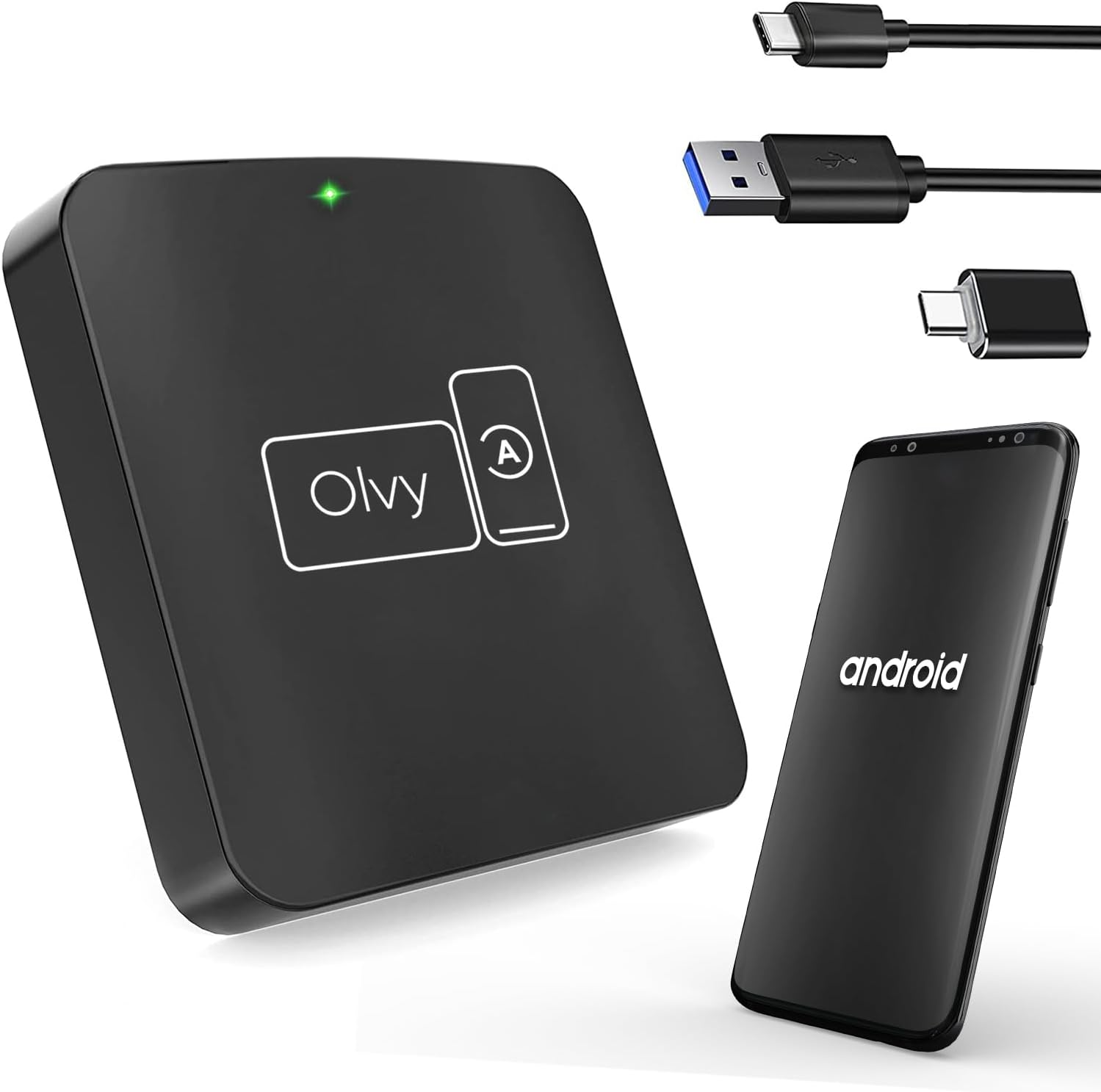
Image 4.1: Olvy Wireless Android Auto Dongle and connectivity options.
The Olvy Wireless Android Auto Dongle is a compact device designed to provide a seamless wireless connection between your Android smartphone and your car's infotainment system. It features a 5.8GHz chip for faster and more stable connections.

Image 4.2: Compact design and dimensions of the Olvy dongle (55mm x 55mm x 12mm).

Image 4.3: Key features of the Olvy dongle, including Plug & Play functionality and a 5.8GHz chip.
5. Parentah Setup
Turutan léngkah-léngkah ieu pikeun nyetél gancang sareng gampang:
- Step 1: Connect the Dongle to your Car. Use the provided USB-C to USB-A or USB-C to USB-C cable to connect the Olvy dongle to your car's USB port. Ensure the port supports data transfer for Android Auto.
- Step 2: Pair your Smartphone via Bluetooth. On your smartphone, enable Bluetooth and search for available devices. Select the device named "Smart-box..." (or similar) and pair with it.
- Step 3: Establish Wireless Connection. Once paired, the dongle will automatically connect your phone to the car's Android Auto system wirelessly. The initial setup typically takes about 15 seconds. Subsequent connections should occur within 5 seconds automatically.
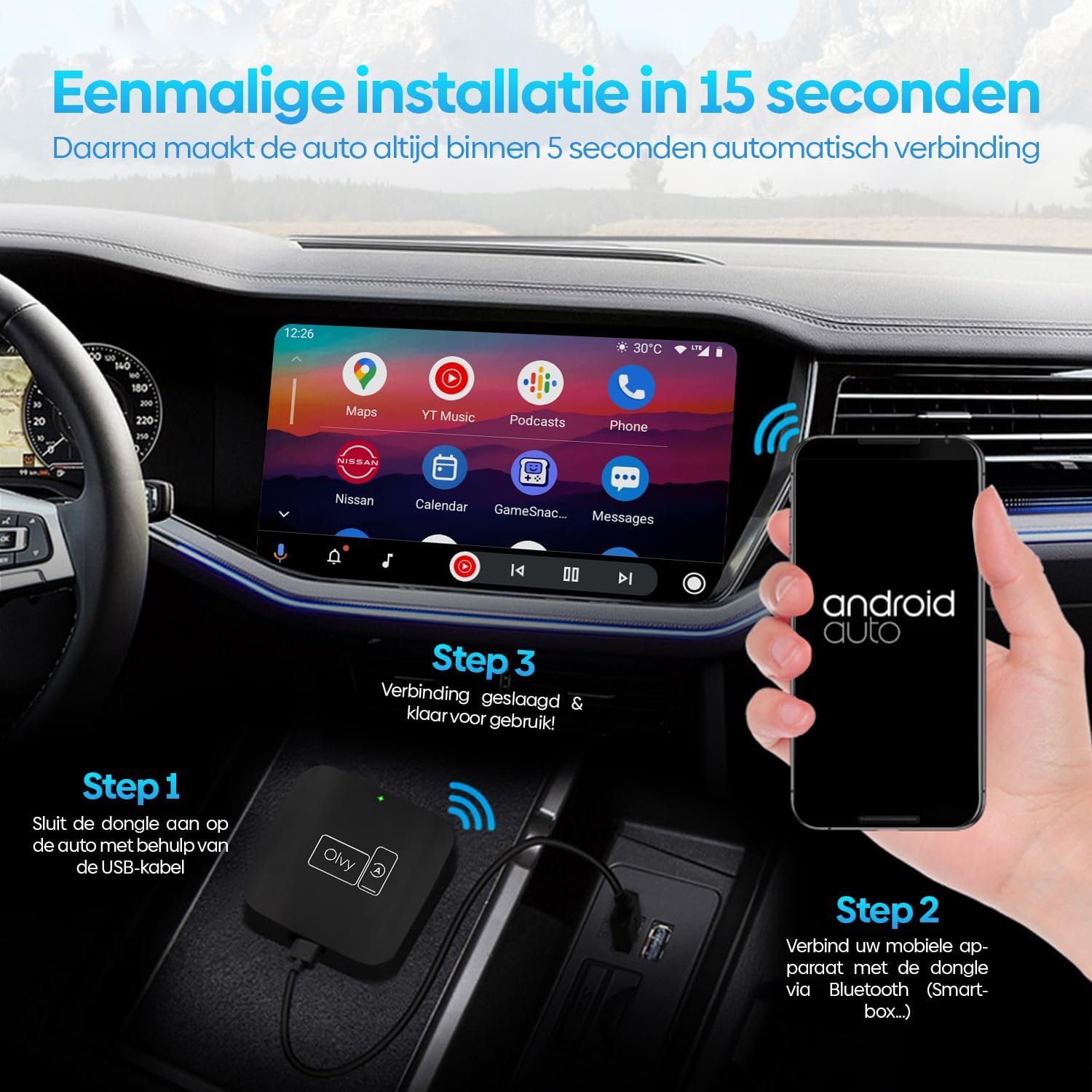
Image 5.1: Visual guide for the 3-step installation process.
6. Parentah Operasi
6.1. Ngagunakeun Android Auto
Once connected, your car's display will show the Android Auto interface. You can navigate through apps, maps, music, and calls directly from your car's screen.
6.2. Métode kontrol
The Olvy dongle supports various control methods available in your vehicle:
- Kadali setir: Use your car's built-in steering wheel buttons for audio, calls, and navigation.
- OEM Knob Controls: Utilize the original equipment manufacturer (OEM) control knobs for menu navigation.
- Kontrol sora: Activate voice commands through your car's system or by saying "Hey Google" to control Android Auto hands-free.
- Operasi layar rampa: Interaksi langsung sareng layar rampa mobil.

Image 6.1: Supported control methods for Android Auto.
6.3. Poé jeung Peuting Mode
The dongle supports automatic switching between day and night modes to optimize screen visibility and protect driver's vision. It detects ambient light conditions or car headlight status to adjust the display accordingly.

Image 6.2: Android Auto display in day and night modes.
7. Pangropéa
- Keep the dongle clean and free from dust. Use a soft, dry cloth for cleaning.
- Hindarkeun alat ka sinar panonpoé langsung pikeun période anu panjang.
- Simpen alat dina tempat anu tiis sareng garing upami henteu dianggo.
8. Cara ngungkulan
| Masalah | Mungkin Cukang lantaranana | Solusi |
|---|---|---|
| Device does not connect automatically. | Bluetooth not paired or connection interrupted. | Ensure Bluetooth is enabled on your phone and paired with "Smart-box...". Reconnect manually if necessary. |
| Android Auto does not launch. | Car's USB port not providing data, or car does not support wired Android Auto/CarPlay. | Try a different USB port in your car. Verify your car supports factory-wired Android Auto and CarPlay. Ensure your phone runs Android 10 or higher. |
| sambungan intermittent. | Gangguan atawa sinyal lemah. | Ensure no other Bluetooth devices are causing interference. Try restarting both the dongle (by unplugging and replugging) and your phone. |
9. Spésifikasi
- model: W-28
- merek: Olvy
- Téknologi konektipitas: Bluetooth, USB, Wi-Fi
- Tipe Panyambung: USB-C, USB-A
- Fitur husus: Nirkabel Android Auto
- Alat anu cocog: Smartphone Android (Android 10+)
- Resolusi: 1080p (supported by Android Auto)
- ukuran: Kira-kira 55mm x 55mm x 12mm
10. Garansi jeung Rojongan
For warranty information and technical support, please refer to the official Olvy websitus atanapi ngahubungan pangecér Anjeun. Simpen resi pameseran anjeun salaku bukti pameseran.
Pabrikan: Olvy
Tanggal Dileupaskeun: 27 Juni 2023


