Bubuka
This manual provides detailed instructions for the proper use and maintenance of your UNIWA P5 DMR PoC Walkie Talkie. The UNIWA P5 is a rugged communication device designed for reliable performance, featuring Android 9.0, a durable IP65 waterproof and dustproof rating, and versatile communication capabilities including Digital Mobile Radio (DMR) and Push-to-Talk over Cellular (PoC).
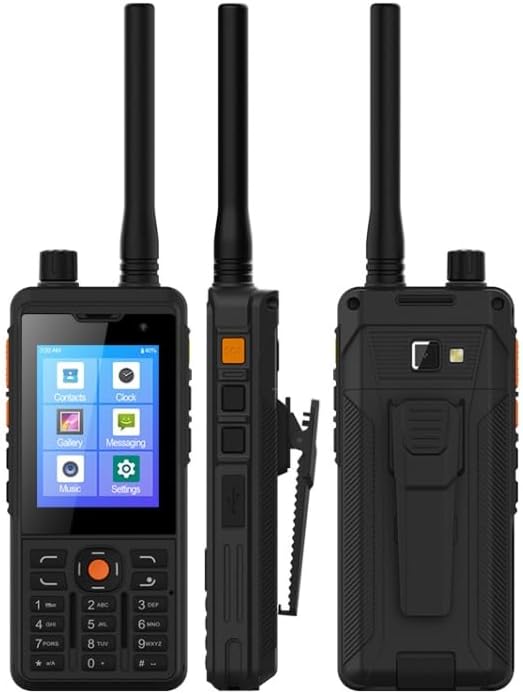
Gambar 1: Hareup, sisi, jeung tukang views of the UNIWA P5 device, highlighting its compact and robust design.
Guide Setup
Naon dina Box
Mangga parios eusi pakét anjeun:
- UNIWA P5 Device
- Detachable Li-polymer Battery (5300mAh)
- USB Type-C Charging Cable (typically included)
- Power Adapter (typically included)
Instalasi batré sareng Ngecas
- Cabut panutup tukang alat sacara saksama.
- Insert the 5300mAh detachable Li-polymer battery into the battery compartment, ensuring the contacts align correctly.
- Ganti panutup tukang, pencét pageuh nepi ka klik kana tempatna.
- Connect the USB Type-C charging cable to the device's Type-C port and the other end to the power adapter. Plug the adapter into a power outlet.
- Allow the device to charge fully before first use. The charging indicator will show the battery status.
Kartu SIM sareng Pamasangan Kartu TF
- With the back cover removed, locate the two Micro SIM card slots and the TF card slot.
- Insert your Micro SIM card(s) into the designated slots with the gold contacts facing down.
- If desired, insert a TF (microSD) card (up to 64GB, not included) into its slot for expanded storage.
- Ensure all cards are securely seated before replacing the back cover.
Daya Awal Hurung
Press and hold the Power button (usually located on the side of the device) for a few seconds until the screen lights up and the UNIWA logo appears. Follow the on-screen prompts to complete the initial setup of the Android 9.0 operating system.

Gambar 2: Hareup jeung tukang views of the UNIWA P5, illustrating the design and location of the removable back cover for battery and SIM/TF card access.
Parentah Operasi
Alat Langkungview jeung Kontrol
The UNIWA P5 features a 2.8-inch IPS TFT touchscreen for navigation and a physical keypad for dialing and input. Key physical controls include:
- Tombol Daya: On/Off, Screen Lock/Unlock.
- Tombol Volume: Saluyukeun tingkat audio.
- Tombol PTT (Push-to-Talk): For instant communication in PoC or DMR modes.
- Tombol Napigasi: Pikeun menu navigasi jeung pilihan.
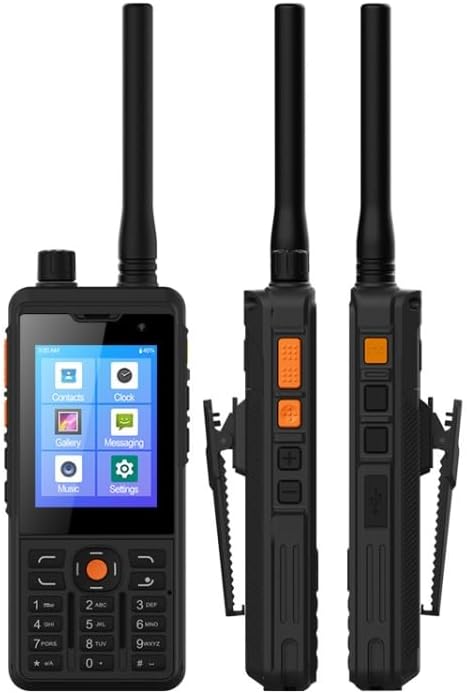
Gambar 3: Hareup jeung sisi views of the UNIWA P5, highlighting the physical buttons and their typical locations.
Napigasi Dasar
The device runs on Android 9.0, providing a familiar smartphone-like interface. Use the touchscreen to tap icons, swipe through menus, and enter text. The physical keypad can also be used for dialing numbers and navigating certain menus.
PoC (Push-to-Talk Over Cellular) Functionality
The PoC feature allows for instant group communication over cellular networks (3G/4G) or Wi-Fi. To use PoC:
- Ensure you have an active SIM card with data or are connected to Wi-Fi.
- Open the PoC application (e.g., Zello, or a pre-installed PoC client).
- Select your desired contact or group.
- Press and hold the dedicated PTT button to transmit your voice. Release to listen.
DMR (Digital Mobile Radio) Functionality
The UNIWA P5 supports DMR for digital two-way radio communication. This version is distinct from the PoC-only model.
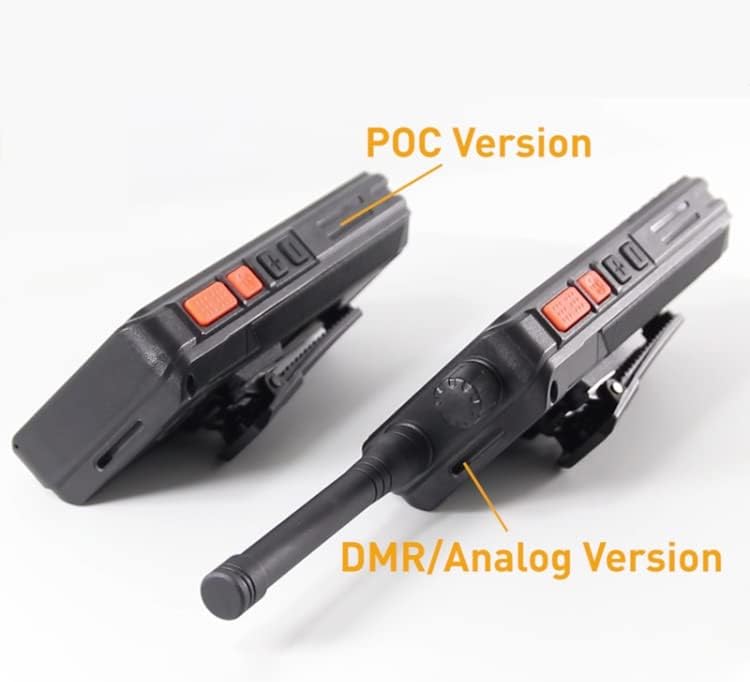
Figure 4: A visual comparison highlighting the differences between the PoC-only version and the DMR/Analog version of the device, typically in antenna and control layout.
To use DMR:
- Ensure the device is configured for DMR operation (may require specific software or settings).
- Select the desired DMR channel or talk group.
- Press and hold the PTT button to transmit. Release to receive.
Multimedia and Connectivity
- Kaméra: The device has a 2MP front camera and a 5.0MP AF rear camera with LED flashlight. Access the camera app from the main menu to take photos or record videos.
- Gallery/Music: View your photos and videos in the Gallery app, and play music files using the Music app.
- Hotspot Wi-Fi: Share your device's cellular data connection with other devices by enabling the Wi-Fi hotspot feature in settings.
- Fungsi OTG: The device supports On-The-Go (OTG) functionality, allowing you to connect USB peripherals like flash drives (requires an OTG adapter, not included).
- Senter: The built-in LED flashlight can be activated from the quick settings panel or a dedicated app.
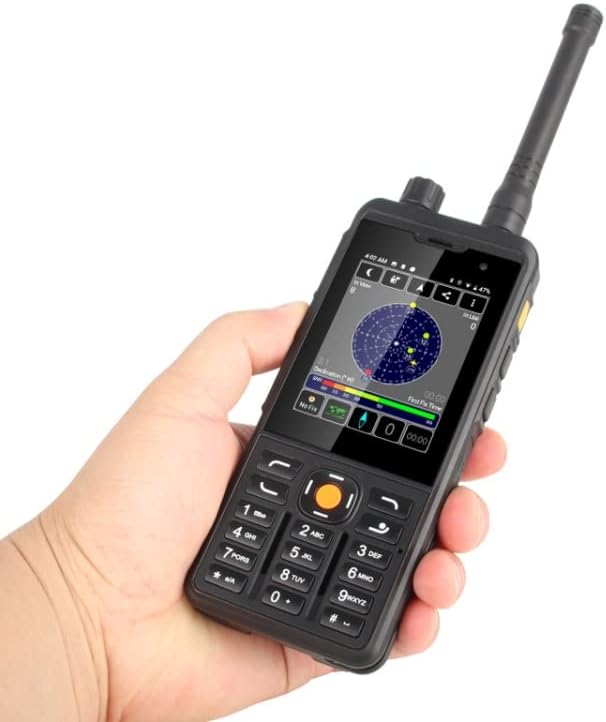
Figure 5: The UNIWA P5 in hand, displaying its vibrant screen with app icons and a GPS-like interface, demonstrating its smart features.
Pangropéa
Ngabersihan Alat Anjeun
To maintain the device's appearance and functionality, regularly clean it with a soft, dry, lint-free cloth. For stubborn dirt, a slightly damp cloth can be used, but ensure no moisture enters ports or openings. Avoid harsh chemicals or abrasive materials.
Perawatan batré
Pikeun manjangkeun umur batre:
- Hindarkeun suhu anu ekstrim.
- Ulah sering ngecas batréna kaleuleuwihi atanapi ngosongkeun batréna dugi ka béak.
- If storing the device for a long period, charge the battery to about 50% before storage.
Tahan Cai sareng Lebu (IP65)
The UNIWA P5 is rated IP65, meaning it is protected against dust ingress and low-pressure water jets from any direction. While it offers good protection, it is not designed for submersion in water. Ensure all port covers are securely closed to maintain its water and dust resistance.
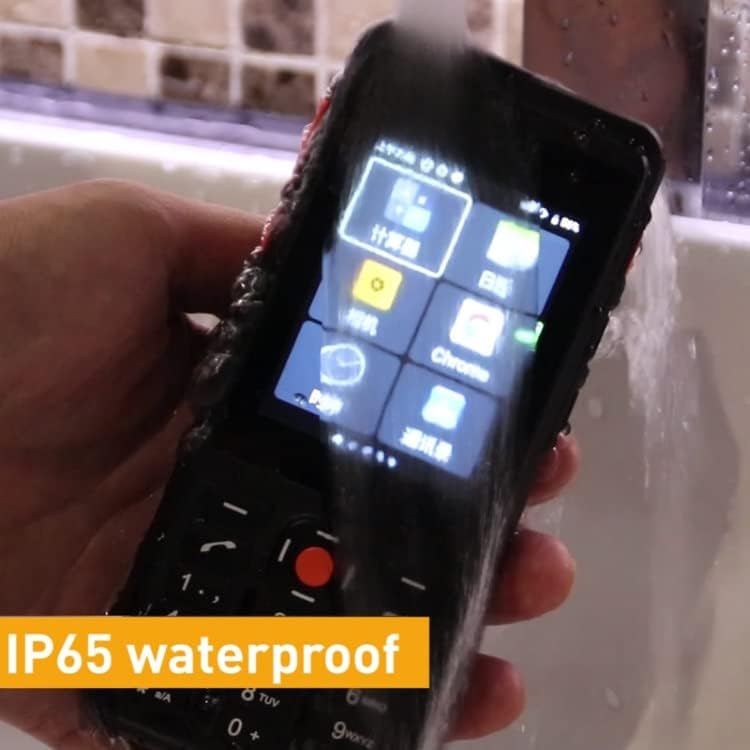
Figure 6: The UNIWA P5 demonstrating its IP65 waterproof capability by being rinsed under running water, emphasizing its durability.
Pamérésan masalah
Isu umum jeung Solusi
- Alat teu hurung:
Ensure the battery is properly installed and charged. Connect the charger and try again. If the battery is completely drained, it may take a few minutes for the charging indicator to appear. - No network signal (PoC):
Check if your SIM card is correctly inserted and active. Verify that mobile data is enabled in settings. Ensure you are in an area with network coverage. Try restarting the device. - Batré teu ngecas:
Check the charging cable and adapter for damage. Ensure the Type-C port on the device is clean and free of debris. Try a different power outlet or charging accessory. - Audio issues (no sound/distorted sound):
Check the volume settings. Ensure the speaker is not blocked. If using a headset, ensure it is properly connected. - Alatna laun atanapi teu ngaréspon:
Close unnecessary background applications. Clear cache from apps. Restart the device. If issues persist, consider a factory reset (back up your data first).
Spésifikasi teknis
| Fitur | Spésifikasi |
|---|---|
| Modél | P5 |
| Prosesor (CPU) | MTK6739 Quad Core 1.3GHz (CORTEX A53) |
| Sistem operasi | Android 9.0 |
| Ram | 1GB |
| Rom | 8GB |
| Mémori éksternal | Kartu TF dugi ka 64GB (teu kalebet) |
| Ukuran layar | 2.8 inch IPS TFT |
| Resolusi layar | 320x240PX, 160DPI, 250CD/m2 |
| Kapasitas batré | 5300mAh (Detachable Li-polymer) |
| Waktu Ngobrol | Nepi ka 18 jam |
| Waktu sayaga | Nepi ka 360 jam |
| Kaméra | Front: 2.0MP, Rear: 5.0MP AF with LED Flashlight |
| Jumlah Kartu SIM | Dual Micro SIM Card slots |
| Palabuhan | 2 x Micro SIM card slots, 1 x TF card slot, 1 x Type C |
| Diménsi | 145 x 63.5 x 25.5 mm |
| Beurat | 275g (Kaasup batré) |
| Daya tahan | IP65 Waterproof sareng Dustproof |
| Bahan cangkang | palastik |
| Alat nu cocog | Other DMR devices, compatible accessories (e.g., earphones, headsets, external antennas) |
Garansi sareng Rojongan
Émbaran jaminan
Your UNIWA P5 device is covered by a manufacturer's warranty. Please refer to the warranty card included with your purchase or contact the seller for specific details regarding warranty terms and conditions.
Rojongan Palanggan
For technical assistance, troubleshooting beyond this manual, or warranty claims, please contact the retailer or manufacturer directly. Their contact information can usually be found on the product packaging or their official websitus.


