Bubuka
Welcome to the user manual for your KYOCERA ECOSYS PA4500x Monochrome Laser Printer. This document provides essential information for setting up, operating, maintaining, and troubleshooting your printer to ensure optimal performance and longevity. The ECOSYS PA4500x is designed for efficiency, featuring a long-life main unit (up to 900,000 pages) and an exceptionally low running cost of approximately 0.8 JPY per A4 monochrome page, significantly reducing printing expenses.
1. Setup Guide
1.1 Ngabongkar bungkusan Printer
Carefully remove the printer from its packaging. Ensure all packing materials, tapes, and protective films are removed from the printer body and internal compartments. Keep the packaging for future transportation if needed.
1.2 Masang Kartrid Toner
- Buka panutup hareup printer.
- Goyangkeun kartrij toner anyar sacara horisontal sababaraha kali pikeun ngadistribusikaeun toner sacara merata.
- Selapkeun kartrij toner kana printer dugi ka ngaklik kana tempatna.
- Tutup panutup hareup.
1.3 Loading Paper
- Tarik baki kasét kertas.
- Saluyukeun pituduh kertas kana ukuran kertas anu anjeun muatkeun.
- Lebetkeun tumpukan kertas kana baki, pastikeun rata sareng di handap garis eusian maksimum.
- Gently push the paper cassette tray back into the printer.
1.4 Nyambung kana Kakuatan
Connect the power cord to the printer's power inlet and then to a grounded electrical outlet. Press the power button to turn on the printer.
1.5 Nyambung kana Komputer
- Sambungan USB: Connect one end of a USB cable to the printer's USB port and the other end to your computer's USB port.
- Network (LAN) Connection: Connect an Ethernet cable to the printer's LAN port and the other end to your network router or switch.
1.6 Pamasangan Supir
Insert the provided driver CD-ROM into your computer's optical drive, or download the latest drivers from the official KYOCERA website. Follow the on-screen instructions to complete the driver installation for your operating system.
2. Parentah Operasi

The printer offers versatile connectivity options, allowing users to print from a PC via network, from mobile devices using a dedicated application (KYOCERA Mobile Print), or directly from a USB storage device.
2.1 Basic Printing from a Computer
- Buka dokumén atanapi gambar anu anjeun hoyong cetak.
- Pilih 'Cetak' tina ménu aplikasi (contona, File > Citak).
- Choose the KYOCERA ECOSYS PA4500x from the list of available printers.
- Saluyukeun setélan citak sakumaha anu diperyogikeun (contona, jumlah salinan, ukuran kertas, kualitas citak).
- Klik 'Cetak'.
2.2 Percetakan duplex
The ECOSYS PA4500x supports automatic duplex (two-sided) printing. To use this feature:
- In the print dialog box on your computer, navigate to the printer properties or preferences.
- Look for an option related to 'Two-sided printing' or 'Duplex'.
- Pilih setelan duplex nu dipikahoyong (misalna, beungkeutan ujung panjang, beungkeutan pondok).
- Konpirmasikeun pilihan anjeun sareng teraskeun percetakan.
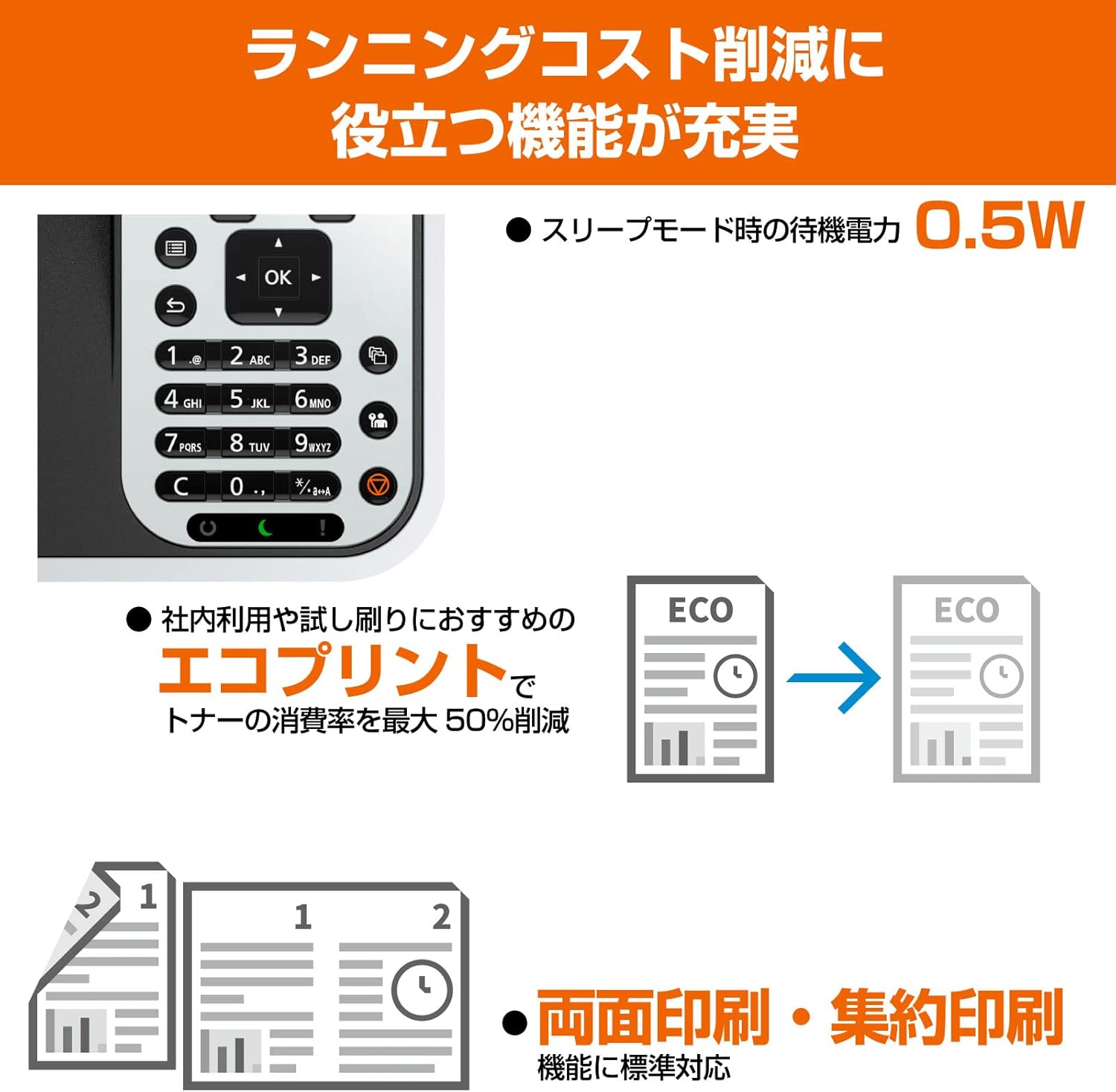
This image highlights key features including the intuitive control panel, the ECO print mode which can reduce toner consumption by up to 50%, and the automatic duplex printing function for efficient paper usage.
2.3 Ngagunakeun Control Panel
The printer's control panel allows you to manage various settings and functions directly. Use the navigation buttons (up, down, left, right, OK) to browse menus and confirm selections. The display provides status information and prompts for user interaction.
2.4 ECO Print Mode
The ECO print mode is designed to reduce toner consumption, contributing to lower running costs and environmental impact. Activate this mode through the printer's control panel settings or via the printer driver on your computer. This mode can reduce toner usage by up to 50%.
2.5 Percetakan Mobile
Download the KYOCERA Mobile Print application from your device's app store (App Store for iOS, Google Play for Android). Ensure your mobile device is connected to the same network as the printer. Open the app, select your printer, and follow the in-app instructions to print documents or images directly from your mobile device.
2.6 Direct Printing from USB
Insert a USB storage device containing printable files (e.g., PDF, JPEG, TIFF) into the USB host port on the printer. Use the printer's control panel to navigate to the 'Print from USB' option, select the desired file, and initiate printing.
3. Pangropéa

This image illustrates the cost-efficiency of the KYOCERA ECOSYS PA4500x, highlighting that only the toner cartridge needs frequent replacement, leading to a low running cost of approximately 0.8 JPY per A4 page for monochrome prints.
3.1 Ngaganti Kartrid Toner
When the toner level is low or empty, the printer's display will indicate a need for toner replacement. Follow these steps:
- Buka panutup hareup printer.
- Cabut kartrij toner kosong ku cara tarik kaluar.
- Unpack the new toner cartridge and shake it gently to distribute toner.
- Insert the new toner cartridge firmly until it locks into place.
- Tutup panutup hareup.
- Dispose of the empty toner cartridge according to local regulations.
3.2 Ngabersihan Printer
- Luar: Ngusap bagian luar printer ku lawon anu lemes sareng teu aya serat dampdieusi cai. Ulah make cleaners abrasive atawa pangleyur.
- Interior: Periodically open the front cover and gently remove any dust or paper debris from accessible areas using a dry, soft cloth or a small vacuum cleaner designed for electronics. Avoid touching the drum unit.
3.3 Checking Printer Status
You can check the printer's status, including toner levels and error messages, directly from the control panel or through the printer driver software on your computer.
3.4 Long-Life Components
The KYOCERA ECOSYS PA4500x is designed with durable, long-life components, such as the amorphous silicon drum unit, which has a lifespan of up to 900,000 pages. This design minimizes the need for frequent part replacements, contributing to the printer's low running costs and reduced environmental impact.
4. Cara ngungkulan
This section addresses common issues you might encounter with your printer. For more detailed troubleshooting, refer to the full electronic manual available on the KYOCERA websitus.
4.1 Kertas macét
- Pareuman printer sareng cabut kabel listrik.
- Open the covers and trays as indicated by the printer's display or manual.
- Cabut kertas anu macét kalawan ati-ati, tarik lalaunan ka arah jalur kertas. Ulah nepi ka kertasna soék.
- Close all covers and trays, plug in the power cord, and turn on the printer.
4.2 Masalah Kualitas Print
- Faint Prints: Check the toner level. If low, replace the toner cartridge.
- Streaks or Spots: Perform a cleaning cycle from the printer's control panel or driver. Ensure the drum unit is not damaged (though it is a long-life component, extreme conditions can affect it).
- Uneven Density: Ensure the toner cartridge is properly installed and shaken before use.
4.3 Masalah Konektipitas
- Printer Teu Dideteksi: Check all cable connections (USB or Ethernet). Ensure the printer is powered on. For network connections, verify network settings on both the printer and computer.
- Wireless Printing Issues: If using a wireless adapter (optional, not standard for this model but common for mobile printing), ensure it is correctly installed and configured, and that the printer is connected to the correct Wi-Fi network.
4.4 Talatah Kasalahan
Refer to the printer's display for specific error codes or messages. Consult the comprehensive user manual or the KYOCERA support website for detailed explanations and solutions for each error code.
5. Spésifikasi produk

The KYOCERA ECOSYS PA4500x is designed for compact spaces, with dimensions of 380mm width, 410mm depth, and 285mm height, making it suitable for desktop installation.
| Ngaran modél | ECOSYS PA4500x |
| Téhnologi percetakan | Laser |
| Kaluaran printer | Monokrom |
| Laju Cetak Maks (Monokrom) | 45 kaca/menit |
| Résolusi Citak Maks (Monokrom) | 600 x 600 dpi |
| Percetakan duplex | Otomatis (Muhun) |
| Ukuran Média Max | A4 |
| Ukuran Lambaran Dirojong | A4, B5, A5 (vertical orientation) |
| Max Lambaran Kamampuh | 250 lembar |
| Téhnologi konektipitas | Ethernet, USB |
| Diménsi Produk (W x D x H) | 380 mm x 410 mm x 285 mm |
| Beurat produk | 18.5 kg |
| Komponén Kaasup | Toner cartridge |
| Warna | Bodas |

This table provides a comparison of various KYOCERA monochrome laser printers, detailing specifications such as dimensions, supported paper sizes, duplex printing, connectivity options (LAN/WLAN/USB), print speed, and running costs per page.
6. Garansi jeung Rojongan
For information regarding the product warranty, please refer to the warranty card included with your printer or visit the official KYOCERA websitus. The website also provides access to comprehensive support resources, including FAQs, driver downloads, and contact information for technical assistance.
Pikeun pitulung salajengna, mangga buka di KYOCERA official websitus.


