1. Bubuka
This manual provides essential information for the proper setup, operation, and maintenance of your KTC M27T20 27-inch 2K Mini-LED Computer Monitor. Please read this guide thoroughly before using the product and retain it for future reference.
2. Fitur Produk
- 27-inch QHD (2560x1440) Display: Offers crisp and detailed visuals.
- Mini-LED Backlight: Features 576 zones and 2304 LEDs for precise local dimming, enhancing contrast and black levels.
- Laju Refresh 165Hz: Provides ultra-fast and fluid motion for gaming and dynamic content.
- Waktos Réspon 1ms (MPRT): Minimizes motion blur and ghosting for clear, sharp images.
- HDR 1000 Certification: Delivers stunning details with high brightness (1000 nits peak) and a 1,000,000:1 contrast ratio.
- Téknologi Quantum Dot: Achieves wide color gamut coverage (93% DCI-P3, 150% sRGB) for vibrant and accurate colors.
- Konéktipitas Fleksibel: Includes 2x HDMI 2.0, 1x DisplayPort 1.4, 1x Type-C (90W reverse charging), and USB 3.0 ports.
- Built-in KVM Switch: Allows control of multiple devices with a single keyboard and mouse setup.
- Nangtung ergonomis: Offers tilt, swivel, height, and pivot adjustments for optimal viewing kanyamanan.
- GameAssist Mode: Features like Black Equalizer, FPS Counter, and Crosshair for enhanced gaming.
- Less Blue Light, No Flicker: Ngurangan tegangan panon nalika dianggo berkepanjangan.
3. Eusi Paket
Please ensure all items are present and undamaged upon unpacking:
- Monitor x 1
- Stand x 1 set (includes Neck and Base)
- Kartu Garansi x 1
- Pituduh Mimiti Gancang (QSG) x 1
- Pituduh Pamaké x 1
- Color Correction Report x 1
- Adaptor kakuatan x 1
- Kabel listrik x 1
- DisplayPort (DP) Cable x 1
- HDMI kabel x 1
- Kabel USB-B ka USB-A x 1

4. Setup jeung Instalasi
4.1 Majelis nangtung
The monitor stand features a tool-less design for easy assembly.
- Insert the neck into the base and secure it with the captive screw at the bottom of the base.
- Align the top of the assembled stand with the mounting slot on the back of the monitor panel.
- Gently push the stand into the slot until it clicks securely into place.
4.2 Wall Mounting (VESA Compatible)
The KTC M27T20 monitor supports VESA mounting with a 100mm x 100mm pattern. To wall mount:
- Remove the pre-assembled stand by pressing the quick-release button (if applicable) or unscrewing it from the monitor back.
- Attach your VESA-compatible wall mount or arm to the monitor using appropriate screws (not included).
- Ensure the mount is securely fastened to the wall or desk according to the mount manufacturer's instructions.
5. Konektipitas
The KTC M27T20 offers a variety of input and output ports for versatile connectivity:
- 2x HDMI 2.0 Ports: Connect to gaming consoles (PS5, Xbox Series X), Blu-ray players, or other HDMI-enabled devices.
- 1x DisplayPort 1.4: Ideal for connecting to PCs for high refresh rate and resolution.
- 1x Type-C Port (90W PD): Connect compatible laptops for video, data, and power delivery (up to 90W reverse charging).
- 3x USB 3.0 Ports (1x Upstream, 2x Downstream): For connecting peripherals like keyboards, mice, and USB drives.
- 1x Earphone Jack: Sambungkeun headphone atanapi spéker éksternal.
- Input Daya DC 24V: Pikeun nyambungkeun adaptor daya anu disayogikeun.
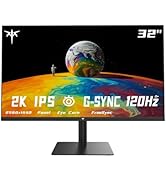
5.1 KVM Pindah Fungsionalitas
The built-in KVM switch allows you to control multiple devices (e.g., PC, laptop) connected to the monitor using a single set of keyboard and mouse. Connect your keyboard and mouse to the USB 3.0 downstream ports on the monitor, and connect your devices to the respective video inputs and the USB-B upstream port.

6. Adjustability and Ergonomics
The KTC M27T20 monitor stand offers comprehensive ergonomic adjustments to optimize your viewpangalaman:
- Penyesuaian Jangkungna: Naékkeun atawa turunkeun monitor ka tingkat panon.
- Dengdekkeun: Adjust the screen angle forwards or backwards to reduce glare and find a comfortable viewdina posisi.
- Putar: Rotate the monitor left or right without moving the base, ideal for sharing your screen.
- Pangsi: Puterkeun layar 90 derajat kanggo mode potret viewing, useful for coding, reading, or social media.
7. Modeu tampilan sareng Setélan
The monitor features various display modes and settings accessible via the OSD (On-Screen Display) menu, typically controlled by buttons or a joystick on the monitor.
- Mini-LED Backlight with Local Dimming: The 576 local dimming zones provide deeper blacks and brighter whites.
- HDR 1000: Certified for high dynamic range content, offering superior contrast and color.
- Téknologi Quantum Dot: Enhances color accuracy and vibrancy.
- GameAssist Mode: Access features like Black Equalizer to brighten dark areas, an FPS Counter, and a Crosshair overlay.
- Freesync & G-Sync Compatible: Synchronizes the display's refresh rate with your GPU's frame rate to eliminate screen tearing and stuttering.
- Less Blue Light, No Flicker: Ngurangan tegangan panon nalika dianggo berkepanjangan.


8. Spésifikasi
| Fitur | Spésifikasi |
|---|---|
| Ukuran layar | 27 inci |
| Resolusi | 2560 x 1440 (QHD Lega 1440p) |
| Rasio Aspék | 16:9 |
| Refresh Laju | 165Hz |
| Waktu Tanggapan | 1 ms (MPRT) |
| Téhnologi lampu tukang | Mini-LED (576 Zones, 2304 LEDs) |
| Sertifikasi HDR | TémbongkeunHDR 1000 |
| HDR Peak Brightness | 1000 cd/m² |
| SDR Typical Brightness | 350 cd/m² |
| HDR Contrast Ratio | 1,000,000:1 |
| Warna Gamut | 93% DCI-P3, 150% sRGB |
| Konektipitas | 2x HDMI 2.0, 1x DisplayPort 1.4, 1x Type-C (90W PD), 3x USB 3.0, 1x Earphone Jack |
| KVM Pindah | Sumuhun |
| Érgonomi | Jangkungna, Dengdekkeun, Swivel, Pivot |
| Gunung VESA | 100 mm x 100 mm |
| Dimensi produk | 8.86 x 34.5 x 19.68 inci |
| Item Beurat | 23.6 pon |
9. Cara ngungkulan
If you encounter any issues with your KTC M27T20 monitor, please refer to the following common troubleshooting steps:
- Henteu aya kakuatan: Ensure the power adapter is securely connected to both the monitor and a working power outlet. Check the power indicator light on the monitor.
- Henteu aya sinyal: Verify that the video cable (HDMI, DisplayPort, or Type-C) is correctly connected to both the monitor and your source device. Ensure the correct input source is selected in the monitor's OSD menu.
- Gambar Kedip-kedip/Distorsi: Check the video cable for damage or loose connections. Try a different cable or input port. Ensure your graphics card drivers are up to date.
- Masalah Warna: Reset the monitor's display settings to factory defaults via the OSD menu. Check your graphics card color settings.
- KVM Not Working: Ensure all USB cables (upstream and downstream) are correctly connected. Verify the KVM function is enabled and configured in the OSD menu.
For more detailed troubleshooting, please consult the full User Guide included in your package or visit the KTC support websitus.
10. Garansi jeung Rojongan
Your KTC M27T20 monitor comes with a manufacturer's warranty. Please refer to the Warranty Card included in your package for specific terms and conditions.
For technical support, product inquiries, or warranty claims, please contact KTC customer service through the official KTC website or the contact information provided in your User Guide.


