1. Bubuka
This manual provides essential information for the installation, operation, and maintenance of your Garmin ECHOMAP UHD2 74cv chartplotter and fishfinder with GT20 Transducer. Please read this manual thoroughly before using the device to ensure proper function and safety.
2. Émbaran Kasalametan
PERHATOSAN:
- Always operate your vessel safely. Avoid navigation hazards and never allow the device to distract you from safe operation.
- The device is an aid to navigation and should not replace sound judgment.
- Always be prepared to regain control of the vessel.
- For important product warnings and other information, refer to the Important Safety and Product Information guide included in the product box.
3. Naon dina Box
Your Garmin ECHOMAP UHD2 74cv package includes the following components:
- ECHOMAP UHD2 7" chartplotter
- GT20-TM transducer
- Kabel daya/data
- Dengdekkeun Gunung
- Flush mount hardware
- Dokuméntasi (kaasup manual ieu)
4. Setélan
4.1 Pasang Alat
The ECHOMAP UHD2 74cv can be installed using either the included tilt mount or flush mount hardware.
- Pilih Lokasi Pasang: Select a location that provides optimal visibility and access to controls, away from heat sources and excessive vibration.
- Ngamankeun Gunung: Follow the instructions provided with the tilt mount or flush mount kit to securely attach the bracket or device to your vessel.
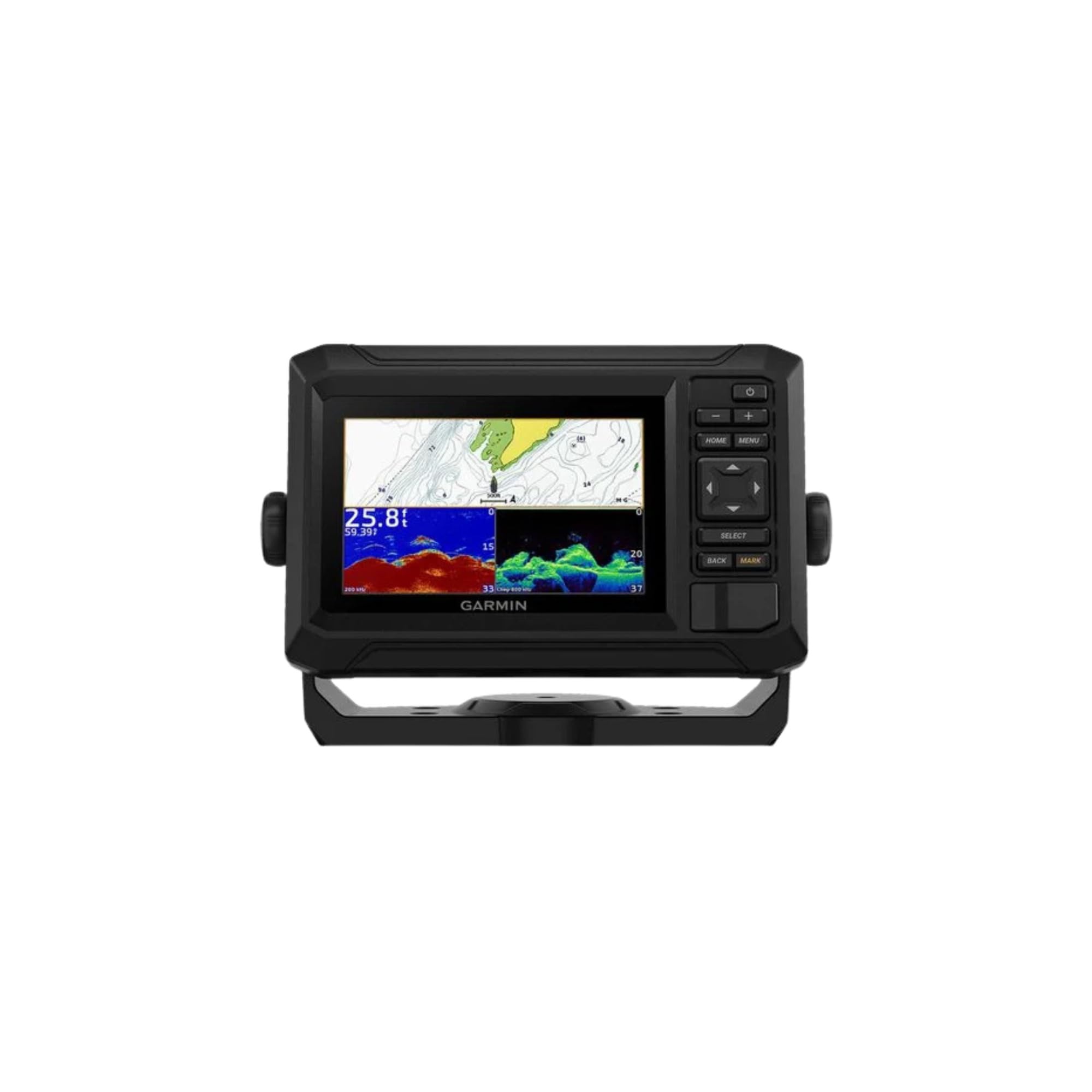
Image: The Garmin ECHOMAP UHD2 74cv unit shown mounted on a boat, displaying both navigation charts and sonar information simultaneously.
4.2 Pamasangan Transduser
The GT20-TM transducer is crucial for sonar functionality. Refer to the separate transducer installation instructions for detailed guidance on mounting and connecting the transducer to your vessel.
4.3 Daya jeung Sambungan Data
Connect the power/data cable to the back of the ECHOMAP UHD2 74cv unit and to your vessel's power source (10-20 Vdc). Ensure all connections are secure and waterproof.
5. Operating the ECHOMAP UHD2 74cv
5.1 Powering on / Pareum
Pencét éta POWER button to turn the device on or off. A short press will adjust backlight and brightness settings.
5.2 Keypad Controls
- BANDUNG: Mulang deui ka Layar Utama.
- MENU: Opens the menu for the current screen or system settings.
- PILIH: Confirms selections or opens options.
- Balik deui: Mulih ka layar saméméhna atawa ngabolaykeun hiji aksi.
- tanda: Creates a waypoint at your current location.
- Tombol panah: Navigate menus, pan maps, or adjust sonar views.
- +/-: Zoom in/out on maps or adjust sonar gain.
5.3 Navigation and Chartplotter
The ECHOMAP UHD2 74cv comes preloaded with Garmin Navionics+ mapping for U.S. coastal content. This allows for detailed chart viewing and route planning.

Image: The chartplotter screen showing a detailed map with depth contours and the vessel's current position. This view is useful for navigation and understanding underwater topography.
To navigate, use the arrow keys to pan the map. You can create waypoints by pressing the TANDA button. Routes can be created and followed using the menu options.
Video: This video demonstrates the navigation features of the Garmin ECHOMAP UHD2 74cv, showing how to track your path and identify fishing spots on the chartplotter. It highlights the active track feature, displaying where the boat has been and its current direction.
Video: This video showcases various navigation views available on the Garmin ECHOMAP UHD2 74cv, including a 3D perspective and a fishing chart view that displays names of bays and different structures. It illustrates how the device can assist in navigating complex waterways and identifying key locations.
5.4 Fungsi Sonar
The included GT20-TM transducer provides both Garmin traditional sonar and ClearVü scanning sonar.
- Sonar tradisional: Displays clear fish arches and bottom structure.
- ClearVü Scanning Sonar: Provides high-contrast, detailed views of objects and fish below your boat.

Image: The chartplotter screen showing ClearVü sonar, which provides a photographic-like image of structure and fish below the boat, aiding in target identification.

Image: The chartplotter screen showing traditional sonar, which displays fish as arches and provides a general overview of the water column and bottom composition.
You can switch between sonar views or use a split-screen display from the Home screen or by pressing the MENU kancing.
Video: This video demonstrates the sonar capabilities of the Garmin ECHOMAP UHD2 74cv, showing how to interpret fish arches and bottom structure on the traditional fishfinder screen. It highlights the device's ability to mark fish and identify larger objects near the bottom.
5.5 Konektipitas Wi-Fi
The device features built-in Wi-Fi connectivity. Pair it with the free ActiveCaptain app on your compatible smartphone to access features such as OneChart, software updates, and more.
6. Pangropéa
6.1 Ngabersihan Alat
Clean the device screen and exterior with a soft, clean, lint-free cloth. Avoid abrasive cleaners or solvents that could damage the unit.
6.2 Apdet parangkat lunak
Regularly update the device software to ensure optimal performance and access to the latest features. Software updates can be performed via the ActiveCaptain app or by downloading updates from the Garmin website to a microSD card.
7. Cara ngungkulan
If you encounter issues with your ECHOMAP UHD2 74cv, refer to the following common troubleshooting steps:
- Alat Teu Dihurungkeun: Check power cable connections, ensure the vessel's battery is charged, and verify the fuse.
- Teu aya Data Sonar: Ensure the transducer is properly connected and submerged. Check transducer settings in the device menu.
- GPS Teu Meunang Sinyal: Pastikeun alat boga jelas view of the sky. Allow several minutes for initial satellite acquisition.
- Masalah layar: Adjust backlight and brightness settings. If the screen is unresponsive, perform a soft reset (refer to the full manual for specific steps).
For more detailed troubleshooting, consult the comprehensive owner's manual available on the Garmin support websitus.
8. Spésifikasi
| Fitur | Spésifikasi |
|---|---|
| merek | Garmin |
| Ngaran modél | ECHOMAP UHD2 74cv |
| Nomer Bagian | 010-02595-51 |
| Sumber Daya | Pasokan Daya DC |
| Ukuran layar | 7 inci |
| Tipe tampilan | 7 inch chartplotter |
| Tipe Pamasangan | Flush Mount or Bail Mount |
| GTIN/UPC | 753759307097 |
| Item Ukuran Paket L x W x H | 11.57 x 8.35 x 7.28 inci |
| Beurat pakét | 2.11 kg |
| Item Ukuran LxWxH | 12.5 x 10.6 x 8.7 inci |
| Tanggal Kahiji Sadia | Pébruari 16, 2023 |
9. Garansi jeung Rojongan
Your Garmin ECHOMAP UHD2 74cv is covered by a limited warranty. For specific warranty terms and conditions, please refer to the warranty card included with your product or visit the official Garmin websitus.
For technical support, product registration, or to download the full owner's manual, visit www.garmin.com/support. You can also contact Garmin customer service directly for assistance.