1. Produk Langkungview
The ProtoArc K100 is a full-size, ultra-slim backlit wireless keyboard designed for efficient and comfortable typing. It features a 2.4G wireless connection, silent scissor-switch keys, and is rechargeable via USB-C. The keyboard supports both Windows and Mac operating systems, offering a seamless experience across different devices.
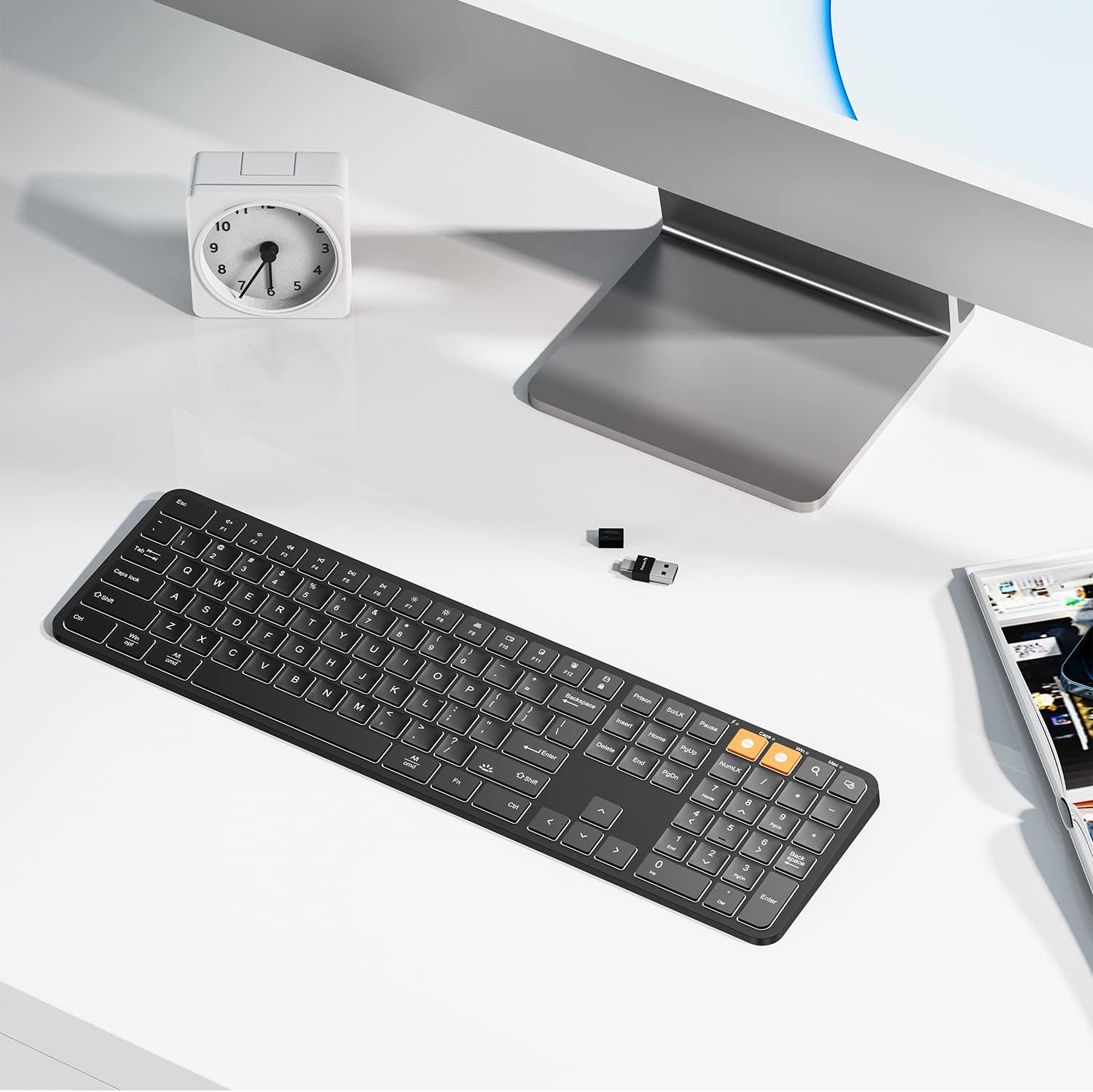
Image 1.1: The ProtoArc K100 keyboard on a clean desk, showcasing its full-size layout and slim design. A small USB receiver is visible next to it.
Video 1.1: An official product video demonstrating the key features and design of the ProtoArc K100 Backlit Wireless Keyboard, including its full-size layout, ultra-slim profile, scissor-switch keys, and USB connectivity.
2. Eusi Paket
Mangga parios pakét kanggo barang-barang ieu:
- ProtoArc K100 Backlit Wireless Keyboard
- 2-in-1 USB/Type-C Receiver
- Kabel Ngecas USB-C
- Manual pamaké

Image 2.1: Contents of the ProtoArc K100 package, including the keyboard, USB charging cable, and the 2-in-1 USB receiver.
3. Parentah Setup
3.1 Nyambungkeun kibor
- Locate the 2-in-1 USB/Type-C receiver. It may be stored in a compartment on the keyboard.
- Plug the USB-A or USB-C end of the receiver into an available port on your computer.
- Turn on the keyboard using the ON/OFF switch, usually located on the side or back of the keyboard.
- Kibor kedahna otomatis nyambung ka komputer anjeun. Biasana teu aya driver tambahan anu diperyogikeun.

Image 3.1: The ProtoArc K100 keyboard wirelessly connected to a laptop via its 2-in-1 USB receiver, demonstrating the plug-and-play setup.
3.2 Ngecas kibor
The ProtoArc K100 keyboard is equipped with a rechargeable battery. When the battery is low, the indicator light may flash or the backlight may dim. To charge:
- Sambungkeun kabel ngecas USB-C anu disayogikeun kana port ngecas dina kibor.
- Plug the other end of the USB-C cable into a USB power source (e.g., computer USB port, wall adapter).
- Lampu indikator ngecas bakal hurung nalika ngecas sareng biasana pareum atanapi robih warna nalika dicas pinuh.
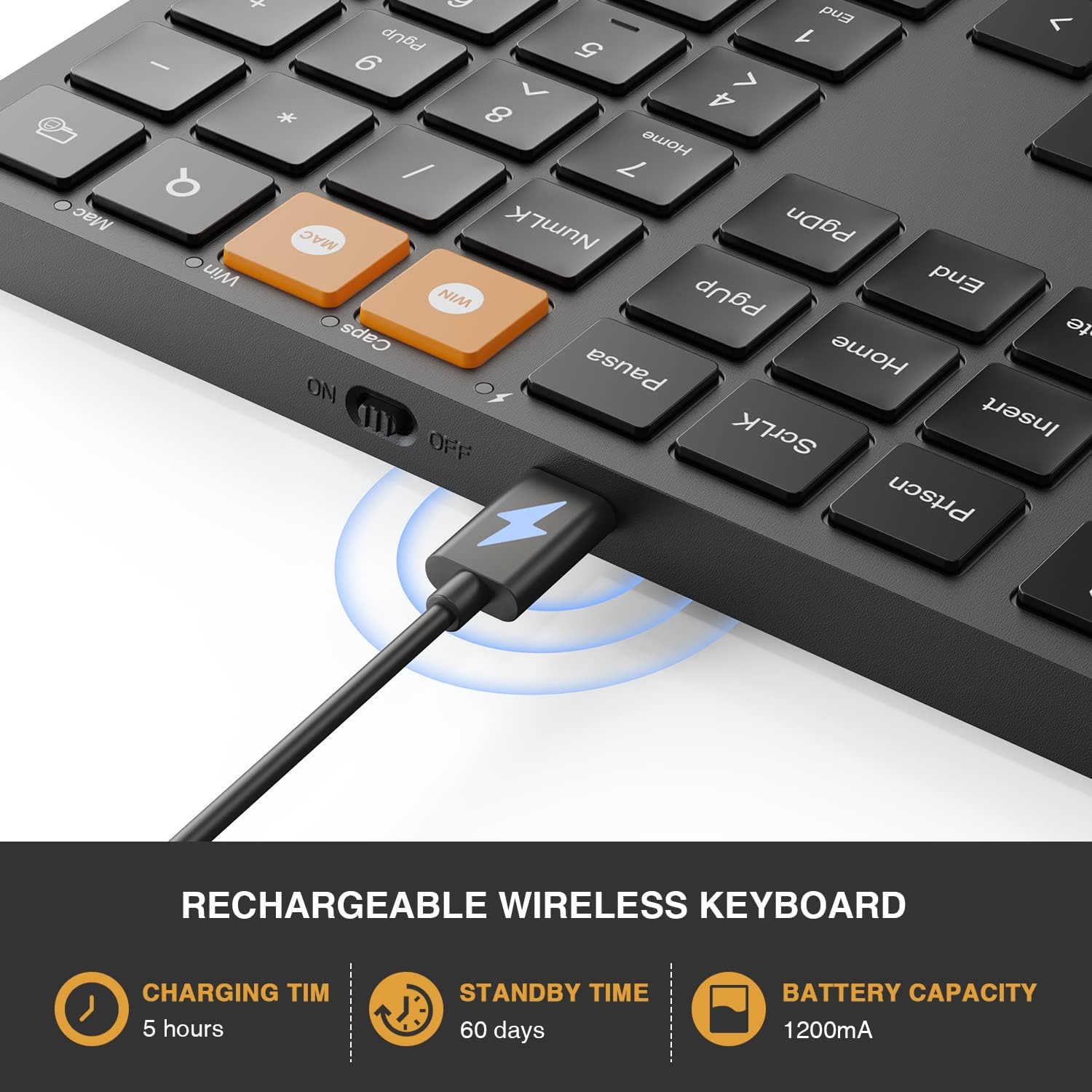
Gambar 3.2: A close-up view of the ProtoArc K100 keyboard's USB-C port with the charging cable connected, indicating the recharging process.
4. Parentah Operasi
4.1 Daya Hurung/Pareuman
To power on or off the keyboard, use the physical switch located on the side or back of the device. Ensure the keyboard is powered on for wireless functionality.
4.2 Switching Operating Systems (Windows/Mac)
The ProtoArc K100 keyboard is designed to be compatible with both Windows and Mac operating systems. To switch between modes:
- Pencét dedicated meunang key (for Windows) or Mac key (for macOS) located on the numeric keypad.
- The keyboard layout will adjust to match the selected operating system, ensuring correct function key behavior and key mapping.

Image 4.1: A close-up of the keyboard highlighting the orange 'Win' and 'Mac' keys, used for switching between Windows and macOS layouts.

Image 4.2: Visual representation of the keyboard's dual-system compatibility, showing icons for Windows, macOS, and 2.4G wireless connectivity.
4.3 Nyaluyukeun Lampu Latar
The keyboard features an adjustable white backlight with multiple brightness levels. To control the backlight:
- To turn the backlight on/off or adjust brightness, press the Fn konci sakaligus sareng Pindah key that has the backlight icon (usually located near the right Shift key).
- Repeatedly pressing this combination will cycle through different brightness levels (Off, Low, Mid, High).

Image 4.3: The keyboard demonstrating its adjustable illumination feature, with indicators for Off, Low, Mid, and High brightness settings.

Image 4.4: A visual guide illustrating the 'Fn + Shift' key combination required to turn on, turn off, and adjust the brightness of the white backlight.
4.4 Ngagunakeun Tombol Pintasan
The keyboard includes 12 shortcut keys (F1-F12) that provide quick access to various functions such as media control, volume adjustment, and more. These functions are typically accessed by pressing the Fn key in combination with the desired F-key.
4.5 Ngetik jempé
The ProtoArc K100 utilizes scissor-switch keys, designed to provide a quiet typing experience. This feature minimizes typing noise, making it suitable for quiet environments.

Image 4.5: A close-up of the keyboard keys, illustrating the quiet click and typing experience provided by the scissor-switch mechanism.
5. Pangropéa
5.1 Perawatan Batré
- Pikeun manjangkeun umur batre, ulah miceun kibor sapinuhna.
- Charge the keyboard when the low battery indicator appears.
- Upami nyimpen kibor kanggo waktos anu lami, eusian dugi ka sakitar 50% teras simpen di tempat anu tiis sareng garing.
5.2 beberesih
- Pareuman kibor sateuacan beberesih.
- Make kaen nu lemes, teu aya lint rada dampdikumbah ku cai atanapi larutan pembersih anu hampang pikeun ngusap permukaanana.
- Hindarkeun ngagunakeun bahan kimia anu kasar atanapi bahan abrasive.
- Anggo hawa anu dikomprés pikeun ngaleungitkeun lebu sareng lebu tina antara kenop.
6. Cara ngungkulan
6.1 Kibor Teu Ngabales
- Pariksa kakuatan: Ensure the keyboard is turned on and has sufficient battery charge. Recharge if necessary.
- Panarima Cek: Verify the 2-in-1 USB receiver is securely plugged into a working USB port on your computer. Try a different USB port.
- pasangan deui: If the connection is lost, try unplugging and re-plugging the USB receiver. Power cycle the keyboard (turn off, then on).
- gangguan: Move the keyboard closer to the receiver and away from other wireless devices that might cause interference.
- Kasaluyuan Sistim: Ensure the keyboard is set to the correct operating system mode (Windows or Mac) using the dedicated keys.
6.2 Backlight Not Working or Flickering
- Saluyukeun Caang: Pencét Fn+Shift (with backlight icon) to cycle through brightness levels and ensure it's not set to 'Off'.
- Tingkat batré: Low battery can cause the backlight to dim or turn off. Charge the keyboard fully.
- Siklus kakuatan: Turn the keyboard off and then on again to reset the backlight function.
7. Spésifikasi
| Fitur | Rincian |
|---|---|
| Nomer modél | K100 |
| Téhnologi konektipitas | 2.4G Wireless (USB/Type-C Receiver) |
| Fitur husus | Backlit, Rechargeable, Silent Keys, Dual System (Windows/Mac) |
| Pindah Tipe | Gunting-switch |
| Sumber Daya | Batré (1200mAh) |
| Waktu Ngecas | Kurang leuwih 5 jam |
| Waktu sayaga | Kurang leuwih 60 poé |
| Tata perenah kibor | QWERTY, Full Size (109 keys) |
| Bahan | palastik |
| Item Beurat | 1.85 pon |
| Ukuran Paket | 17.4 x 5.67 x 1.8 inci |

Image 7.1: A diagram illustrating the physical dimensions of the ProtoArc K100 keyboard, including length, width, and thickness.
8. Garansi jeung Rojongan
For warranty information and technical support, please refer to the documentation included with your product or visit the official ProtoArc website. Contact information for customer service is typically provided in the product packaging or on the manufacturer's websitus.


