1. Produk Langkungview
The ProtoArc K100-A is an ultra-slim wireless Bluetooth keyboard specifically designed for Mac devices. It features a full-size layout with a numeric keypad, responsive scissor-switch keys for quiet typing, and adjustable white LED backlighting. This keyboard supports connection to up to three devices simultaneously, allowing for seamless switching between your MacBook, iMac, iPad, or iPhone. Its built-in rechargeable battery ensures long-lasting use.

Image: The ProtoArc K100-A keyboard connected to a MacBook, iPad, and iPhone, showcasing its multi-device capability.
2. Eusi Paket
- ProtoArc K100-A Backlit Bluetooth kibor
- Kabel Ngecas USB-C
- Manual pangguna (dokumén ieu)
3. Ngamimitian
3.1 Ngecas kibor
Before first use, fully charge the keyboard. Connect the provided USB-C charging cable to the keyboard's Type-C port and the other end to a USB power source (e.g., computer USB port, USB wall adapter). A full charge takes approximately 4-5 hours. The built-in 1200mAh lithium-ion battery provides a standby time of 3-4 months.

Image: The keyboard's Type-C charging port with the charging cable inserted.
3.2 Daya Hurung/Pareuman
Locate the power switch on the side or back of the keyboard. Slide it to the "ON" position to power on the keyboard. Slide it to "OFF" when not in use to conserve battery.
4. Sambungan Bluetooth
The ProtoArc K100-A keyboard supports connection to three different devices via Bluetooth. Follow these steps to pair your devices:
- Pastikeun keyboard diaktipkeun.
- Press and hold one of the Bluetooth channel keys (BT1, BT2, atawa BT3) salami 3-5 detik dugi ka lampu indikator anu saluyu kedip-kedip gancang. Ieu nunjukkeun yén kibor aya dina modeu pairing.
- On your Mac device (MacBook, iMac, iPad, iPhone), go to Setélan Sistim (atawa Préferénsi System) > Bluetooth.
- Hurungkeun Bluetooth sareng milarian alat anu sayogi.
- Pilih"ProtoArc K100-A"tina daptar alat.
- Follow any on-screen prompts to complete the pairing process. The indicator light will stop flashing and remain solid for a few seconds, then turn off, indicating successful pairing.
- Repeat these steps for up to two additional devices using the other Bluetooth channel keys.

Image: The dedicated Bluetooth channel keys (BT1, BT2, BT3) on the keyboard.
4.1 Ngalihkeun Antara Alat
To switch between paired devices, simply press the corresponding Bluetooth channel key (BT1, BT2, atawa BT3) once. The keyboard will connect to the selected device within a few seconds.
5. Parentah Operasi
5.1 Kadali lampu tukang
The keyboard features soft white LED backlighting with three adjustable brightness levels (low, medium, high). To adjust the backlight brightness, press the backlight key (often indicated by a sun icon or similar) located on the top right of the keyboard. Pressing it repeatedly cycles through the brightness levels and turns the backlight off.

Image: The keyboard with its white adjustable backlight at different brightness levels.
5.2 Tombol potong kompas
The keyboard includes 12 shortcut keys for enhanced productivity on Mac devices. These keys provide quick access to functions such as brightness adjustment, mission control, media playback, volume control, and more. Refer to the key labels for specific functions.

Image: Detail of the keyboard's silent scissor-switch keys, designed for quiet and responsive typing.
6. Pangropéa sarta perawatan
- Jaga kibor tetep bersih ku cara ngusap nganggo lawon anu lemes sareng garing. Ulah nganggo bahan kimia anu kasar atanapi bahan anu abrasif.
- Do not expose the keyboard to extreme temperatures, humidity, or direct sunlight.
- Avoid spilling liquids on the keyboard. If a spill occurs, immediately power off the keyboard and allow it to dry completely before use.
- When not in use for extended periods, power off the keyboard to preserve battery life.
- The keyboard automatically enters sleep mode after 30 minutes of inactivity to save power. Press any key to wake it up.
7. Cara ngungkulan
- Keyboard not connecting/disconnecting frequently:
- Pastikeun kibor tos dicas pinuh.
- Verify Bluetooth is enabled on your device and the keyboard is within range (up to 10 meters).
- Coba pasangkeun deui kibor sareng alat anjeun.
- Pastikeun teu aya sinyal nirkabel kuat lianna anu ngaganggu.
- Konci teu ngaréspon atanapi réspon telat:
- Pariksa tingkat batré jeung ngecas lamun perlu.
- Pastikeun kibor disambungkeun kalayan leres via Bluetooth.
- If the keyboard has entered sleep mode, press any key and wait a few seconds for it to reconnect.
- Lampu tukang teu jalan:
- Pastikeun keyboard diaktipkeun.
- Press the backlight key to cycle through brightness levels and turn it on.
- If the battery is very low, the backlight may not function to conserve power. Charge the keyboard.
8. Spésifikasi
| Nomer modél | K100-A |
| merek | ProtoArc |
| Téhnologi konektipitas | Bluetooth |
| Alat nu cocog | Mac OS 12.2 or higher (MacBook, MacBook Pro, MacBook Air, iMac, iMac Pro, Mac Pro/Mini, iPad, iPhone) |
| Fitur husus | Backlit, Rechargeable, Multi-Device Connection (3 devices) |
| Kapasitas batré | 1200mAh Litium-ion |
| Waktu Ngecas | 4-5 jam |
| Waktu sayaga | 90-120 poé |
| Dimensi produk | 16.79" L x 4.78" W x 0.57" H |
| Item Beurat | 1.59 pon |
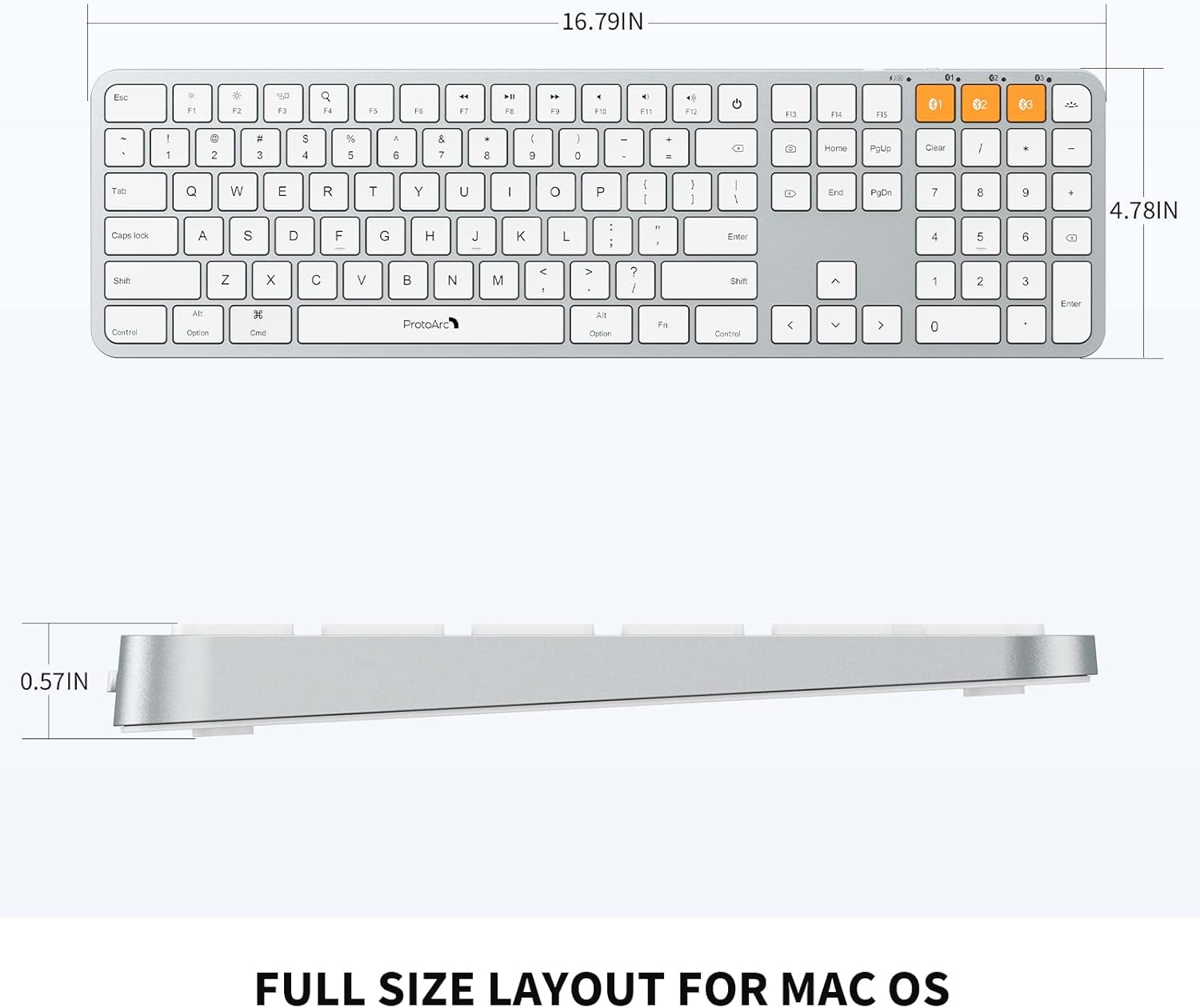
Image: Dimensional diagram of the ProtoArc K100-A keyboard.
9. Garansi jeung Rojongan
For warranty information and technical support, please refer to the official ProtoArc websitus atanapi ngahubungan layanan palanggan maranéhanana langsung. Simpen resi pameseran anjeun pikeun klaim jaminan.


