1. Bubuka
This manual provides detailed instructions for the setup, operation, maintenance, and troubleshooting of your KOORUI 15.6-inch Portable Monitor, model 15B1. Please read this manual thoroughly before using the product to ensure optimal performance and longevity.

Image 1.1: KOORUI 15.6-inch Portable Monitor 15B1.
2. Eusi Paket
Pastikeun yén sadaya item anu didaptarkeun di handap kalebet kana pakét anjeun. Lamun aya item nu leungit atawa ruksak, mangga ngahubungan rojongan customer.
- KOORUI 15.6-inch Portable Monitor (15B1)
- Protective Case / Stand
- USB-C ka USB-C Cable
- Mini HDMI kana kabel HDMI
- USB-A to USB-C Power Cable (for external power supply)
- Manual pamaké
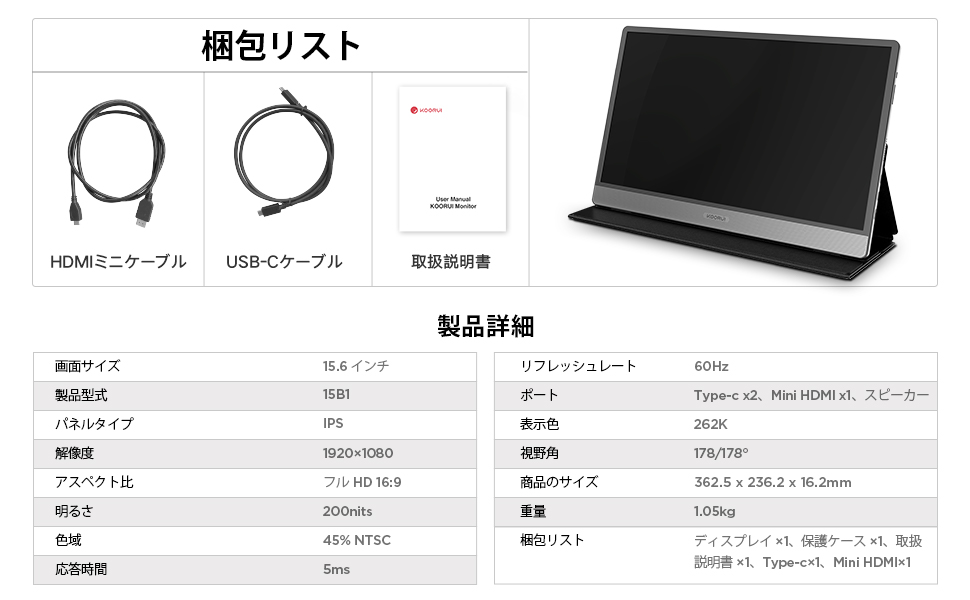
Image 2.1: Included accessories and monitor.
3. Produk Langkungview
3.1. Monitor Features
- 15.6-inch Full HD (1920x1080) IPS Panel
- Lebar 178° Viewdina Angle
- Slim and Lightweight Design (approx. 10mm thick, 1.05kg)
- Diwangun-di Speaker stereo
- Multiple Connectivity Options: 2x USB Type-C, 1x Mini HDMI
3.2. Palabuhan jeung kadali
Familiarize yourself with the ports and controls located on the side of the monitor:
- Saklar kakuatan: Ngahurungkeun / mareuman monitor.
- Menu / Volume Buttons: Used to navigate the On-Screen Display (OSD) menu and adjust volume.
- Port USB Tipe-C (x2): For power, video, and data transmission (depending on device compatibility).
- Port HDMI Mini: For video input from compatible devices.
- Panyatur: Spéker stereo terpadu pikeun kaluaran audio.

Image 3.1: Monitor ports and controls with device compatibility.

Image 3.2: Monitor dimensions and weight.
4. Setélan
The KOORUI 15B1 monitor offers flexible connection options to suit various devices.
4.1. Single USB Type-C Connection (Power & Video)
For devices with a full-featured USB Type-C port (supporting DisplayPort Alternate Mode and power delivery), a single USB Type-C cable can provide both power and video signal to the monitor.
- Connect one end of the provided USB Type-C cable to a full-featured USB Type-C port on your device (e.g., laptop, smartphone).
- Connect the other end of the USB Type-C cable to either of the USB Type-C ports on the portable monitor.
- Monitor kedahna otomatis ngadeteksi sinyal sareng hurungkeun.
Catetan:
- If the monitor's brightness is set above 50%, or if your device cannot provide sufficient power, an external power supply (5V/2.0A or higher, connected via the second USB Type-C port) may be required for stable operation and full brightness.
- Ensure your device's USB Type-C port supports video output (DisplayPort Alt Mode).

Image 4.1: Single USB Type-C connection.
4.2. Mini HDMI and USB Type-C Power Connection
For devices that do not have a full-featured USB Type-C port but have an HDMI output, you can use the Mini HDMI port for video and a USB Type-C port for power.
- Connect one end of the provided Mini HDMI to HDMI cable to the Mini HDMI port on the portable monitor.
- Connect the other end of the HDMI cable to the HDMI output port on your device (e.g., laptop, game console).
- Connect the provided USB-A to USB Type-C power cable to a power source (e.g., wall adapter, laptop USB-A port) and the other end to one of the USB Type-C ports on the monitor for power.
- The monitor should power on and display the video signal.

Image 4.2: Mini HDMI and USB Type-C power connection.
5. Parentah Operasi
5.1. Daya Hurung / Pareum
Pencét éta Pindah kakuatan located on the side of the monitor to turn it on or off.
5.2. Menu dina Layar (OSD).
Ngagunakeun éta Menu / Volume Buttons to access and navigate the OSD menu. The OSD allows you to adjust various settings such as brightness, contrast, color temperature, input source, and audio volume.
5.3. Modeu tampilan
The monitor supports various display modes when connected to a computer:
- Mode duplikat: Monitor mintonkeun eusi nu sarua jeung layar primér Anjeun.
- Manjangkeun Mode: The monitor extends your desktop, providing additional screen space.
- Modeu Ngan Layar Kadua: Only the portable monitor displays content, while your primary screen is off.
These modes can typically be configured through your operating system's display settings (e.g., Windows Display Settings, macOS System Preferences).

Image 5.1: Display Modes.
5.4. Kasaluyuan Alat
The KOORUI 15B1 portable monitor is compatible with a wide range of devices, including:
- Laptops (Windows, macOS)
- Smartphones (with full-featured USB Type-C)
- Tablet
- Gaming Consoles (PS4, PS5, Nintendo Switch, Xbox)

Image 5.2: Versatile device connections.
6. Pangropéa
Proper care and maintenance will help extend the life of your portable monitor.
- Ngabersihan layar: Ngusap layar nganggo kaén anu lembut sareng teu aya serat. Pikeun tanda pengkuh, enteng dampen lawon kalayan cai atanapi solusi beberesih layar. Hindarkeun bahan kimia anu kasar atanapi bahan abrasive.
- Ngabersihan Casing: Anggo kaén anu lembut sareng garing pikeun ngabersihan monitor casing.
- Panyimpenan: When not in use, store the monitor in its protective case to prevent scratches and damage. Avoid exposing the monitor to extreme temperatures or humidity.
- Penanganan: Ati-ati dina ngurus monitor. Ulah nepi ka muragkeun atawa diteken kaleuleuwihi.
7. Cara ngungkulan
Upami anjeun mendakan masalah sareng monitor anjeun, tingal masalah sareng solusi umum ieu:
7.1. Teu Aya Tampilan / Layar Hideung
- Pariksa Kabel: Ensure all cables (USB Type-C, Mini HDMI) are securely connected to both the monitor and your device.
- Sasayogian tanaga: Confirm the monitor is receiving adequate power. If using a single USB Type-C cable, try connecting an external power adapter to the second USB Type-C port on the monitor.
- Sumber Input: Use the OSD menu to manually select the correct input source (USB Type-C or Mini HDMI).
- Kaluaran Alat: Verify that your connected device is configured to output video to an external display.
7.2. Dim Screen
- Daya éksternal: If using a single USB Type-C connection, the monitor may operate at reduced brightness. Connect an external power adapter (5V/2.0A or higher) to the monitor's second USB Type-C port to achieve full brightness.
- Setélan kacaangan: Adjust the brightness level through the OSD menu.
7.3. Taya Sora atawa Volume Low
- Setélan polumeu: Adjust the volume level using the monitor's OSD menu and ensure your connected device's volume is also turned up.
- Kaluaran Audio: Check your device's audio settings to ensure sound is being routed to the external monitor.
- Speaker Functionality: While the monitor has built-in speakers, their output may be limited. For higher quality or louder audio, consider using external speakers or headphones.

Image 7.1: Built-in speaker details.
8. Spésifikasi
| Fitur | Spésifikasi |
|---|---|
| merek | KOORUI |
| Modél | 15B1 |
| Ukuran layar | 15.6 inci |
| Tipe Panel | IPS |
| Resolusi | 1920 x 1080 piksel (Full HD) |
| Rasio Aspék | 16:9 |
| Refresh Laju | 60 Hz |
| Viewdina Angle | 178° |
| Diménsi Produk (W x H x D) | 416 x 275 x 49 mm (overall), approx. 363 x 236 x 10 mm (display area) |
| Beurat produk | 1.05 kg (approx. 1.46 kg with packaging) |
| Konektipitas | 2x USB Type-C, 1x Mini HDMI |
| Diwangun-di Speaker | Sumuhun |
9. Garansi jeung Rojongan
For warranty information, please refer to the warranty card included with your product or visit the official KOORUI website. If you require technical assistance or have questions not covered in this manual, please contact KOORUI customer support through their official channels.


