1. Bubuka
Hatur nuhun pikeun meuliasing the Yifeng Wireless Keyboard. This keyboard offers versatile connectivity options, supporting both 2.4 GHz USB wireless and Bluetooth connections. It is designed for multi-device use, allowing simultaneous pairing with up to four devices and quick switching between them. Featuring a comfortable scissor-switch mechanism and an integrated stand, it enhances productivity across various platforms including Windows, iOS, and Android devices.
2. Émbaran Kasalametan
- Ulah ngalaan keyboard kana cairan atawa suhu ekstrim.
- Avoid disassembling or attempting to repair the device yourself.
- Jauhkeun tina jangkauan barudak.
- Paké ngan kabel USB disadiakeun pikeun ngecas.
3. Eusi Paket
Punten parios yén sadaya barang aya:
- Yifeng Wireless Keyboard
- Kabel Ngecas USB
- 2.4 GHz USB Receiver (may be stored in the keyboard's battery compartment)
- Manual pangguna (dokumén ieu)
4. Setélan
4.1. 2.4 GHz USB Wireless Connection
- Locate the 2.4 GHz USB receiver. It is often stored in a dedicated slot on the keyboard.
- Colokkeun panarima USB ka port USB nu sadia dina komputer atawa alat Anjeun.
- Hurungkeun kibor nganggo saklar daya (biasana aya di sisi atanapi tukang).
- The keyboard should automatically connect to your device. If not, press the dedicated 2.4GHz connection key (often labeled with a '4' or '2.4G' icon) to activate pairing mode.
4.2. Sambungan Bluetooth
- Pastikeun kibor tos dieusi sareng diaktipkeun.
- Press and hold one of the Bluetooth channel keys (e.g., Bluetooth 1, Bluetooth 2, atawa Bluetooth 3) salami 3-5 detik dugi ka lampu indikator kedip-kedip, nunjukkeun modeu papasangan.
- Dina alat anjeun (tablet, smartphone, PC), buka setélan Bluetooth teras aktipkeun Bluetooth.
- Milarian pikeun available devices. The keyboard should appear as "Yifeng Keyboard" or similar.
- Select the keyboard to pair. Follow any on-screen prompts, such as entering a pairing code.
- Once paired, the indicator light will stop flashing and remain solid for a few seconds.
4.3. Ngapasangkeun Multi-Alat
This keyboard supports connecting up to 4 devices simultaneously: one via 2.4 GHz USB and three via Bluetooth. Follow the steps above to pair each device to a different channel (2.4GHz, Bluetooth 1, Bluetooth 2, Bluetooth 3).
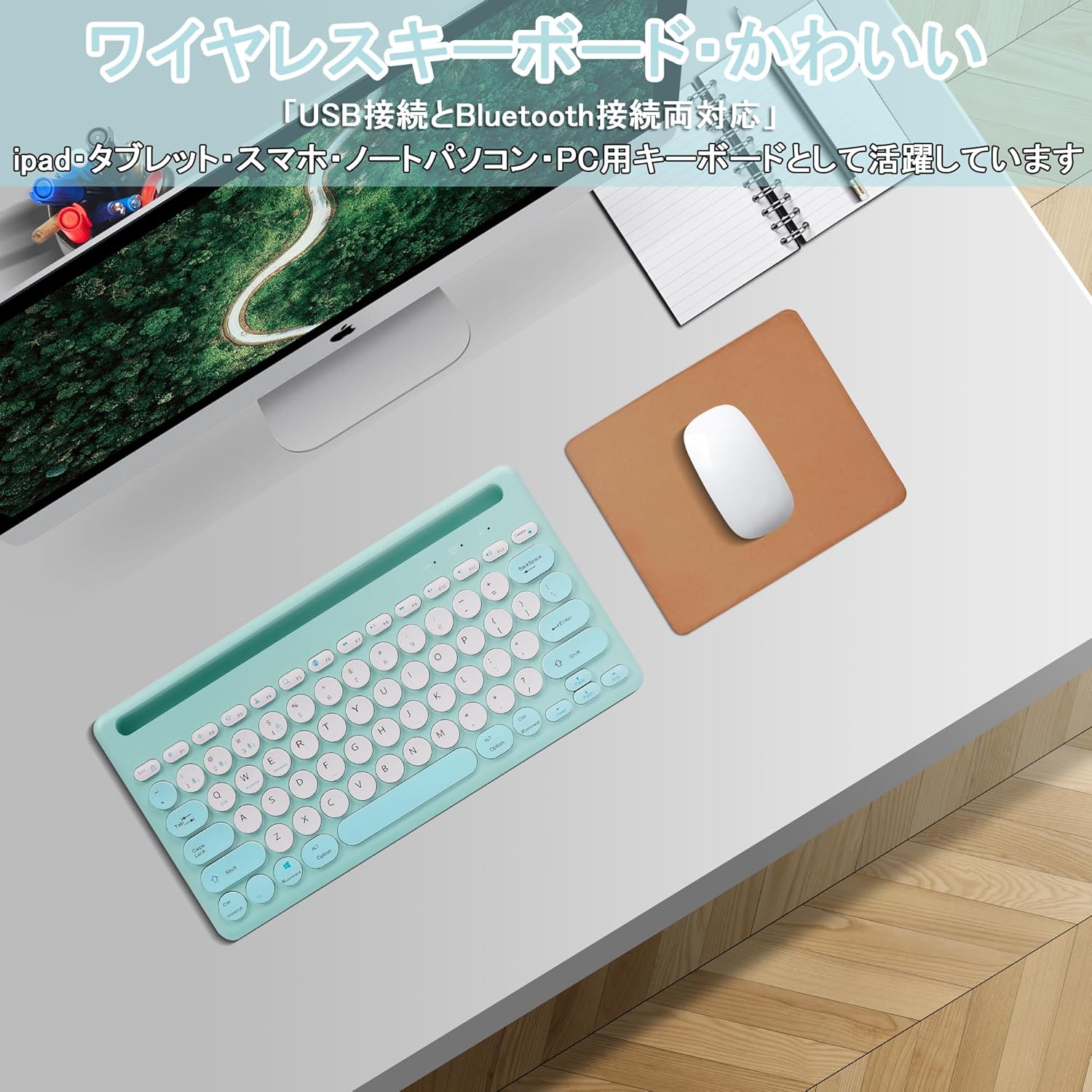
Image: The Yifeng Wireless Keyboard connected to a tablet, smartphone, and laptop, demonstrating its multi-device pairing capability.
5. Parentah Operasi
5.1. Ngalihkeun Antara Alat nu Nyambung
To switch between your paired devices, simply press the corresponding connection key:
- Pencét Bluetooth 1 to switch to the first Bluetooth device.
- Pencét Bluetooth 2 to switch to the second Bluetooth device.
- Pencét Bluetooth 3 to switch to the third Bluetooth device.
- Pencét éta 2.4GHz key (often labeled with a '4' or '2.4G' icon) to switch to the USB wireless device.
5.2. System Compatibility Switching
The keyboard supports Windows, iOS, and Android operating systems. Use the dedicated system keys to optimize key functions for your current device:
- Pencét Fn + Q pikeun ios.
- Pencét Fn + W pikeun Android.
- Pencét Fn + E pikeun Windows.
5.3. Ngecas kibor
The keyboard features a built-in rechargeable lithium-ion battery. A single full charge provides approximately 30 days of continuous use.
- Connect the included USB charging cable to the charging port on the keyboard.
- Colokkeun tungtung kabel USB anu sanésna kana sumber daya USB (contona, port USB komputer, adaptor témbok USB).
- Lampu indikator ngecas bakal hurung nalika ngecas sareng pareum nalika dicas pinuh.

Image: The Yifeng Wireless Keyboard connected to a power strip via its USB charging cable, indicating the rechargeable feature.
5.4. Ngagunakeun Stand Terpadu
The keyboard includes an integrated stand slot at the top, designed to hold your tablet or smartphone upright. This allows for comfortable viewing and typing, making it ideal for document creation, chatting, or watching media while commenting.
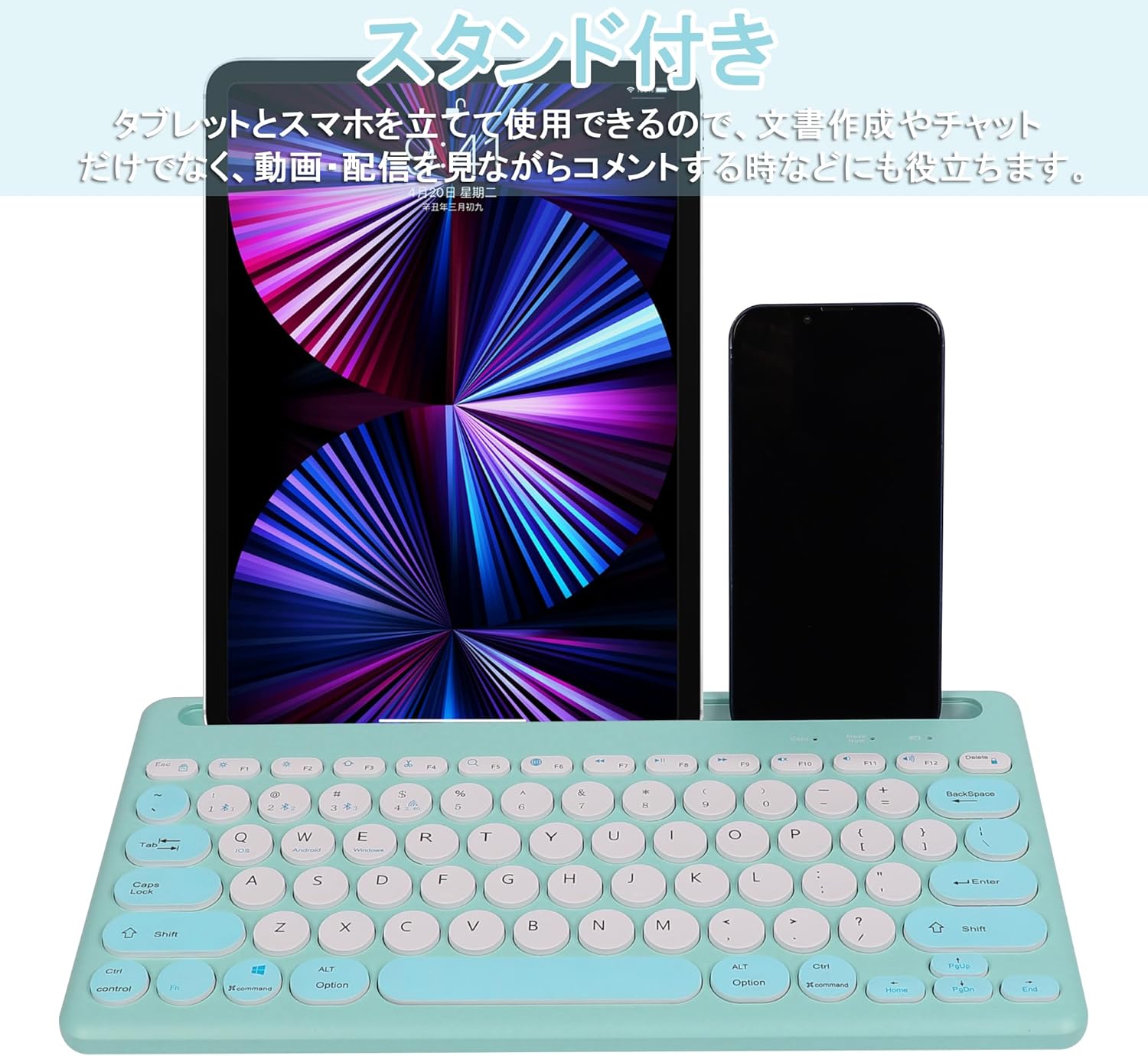
Image: The Yifeng Wireless Keyboard with a tablet and smartphone securely positioned in its integrated stand, demonstrating its utility for multi-device setups.
6. Pangropéa
- Bersihkeun kibor sacara rutin nganggo lawon anu lemes sareng garing. Pikeun kokotor anu bandel, usap sakedikamp cloth can be used, ensuring no moisture enters the keyboard.
- Hindarkeun ngagunakeun bahan kimia anu kasar atanapi pembersih abrasive.
- Store the keyboard in a cool, dry place when not in use.
- The keyboard features anti-slip pads on the back for stable use. Ensure these pads are clean and intact for optimal stability.

Image: The underside of the Yifeng Wireless Keyboard, highlighting the four anti-slip pads designed for stable placement on various surfaces.
7. Cara ngungkulan
7.1. Kibor Teu Nyambung
- Pariksa kakuatan: Pastikeun kibor dihurungkeun tur gaduh muatan batre cukup.
- pasangan deui: For Bluetooth, delete the keyboard from your device's Bluetooth list and attempt to pair again. For 2.4 GHz USB, try plugging the receiver into a different USB port.
- Ganti Saluran: Ensure you have selected the correct channel (Bluetooth 1/2/3 or 2.4GHz) for your device.
- Alat Bluetooth: Verify that Bluetooth is enabled on your device and that it is discoverable.
7.2. Konci Teu Ngarespon
- Tingkat batré: Cas deui keyboard upami batréna lemah.
- Mode sistem: Ensure the keyboard is set to the correct operating system mode (Windows, iOS, Android) using Fn + Q/W/E.
- gangguan: Pindahkeun kibor leuwih deukeut ka alat anjeun sarta jauhkeun tina alat nirkabel séjén anu bisa nyababkeun gangguan.
7.3. Masalah Ngecas
- Cék kabel: Ensure the USB charging cable is securely connected to both the keyboard and the power source.
- Sumber Daya: Cobi nganggo port USB atanapi adaptor témbok anu béda.
- Lampu Indikator: If the charging indicator light does not turn on, the cable or power source may be faulty.
8. Spésifikasi
| merek | Yifeng |
| Nomer modél | AMWS0584A-L |
| Téhnologi konektipitas | Bluetooth, 2.4 GHz Wireless (USB) |
| Alat nu cocog | Tablets, Smartphones, PCs, Laptops (Windows, iOS, Android) |
| Tata perenah kibor | QWERTY (Tata Letak AS) |
| Key Mechanism | Scissor-Switch |
| Fitur husus | Rechargeable, Integrated Stand, Multi-Pairing (4 devices) |
| Jenis Batré | 1 Batré Litium Ion (kaasup) |
| Kahirupan batré | Kira-kira. 30 dinten (per muatan) |
| Diménsi | 33.7 x 16.7 x 2.9 cm |
| Beurat | 820 g |
| Komponén Kaasup | Kabel USB |
9. Garansi jeung Rojongan
Produk ieu hadir kalawan a jaminan kualitas 1 taun from the date of purchase. In case of initial defects or malfunctions occurring within the warranty period, we offer return or exchange services.
Should you encounter any issues or require assistance, please contact us directly through your purchase platform:
- Pindah ka anjeun Sajarah pesenan.
- Select the order for this product.
- Klik dina Hubungan Penjual.
Our support team will be happy to assist you.


