
Techage CG7S
Techage CG7S Solar Outdoor Wireless Security Camera User Manual
Model: CG7S
Bubuka
Thank you for choosing the Techage CG7S Solar Outdoor Wireless Security Camera. This manual provides essential information for the proper installation, operation, and maintenance of your device. Please read it thoroughly before use to ensure optimal performance and safety.
Produk Leuwihview
Eusi pakét
- 1 x Techage CG7S WiFi Camera
- 1 x Pamasangan Bracket
- 1 x Panel Solar
- 1 x Kabel USB
- 1 x Screws Set
- 1 x Manual Pamaké
Komponén Kaméra
Familiarize yourself with the various parts of your Techage CG7S camera:

This image displays a detailed diagram of the Techage CG7S camera, highlighting its key components including the WiFi antenna, infrared light, HD lens, white lights, microphone, human body infrared sensor, Micro-USB port, TF card slot, power button, reset button, and speaker.
- Antenna WiFi: Pikeun sambungan jaringan nirkabel.
- Cahaya Infrabeureum: Enables infrared night vision.
- HD Lénsa: Captures 1080P video footage.
- Cahaya bodas: Provides illumination for full-color night vision and acts as a spotlight.
- Mikropon: Pikeun input audio sareng komunikasi dua arah.
- Human Body Infrared Sensor (PIR): Detects motion from heat signatures.
- Port Micro-USB: Pikeun ngecas batré internal.
- Slot Kartu TF: Pikeun neundeun rékaman pidéo lokal (ngadukung dugi ka 128GB).
- Tombol Daya: Pikeun ngahurungkeun atanapi mareuman kaméra.
- Tombol Reset: Pikeun mulangkeun setélan pabrik.
- Speaker: Pikeun kaluaran audio sareng komunikasi dua arah.
Disetél
Ngecas kaméra
The camera is equipped with a 9000mAh rechargeable battery and a solar panel for continuous power. Before initial use, it is recommended to fully charge the camera via the Micro-USB port using the provided USB cable and a standard 5V USB power adapter (not included).
- Connect the USB cable to the camera's Micro-USB port and a power source.
- The camera's indicator light will show charging status.
- Once installed, the solar panel will absorb sunlight to charge the battery during the day. Ensure the solar panel is placed in direct sunlight for optimal charging efficiency.
Pamasangan Aplikasi
The Techage CG7S camera operates with the VicoHome app. Download and install the app on your smartphone:
- Scan the QR code provided in the quick start guide or search for "VicoHome" in the Apple App Store (for iOS devices) or Google Play Store (for Android devices).
- Install the VicoHome app on your smartphone.
- Ngadaptarkeun akun anyar atanapi log in upami anjeun parantos gaduh.

This image shows the VicoHome app logo along with icons for downloading from the App Store and Google Play, indicating where users can find the application.
Camera Pairing and Wi-Fi Connection
To connect your camera to the VicoHome app:
- Pastikeun telepon pinter anjeun nyambung ka jaringan Wi-Fi 2.4GHz. Kaméra henteu ngadukung Wi-Fi 5GHz.
- Open the VicoHome app and tap the "+" icon to add a new device.
- Follow the on-screen instructions to power on the camera and enter pairing mode.
- Scan kode QR anu ditampilkeun dina telepon anjeun nganggo lénsa kaméra.
- Once connected, the camera's indicator light will change, and you will receive a confirmation in the app.
Masang kaméra
For optimal performance, consider the following when mounting your camera:
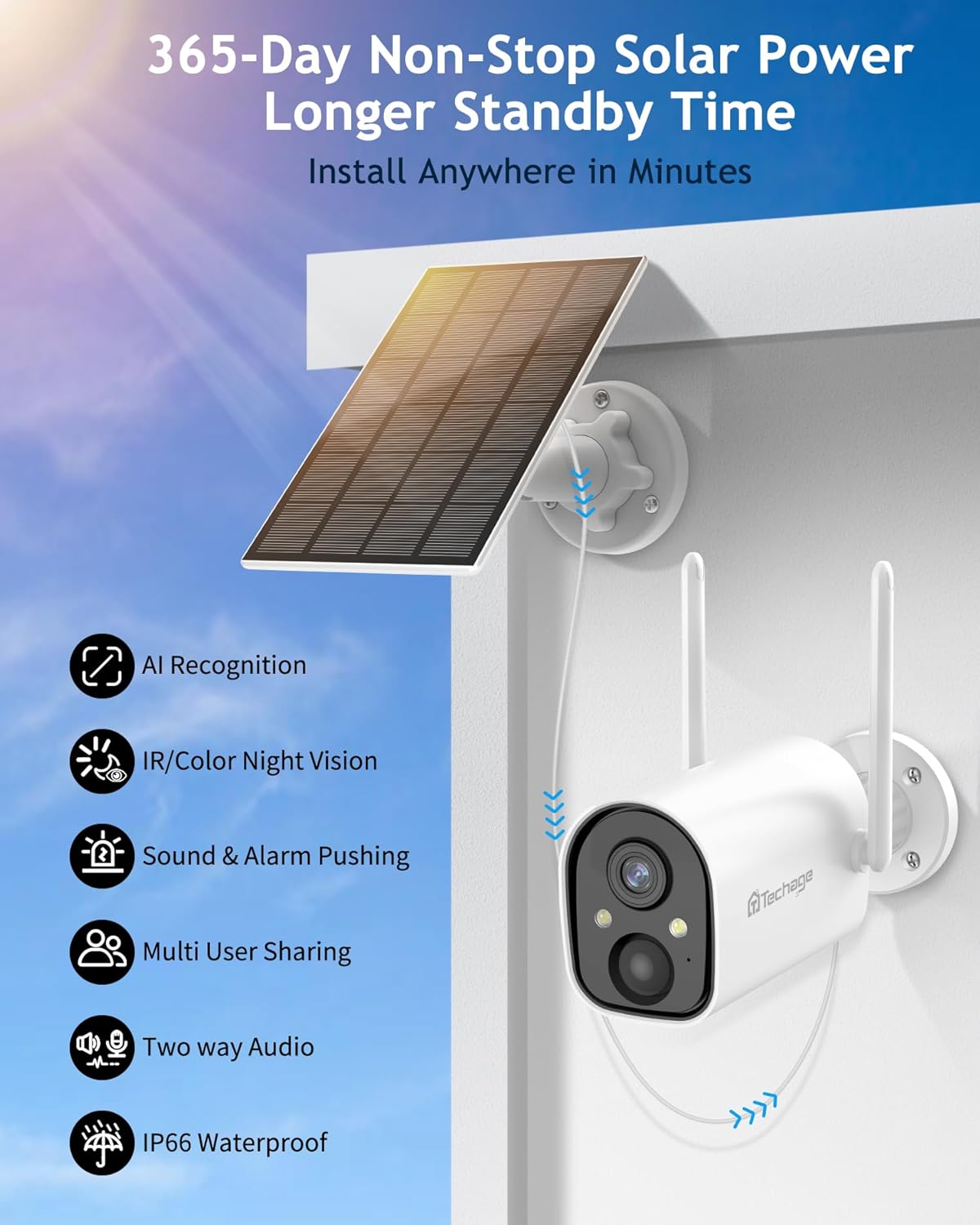
This image shows the Techage CG7S camera and its solar panel mounted on an exterior wall, illustrating a typical installation scenario for outdoor use.
- lokasi: Pilih lokasi anu nyayogikeun anu dipikahoyong viewsudut sareng aya dina jangkauan jaringan Wi-Fi 2.4GHz anjeun.
- Jangkungna: A mounting height of 6-7 feet (1.8-2.1 meters) is recommended for accurate motion detection.
- Penempatan Panel Surya: Ensure the solar panel receives direct sunlight for several hours each day to maintain battery charge. It can be mounted separately from the camera for better sun exposure.
- Pamasangan: Use the provided mounting bracket and screws to securely attach the camera and solar panel to a wall or other stable surface.
Ngoperasikeun kaméra
Hirup View sareng Playback
Access live video feed and review recorded events through the VicoHome app:
- Open the VicoHome app and select your camera from the device list.
- Pencét langsung view to see real-time footage.
- Ka view recorded events, navigate to the playback section within the app. Recordings are stored on the inserted TF card or in the cloud (if subscribed).
Setélan deteksi gerak
The camera features PIR human infrared detection and AI intelligent recognition to minimize false alarms.

This image illustrates the camera's AI intelligent recognition capabilities, showing it identifying and labeling a person, a vehicle, packages, and a pet within its field of view.
- In the VicoHome app, access the camera settings to adjust motion detection sensitivity.
- Enable AI detection for specific categories such as people, vehicles, packages, or pets to receive more relevant alerts.
- Set up activity zones to focus detection on specific areas and ignore others.
- Configure alarm push notifications to receive alerts on your phone when motion is detected.
Audio Dua Arah
Komunikasi sareng sémah atanapi cegah sémah anu teu dihoyongkeun nganggo mikropon sareng spiker anu dipasang di jerona.

This image depicts a family arriving home and communicating with someone through the camera's two-way audio feature, with speech bubbles indicating conversation.
- Ti live view in the VicoHome app, tap the microphone icon to speak through the camera's speaker.
- Audio from the camera's microphone will be transmitted to your phone.
Modeu Visi Peuting
The camera offers two night vision modes for clear visibility in low-light conditions:

This image presents a side-by-side comparison of the camera's night vision capabilities, showing a vibrant 1080P color night vision view with the spotlight on, and a clear 1080P infrared night vision view with the spotlight off.
- Mode Infrabeureum: Uses infrared lights to provide clear black-and-white video in complete darkness.
- Full-Color Night Vision: Activates the built-in white lights to illuminate the area, providing full-color video even at night. This mode can be set to activate automatically upon motion detection.
Pamaduan Alexa
The Techage CG7S camera is compatible with Amazon Alexa, allowing for voice control and viewing on compatible devices like the Amazon Echo Show.

This image shows a woman interacting with an Amazon Echo Show, using voice commands to request a view from her garden camera, demonstrating Alexa integration.
- Link your VicoHome account to your Alexa app.
- Use voice commands such as "Alexa, show me the [camera name]" to view the live feed on your Alexa-enabled display device.
Pangropéa
Manajemén batré
The camera's 9000mAh battery is designed for long-lasting performance, supplemented by the solar panel.
- Regularly check the battery level in the VicoHome app.
- Ensure the solar panel is clean and free from obstructions (e.g., leaves, dirt) to maximize charging efficiency.
- If the camera is installed in an area with limited sunlight, occasional manual charging via USB may be necessary.
beberesih
To maintain clear image quality, periodically clean the camera lens and solar panel.
- Ngagunakeun lemes, damp cloth to gently wipe the lens and camera body.
- For the solar panel, use a soft brush or cloth to remove dust and debris. Avoid abrasive cleaners.
Résistansi Cuaca
The Techage CG7S camera is IP66 weatherproof, designed to withstand various outdoor conditions.

This image illustrates the camera's robust weather resistance, showing it functioning effectively under sunny skies, during rainfall, and in snowy conditions, highlighting its IP66 rating.
- The camera operates effectively in temperatures ranging from 14°F to 113°F (-10°C to 45°C).
- Ensure all covers and seals are properly secured to maintain its waterproof rating.
Pamérésan masalah
Isu umum jeung Solusi
- Kaméra teu tiasa nyambung ka Wi-Fi:
Ensure your Wi-Fi network is 2.4GHz. The camera does not support 5GHz networks. Check Wi-Fi signal strength at the camera's location. Move the camera closer to the router if necessary. Reset the camera and attempt pairing again. - Solar panel not charging:
Verify the solar panel is clean and free from obstructions. Ensure it is positioned to receive direct sunlight for several hours daily. Check the connection cable between the solar panel and the camera. - Alarm palsu anu sering:
Adjust the motion detection sensitivity in the VicoHome app. Utilize AI detection to filter out non-human movements. Define activity zones to exclude areas with frequent irrelevant motion (e.g., moving trees). - Kualitas gambar goréng:
Ngabersihan lénsa kaméra. Pastikeun teu aya halangan dina widang kaméra view. Check your Wi-Fi connection stability, as poor connectivity can affect streaming quality. - Audio dua arah teu jalan:
Ensure the microphone and speaker are not obstructed. Check volume settings on your phone and within the VicoHome app. Verify app permissions for microphone access on your smartphone.
spésifikasi
Spésifikasi teknis
| Ngaran modél | CG7S |
| Resolusi Capture Video | 1080 p |
| Kapasitas batré | 9000 mah |
| Sumber Daya | Solar Powered, Battery |
| Téhnologi konektipitas | Wireless (2.4GHz Wi-Fi only) |
| Pamakéan jero rohangan / outdoor | Jero rohangan, Luar |
| Peunteun Protection Internasional | IP66 Cuaca |
| Wengi Sawangan Sawangan | Nepi ka 30 Feet |
| Viewdina Angle | 120 darajat |
| Pilihan Panyimpenan | Kartu TF (dugi ka 128GB), Panyimpenan Awan |
| Alat nu cocog | Smartphone, Amazon Alexa |
| Suhu Operasi | 14°F nepi ka 113°F (-10°C nepi ka 45°C) |
Garansi sareng Rojongan
Émbaran jaminan
Please refer to the warranty card included in your product packaging for specific warranty terms and conditions. Techage provides a limited warranty against defects in materials and workmanship under normal use.
Rojongan Palanggan
For technical assistance, troubleshooting, or any product-related inquiries, please contact Techage customer support. You can find contact information on the official Techage website or through the VicoHome app.
Nganjang ka Techage Store on Amazon pikeun inpormasi lengkep sareng sumber pangrojong.
Ask a question about this manual
Ask about setup, troubleshooting, compatibility, parts, safety, or missing instructions. Manuals+ will review the question and use this page’s manual context to help answer it.