1. Bubuka
This manual provides detailed instructions for the Waveshare 4.3-inch MIPI DSI LCD Capacitive Touch Display. This display features an 800×480 IPS panel with a wide viewing angle and a 5-point capacitive touch interface. It is designed for seamless integration with various Raspberry Pi models and other single-board computers, offering a driver-free experience for supported operating systems.
2. Eusi Paket
Pastikeun yén sadaya item anu didaptarkeun di handap kalebet kana pakét anjeun. Lamun aya item nu leungit atawa ruksak, mangga ngahubungan rojongan customer.
Figure 2.1: Package Contents. This image displays the 4.3-inch DSI LCD, two FPC 15PIN 1.0 pitch cables (50mm and 160mm), one 12cm DSI cable, and a screw pack.
- 4.3inch DSI LCD x1
- FPC 15PIN 1.0 pitch 50mm (opposite sides) x1
- FPC 15PIN 1.0 pitch 160mm (opposite sides) x1
- DSI-Cable-12cm x1
- Screwspack x1
3. Parentah Setup
Follow these steps to connect your 4.3-inch DSI LCD to a compatible single-board computer, such as a Raspberry Pi.
- Prepare your Raspberry Pi: Ensure your Raspberry Pi is powered off before making any connections.
- Connect the DSI Cable: Carefully connect one end of the provided DSI cable to the DSI port on the 4.3-inch LCD. Connect the other end to the DSI port on your Raspberry Pi. Ensure the cable is inserted correctly and securely.
- Sambungan Daya: The display typically draws power directly from the Raspberry Pi's DSI interface. No separate power supply is usually required for the display itself. Ensure your Raspberry Pi has an adequate power supply (e.g., 5V/3A or 5V/5A for Raspberry Pi 5).
- Pamasangan (Opsional): Use the provided screw pack to securely mount the display to your Raspberry Pi or an enclosure, if desired.
- Daya Hurung: Once all connections are secure, power on your Raspberry Pi. The display should initialize automatically.
For most supported operating systems like Raspberry Pi OS, Ubuntu, Kali, and Retropie, the display operates driver-free. Refer to the connection examples below for visual guidance.
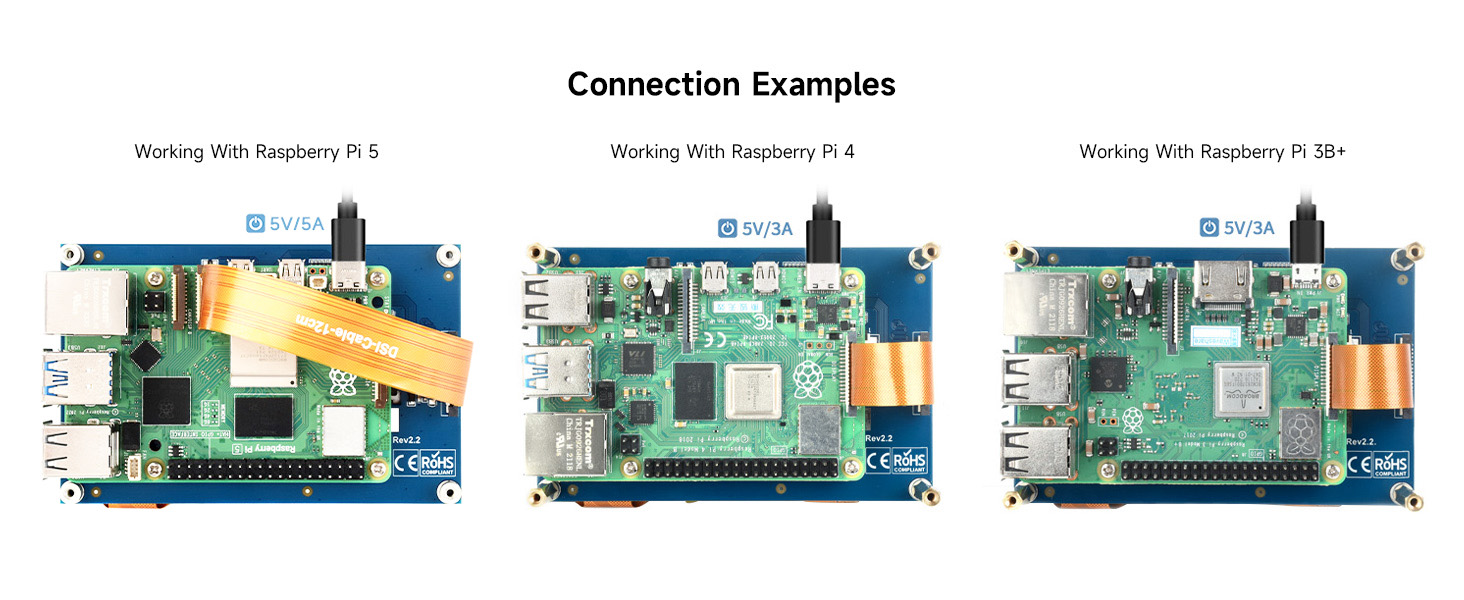
Figure 3.1: Connection Examples. This image illustrates how to connect the DSI LCD to Raspberry Pi 5, Raspberry Pi 4, and Raspberry Pi 3B+ using the DSI cable.
4. Parentah Operasi
4.1 Display Functionality
The 4.3-inch DSI LCD provides an 800x480 resolution display with an IPS panel, ensuring wide viewing angles and consistent color reproduction. The display refreshes at up to 60Hz.
4.2 Kontrol Toél Kapasitif
The display features a capacitive touch panel that supports up to 5-point multi-touch, depending on the operating system. This allows for intuitive interaction with the graphical user interface of your connected device.

Figure 4.1: Touch Control. This image illustrates a user interacting with the display's capacitive touch screen to navigate a menu.
4.3 Backlight Brightness Control
The display supports software control of backlight brightness. Specific commands or settings for adjusting brightness will depend on the operating system and software environment running on your Raspberry Pi. Consult your operating system's documentation for details on backlight control.
5. Device & System Support
The Waveshare 4.3-inch DSI LCD is compatible with a range of single-board computers and operating systems:
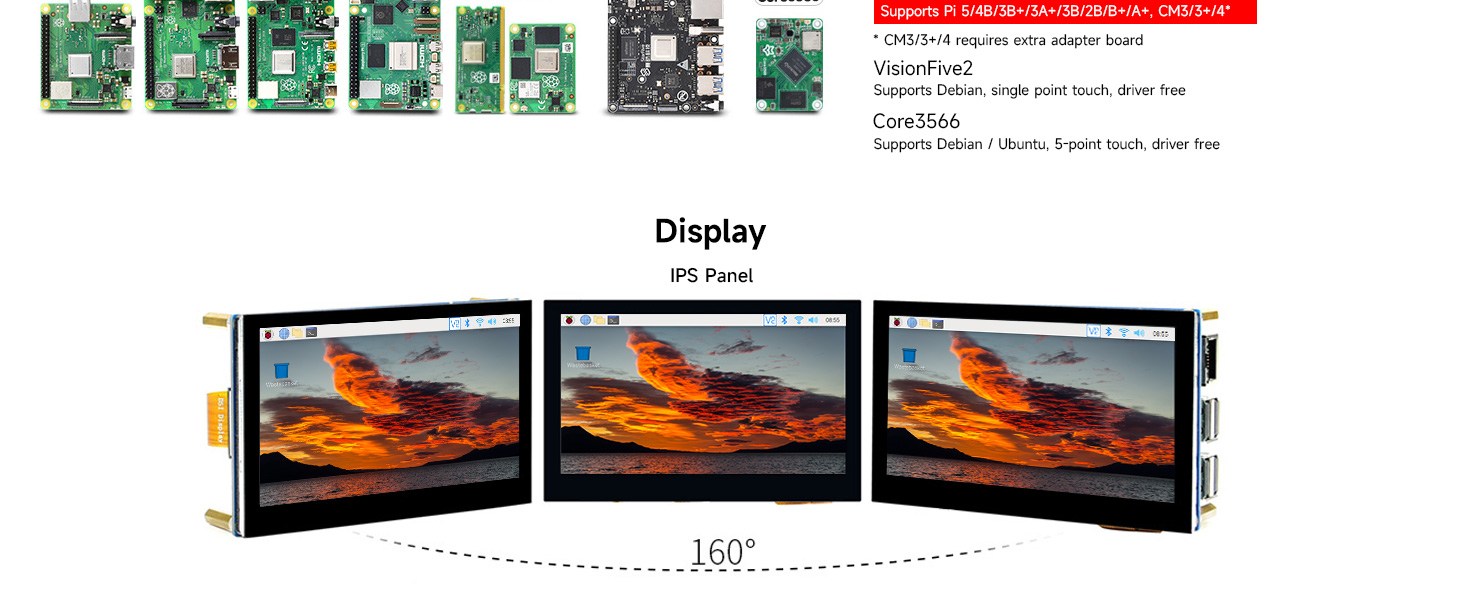
Figure 5.1: Device and System Support. This image details the compatibility of the display with different hardware platforms and their respective operating system support.
- Rasberi Pi: Compatible with Raspberry Pi 5/4B/3B+/3A+/3B/2B/B+/A+, CM3/3+/4*. Supports Raspberry Pi OS (5-point touch, driver free), Ubuntu/Kali/WIN10 IoT (single point touch, driver free), and Retropie (driver free).
* CM3/3+/4 requires an extra adapter board. - VisionFive2: Supports Debian (single point touch, driver free).
- Core3566: Supports Debian/Ubuntu (5-point touch, driver free).
6. Pangropéa
Proper maintenance ensures the longevity and optimal performance of your display.
- beberesih: Make kaen nu lemes, teu aya lint rada dampened with water or a screen-cleaning solution to clean the display surface. Avoid harsh chemicals, abrasive materials, or excessive moisture.
- Penanganan: Handle the display by its edges. Avoid applying pressure to the screen surface, especially when connecting cables.
- Panyimpenan: When not in use, store the display in a cool, dry environment, away from direct sunlight and extreme temperatures.
- Manajemén Kabel: Ensure DSI and FPC cables are not bent sharply or under tension, as this can damage the cables or connectors.
7. Cara ngungkulan
If you encounter issues with your display, refer to the following troubleshooting tips:
- Henteu aya tampilan / layar kosong:
- Ensure the DSI cable is securely connected to both the display and the Raspberry Pi.
- Verify that your Raspberry Pi is powered on and functioning correctly.
- Check if the Raspberry Pi's operating system is configured to output to the DSI display. For some systems, specific configuration might be needed, though it's generally driver-free.
- Ensure the power supply for your Raspberry Pi is sufficient.
- Fungsi Toél Teu Gawé:
- Confirm that the DSI cable is properly connected, as it carries both display and touch data.
- Verify that your operating system supports the touch functionality of the DSI display. While many are driver-free, ensure no conflicting drivers or settings are active.
- Restart your Raspberry Pi.
- Tampilan kedip-kedip:
- Check the DSI cable for any damage or loose connections.
- Ensure the power supply to the Raspberry Pi is stable and adequate.
8. Spésifikasi
Key technical specifications for the Waveshare 4.3-inch DSI LCD Capacitive Touch Display:

Figure 8.1: Appearance and Dimensions. This image provides a detailed technical drawing with measurements of the display module in millimeters.
| Fitur | Spésifikasi |
|---|---|
| Ukuran tampilan | 4.3 inci |
| Resolusi | 800 × 480 piksel |
| Tipe Panel Témbongkeun | IPS Wide Angle |
| Panganteur | MIPI DSI |
| Toél Tipe | Capacitive, 5-point touch |
| Touch Panel Material | Tempered Glass (Hardness up to 6H) |
| Refresh Laju | Nepi ka 60Hz |
| Kadali lampu tukang | Software adjustable |
| Dimensi produk | 0.35 x 4.17 x 2.68 inci (kira-kira 8.89 x 105.9 x 68.07 mm) |
| Item Beurat | 5.6 ons (kira-kira 158.76 gram) |
| Nomer modél | WS-4.3inch DSI LCD |
9. Garansi jeung Rojongan
For warranty information, technical support, or further assistance, please refer to the official Waveshare websitus atanapi ngahubungan pangecér Anjeun. Simpen resi pameseran anjeun pikeun klaim jaminan.


