
Bubuka
Thank you for choosing the Andoer 18.5-inch Wi-Fi Digital Photo Frame. This manual provides detailed instructions to help you set up, operate, and maintain your new digital photo frame. Please read this manual thoroughly before use and keep it for future reference.
Naon dina Box
- 1 x Andoer 18.5-inch Wi-Fi Digital Photo Frame
- 1 x Back Stand
- 1 x Power Adapter (Input: 100-240V, 50/60Hz; Output: DC 12V, 2A)
- 1 x Manual Pamaké

Image: Package contents showing the digital photo frame, power adapter, back stand, and user manual.
Émbaran Kasalametan
Pikeun mastikeun operasi anu aman sareng nyegah karusakan, punten perhatikeun pancegahan kaamanan ieu:
- Ulah ngalaan alat ka hujan, beueus, atawa suhu ekstrim.
- Use only the provided power adapter. Using an unauthorized adapter may damage the device and void the warranty.
- Hindarkeun nempatkeun pigura dina sinar panonpoé langsung atanapi caket sumber panas.
- Ulah nyobian ngabongkar atawa ngalereskeun alat sorangan. Rujuk sadayana jasa ka tanaga anu mumpuni.
- Jauhkeun alat tina médan magnét anu kuat.
- Clean the screen with a soft, dry cloth. Do not use liquid cleaners or sprays directly on the screen.
Produk Leuwihview
The Andoer 18.5-inch Wi-Fi Digital Photo Frame is designed to display your cherished memories with ease and clarity. It features a high-resolution IPS touchscreen and Wi-Fi connectivity for instant sharing.
Fitur konci
- Gampang Bagikeun: Integrated Wi-Fi supports instant and wireless sharing of photos and videos with friends and family from anywhere via the Frameo application.
- IPS Touch Screen: Features a 17.3-inch IPS screen with a 1920 x 1080 resolution, allowing for intuitive touch control to manage photos and settings.
- Kapasitas Panyimpenan ageung: Equipped with 16GB of built-in memory (approximately 8GB usable for user content) and supports external TF cards up to 32GB.
- Rotasi otomatis: Automatically rotates photos to adjust direction. Includes a removable back stand for both portrait and landscape viewing, and can also be wall-mounted.

Gambar: Hareupeun view of the digital photo frame highlighting its main features.
Disetél
1. Unpacking na panempatan
- Sacara saksama miceun sadaya komponén tina bungkusan.
- Attach the back stand to the frame for desktop placement, or prepare for wall mounting if desired.
- Place the frame on a stable, flat surface or mount it securely on a wall. Ensure adequate ventilation around the device.

Gambar: Examples of placing the digital photo frame on a desktop or mounting it on a wall.
2. Ngahurungkeun
- Sambungkeun adaptor daya ka port input DC di tukang pigura.
- Colokkeun adaptor kakuatan kana stop kontak listrik standar.
- The frame will automatically power on and display the initial setup screen.
3. Setup awal jeung Sambungan Wi-Fi
- Follow the on-screen prompts to select your preferred language, time zone, and other basic settings.
- When prompted, select your Wi-Fi network from the list and enter the password. Ensure a stable internet connection for optimal performance.
4. Frameo App Installation and Pairing
- Download the "Frameo" application from your smartphone's app store (available for iOS and Android).
- Open the Frameo app and create an account or log in.
- On your digital photo frame, navigate to the "Add Friend" section to get a unique frame code.
- In the Frameo app on your smartphone, enter the frame code to pair your device with the photo frame.
Parentah Operasi
1. Navigating the Touch Screen
The frame features an intuitive IPS touchscreen. Swipe left/right to browse photos, tap to access menus, and pinch to zoom (if supported by the software version).

Image: Illustrating the touch control functionality of the 18.5-inch IPS screen.
2. Ngunggah Poto sareng Pidéo
You can upload media to your frame using the Frameo app or via email.
- Ngaliwatan Aplikasi Frameo: Open the Frameo app on your smartphone, select the photos/videos you wish to share, choose your connected frame, and send.
- Ngaliwatan Email: The frame may have a unique email address. Send photos/videos to this address, and they will appear on your frame after processing.

Image: Demonstrating how to upload photos to the frame using a mobile phone app or email.

Image: Highlighting the instant wireless sharing capability of the photo frame.
3. Managing Photos and Settings
From the frame's touchscreen interface, you can:
- Move/Hide/Delete Photos: Tap on a photo to reveal options for managing it.
- Import Photos: If using an external TF card, you can import photos from it.
- Saluyukeun Setélan: Access the settings menu to change brightness, language, time zone, and the frame's name.
4. Automatic Rotation
The frame automatically detects its orientation (portrait or landscape) and adjusts the displayed photos accordingly. This feature ensures your photos are always displayed correctly, regardless of how the frame is positioned.
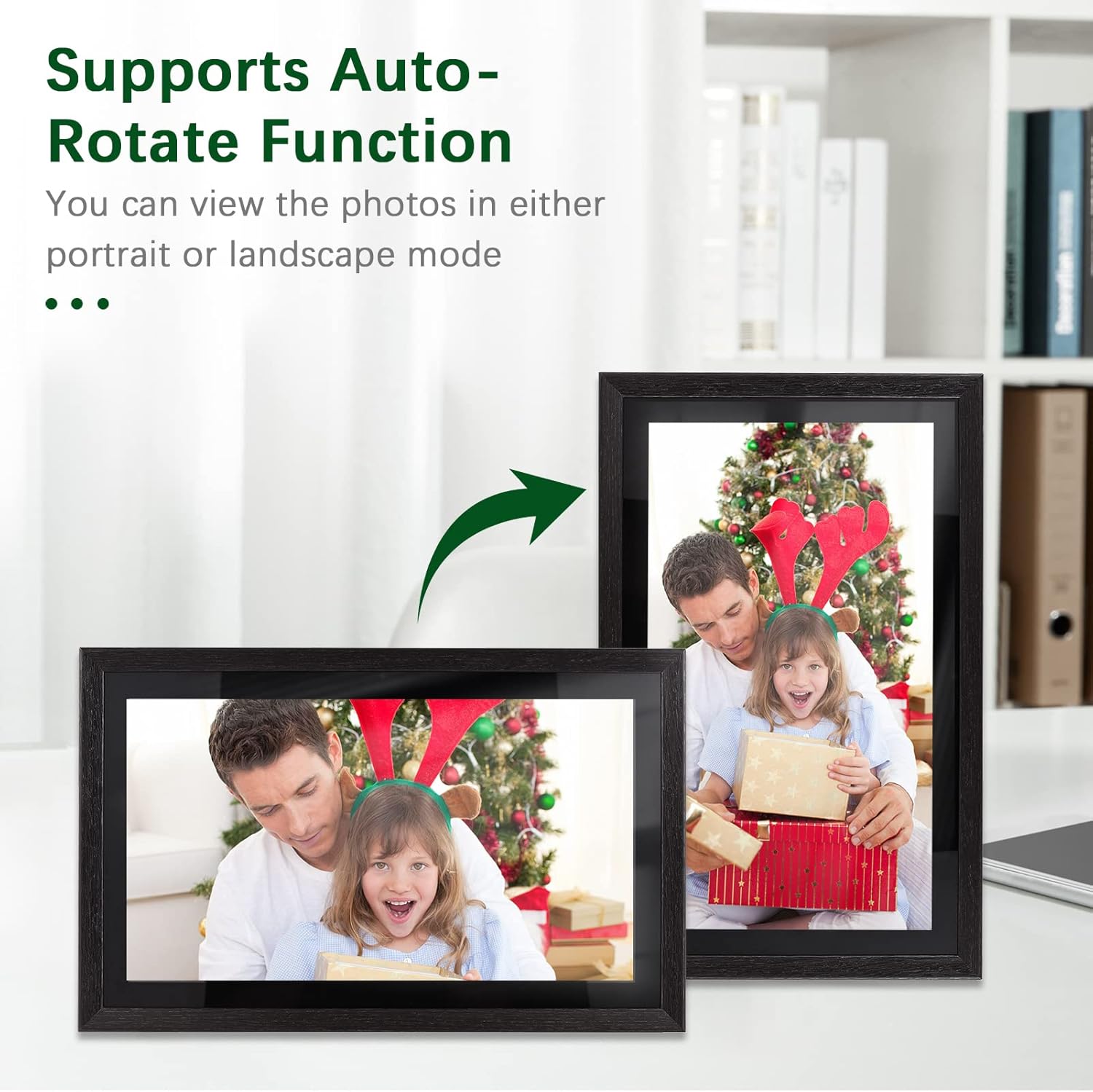
Image: Demonstration of the automatic rotation feature, showing the frame adapting to portrait and landscape orientations.
Pangropéa
Ngabersihkeun pigura
- layar: Ngusap layar nganggo kaén anu lembut sareng teu aya serat. Pikeun smudges nekad, rada dampen lawon jeung cai (ulah menyemprot langsung dina layar).
- Awak pigura: Use a soft, dry cloth to wipe the frame's body.
- Do not use abrasive cleaners, solvents, or chemical sprays, as these can damage the finish and screen.
Software Apdet
Periodically check for software updates in the frame's settings menu. Keeping your frame's software up-to-date ensures optimal performance and access to new features.
Manajemén gudang
The frame has 16GB of internal storage. If you find yourself running low on space, consider deleting old photos/videos or utilizing an external TF card (up to 32GB) for additional storage.
Pamérésan masalah
| Masalah | Mungkin Cukang lantaranana | Solusi |
|---|---|---|
| Pigura teu hurung. | Adaptor daya teu nyambung atawa faulty; masalah stop kontak listrik. | Pastikeun adaptor daya disambungkeun pageuh kana pigura sareng stop kontak anu tiasa dianggo. Cobi stop kontak anu sanés. |
| Teu bisa nyambung ka Wi-Fi. | Incorrect password; weak signal; router issue. | Pariksa deui kecap akses Wi-Fi-na. Pindahkeun pigura langkung caket kana router. Pareuman terus hurungkeun deui router anjeun. |
| Photos/videos not uploading. | No internet connection; incorrect frame code; app issues. | Verify Wi-Fi connection. Ensure the correct frame code is entered in the Frameo app. Restart the app and try again. Check available storage on the frame. |
| Layar rampa teu ngaréspon. | glitch software samentara; layarna kotor. | Restart the frame by unplugging and replugging the power adapter. Clean the screen with a soft, dry cloth. |
spésifikasi
| Fitur | Rincian |
|---|---|
| Nomer modél | DRR9822880669739GJ |
| Ukuran layar | 18.5 inci |
| Tipe tampilan | Layar Toél IPS |
| Resolusi | 1920 x 1080 |
| Rasio Aspék | 16:9 |
| Mémori internal | 16GB (approx. 8GB usable) |
| Panyimpenan éksternal | Supports TF Card (max. 32GB) |
| Konektipitas | Wifi |
| Input kakuatan | 12V / 2A |
| Adaptor kakuatan | Input: 100-240V, 50/60Hz; Output: DC 12V, 2A |
| Métode kontrol | Layar cabak |
| Alat nu cocog | Laptop, Smartphone, Tablet |
| Warna | Hideung |
| Ukuran Paket | 52.6 x 44.29 x 8.9 cm |
| Beurat pakét | 2.81 kg |
Garansi sareng Rojongan
Émbaran jaminan
Andoer products are manufactured to the highest quality standards. This product is covered by a standard manufacturer's warranty against defects in materials and workmanship. Please refer to your purchase documentation for specific warranty terms and duration.
Rojongan Palanggan
If you encounter any issues or have questions regarding your Andoer 18.5-inch Wi-Fi Digital Photo Frame, please contact our customer support team. For the most up-to-date support information, including contact details and FAQs, please visit the official Andoer website or refer to your purchase platform's support section.