1. Bubuka
This manual provides essential instructions for the installation, operation, and maintenance of your Hikvision DS-7108HQHI-K1(C)(S) Professional Recording Equipment. Please read this manual thoroughly before using the device to ensure proper and safe operation. Keep this manual for future reference.
2. Parentah Kasalametan
- Pastikeun catu daya voltage aya dina rentang nu ditangtukeun.
- Ulah ngalaan alat ka hujan atawa Uap pikeun nyegah seuneu atawa shock listrik.
- Hindarkeun nempatkeun alat dina sinar panonpoé langsung atanapi caket sumber panas.
- Ulah ngahalangan liang ventilasi. Pastikeun aliran hawa di sabudeureun alat cekap.
- Paké ngan asesoris dieusian ku produsén.
- Rujuk sadayana jasa ka tanaga jasa anu mumpuni.
3. Eusi Paket
Verify that all items are present and in good condition upon unpacking. If any item is missing or damaged, contact your dealer immediately.
- Hikvision DS-7108HQHI-K1(C)(S) Recording Equipment
- Adaptor kakuatan
- Mouse USB
- Screws for HDD Installation (if applicable)
- Gancang Mimitian Guide
4. Produk Langkungview
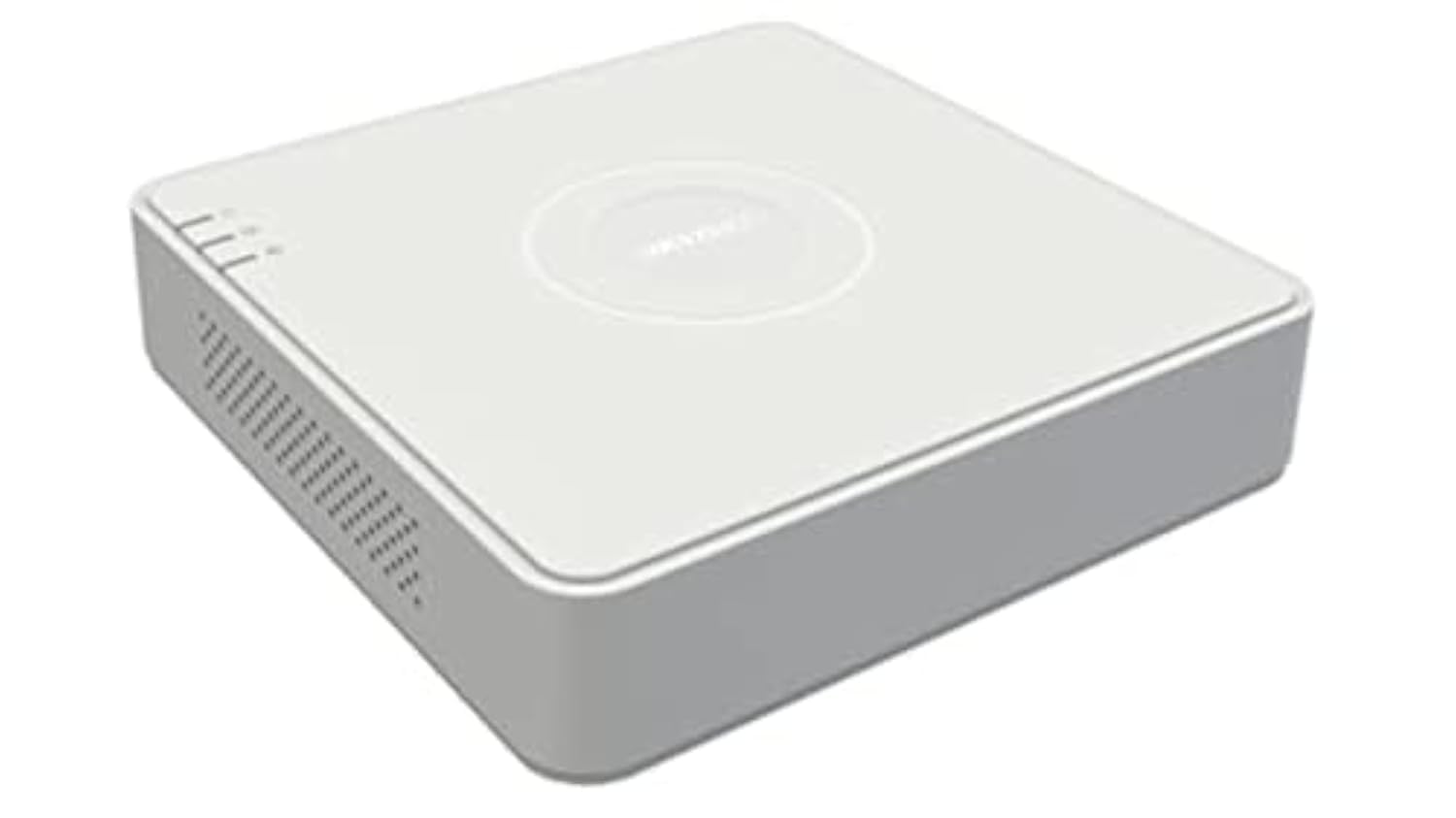
The Hikvision DS-7108HQHI-K1(C)(S) is a professional recording device designed for surveillance systems. It features multiple video input channels and various output ports for display and network connectivity.
Gambar 1: Rear panel of the DS-7108HQHI-K1(C)(S) recording equipment. This image displays the array of BNC video input connectors, a VGA output port, an HDMI output port, audio input and output jacks, a LAN port for network connection, two USB ports for peripherals, and the DC 12V power input.
4.1 Interfaces Panel pungkur
- Video Input (BNC): Connect surveillance cameras. This model supports 8 channels.
- Kaluaran VGA: Connect to a VGA monitor for video display.
- Kaluaran HDMI: Connect to an HDMI monitor or TV for high-definition video display.
- Audio In/Out (RCA): Sambungkeun alat audio éksternal.
- Palabuhan LAN (RJ45): Connect to your network for remote access and internet connectivity.
- Port USB: Connect a USB mouse for control or a USB flash drive for data backup. This model has 1 USB port.
- Input Daya DC 12V: Sambungkeun adaptor daya anu disayogikeun.
5. Setélan
5.1 Pamasangan parangkat keras
- Sambungkeun kaméra: Attach your surveillance cameras to the BNC video input ports.
- Sambungkeun Monitor: Connect a monitor to either the VGA or HDMI output port.
- Sambungkeun Mouse: Plug the USB mouse into one of the USB ports.
- Sambungkeun Jaringan (Opsional): Connect an Ethernet cable from the LAN port to your router or network switch.
- Sambungkeun Kakuatan: Plug the power adapter into the DC 12V power input and then into a power outlet. The device will power on automatically.
5.2 Konfigurasi Awal
Upon first power-on, the device will guide you through an initial setup wizard. Follow the on-screen prompts to set up language, date/time, network settings, and administrator password.
6. Parentah Operasi
6.1 Hirup View
After logging in, the device will display the live view of all connected cameras. You can switch between single-channel view and multi-channel view ngagunakeun kadali dina layar atawa beurit.
6.2 Konfigurasi rékaman
Access the "Record" menu to configure recording schedules, motion detection settings, and other recording parameters for each camera. Ensure a hard drive is installed and initialized for recording.
6.3 Playback
Navigate to the "Playback" menu to review dirékam footage. You can search by date, time, and event type. Use the playback controls to fast forward, rewind, and pause.
6.4 Aksés Jauh
Pikeun jauh viewing, ensure the device is connected to the internet. Configure network settings (e.g., port forwarding, P2P cloud service) as per the detailed user manual or Hikvision's online resources. Download the Hik-Connect app or use client software on your computer.
7. Pangropéa
- beberesih: Regularly clean the exterior of the device with a soft, dry cloth. Do not use liquid or aerosol cleaners.
- Pembaruan firmware: Pariksa resmi Hikvision website periodically for firmware updates. Updating firmware can improve performance and add new features. Follow the instructions provided with the firmware update carefully.
- Manajemén hard drive: If a hard drive is installed, monitor its health and capacity through the device's menu. Consider setting up automatic overwriting of old footage if continuous recording is desired.
- Kaayaan Lingkungan: Pastikeun alatna beroperasi dina kisaran suhu sareng kalembaban anu ditangtukeun pikeun manjangkeun umurna.
8. Cara ngungkulan
- Taya Kaluaran Video:
- Check all video cable connections (VGA/HDMI) to the monitor and the recording equipment.
- Pastikeun monitor dihurungkeun tur disetel ka sumber input nu bener.
- Verify cameras are powered and connected correctly.
- Henteu aya sambungan jaringan:
- Check the Ethernet cable connection to the LAN port and your router.
- Verify network settings (IP address, gateway, DNS) in the device's configuration menu.
- Pastikeun router anjeun jalan kalawan bener.
- Teu Bisa Ngarekam:
- Ensure a hard drive is installed and properly initialized.
- Check recording schedules and motion detection settings.
- Verify the hard drive has sufficient free space.
- Hilap kecap konci:
Refer to Hikvision's official support resources for password reset procedures, which often involve a security code or a reset tool.
9. Spésifikasi
| Fitur | Rincian |
|---|---|
| merek | Hikvision |
| Nomer modél | DS-7108HQHI-K1(C)(S) |
| Jumlah Saluran | 8 |
| Téhnologi konektipitas | VGA |
| Total palabuhan USB | 1 |
| Produsén | Hikvision |
10. Émbaran jaminan
This product is covered by a limited warranty provided by Hikvision. For detailed warranty terms and conditions, please refer to the warranty card included with your product or visit the official Hikvision websitus. Simpen resi pameseran anjeun salaku bukti pameseran pikeun klaim garansi.
11. Rojongan Palanggan
For technical assistance, troubleshooting, or further inquiries, please contact Hikvision customer support. You can find contact information, FAQs, and additional resources on the official Hikvision websitus:
Websitus: www.hikvision.com
Please have your product model number (DS-7108HQHI-K1(C)(S)) and serial number ready when contacting support.


