1. Bubuka
This manual provides detailed instructions for the installation, operation, and maintenance of your Nedis Smartlife WIFICDP30WT Video Door Intercom. Please read this manual thoroughly before using the device to ensure proper functionality and safety. Keep this manual for future reference.
2. Émbaran Kasalametan
Titénan pancegahan kaamanan di handap ieu pikeun nyegah karuksakan alat atawa tatu ka diri anjeun:
- Entong ngalaan alat ka suhu anu ekstrim, sinar panonpoé langsung, atanapi kalembaban anu luhur.
- Hindarkeun ragrag atanapi ngagentoskeun alat kana tabrakan anu kuat.
- Ulah nyobian ngabongkar, ngalereskeun, atawa ngaropéa alat sorangan. Rujuk sadayana jasa ka tanaga anu mumpuni.
- Anggo ngan ukur sumber kakuatan sareng asesoris anu khusus.
- Jauhkeun alat ti barudak jeung piaraan.
- Pastikeun ventilasi ditangtoskeun sabudeureun alat salila operasi.
3. Eusi Paket
Pastikeun yén sadaya item aya dina bungkusan:
- Nedis Smartlife WIFICDP30WT Video Door Intercom Unit
- Pinding ningkatna témbok
- Installation materials (screws, wall plugs)
- kabel ngecas USB
- Pituduh ngamimitian gancang
4. Produk Langkungview
Familiarize yourself with the components of your video door intercom.

Gambar 4.1: Hareupeun View. This image displays the front of the Nedis Smartlife WIFICDP30WT Video Door Intercom, showing the camera lens, motion sensor, and doorbell button with an illuminated ring.
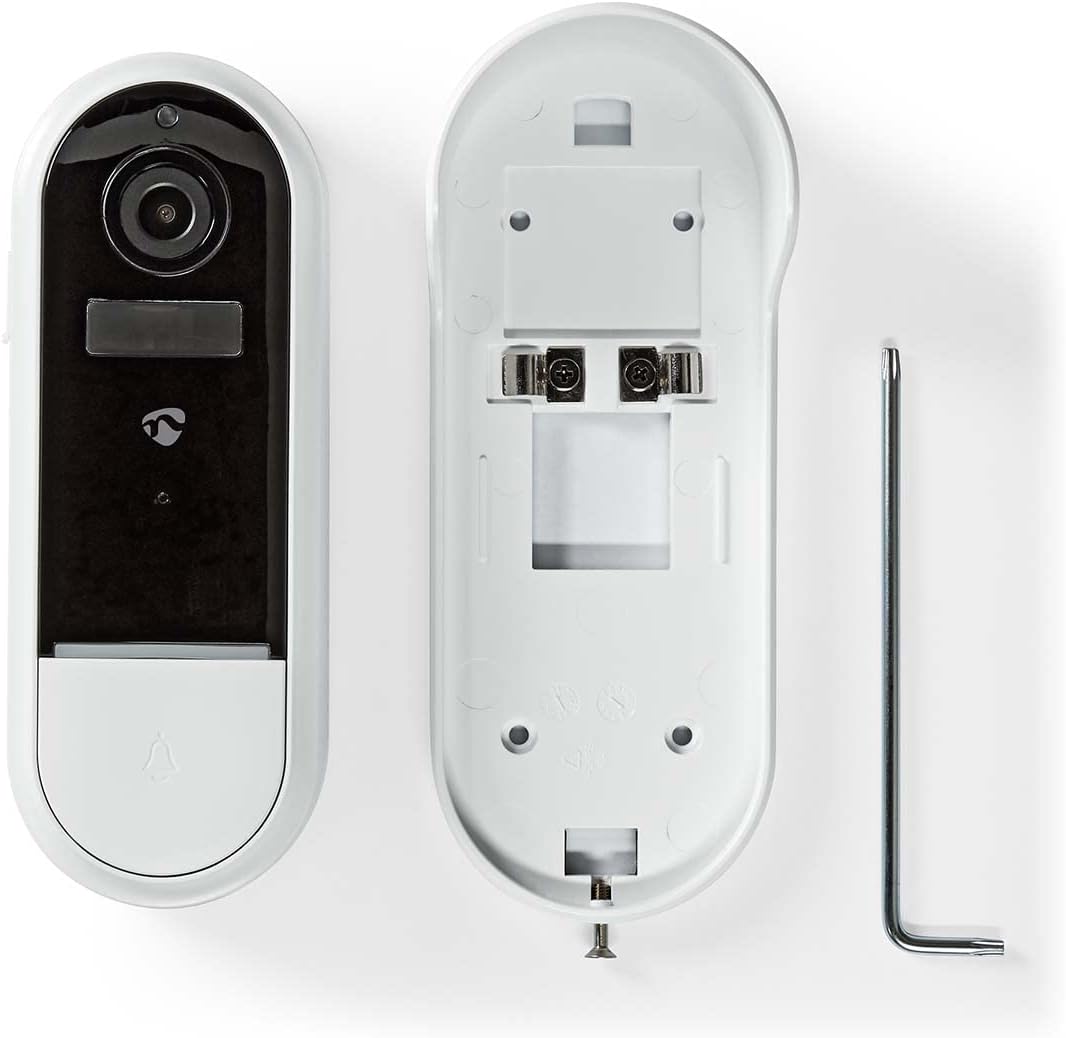
Gambar 4.2: Tukangeun View and Mounting. Tukangeun view of the intercom unit is shown, alongside its wall mounting bracket and the included L-shaped installation tool. The mounting bracket features screw holes for secure attachment.
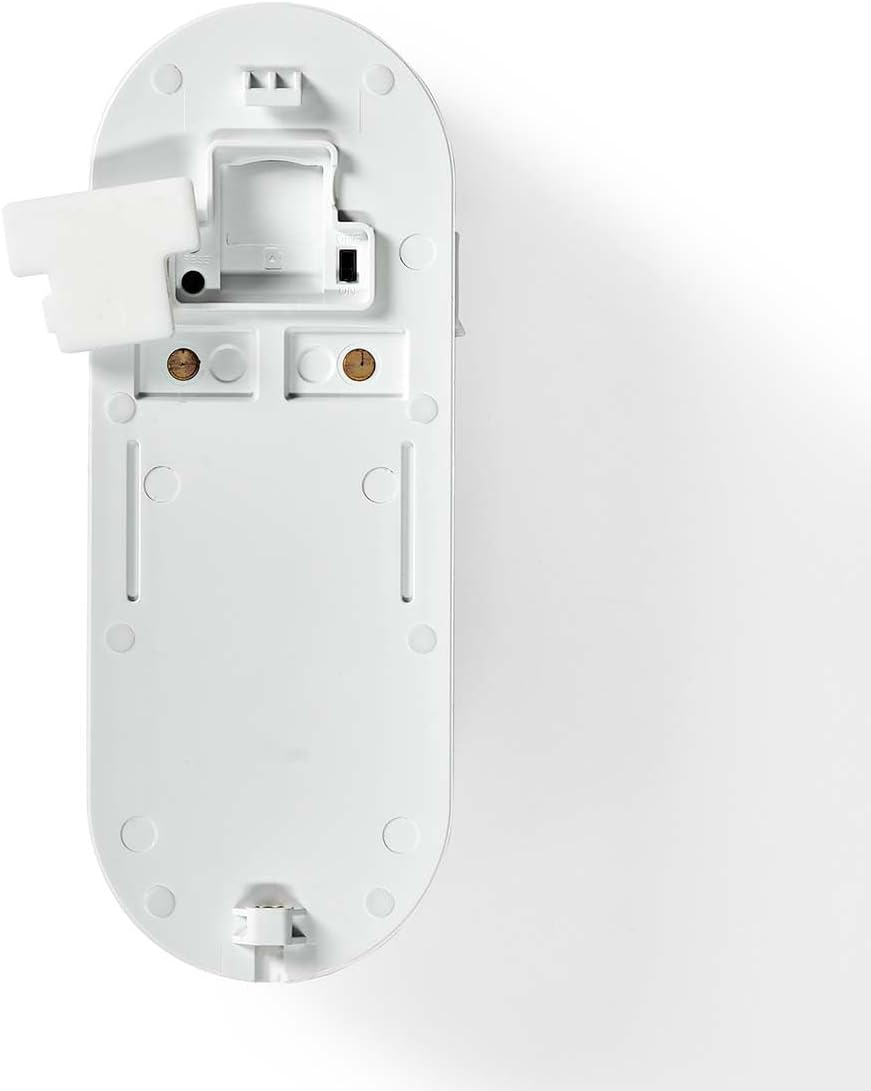
Figure 4.3: Internal Components. This image illustrates the internal components of the intercom with the back plate removed, revealing the wiring terminals for power connection and the battery compartment area.
5. Setélan
5.1 Ngecas Alat
Before initial use, fully charge the video door intercom using the provided USB cable. Connect the USB cable to the device's charging port and a compatible USB power adapter (not included). The charging indicator will show the charging status.
5.2 Pamasangan Aplikasi sareng Papasangan
- Download the 'Nedis Smartlife' app from your smartphone's app store (iOS or Android).
- Register or log in to your Smartlife account.
- Follow the in-app instructions to add a new device. Ensure your smartphone is connected to a 2.4 GHz Wi-Fi network during the pairing process.
- Power on the video door intercom. The device will enter pairing mode, indicated by a specific light pattern.
- Lengkepan prosés papasangan sakumaha dipandu ku aplikasi.
5.3 Mounting the Intercom
- Choose a suitable location near your door, ensuring a clear view jeung sinyal Wi-Fi nu alus.
- Use the wall mounting bracket as a template to mark the drilling points on the wall.
- Drill holes and insert the wall plugs.
- Secure the wall mounting bracket to the wall using the provided screws.
- Attach the video door intercom unit to the mounted bracket, ensuring it clicks securely into place.
- If applicable, connect any necessary wiring (e.g., for existing doorbell chime) before securing the unit.
6. Ngoperasikeun Alat
6.1 Ngawalon Telepon
When a visitor presses the doorbell button, you will receive a notification on your smartphone via the Nedis Smartlife app. Tap the notification to view the live video feed and communicate with the visitor.
6.2 Deteksi Gerak
The intercom features a motion sensor. When motion is detected within its range, you will receive an alert on your smartphone. You can adjust motion detection sensitivity and notification settings within the app.
6.3 Ngarékam sareng Nyimpen Pidéo
The device supports video recording. Recordings can be triggered by doorbell presses or motion detection. Video footage is typically stored on a microSD card (not included) or via cloud storage services (subscription may be required). Refer to the app for storage options and settings.
6.4 Audio Dua Arah
Utilize the two-way audio feature through the app to speak with visitors at your door and hear their responses.
7. Pangropéa
7.1 beberesih
Wipe the device with a soft, dry cloth. Do not use abrasive cleaners, solvents, or chemical agents, as these may damage the surface.
7.2 Manajemén batré
As the device is battery-powered, monitor the battery level through the Smartlife app. Recharge the battery when indicated to ensure continuous operation. For optimal battery life, avoid fully discharging the battery frequently.
7.3 Apdet firmware
Periodically check the Nedis Smartlife app for available firmware updates. Keeping the device's firmware updated ensures optimal performance, security, and access to new features.
8. Cara ngungkulan
If you encounter issues with your video door intercom, refer to the following common problems and solutions:
| Masalah | Mungkin Cukang lantaranana | Solusi |
|---|---|---|
| Alat teu hurung | Batré low atanapi béak | Charge the device fully using the USB cable. |
| Teu bisa nyambung ka Wi-Fi | Incorrect Wi-Fi password; Device too far from router; Only 5 GHz Wi-Fi network available | Verify Wi-Fi password. Move device closer to router. Ensure you are connecting to a 2.4 GHz Wi-Fi network. |
| No notifications on phone | App notifications disabled; Device offline; App not running in background | Check app notification settings. Ensure device is connected to Wi-Fi. Keep the app running or allow background activity. |
| Kualitas pidéo goréng | Weak Wi-Fi signal; Dirty camera lens | Ningkatkeun kakuatan sinyal Wi-Fi. Bersihkeun lénsa kaméra nganggo lawon lemes. |
| Audio dua arah teu jalan | Microphone/speaker blocked; App permissions not granted | Ensure nothing is obstructing the microphone or speaker. Grant microphone permissions to the Smartlife app in your phone settings. |
9. Spésifikasi
| Fitur | Rincian |
|---|---|
| merek | NEDIS |
| Modél | WIFICDP30WT |
| Ngaran modél | Hirup Pinter |
| Tipe Sumber Daya | Batré Powered |
| Batré Diperlukeun | Sumuhun |
| Jenis Bahan | palastik |
| Ukuran produk (L x W x H) | 5.7 x 14 x 4.1 cm |
| Beurat | 340 g |
| Hardware dipasangan Kaasup | Wall bracket, Installation materials, USB cable, Quick start guide |
10. Émbaran jaminan
Nedis products are covered by a warranty against defects in materials and workmanship. The specific warranty period and terms may vary by region and retailer. Please retain your proof of purchase for warranty claims. For detailed warranty information, refer to the documentation provided with your purchase or visit the official Nedis websitus.
11. Rojongan Palanggan
If you require further assistance, have questions, or encounter issues not covered in this manual, please contact Nedis customer support or your retailer. Contact information can typically be found on the Nedis websitus atanapi dina bungkusan produk Anjeun.


