
1. Bubuka
This manual provides comprehensive instructions for the DEKCO DC4L 2K Outdoor Security Camera. It covers product features, installation procedures, operational guidelines, maintenance tips, troubleshooting solutions, and detailed technical specifications. Please read this manual thoroughly before using the camera to ensure proper setup and optimal performance.

Image 1.1: DEKCO DC4L Outdoor Security Cameras.
2. Produk Langkungview
The DEKCO DC4L is a wired outdoor security camera designed for robust surveillance. It features 2K resolution, color night vision, and a 180° pan capability to cover wide areas. Key functionalities include dual-band WiFi connectivity, AI human detection, and flexible storage options.
Fitur konci:
- 2K Ultra-Clear Spotlight Color Night Vision: Captures clear, vibrant color images even in low-light conditions.
- Stable Dual-Band WiFi Connection: Supports both 2.4GHz and 5GHz networks for reliable connectivity.
- Pilihan Panyimpenan Fleksibel: Offers local storage via Micro SD card (8-128GB) and cloud storage services for 24/7 continuous recording.
- Smart AI Human Detection: Advanced algorithms accurately identify human figures, reducing false alarms from other movements.
- 180° Horizontal Pan: Provides a wide 270° viewing angle for comprehensive area coverage.
- Peunteun tahan cai IP65: Dirancang kanggo dianggo di luar ruangan, tahan ka lebu sareng cai.
- Audio Dua Arah: Enables communication through the camera via the mobile application.
- Integrasi Smart Home: Compatible with Amazon Alexa and Google Home devices.

Gambar 2.1: Leuwihview of DEKCO DC4L Camera Features.
3. Setélan
3.1 Instalasi fisik
The DEKCO DC4L camera is designed for wall mounting. Ensure the installation location provides a clear view of the desired monitoring area and is within range of your WiFi network and a power source. The camera is wired and requires a continuous power supply; it is not battery-powered or solar-powered.
- Pilih Lokasi: Select a suitable outdoor location for mounting, considering coverage, power access, and WiFi signal strength.
- Pasang kaméra: Use the provided mounting hardware to securely attach the camera to a wall. Adjust the bracket to achieve the desired initial angle.
- Sambungkeun Kakuatan: Connect the camera to a 5V DC power source using the included adapter.

Image 3.1: Camera Installation.

Image 3.2: Wired Camera Installation Overview.
3.2 Pamasangan Aplikasi sareng Nyiptakeun Akun
The DEKCO DC4L camera operates with a dedicated mobile application, often referred to as the CloudEdge app. Download the app from your device's app store (iOS or Android) and follow the on-screen instructions to create an account.
3.3 Sambungan WiFi
The camera supports both 2.4GHz and 5GHz WiFi networks for flexible and stable connectivity.
- Daya Hurung: Ensure the camera is powered on and in pairing mode (refer to app instructions for specific indicator lights).
- Tambahkeun Alat: Open the app, select 'Add Device', and follow the prompts to connect your camera to your home WiFi network.
- Pilih Jaringan: Choose your 2.4GHz or 5GHz WiFi network and enter the password.

Image 3.3: 2.4GHz WiFi Connection.
3.4 Pamasangan Kartu Micro SD
For local storage, install a Micro SD card (8GB to 128GB, Class 10 or higher recommended) into the designated slot on the camera.
- Panggihan Slotna: Identify the Micro SD card slot on the camera body.
- Lebetkeun Kartu: Gently selapkeun kartu Micro SD kana slot nepi ka clicks kana tempat.
- Kartu Format: Within the app settings, navigate to storage options and format the newly inserted SD card.

Image 3.4: Micro SD Card Installation.
4. Parentah Operasi
4.1 Hirup View
Access the live video feed from your camera through the mobile application.
- Buka Aplikasi: Launch the DEKCO app on your smartphone.
- Select Camera: Tap on the desired camera from your device list to view feed hirup na.

Gambar 4.1: Langsung View on Smartphone.
4.2 Kontrol Pan
The camera offers a 180° horizontal pan function, providing a 270° viewsudut ing.
- Kontrol Aksés: Nalika hirup view, use the on-screen controls to pan the camera horizontally.
- Auto Cruise: Enable the 'Auto Cruise' feature in the app settings for the camera to automatically pan across a predefined area at 60-minute intervals.

Image 4.2: 270° Viewing Angle with 180° Horizontal Pan.

Image 4.3: Auto Cruise Functionality.
4.3 Visi Peuting
The camera features 2K Ultra-Clear Spotlight Color Night Vision, providing clear and detailed images even in complete darkness.
- Aktip otomatis: Night vision typically activates automatically in low-light conditions.
- Modeu sorotan: The integrated spotlight can be activated to provide full-color night vision.

Image 4.4: 2K QHD Color Night Vision.
4.4 Deteksi sareng Peringatan Manusa AI
The camera uses advanced AI algorithms to accurately detect human figures, minimizing false alarms from other moving objects.
- Aktipkeun Deteksi: In the app's 'Alarm Management' settings, enable 'Motion Detection' and set the sensitivity (Low, Medium, High).
- Narima Tanda: The app will send push notifications to your smartphone when human motion is detected.
- Deterrence: The camera can be configured to activate a spotlight and siren upon detection to deter unwanted activity.

Image 4.5: AI Human Detection for Fewer False Positives.

Image 4.6: Alarm Management Settings.

Image 4.7: Deterrence Features (Spotlight, Push, Siren).
4.5 Ngarékam
The camera supports 24/7 continuous recording and motion-activated recording, with options for local Micro SD card storage or cloud storage.
- Rékam Kontinyu: Records continuously to the Micro SD card or cloud service.
- Rekaman Acara: Ngarékam ngan ukur nalika aya gerakan anu kadeteksi, ngahémat rohangan panyimpenan.
- Playback: Aksés dirékam footage through the app's playback feature, with a timeline for easy navigation.

Image 4.8: 24/7 Continuous Recording and Micro SD Storage.
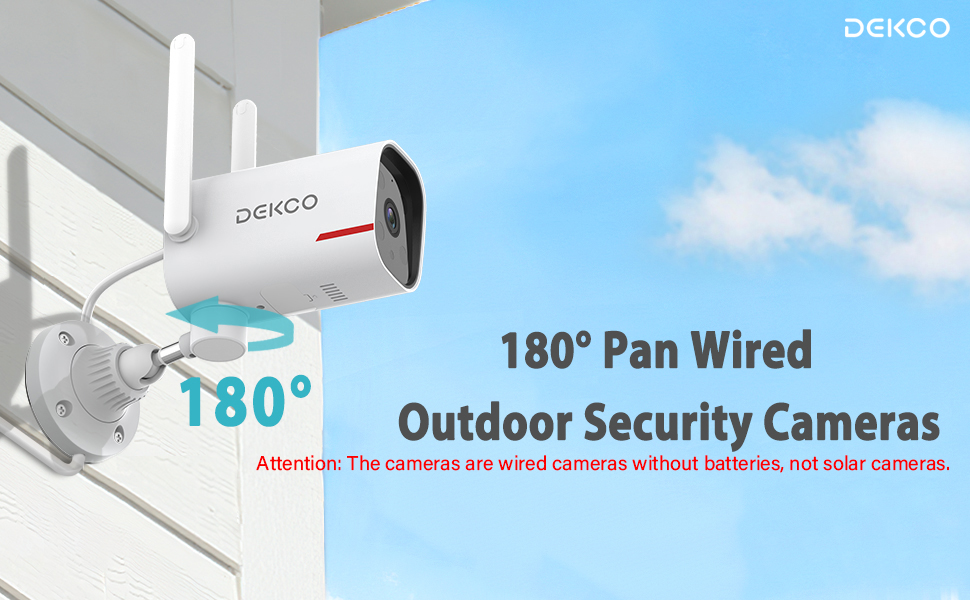
Image 4.9: 24/7 Home Monitoring.
4.6 Audio Dua Arah
Utilize the built-in microphone and speaker for two-way communication through the camera.
- Aktipkeun Intercom: Dina hirup view, ketok ikon mikropon pikeun nyarita ngaliwatan kaméra.
- Dengekeun: The camera's microphone will pick up audio from the monitored area.
4.7 Pamaduan Smart Home
The DEKCO DC4L camera is compatible with Amazon Alexa and Google Home smart devices.
- Tautan Akun: Follow the instructions in your Alexa or Google Home app to link your DEKCO account.
- Kontrol sora: Paké paréntah sora pikeun view asupan kaméra dina tampilan pinter anu cocog.
4.8 Ngabagikeun Aksés Kaméra
You can share access to your camera with family members or trusted individuals through the app.
- Access Sharing Settings: In the app, navigate to the camera settings and find the 'Share Device' option.
- Ulem Pangguna: Follow the prompts to invite other users to view your camera feed.
4.9 ONVIF/RTSP Support (Advanced Users)
For advanced users, the camera supports ONVIF/RTSP protocols, allowing integration with Network Video Recorders (NVRs) or other surveillance software.
- Aktipkeun dina App: Enable ONVIF/RTSP functionality within the camera's settings in the mobile app.
- Configure NVR: Refer to your NVR or software documentation for instructions on adding an ONVIF/RTSP camera.
5. Pangropéa
5.1 beberesih
Beberesih rutin ngabantosan ngajaga kualitas gambar anu optimal sareng manjangkeun umur kaméra.
- Lensa: Gently wipe the camera lens with a soft, lint-free cloth. Avoid abrasive cleaners.
- awak: Bersihkeun awak kaméra nganggo iklanamp lawon pikeun ngaleungitkeun lebu sareng kokotor.
5.2 Apdet firmware
Periodically check for and install firmware updates through the mobile application to ensure your camera has the latest features and security enhancements.
5.3 Manajemén Kartu SD
To ensure continuous recording, regularly check the status of your Micro SD card in the app. Format the card periodically or replace it if it becomes corrupted or reaches its end of life.
6. Cara ngungkulan
If you encounter issues with your DEKCO DC4L camera, refer to the following common troubleshooting steps:
- Kaméra offline: Check the power connection and WiFi signal strength. Restart the camera and your router. Ensure the camera is connected to the correct 2.4GHz or 5GHz WiFi network.
- Kartu SD Teu Dipikawanoh: Ensure the SD card is correctly inserted and formatted within the app. Try a different compatible SD card if the issue persists.
- Kualitas Gambar goréng: Clean the camera lens. Check your network connection speed.
- Alarm palsu: Adjust the AI Human Detection sensitivity settings in the app.
- Pink View: If the camera displays a pink image, try restarting the camera. If the issue persists, contact customer support as it may indicate a hardware fault.
- Pan Control Not Working: Ensure the camera has a stable network connection. For ONVIF/RTSP users, ensure the camera firmware is up to date, as this can resolve compatibility issues.
If these steps do not resolve your issue, please contact DEKCO customer support for further assistance.
7. Spésifikasi
| Fitur | Spésifikasi |
|---|---|
| Ngaran modél | DC4L |
| Tipe Pamasangan | Tembok Gunung |
| Resolusi Capture Video | 2K |
| Number of Items (in pack) | 1 (for this model variant) |
| Komponén Kaasup | Adaptor |
| Téknologi Komunikasi Nirkabel | Wi-Fi (2.4GHz & 5GHz) |
| Faktor Bentuk | Kubah |
| Viewdina Angle | 270 Degrees (180° Pan) |
| Wengi Sawangan Sawangan | 32 suku |
| Laju pigura | 30 fps |
| Bahan | logam |
| Voltage | 5 Volt (DC) |
| Ukuran produk (L x W x H) | 20.5 x 9.98 x 9.98 cm |
| Item Beurat | 1.99 kg |
| Jenis Bohlam | Infrabeureum |
| Fitur husus | Night Vision, AI Human Detection, Two-Way Audio |
| Pamakéan jero rohangan / outdoor | Luar |
| Sumber Daya | Kabel Listrik |
| Alat nu cocog | Smartphone (Android, iPhone), Amazon Alexa, Google Home |
8. Garansi
The DEKCO DC4L camera comes with a garansi 1 taun from the date of purchase. Please retain your proof of purchase for warranty claims. The warranty covers manufacturing defects and malfunctions under normal use. It does not cover damage caused by misuse, accidents, unauthorized modifications, or natural disasters.
9. Rojongan
For technical assistance, product inquiries, or warranty claims, please contact DEKCO customer support. Refer to the contact information provided with your product packaging or visit the official DEKCO websitus pikeun sumber rojongan.