Produk Leuwihview
The Essl MB20 is a facial biometric time and attendance device designed for efficient workforce management. It integrates advanced facial recognition, fingerprint scanning, and card identification technologies to provide secure and accurate attendance tracking. This device is suitable for various environments, offering robust performance and user-friendly operation.
- Kapasitas pamaké: 1,000
- Finger Capacity: 500
- Face Capacity: 200
- Transaction Capacity: 50,000
- Komunikasi: TCP/IP, USB2.0 HOST
- Mindahkeun Data: Push Data functionality supported
- tampilan: LCD warna
- Audio: Speaker stéréo

Gambar: Hareupeun view of the Essl MB20 device, showing the color LCD screen, keypad, and fingerprint scanner.
Guide Setup
1. Unboxing sareng Inspeksi Awal
- Carefully open the packaging and remove the device and all accessories.
- Pastikeun yén sadaya komponén anu didaptarkeun dina daptar bungkusan aya.
- Inspect the device for any visible damage. If damage is found, contact your supplier immediately.
2. Instalasi Hardware
- Choose a suitable location for installation, ensuring it is stable, dry, and away from direct sunlight or extreme temperatures.
- Mount the device securely to a wall using the provided mounting bracket and screws. Ensure it is at an appropriate height for users to comfortably access the facial scanner and fingerprint sensor.
- Connect the power adapter to the device's power input port and then plug it into a standard electrical outlet.
3. Network Connection (TCP/IP)
- Connect an Ethernet cable from your network router/switch to the LAN port on the device.
- On the device's menu, navigate to Komunikasi > Setélan jaringan.
- Configure the IP Address, Subnet Mask, Gateway, and DNS settings according to your network configuration. You may use DHCP if your network supports it.
- Verify network connectivity by pinging the device's IP address from a computer on the same network.
Parentah Operasi
1. Pendaptaran Pangguna
Before users can record attendance, they must be enrolled in the device's system.
- Access the device's main menu (usually by pressing 'M/OK' and entering administrator credentials).
- Arahkeun ka Manajemén pamaké > Pamaké anyar.
- Lebetkeun ID Pangguna sareng Nami Pangguna.
- Beungeut Ngadaptar: Select 'Enroll Face' and position the user's face within the camera's frame as instructed by the device. Ensure good lighting and a neutral expression.
- Ngadaptarkeun Sidik Jari: Select 'Enroll Finger' and place the user's finger on the scanner. Repeat the process multiple times (typically 3 times) for accurate registration.
- Enroll Card (if applicable): Select 'Enroll Card' and present the proximity card to the device's card reader.
- Set the user's role (e.g., Normal User, Administrator).
- Simpen inpormasi pangguna.
2. Time & Attendance Recording
Users can record their attendance using their enrolled credentials.
- Approach the device.
- Present your face to the camera, place your enrolled finger on the scanner, or present your enrolled card to the reader.
- The device will confirm successful verification with an audible prompt and display a confirmation message on the screen.
- The transaction (e.g., Check-in, Check-out) will be automatically recorded.
3. Manajemén Data
Transaction data can be retrieved from the device for reporting and payroll processing.
- USB Data Download: Insert a USB flash drive into the device's USB HOST port. Navigate to Manajemén Data > Download Attendance Log to transfer data to the USB drive.
- Software Download (TCP/IP): Use the provided time attendance management software (e.g., eSSL BioTime) on a networked computer to connect to the device via TCP/IP and download attendance records.
Pangropéa
- beberesih: Regularly clean the device's screen, camera lens, and fingerprint sensor with a soft, dry, lint-free cloth. Do not use abrasive cleaners or solvents.
- Apdet parangkat lunak: Periodically check the eSSL official websitus pikeun apdet firmware. Ngajaga firmware tetep diropéa mastikeun kinerja sareng kaamanan anu optimal.
- Cadangan Data: Regularly back up attendance data to an external storage device or computer to prevent data loss.
- Kaayaan Lingkungan: Pastikeun alatna beroperasi dina kisaran suhu sareng kalembaban anu ditangtukeun pikeun manjangkeun umurna.
Pamérésan masalah
| Masalah | Mungkin Cukang lantaranana | Solusi |
|---|---|---|
| Alat teu hurung | No power supply; faulty adapter/cable | Check power connection; test power adapter; ensure outlet is functional. |
| Sidik teu dikenal | Finger wet/dirty; improper placement; poor enrollment quality | Ensure finger is clean and dry; place finger flat on sensor; re-enroll fingerprint if necessary. |
| Face not recognized | Poor lighting; face too close/far; changes in appearance; poor enrollment quality | Ensure adequate lighting; maintain proper distance; re-enroll face if significant changes occurred. |
| Masalah sambungan jaringan | Incorrect IP settings; faulty Ethernet cable; network firewall | Verify network settings; check cable; temporarily disable firewall for testing. |
| Kagagalan mindahkeun data | USB drive format issue; software connection error | Ensure USB drive is FAT32 format; check software connection settings and device IP. |
Spésifikasi teknis
| Fitur | Spésifikasi |
|---|---|
| Kapasitas pamaké | 1,000 |
| Finger Capacity | 500 |
| Kapasitas raray | 200 |
| Kapasitas Transaksi | 50,000 |
| Komunikasi | TCP/IP, USB2.0 HOST |
| Nyorong Data | Sumuhun |
| tampilan | LCD warna |
| Sora | Speaker stéréo |
| Nomer modél | MB20+ID |
| Ukuran produk (L x W x H) | 16.19 x 15.28 x 3.05 cm |
| Item Beurat | 750 g |
| Produsén | eSSL Private Limited. |
| Negara asal | India |
Garansi sareng Rojongan
This Essl MB20 device comes with a standard manufacturer's warranty. Please refer to the warranty card included in your product packaging for specific terms and conditions, including the warranty period and coverage details. For any warranty claims or service requests, please retain your purchase receipt.
For technical assistance, software installation support, or any queries regarding the operation of your device, please contact eSSL customer support. Online support resources, including FAQs and software downloads, may also be available on the official eSSL websitus.
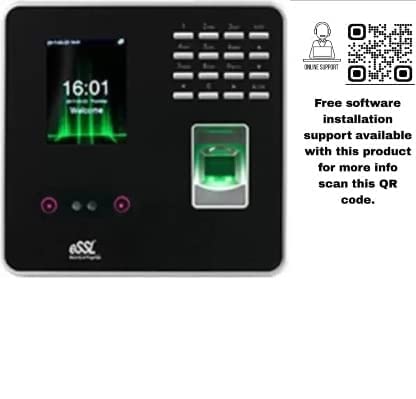
Image: Essl MB20 device displaying the time, alongside a QR code for online support.
Scan this QR code for free software installation support and more information: https://qr.page/g/1RCdIB1BFGZ