1. Bubuka
The Raspberry Pi Zero 2 W is a compact, high-performance single-board computer designed for a wide range of applications, from embedded systems to IoT projects. It features a powerful quad-core processor and integrated wireless connectivity, making it a versatile tool for developers and hobbyists.
Fitur konci:
- Broadcom BCM2710A1, quad-core 64-bit SoC (Arm Cortex-A53 @ 1GHz)
- 512MB RAM (DDR2 SDRAM)
- Integrated Wi-Fi (2.4GHz 802.11 b/g/n)
- Integrated Bluetooth 4.2 / Bluetooth Low Energy (BLE)
- Mini HDMI port for video output
- Two Micro USB ports (one for power, one for data/OTG)
- MicroSD card slot for operating system and storage
- 40-pin GPIO header for expansion
- CSI-2 konektor kaméra

Gambar 1: Leuwihview of the Raspberry Pi Zero 2 W board, showcasing its compact size and various ports and components.
2. Setup Guide
Follow these steps to set up your Raspberry Pi Zero 2 W:
- Prepare the MicroSD Card:
The Raspberry Pi Zero 2 W requires an operating system installed on a microSD card. Download the desired OS image (e.g., Raspberry Pi OS Lite) from the official Raspberry Pi website. Use an imaging tool like Raspberry Pi Imager to write the OS image to a microSD card (minimum 8GB recommended).
- Sambungkeun Tampilan (Opsional):
If you require a graphical interface, connect a display to the Mini HDMI port using a Mini HDMI to HDMI adapter or cable. Ensure your display is powered on.
- Sambungkeun Periferal (Opsional):
For initial setup or desktop use, you may need to connect a keyboard and mouse. Use a Micro USB OTG (On-The-Go) cable to connect a USB hub to the data Micro USB port (labeled 'USB'). Then, connect your keyboard and mouse to the USB hub.
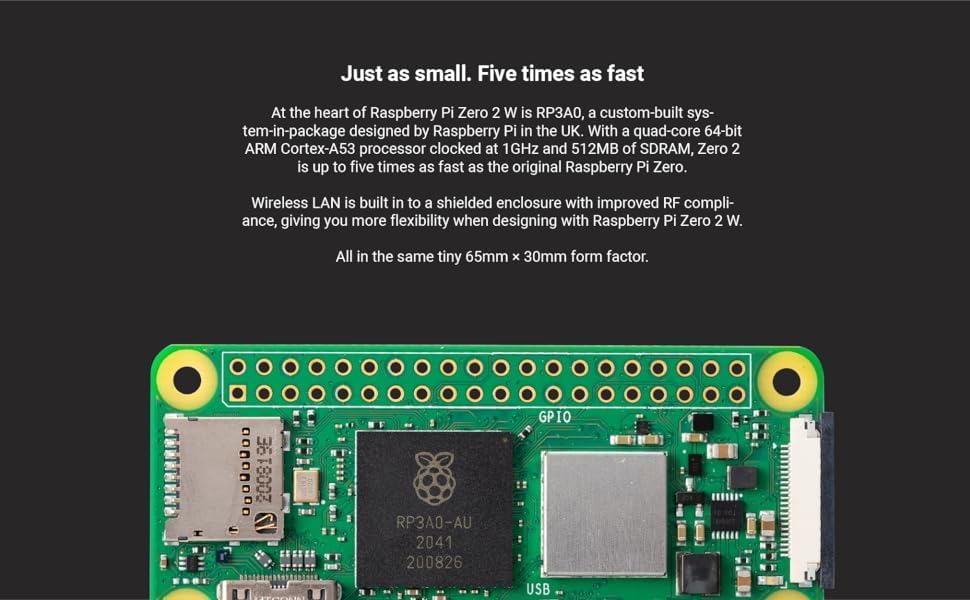
Figure 2: Raspberry Pi Zero 2 W connected to essential peripherals like a keyboard and mouse for initial configuration.
- Selapkeun Kartu MicroSD:
Carefully insert the prepared microSD card into the microSD card slot on the Raspberry Pi Zero 2 W.
- Larapkeun Daya:
Connect a 5V power supply to the power Micro USB port (labeled 'PWR IN'). The Raspberry Pi Zero 2 W will begin to boot. Observe the activity LED for boot status.

Gambar 3: Detil view of the Micro USB ports on the Raspberry Pi Zero 2 W, indicating the power input and data/OTG ports.
3. Operasi
Once your Raspberry Pi Zero 2 W has successfully booted, you can interact with it based on the installed operating system. Most users will interact via a command-line interface (CLI) or a graphical desktop environment (if a full OS like Raspberry Pi OS Desktop is installed).
Pamakéan dasar:
- Accessing the Desktop: If you installed a desktop version of Raspberry Pi OS, the desktop environment will load automatically.
- Antarmuka Jalur Komando (CLI): For headless setups or advanced users, access the CLI via SSH (Secure Shell) from another computer on the same network. Ensure SSH is enabled on your Raspberry Pi.
- Konéktipitas nirkabel: The integrated Wi-Fi and Bluetooth allow for network access and peripheral connections without external adapters. Configure Wi-Fi through the OS settings or command line.
- Pin GPIO: The 40-pin GPIO header provides a versatile interface for connecting sensors, actuators, and other electronic components for custom projects. Refer to the official Raspberry Pi documentation for GPIO pinout and programming guides.
4. Pangropéa
Proper maintenance ensures the longevity and optimal performance of your Raspberry Pi Zero 2 W.
- Apdet parangkat lunak: Regularly update your operating system and installed software to ensure security and access to the latest features. Use commands like
sudo apt updatejeungsudo apt full-upgradeon Debian-based systems. - Sasayogian tanaga: Always use a stable 5V power supply with sufficient current (e.g., 2.5A) to prevent power-related issues.
- Lingkungan Fisik: Keep the board in a clean, dry environment. Avoid extreme temperatures and humidity. Consider a protective case for long-term use.
- Pareum aman: Always shut down the Raspberry Pi Zero 2 W gracefully through the operating system (e.g.,
sudo shutdown now) before disconnecting power to prevent data corruption on the microSD card.
5. Cara ngungkulan
Ieu mangrupikeun solusi pikeun masalah umum anu anjeun tingali:
- No Power/Boot:
Ensure the power supply is correctly connected to the 'PWR IN' Micro USB port and provides adequate voltage and current. Check the power LED on the board; if it's not lit, there might be a power issue. Verify the microSD card is properly inserted and contains a valid OS image.
- Henteu aya kaluaran tampilan:
Confirm the Mini HDMI cable and adapter are securely connected to both the Raspberry Pi and the display. Test with a different Mini HDMI cable or display if possible. Ensure the display is set to the correct input source. Some users have reported issues with analog video output on older firmware; ensure your OS is up to date if using composite video.
- Masalah Konektipitas Wi-Fi/Bluetooth:
Check your OS settings to ensure Wi-Fi and Bluetooth are enabled and configured correctly. Verify your network credentials. Ensure there are no physical obstructions or excessive distance from your wireless access point.
- Periferal Teu Dideteksi:
If using a USB hub, ensure it is powered and connected to the 'USB' Micro USB port via an OTG cable. Test peripherals directly if possible or with a different hub. Ensure the OS has the necessary drivers (usually included with Raspberry Pi OS).
6. Spésifikasi Téknis
| Fitur | Rincian |
|---|---|
| Prosesor | Broadcom BCM2710A1, quad-core 64-bit SoC (Arm Cortex-A53 @ 1GHz) |
| Ram | 512MB DDR2 SDRAM |
| Konéktipitas Wireless | 2.4GHz 802.11 b/g/n Wi-Fi, Bluetooth 4.2 / BLE |
| Kaluaran Video | Mini HDMI, Composite video (via test points) |
| palabuhan USB | 1x Micro USB (Power In), 1x Micro USB (Data/OTG) |
| Panyimpenan | slot kartu MicroSD |
| GPIO | 40-pin GPIO header (unsoldered) |
| Panyambung Kaméra | CSI-2 konektor kaméra |
| Diménsi | 65mm x 30mm x 5mm (2.6" x 1.18" x 0.2 ") |
| Sistem operasi | Linux (e.g., Raspberry Pi OS) |
7. Garansi jeung Rojongan
For warranty information and technical support, please refer to the official Raspberry Pi websitus atanapi ngahubungan pangecér Anjeun. Simpen bukti pameseran anjeun pikeun klaim garansi.
Raspberry Pi resmi Websitus: www.raspberrypi.org