1. Bubuka
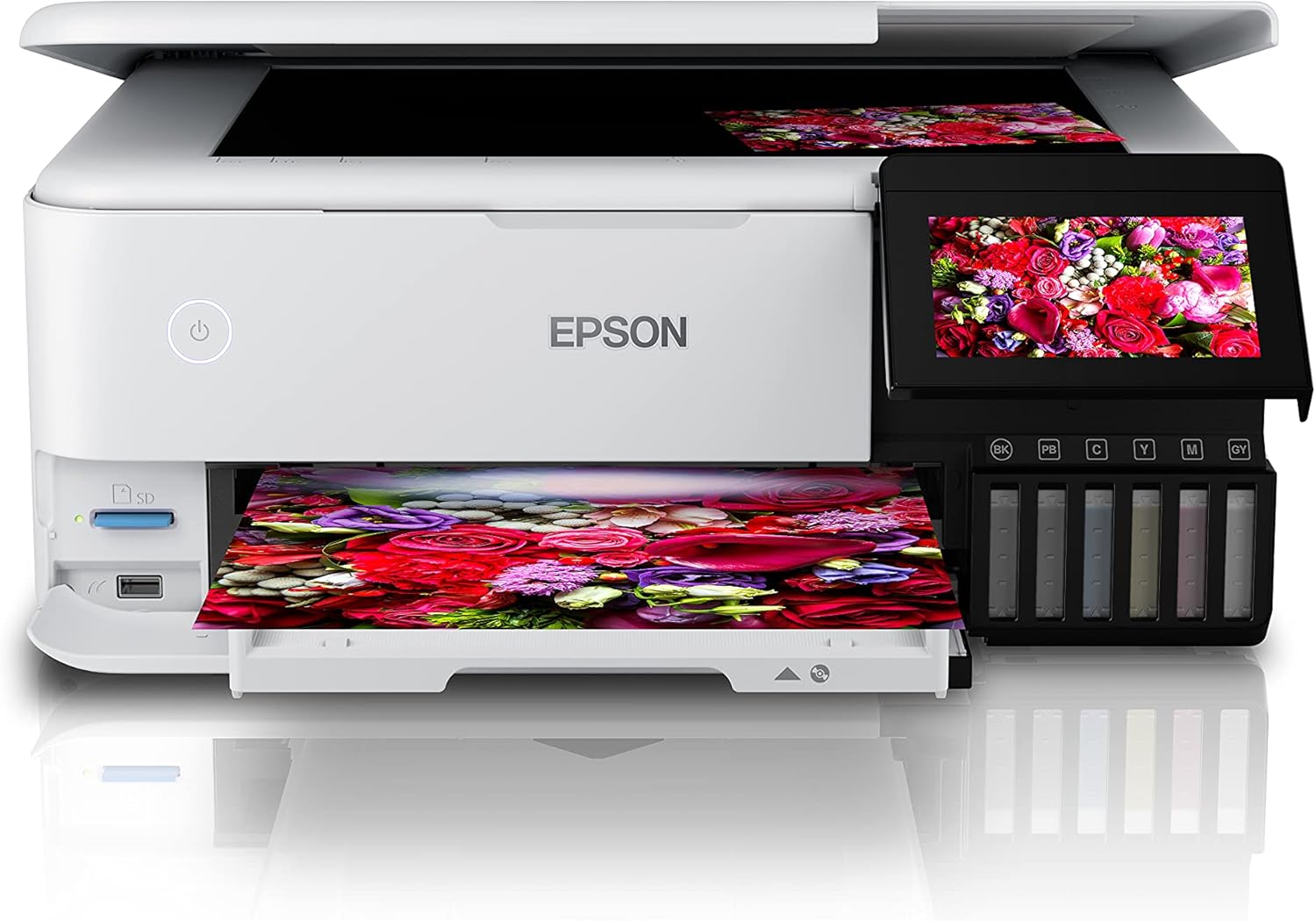
The Epson EcoTank L8160 is a high-performance, low-cost A4 photo printer designed for both photos and documents. This multifunction inkjet printer features a 6-color Epson Claria ET Premium ink system, allowing for borderless A4 color photos and stunning black and white prints. With its integrated ink tank system, it offers ultra-low-cost printing, capable of producing up to 2300 high-quality photos with replacement ink bottles.
The L8160 provides modern connectivity options including Wi-Fi, Wi-Fi Direct, Ethernet, and Apple AirPrint, ensuring seamless integration into your home or office network. It supports versatile paper handling with dedicated A4 and photo paper trays, plus two rear feeds for thicker media. Additionally, it offers convenient duplex printing for clear text on A4 documents using pigment black ink.

Gambar 1.1: Epson EcoTank L8160 printer with key features labeled, including the 10.9cm touchscreen, 6-color ink system, and wireless connectivity.
2. Émbaran Kasalametan
Mangga baca sadaya pitunjuk kaamanan sateuacan nganggo printer pikeun nyegah cilaka atanapi karusakan alat. Simpen manual ieu kanggo rujukan ka hareup.
- Sumber Daya: Use only the power cable supplied with the printer. Connect to a grounded outlet.
- panempatan: Place the printer on a stable, level surface. Avoid locations with excessive dust, humidity, or direct sunlight. Ensure adequate ventilation around the printer.
- Nanganan Tinta: Handle ink bottles carefully to avoid spills. If ink comes into contact with skin, wash thoroughly with soap and water. Keep ink out of reach of children.
- Mindahkeun Printer: Before moving the printer, ensure all ink tank caps are securely closed and the printer is powered off and unplugged.
- Ulah ngabongkar: Do not attempt to disassemble or repair the printer yourself. Refer to qualified service personnel for repairs.
3. Eusi Paket
Pastikeun yén sadaya item kalebet dina pakét:
- Printer Epson EcoTank L8160
- Full set of ink bottles (6 colors)
- Kabel Daya
- User Guide / Setup Guide
- Baki CD / DVD
4. Setélan
4.1 Unboxing jeung Nempatkeun
- Cabut printer tina bungkusanna sareng cabut sadaya pita pelindung sareng bahan.
- Simpen printer dina permukaan anu datar sareng stabil caket stop kontak.
4.2 Ngeusian Tangki Tinta
The EcoTank L8160 uses an integrated ink tank system. Follow these steps to fill the tanks:
- Buka panutup unit tanki tinta di sisi printer.
- Uncap the ink bottle for the corresponding color. The bottles are designed to fit only the correct tank to prevent accidental filling errors.
- Insert the ink bottle into the tank's filling port. The ink will automatically start to fill the tank. Do not squeeze the bottle.
- Once the tank is full, the ink flow will stop automatically. Remove the bottle and recap it.
- Ngulang pikeun sakabéh kelir. Tutup panutup unit tanki tinta.
Gambar 4.1: Filling the ink tanks on the Epson EcoTank L8160.
4.3 Sambungan Daya jeung Setup Awal
- Connect the power cable to the printer and a wall outlet.
- Pencét tombol daya pikeun ngaktipkeun printer.
- Follow the on-screen instructions on the 10.9 cm touchscreen display to select your language, date, and time.
- The printer will then initiate the ink charging process, which may take several minutes. Do not turn off the printer during this process.
4.4 Pamasangan Parangkat Lunak sareng Koneksi Jaringan
To use all printer features, install the necessary software and drivers on your computer or connect via a smart device.
- Pikeun Komputer: Kunjungi dukungan Epson website for the L8160 model to download the latest drivers and software. Follow the on-screen instructions for installation.
- Sambungan Wi-Fi: On the printer's touchscreen, navigate to the Wi-Fi setup menu. Select your network from the list and enter the password.
- Wi-Fi langsung: This allows direct connection from a device without a router. Refer to the printer's display for Wi-Fi Direct setup instructions and credentials.
- Sambungan Ethernet: Connect an Ethernet cable from your router to the printer's Ethernet port. The printer should automatically connect to the network.
- Apple AirPrint: For Apple devices, ensure your device and printer are on the same Wi-Fi network. AirPrint functionality is typically automatic.
5. Parentah Operasi
5.1 Loading Paper
The L8160 features multiple paper input options:
- Front Paper Cassette (A4): Pull out the front paper cassette. Load A4 plain paper print-side down. Adjust the side guides to fit the paper size.
- Photo Paper Tray: A dedicated tray for photo paper is available. Load photo paper print-side down.
- Rear Feed Slots: Two rear feed slots are available for thicker media or specialty papers. Open the rear paper support and load paper one sheet at a time, print-side up.

Gambar 5.1: Loading paper into the Epson EcoTank L8160.
5.2 Nyitak Dokumén sareng Poto
- Pastikeun printer parantos dihurungkeun sareng nyambung ka alat anjeun.
- Open the document or photo you wish to print on your computer or smart device.
- Pilih pilihan citak tina aplikasi anjeun.
- Choose the Epson EcoTank L8160 as your printer.
- Adjust print settings such as paper size, media type, print quality, and color options. For duplex printing, select the two-sided printing option.
- Pencét Nyitak.
5.3 Printing from Smart Devices
The Epson Smart Panel app allows you to print, scan, and copy directly from your smartphone or tablet.
- Download and install the Epson Smart Panel app from your device's app store.
- Ensure your smart device and printer are connected to the same Wi-Fi network.
- Open the app and follow the on-screen instructions to connect to your L8160 printer.
- You can now select photos or documents from your device to print directly.

Gambar 5.2: Printing from a smart device using the Epson Smart Panel app.
5.4 CD/DVD Printing
The printer supports direct printing onto compatible inkjet-printable CDs/DVDs.
- Design your CD/DVD label using compatible software.
- Place the printable CD/DVD onto the included CD/DVD tray.
- Insert the CD/DVD tray into the designated slot on the printer.
- Follow the software prompts to print your design.
6. Pangropéa
6.1 Mariksa Tingkat Tinta sareng Ngeusian
Regularly check the ink levels through the transparent ink tanks or on the printer's display. When a tank is low, refill it using genuine Epson replacement ink bottles as described in Section 4.2.
6.2 Print Kepala beberesih
If print quality declines (e.g., missing lines, streaking), perform a print head cleaning. This can be done from the printer's control panel or through the printer utility software on your computer.
- On the printer's touchscreen, navigate to Pangropéa or Disetél.
- Pilih Print Kepala beberesih.
- Follow the on-screen instructions. A nozzle check pattern will be printed to verify improvement.
6.3 beberesih umum
Ngusap bagian luar printer ku lemes, damp, lint-free cloth. Do not use abrasive cleaners or solvents. Regularly remove dust from paper trays and vents.
7. Cara ngungkulan
Bagian ieu ngabahas masalah umum anu anjeun tingali.
| Masalah | Mungkin Cukang lantaranana | Solusi |
|---|---|---|
| Printer teu hurung | kabel kakuatan teu disambungkeun; stop kontak listrik lepat | Ensure power cable is securely connected to printer and a working outlet. Try a different outlet. |
| Kualitas citak goréng (garis-garis, warna luntur) | Low ink levels; clogged print nozzles; incorrect paper type settings | Check ink levels and refill if necessary. Perform a print head cleaning and nozzle check. Ensure paper type settings match the loaded paper. |
| Kertas macét | Incorrectly loaded paper; too much paper loaded; foreign object in paper path | Remove all paper from trays. Carefully open covers and remove any jammed paper. Ensure paper is loaded correctly and not over the maximum capacity. |
| Teu bisa nyambung ka Wi-Fi | Incorrect password; printer too far from router; network issues | Verify Wi-Fi password. Move printer closer to the router. Restart your router and printer. Reconfigure Wi-Fi settings on the printer. |
8. Spésifikasi
Detailed technical specifications for the Epson EcoTank L8160 printer.
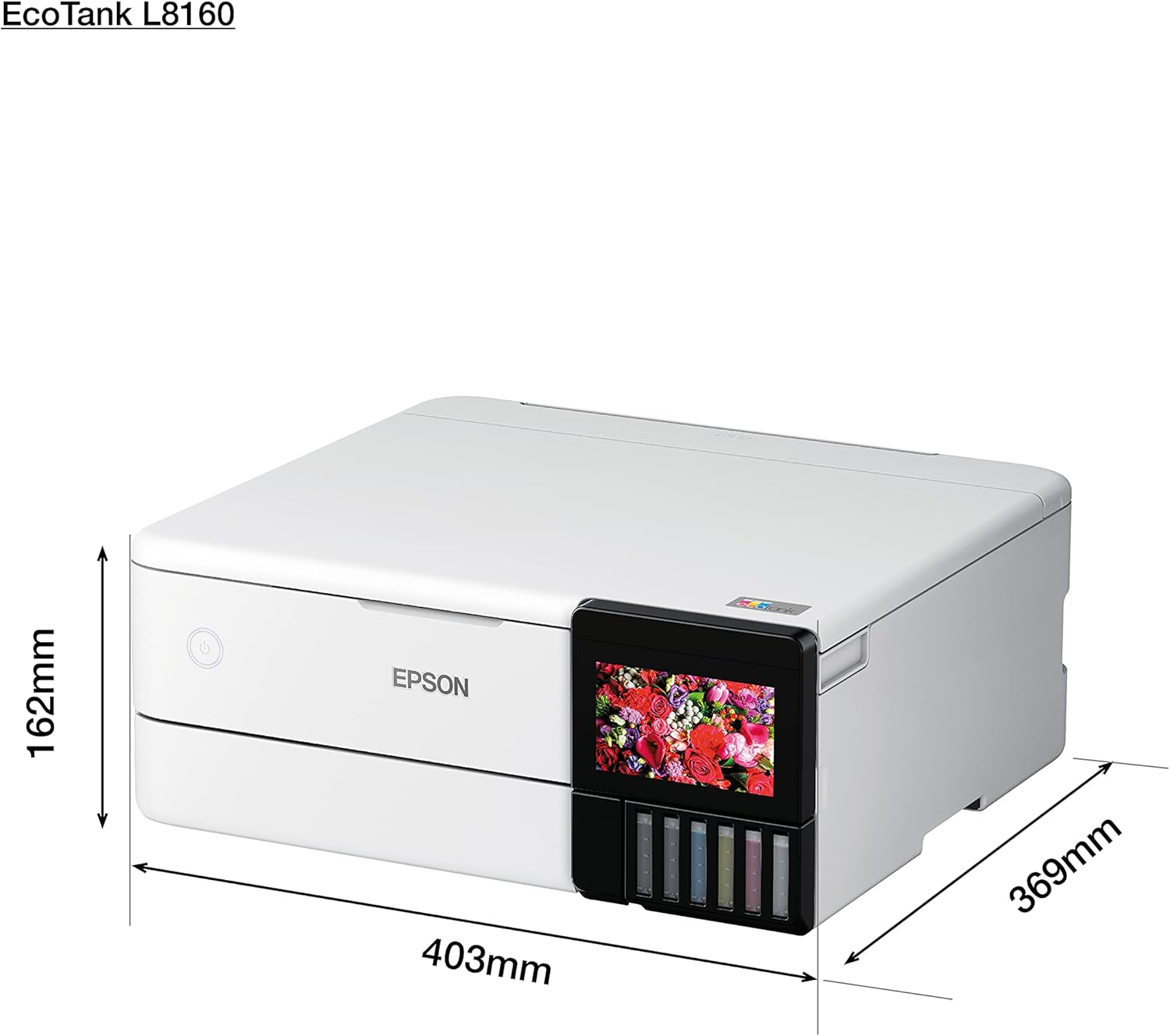
Gambar 8.1: Physical dimensions of the Epson EcoTank L8160.
| Fitur | Rincian |
|---|---|
| merek | Epson |
| Ngaran modél | L8160 |
| Nomer Modél Item | L8160 |
| Téhnologi printer | Inkjet |
| Kaluaran printer | Multifungsi |
| Téhnologi konektipitas | Wifi |
| Fitur husus | Jaringan Siap |
| Warna | Bodas |
| Dimensi Produk (Jéro x Lebar x Jangkungna) | 36.9D x 40.3W x 16.2H cm |
| Ukuran Média Maksimum | 8.5 x 11 inci |
| Komponén Kaasup | Paper trays, power cable, user guide |
| Média citak | Envelopes, Paper (plain), Glossy photo paper |
| Jenis scanner | Poto |
| Kamampuh Kertas Maksimum | 100 lembar |
| Maximum Black & White Print Speed | 32 kaca per menit |
| Alat nu cocog | Smartphone |
| Resolusi Print Warna maksimum | 600 x 600 dpi |
| Ukuran Kertas | A4 |
| Resolusi Cetak Hideung & Bodas Maksimum | 600 x 600 dpi |
| Percetakan duplex | Sumuhun |
| Produsén | Epson |
| Faktor Bentuk | Sadaya-di-Hiji |
| Ukuran Layar Témbongkeun | 10.9 séntiméter |
| Item Beurat | 11.3 Kilograms (11.27 Kilograms) |
| ASIN | B09G35WQDW |
| Palanggan Reviews | 4.0 ti 5 béntang (125 rating) |
| Pangalusna Sellers réngking | #18,311 in Electronics, #14 in Ink Tank Printers |
| Tanggal Kahiji Sadia | 11 Januari 2022 |
| Maximum Color Print Speed (Color) | 32 kaca per menit |
| Maximum Black & White Print Speed (B&W) | 32 kaca per menit |
9. Garansi jeung Rojongan
9.1 Émbaran jaminan
The Epson EcoTank L8160 comes with a 3-year promotional warranty. Please refer to the warranty card included in your package or visit the official Epson website for detailed terms and conditions regarding warranty coverage and registration.
9.2 Rojongan Palanggan
For further assistance, technical support, or service inquiries, please contact Epson customer support through their official website or the contact information provided in your product documentation. Have your printer model number (L8160) and serial number ready when contacting support.


