1. Produk Langkungview
The NETVUE Sentry 2 is a 1080P outdoor security camera designed to provide comprehensive surveillance for your home. It features advanced functionalities such as 360° pan and 110° tilt for wide area coverage, real-time motion and human detection, two-way audio communication, and enhanced night vision capabilities. Its IP66 weatherproof rating ensures reliable performance in various outdoor conditions.
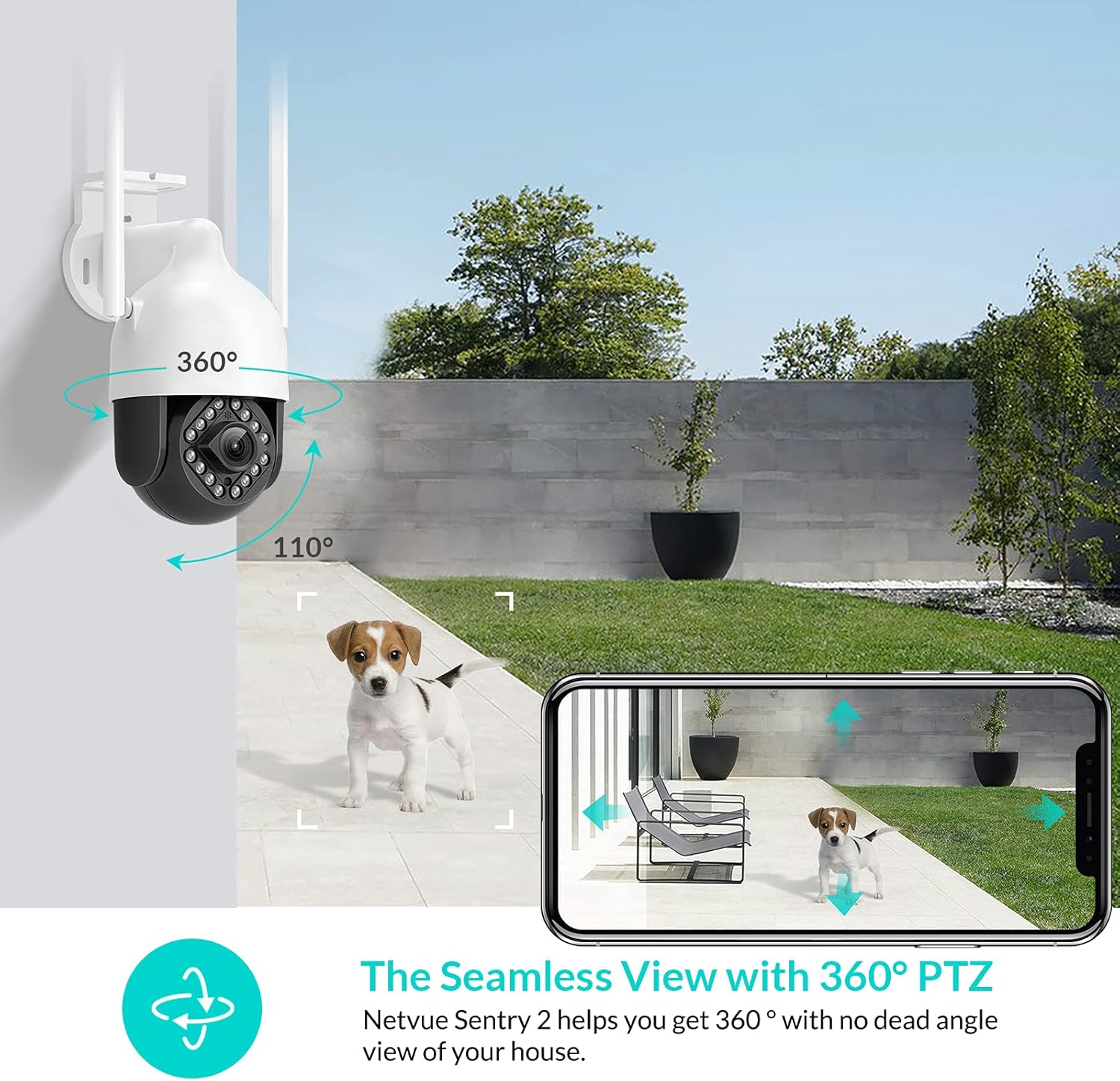
Image: NETVUE Sentry 2 Outdoor Security Camera showcasing its 360° pan and 110° tilt view.
2. Naon dina Box
Upon unboxing your NETVUE Sentry 2 camera, please verify that all components are present:
- NETVUE Sentry 2 Outdoor Security Camera
- Adaptor kakuatan
- Ningkatna Kurung
- Pemasangan Screws sareng Jangkar Tembok
- Waterproof Kit for Cable Connections
- Manual pangguna (dokumén ieu)
For a visual guide on the product and its components, please refer to the official product video below:
Video: Official Netvue Outdoor Security Camera Sentry 2 overview, including unboxing and installation steps.
3. Setup jeung Instalasi
3.1 Powering On
- Sambungkeun adaptor kakuatan ka input kakuatan kaméra.
- Colokkeun adaptor kakuatan kana stop kontak listrik standar.
- Wait for the camera to power on and initiate its self-test.
3.2 Unduh Aplikasi sareng Nyiptakeun Akun
- Download the official NETVUE app from your device's app store (iOS or Android).
- Buka aplikasi teras jieun akun anyar, atanapi lebet upami anjeun parantos gaduh.
3.3 Sambungan Wi-Fi
The NETVUE Sentry 2 camera supports 2.4GHz Wi-Fi networks. Ensure your mobile device is connected to a 2.4GHz Wi-Fi network during the setup process.
- In the NETVUE app, tap 'Add Device' and select your camera model.
- Follow the on-screen instructions to connect the camera to your Wi-Fi network. This typically involves scanning a QR code generated by the app with the camera lens.

Image: NETVUE Sentry 2 camera demonstrating stable Wi-Fi connection in distance.
3.4 Instalasi fisik
Pilih lokasi luar anu cocog pikeun masang kaméra, pastikeun éta gaduh cahaya anu jelas view and is within Wi-Fi range. The camera is IP66 weatherproof, suitable for various outdoor conditions.
- Use the mounting bracket as a template to mark drill holes on the desired surface.
- Bor liang jeung selapkeun jangkar témbok.
- Ngamankeun bracket ningkatna kana beungeut cai ngagunakeun screws disadiakeun.
- Gantelkeun kaméra kana bracket pamasangan.
- Ensure all cable connections are properly sealed using the waterproof kit to prevent water ingress.
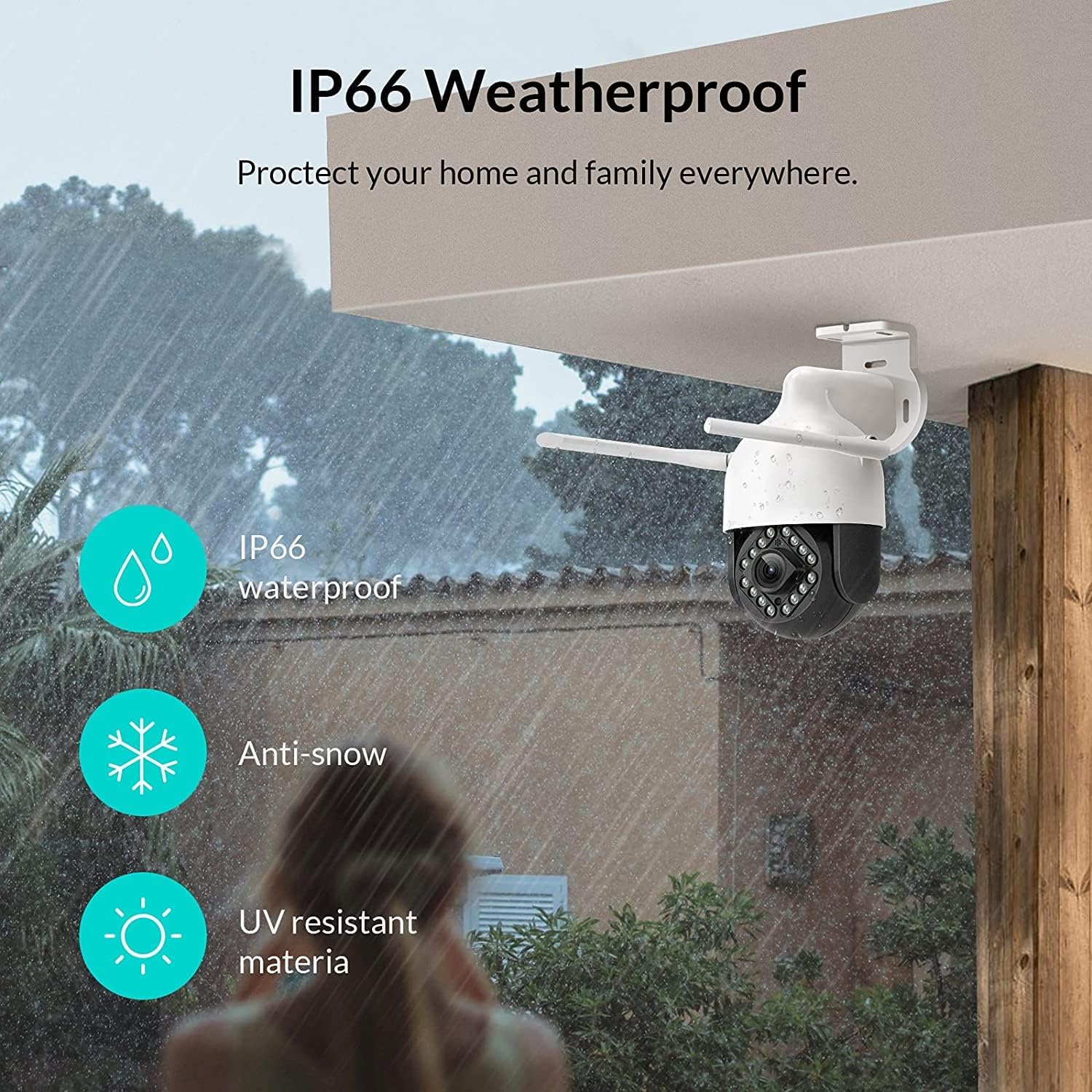
Image: NETVUE Sentry 2 camera highlighting its IP66 weatherproof features against rain and snow.
4. Ngoperasikeun kaméra
4.1 Hirup View sarta Pan / Dengdekkeun Control
Access the live video feed from your camera through the NETVUE app. You can remotely control the camera's pan (horizontal) and tilt (vertical) movements to adjust the viewdina sudut sakumaha diperlukeun.
4.2 Motion and Human Detection
The camera is equipped with motion and human detection capabilities. When motion or a human figure is detected, you will receive immediate notifications on your mobile device.

Image: Real-time motion detection alert displayed on a smartphone from the NETVUE Sentry 2 camera.

Image: Motion and human detection alert from the NETVUE Sentry 2 camera, showing a person at the front door.
4.3 Audio Dua Arah
Utilize the two-way audio feature to communicate with individuals near the camera. This is useful for interacting with visitors or deterring unwanted guests.

Image: Two-way audio feature of the NETVUE Sentry 2 camera, allowing communication with a delivery person.
4.4 Visi Peuting
The NETVUE Sentry 2 camera is equipped with 16 infrared lights for super night vision, providing clear video footage even in low-light or complete darkness.

Image: Close-up of the NETVUE Sentry 2 camera's 16 infrared lights for super night vision.
5. Pangropéa
5.1 Ngabersihan Kaméra
Periodically clean the camera lens and housing to ensure optimal performance. Use a soft, damp cloth to wipe away dust and dirt. Avoid using harsh chemicals or abrasive materials that could damage the lens or finish.
5.2 Apdet firmware
Regularly check the NETVUE app for available firmware updates. Keeping your camera's firmware up-to-date ensures you have the latest features, security enhancements, and bug fixes.
5.3 Manajemén Panyimpenan
The camera supports local storage via a microSD card (not included) and cloud storage options. If using a microSD card, ensure it is properly formatted and regularly check its status within the app to prevent recording issues.
6. Cara ngungkulan
6.1 Masalah Sambungan Wi-Fi
- Ensure 2.4GHz Wi-Fi: The camera only supports 2.4GHz Wi-Fi. Confirm your router is broadcasting a 2.4GHz signal and your phone is connected to it during setup.
- Kakuatan sinyal: Verify the camera is installed within a strong Wi-Fi signal range. Relocate the camera or use a Wi-Fi extender if necessary.
- Setélan Router: Check your router settings for any restrictions that might prevent new devices from connecting.
6.2 SD Card Not Detected or Recording
- Reinsert SD Card: Power off the camera, remove the microSD card, and reinsert it firmly. Power the camera back on.
- Pormat Kartu SD: Format the SD card through the NETVUE app. If issues persist, try a different, high-quality microSD card.
- Pariksa Setélan App: Ensure recording settings are correctly configured in the NETVUE app.
6.3 No Motion Alerts
- Aktipkeun Tanda: Confirm motion detection and notification alerts are enabled in the NETVUE app settings.
- Saluyukeun sensitipitas: Adjust the motion detection sensitivity to an appropriate level.
- Check Schedule: Ensure motion detection is not disabled during specific times via a schedule.
6.4 Isu Umum
- Mimitian deui Kaméra: Disconnect the power adapter, wait 10 seconds, and reconnect it to restart the camera.
- Apdet App: Ensure your NETVUE app is updated to the latest version.
7. Spésifikasi
| Alat nu cocog | Monitor Video |
| Sumber Daya | AC/DC |
| Protokol konektipitas | Wifi |
| Tipe Controller | Iris |
| Tipe Pamasangan | Tembok Gunung |
| Resolusi Capture Video | 1080 p |
| Jumlah Item | 1 |
| Jumlah Saluran | 1 |
| Téknologi Komunikasi Nirkabel | Wifi |
| Batré Diperlukeun? | No |
| Téhnologi Lampu Lemah | Warna Peuting |
| Tipe Siaga | Gerak Ngan |
| Tipe Sumber Cahaya | Infrabeureum |
| Format Capture Video | MPEG-4 |
| Jumlah Unit | 1.0 Ngitung |
| Peunteun Protection Internasional | IP66 |
| Ukuran Paket | 11.3 x 6.1 x 5.91 inci |
| Item Beurat | 2.12 pon |
| Dianjurkeun Mangpaat Pikeun Produk | Kaamanan outdoor |
| Pamakéan jero rohangan / outdoor | Luar |
8. Garansi jeung Rojongan
For warranty information and technical support, please refer to the official NETVUE website or contact NETVUE customer service directly. Keep your purchase receipt for warranty claims.


