1. Bubuka
Thank you for choosing the ZONKO 10-inch Android 11.0 Tablet. This device is designed for versatile use, offering a powerful computing experience with its Android 11 operating system, dual-band Wi-Fi connectivity, and ample storage. This manual will guide you through the setup, operation, and maintenance of your new tablet and its accompanying accessories.

2. Naon dina Box
Mangga parios eusi pakét anjeun pikeun mastikeun yén sadaya barang aya:
- ZONKO 10-inch Android Tablet
- Kibor nirkabel
- Mouse nirkabel
- Kasus tablet
- Stylus
- Kabel Ngecas USB-C
- Adaptor kakuatan

3. Produk Langkungview
Familiarize yourself with the tablet's physical components and specifications.
Fitur konci:
- tampilan: 10.1-inch IPS FHD Screen (1280x800 resolution)
- Sistem operasi: Android 11.0 (Google Certified)
- Prosesor: 1.6 GHz Quad-core
- Mémori (RAM): 4GB
- Panyimpenan internal (ROM): 64GB (Expandable up to 128GB via Micro SD Card)
- Batré: 6000 mah
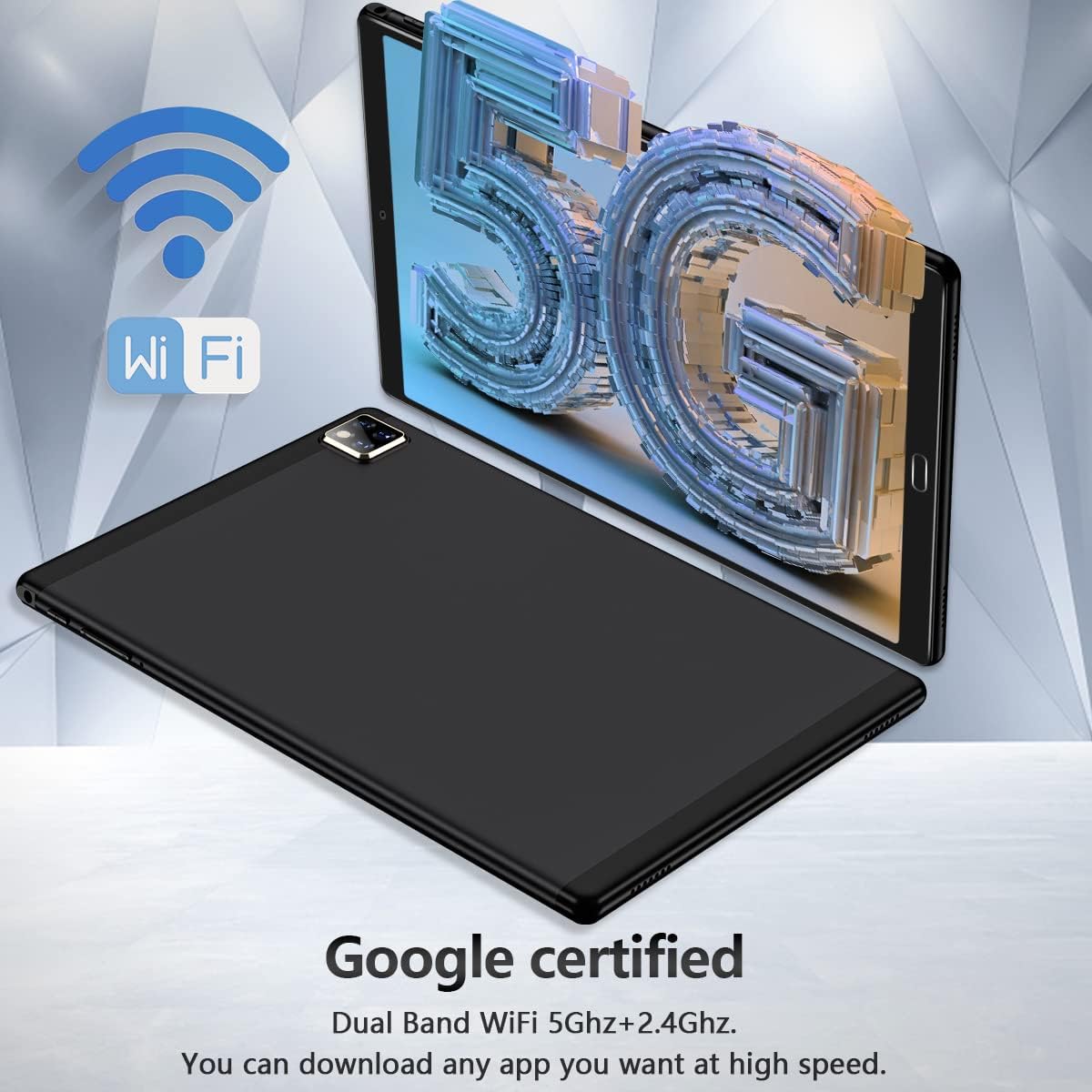
- Konektipitas: Dual-band Wi-Fi (2.4GHz + 5GHz), Bluetooth 5.0
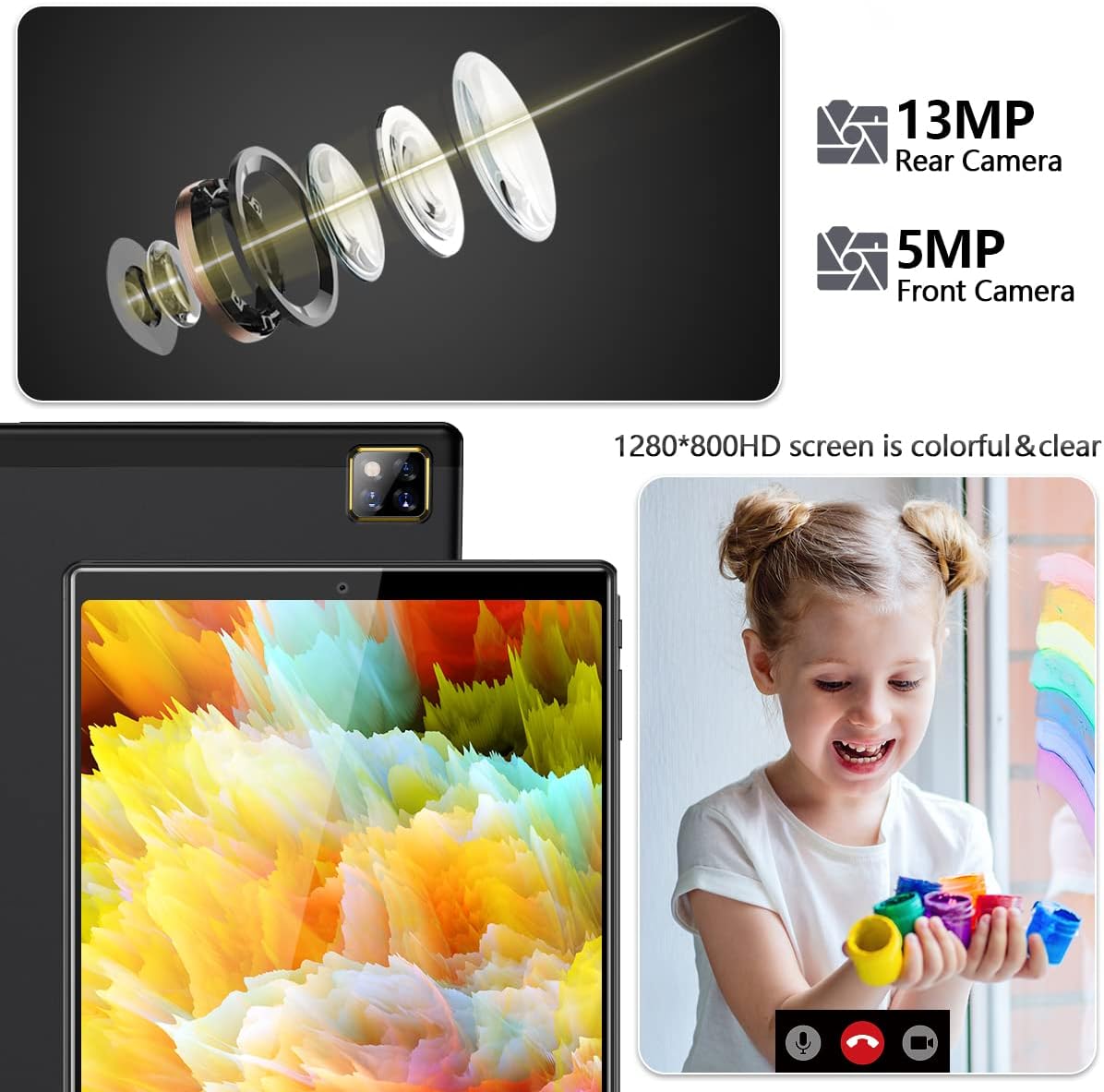
- Kaméra: 5MP Hareup, 13MP Rear

4. Setélan
4.1 Ngecas Awal
Before first use, fully charge your tablet. Connect the USB-C cable to the tablet's charging port and the power adapter to a wall outlet. The battery indicator will show charging status.

4.2 Daya Hurung/Pareuman
- Pikeun Ngahurungkeun: Press and hold the Power button until the ZONKO logo appears.
- Pikeun mareuman: Pencét terus tahan tombol Daya nepi ka aya menu nu némbongan, teras pilih "Pareuman".
4.3 Nyambungkeun ka Wi-Fi
Your tablet supports both 2.4GHz and 5GHz Wi-Fi networks for optimal connectivity.
- Pindah ka Setélan > Jaringan & internét > Internét.
- Hurungkeun Wi-Fi.
- Pilih jaringan Wi-Fi anu dipikahoyong tina daptar.
- Tulis kecap akses upami dipenta, teras ketok Nyambung.
4.4 Nyelapkeun Kartu Micro SD
To expand storage, insert a Micro SD card (up to 128GB, not included) into the designated slot on the tablet. Ensure the tablet is powered off before inserting or removing the card.

4.5 Pairing Bluetooth Accessories (Keyboard & Mouse)
The included wireless keyboard and mouse connect via Bluetooth.
- Ensure the keyboard/mouse is charged and in pairing mode (refer to their individual manuals if needed).
- Dina tablet anjeun, buka Setélan > Alat disambungkeun > Masangkeun alat énggal.
- Select the keyboard/mouse from the list of available devices.
- Turutan sagala ajakan dina layar pikeun ngalengkepan papasangan.
5. Ngoperasikeun Tablet
5.1 Android 11 OS Basics
The tablet runs on Android 11, offering an intuitive user interface. Swipe down from the top for quick settings and notifications. Navigate using gestures or the traditional navigation bar.
5.2 Using the Google Play Store
As a Google Certified tablet, you have full access to the Google Play Store. Tap the "Play Store" icon on your home screen to browse and download millions of apps, games, movies, and books.
5.3 Kaméra Fungsionalitas
The tablet features a 5MP front camera and a 13MP rear camera for photos and video calls.
- Buka na Kaméra aplikasi.
- Pindah antara kaméra hareup sareng pungkur nganggo ikon toggle kaméra.
- Ketok tombol jepret pikeun nyandak poto atanapi ngarékam pidéo.
6. Pangropéa
6.1 Ngabersihan Tablet
Anggo lawon anu lemes sareng henteu lint pikeun ngabersihan layar sareng awak tablet. Ulah make bahan kimia kasar atawa bahan abrasive.
6.2 Apdet parangkat lunak
Pariksa apdet sistem sacara périodik pikeun mastikeun kinerja sareng kaamanan anu optimal. Buka Setélan > Sistim > Pembaruan sistem.
6.3 Manajemén Panyimpenan
Pikeun ngajaga kinerja, atur panyimpenan tablet anjeun sacara rutin. Hapus anu teu perlu files, uninstall unused apps, and utilize the Micro SD card for media storage.
7. Cara ngungkulan
| Masalah | Solusi anu mungkin |
|---|---|
| Tablet moal hurung | Ensure the tablet is charged. Press and hold the power button for 10-15 seconds to force a restart. |
| Masalah sambungan Wi-Fi | Pariksa lamun Wi-Fi diaktipkeun. Balikan deui router anjeun. Poho jaringan sarta sambungkeun deui. |
| Bluetooth accessories not pairing | Ensure accessories are in pairing mode and charged. Restart Bluetooth on the tablet. |
| kinerja lalaunan | Close unused apps. Clear cache. Free up storage space. Restart the tablet. |
| Aplikasi ngadat | Clear the app's cache and data (Settings > Apps). Reinstall the app. |
8. Spésifikasi
| Fitur | Rincian |
|---|---|
| Nomer modél | K113 |
| Ukuran layar | 10.1 inci |
| Resolusi layar | 1280 x 800 (HD) |
| Resolusi layar Max | 1920x1080 Piksel |
| Prosesor | 1.6 GHz Quad-core (Allwinner) |
| Ram | 4 GB |
| Hard Drive (ROM) | 64 GB |
| Panyimpenan Expandable | Nepi ka 128GB via Kartu Micro SD |
| Sistem operasi | Android 11 |
| Kapasitas batré | 6000mAh Litium Polimér |
| Kaméra hareup | 5 MP |
| Kaméra tukang | 13 MP |
| Konektipitas | 2.4G+5G Dual Band WiFi, Bluetooth 5.0 |
| Item Beurat | 3.05 pon |
| Dimensi produk | 9.45 x 6.3 x 0.31 inci |
| Warna | Beusi Hideung |
9. Garansi jeung Rojongan
ZONKO offers lifetime technical support and a 365-day warranty for your tablet. If you encounter any problems with your product, please do not hesitate to contact us. Have your order number ready when contacting support for faster service.
For support, please visit the ZONKO store on Amazon or contact customer service through your purchase platform.


