1. Bubuka jeung Leuwihview
The ECHTPower MC-P5006 Wireless Controller Converter Adapter allows you to use a variety of game controllers with different gaming platforms. This adapter simplifies your gaming setup by enabling wireless connectivity for your preferred controllers across multiple systems without the need for additional driver installations.
Fitur konci:
- Kasaluyuan lega: Supports Nintendo Switch, Switch Lite, PS5 (for PS4 software only), PS4, PS3, and PC.
- Rojongan Controller: Compatible with Switch Pro Controller, PS5/PS4 Controllers, Xbox One Controllers, and Xbox Elite Controllers.
- Pamasangan Tanpa Supir: Simply plug into the console's USB port for immediate use.
- OTG Cable Included: Enables use with Type-C devices, including Nintendo Switch in table mode and Switch Lite.
- Ringan sareng Portabel: Compact design for easy transport.
2. Eusi Paket
Punten parios yén sadaya barang aya dina pakét anjeun:
- ECHTPower MC-P5006 Wireless Controller Converter Adapter x1
- USB OTG Cable (Type-C) x1
- Buku Panduan x1
3. Spésifikasi
| Nomer modél | MC-P5006 |
| merek | ECHPower |
| Warna | Hideung |
| Compatible Game Consoles | Nintendo Switch, Switch Lite, PS5 (for PS4 software only), PS4, PS3, PC |
| Controllers cocog | Switch Pro Controller, PS5/PS4 Controllers, Xbox One Controllers, Xbox Elite Controllers |
| Tipe Panyambung | USB Type-A (adapter), USB Type-C (OTG cable) |
| Item Beurat | 0.04 kg (40 g) |
| Ukuran Paket | 11.2 x 7 x 2 cm |
| Pamakéan batré | No |
The adapter is designed for ease of use and portability.
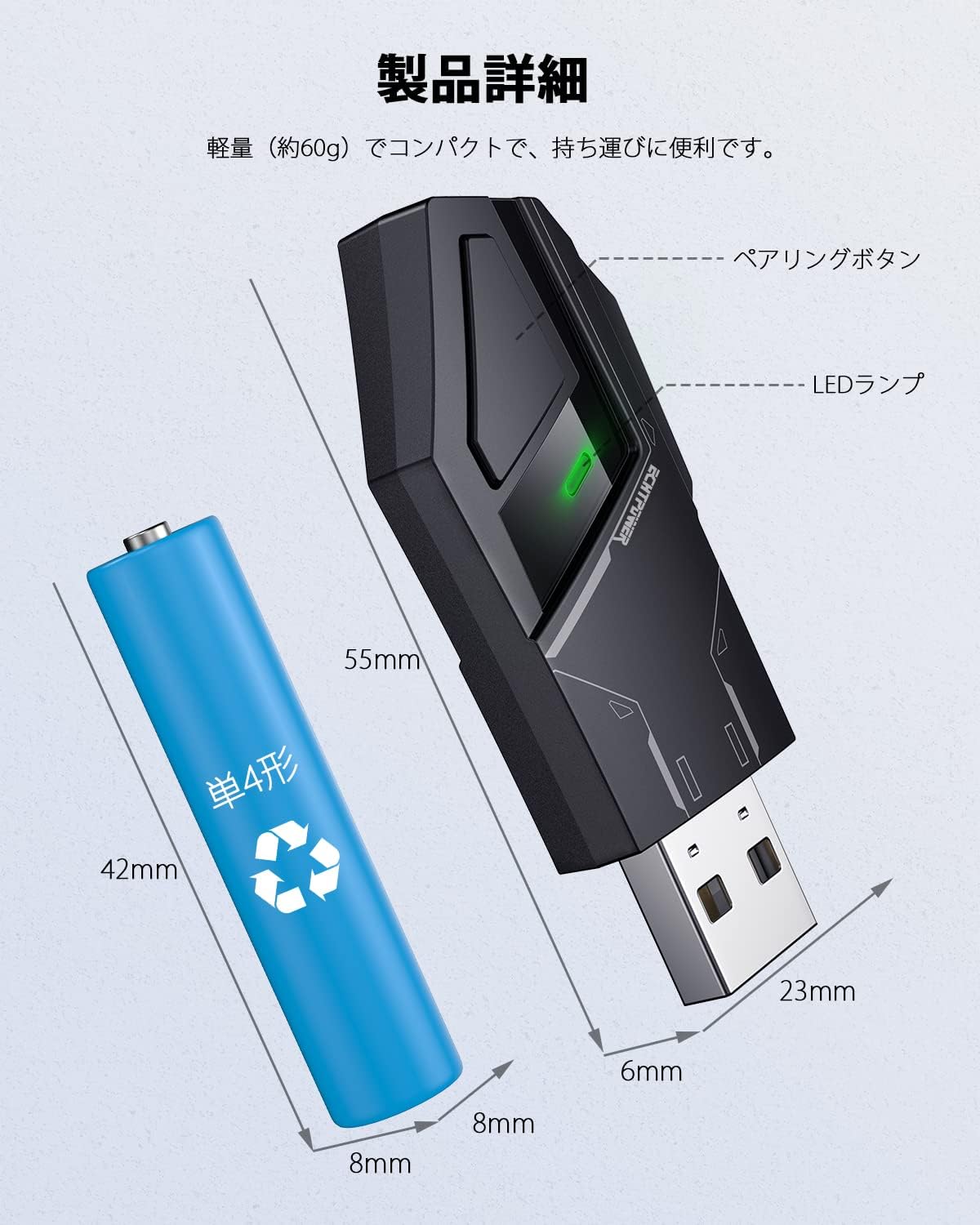
Figure 3.1: Dimensions of the ECHTPower MC-P5006 Adapter. This diagram provides the physical dimensions of the converter adapter (55mm length, 23mm width, 8mm thickness) and compares its size to a standard AAA battery.
4. Setélan
Follow these steps to set up your ECHTPower Wireless Controller Converter Adapter:
- Sambungkeun adaptor: Insert the ECHTPower adapter into an available USB Type-A port on your game console (PS5, PS4, Switch dock, or PC). If using a Switch Lite or Switch in table mode, connect the adapter via the included USB Type-C OTG cable.
- Activate Pairing Mode on Adapter: Press the pairing button located on the side of the adapter. The LED light on the adapter will begin to flash, indicating it is in pairing mode.
- Activate Pairing Mode on Controller: Refer to your specific controller's manual for instructions on how to put it into pairing mode. For example, for a PS5 controller, press and hold the CREATE button and the PS button simultaneously for 5 seconds until the light bar flashes.
- Konfirmasi sambungan: Once successfully paired, the LED light on the adapter and the controller's indicator light will become solid or show a stable pattern, indicating a successful wireless connection.
Important Note for Nintendo Switch Users: Before connecting, ensure that the 'Pro Controller Wired Communication' setting is enabled in your Nintendo Switch system settings. Go to System Settings > Controllers and Sensors > Pro Controller Wired Communication > ON.

Figure 4.1: Visual guide for connecting the adapter and pairing a controller.

Figure 4.2: Adapter connected to a Nintendo Switch dock.

Figure 4.3: Adapter connected to a Nintendo Switch Lite using the OTG cable.
5. Parentah Operasi
Once the adapter is successfully paired with your controller, you can begin using it for gameplay. The adapter provides a stable wireless connection, typically up to 10 meters, allowing for flexible gaming positions.
- Sambungan deui otomatis: After initial pairing, the adapter and controller should automatically reconnect when both are powered on and within range.
- Switching Controllers: To switch to a different controller, ensure the current controller is disconnected or powered off, then follow the pairing steps for the new controller.
- Ngagunakeun kalawan PC: When connected to a PC, the adapter will typically be recognized as an Xbox 360 controller, allowing broad compatibility with PC games.

Figure 5.1: The adapter enables various controllers to be used wirelessly with different consoles.
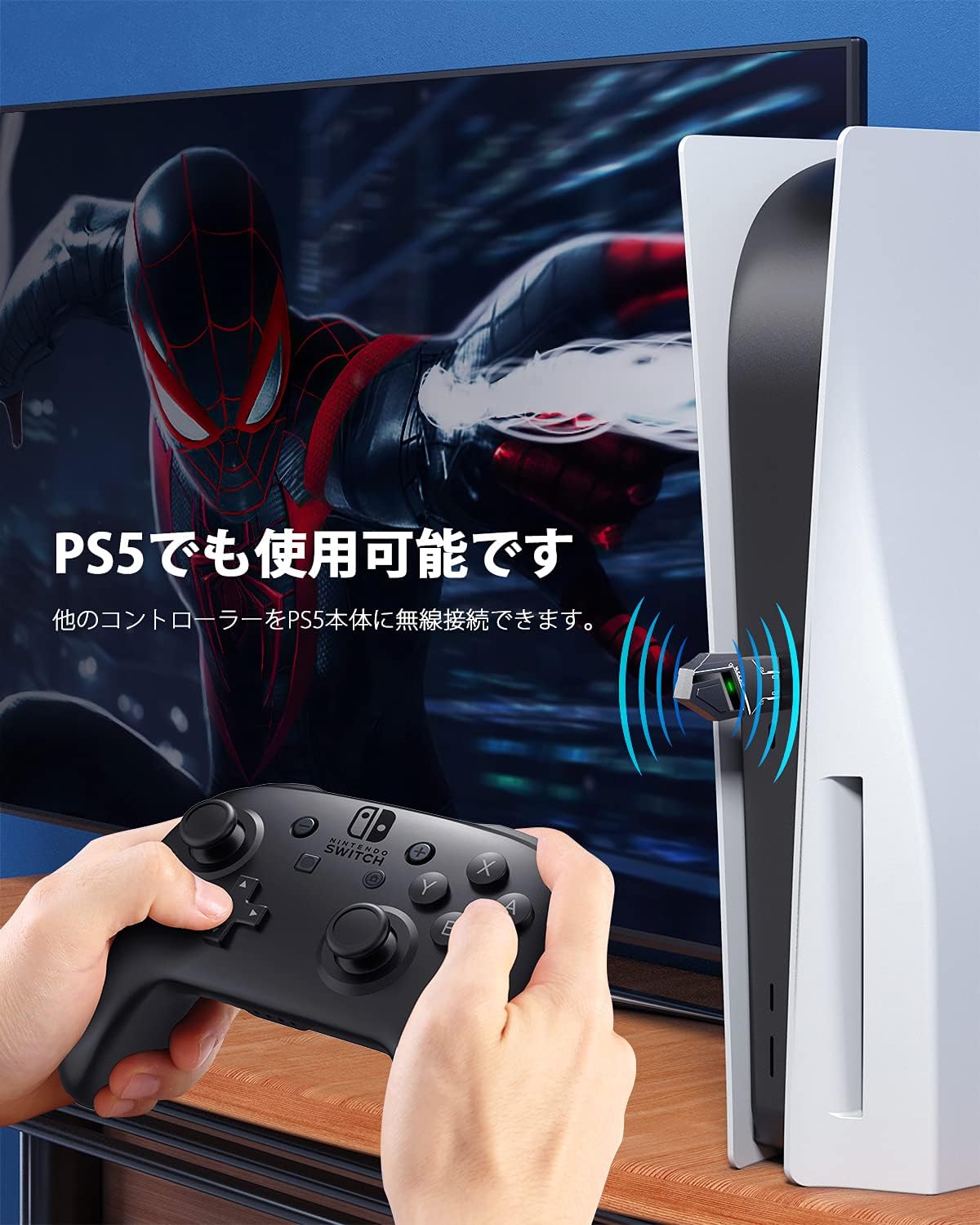
Figure 5.2: Using a Nintendo Switch Pro Controller with a PS5 console via the adapter.
6. Pangropéa
To ensure the longevity and optimal performance of your ECHTPower MC-P5006 adapter, please follow these maintenance guidelines:
- beberesih: Anggo lawon anu lemes sareng garing pikeun ngabersihkeun adaptor. Hindarkeun nganggo pembersih cair atanapi bahan anu kasar.
- Panyimpenan: Simpen adaptor di tempat anu tiis sareng garing jauh tina sinar panonpoé langsung sareng suhu anu ekstrim.
- Penanganan: Avoid dropping or subjecting the adapter to strong impacts. Do not attempt to disassemble the device.
- Uap: Keep the adapter away from water and high humidity to prevent internal damage.
7. Cara ngungkulan
If you encounter issues with your ECHTPower MC-P5006 adapter, please refer to the following common solutions:
- Kontroler Teu Nyambung/Ngapasangkeun:
- Ensure the adapter is securely plugged into the console's USB port.
- Verify that the adapter's LED is flashing, indicating pairing mode.
- Confirm your controller is in its correct pairing mode.
- For Nintendo Switch, check if 'Pro Controller Wired Communication' is enabled in system settings.
- Try restarting both the console and the controller.
- Attempt pairing in a different USB port on your console or PC.
- Frequent Disconnections/Lag:
- Ensure the adapter and controller are within the recommended operating range (approximately 10 meters).
- Minimalkeun gangguan ti alat nirkabel anu sanés (contona, router Wi-Fi, alat Bluetooth anu sanés).
- Ensure there are no physical obstructions between the adapter and the controller.
- Check if your controller's battery is sufficiently charged.
- Xbox X Wireless Controller Compatibility:
- Some newer Xbox X/S wireless controllers may have firmware that is not fully compatible with third-party adapters. Ensure your controller firmware is up to date, but be aware that full compatibility with all Xbox controller versions cannot be guaranteed.
- PS5 Game Compatibility:
- The adapter supports PS5 consoles for playing PS4-compatible software only. Native PS5 games typically require a PS5 DualSense controller.
- Using remote play features (e.g., PS Remote Play on a smartphone) with a PS4 controller connected via the adapter might allow PS5 game control, but may introduce latency.
- Teu aya Tanggapan ti Kontroler:
- Confirm the controller is powered on and successfully paired (solid indicator light).
- Test the controller with its native console to ensure it is functioning correctly.
- Try pairing a different compatible controller to isolate the issue.
Upami léngkah-léngkah ieu henteu ngabéréskeun masalah, mangga ngahubungi dukungan palanggan.
8. Garansi jeung Rojongan
Garansi Pabrik 1 Taun:
This ECHTPower product is covered by a 1-year manufacturer warranty from the date of purchase. This warranty covers manufacturing defects and individual product failures under normal use.
How to Obtain Support:
In the unlikely event that you receive a defective product or experience any issues not resolved by the troubleshooting steps, please contact ECHTPower customer support via email. Provide your purchase details and a description of the issue. After confirming the details, we will arrange for a new product exchange or provide further assistance.
Punten tahan bukti pameseran anjeun pikeun klaim garansi.


