1. Bubuka
This manual provides detailed instructions for the setup, operation, and maintenance of your Acer Nitro XZ272U Pbmiiphx 27-inch Curved WQHD Gaming Monitor. Please read this manual thoroughly before using the product to ensure proper functionality and to prevent damage.
The Acer Nitro XZ272U Pbmiiphx is a 27-inch 1500R curved gaming monitor featuring WQHD (2560 x 1440) resolution, AMD FreeSync technology, up to 165Hz refresh rate, and HDR 400 support for an immersive visual experience.
2. Eusi Paket
Pastikeun yén sadaya item anu didaptarkeun di handap aya dina pakét produk anjeun:
- 1 x XZ272U P Widescreen LCD Monitor
- 1 x Kabel HDMI
- 1 x Kabel Listrik
3. Parentah Setup
3.1 Majelis Monitor
Carefully remove the monitor and its components from the packaging. Attach the stand base to the stand neck, then secure the assembled stand to the back of the monitor. Ensure all connections are firm.
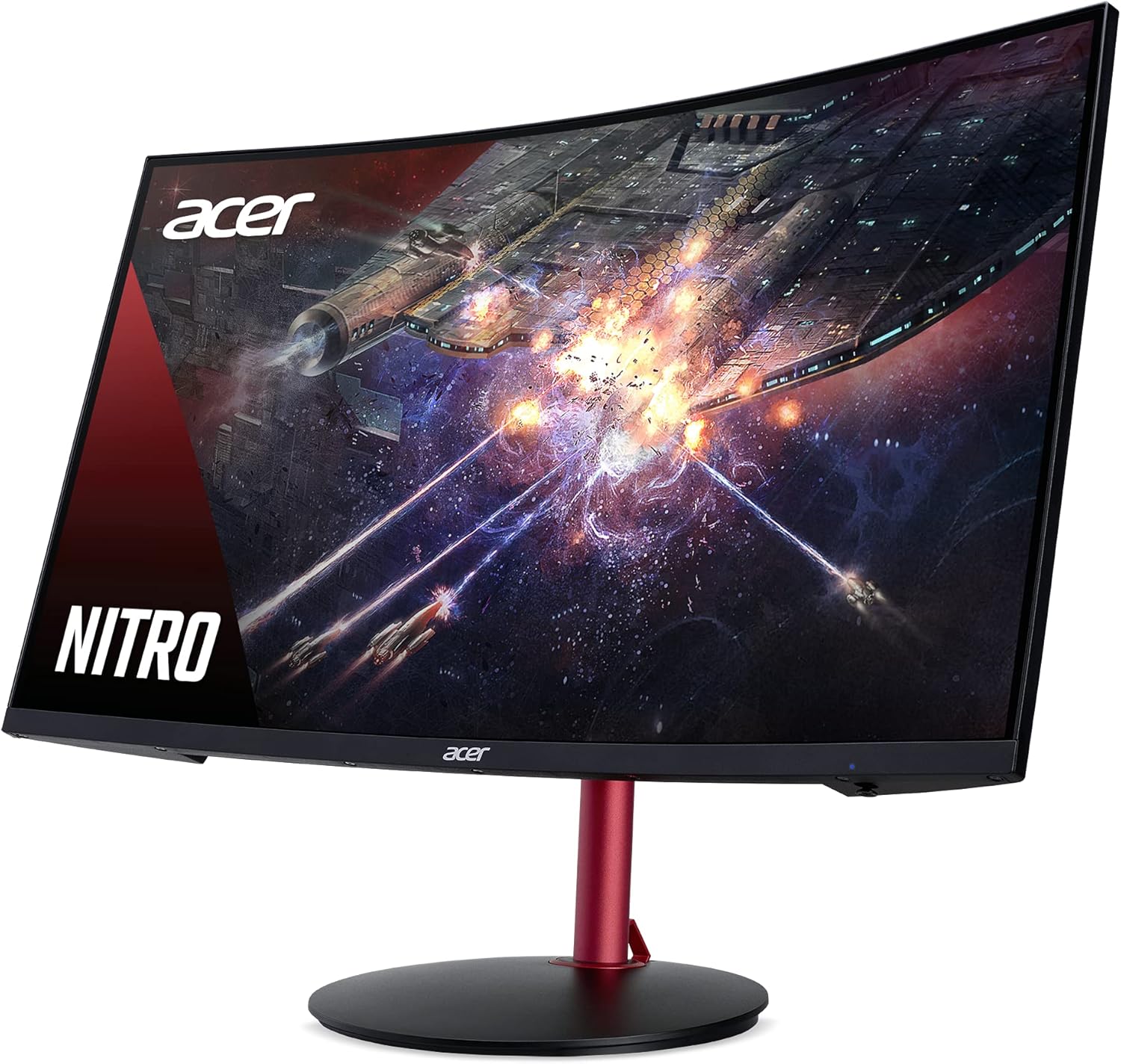
Image: The Acer Nitro XZ272U Pbmiiphx monitor with its stand fully assembled, viewed ti sudut hareup-katuhu.
3.2 Nyambungkeun Kabel
Connect the power cord to the monitor's power input and then to a power outlet. Use either the included DisplayPort cable or HDMI cable to connect your computer's graphics card to the corresponding input port on the monitor.

Gambar: Tukangeun view of the Acer Nitro XZ272U Pbmiiphx monitor, highlighting the various input ports for DisplayPort and HDMI connections.
3.3 Daya Awal Hurung
Press the power button located on the monitor. The monitor should power on and display an image from your connected device. If no image appears, ensure all cables are securely connected and the input source is correctly selected.
4. Fitur Leuwihview
- 27" WQHD (2560 x 1440) 1500R Curved Display: Experience immersive visuals with a wide viewsudut 170 derajat.
- Téknologi AMD FreeSync: Nyingkronkeun laju refresh monitor sareng laju pigura kartu grafis anjeun pikeun ngaleungitkeun layar anu robek sareng gagap.
- Up to 165Hz Refresh Rate & 4ms (G to G) Response Time: Provides smooth motion and reduced ghosting for fast-paced gaming.
- HDR 400 Support & 95% sRGB Color Gamut: Delivers high brightness and contrast with accurate color reproduction.
- Desain Nol-Pigura: Minimizes bezels pikeun leuwih expansive viewwewengkon.
- Speaker terpadu: Two 3-watt speakers provide audio output.
- Pangaturan ergonomis: Tilt (-5° to 25°), Height Adjustment (4.72"), and Swivel (360°) for comfortable viewing.
- Konektipitas: Includes 1 x DisplayPort and 2 x HDMI 2.0 ports.

Image: A top-down diagram illustrating the 1500R curvature of the monitor, emphasizing its curved 16:9 aspect ratio.

Image: A split image demonstrating the visual difference with AMD FreeSync enabled (left, smooth image) versus disabled (right, screen tearing visible).

Image: A gaming scene with a crosshair, illustrating the benefit of a 165Hz refresh rate for smooth and responsive gameplay.

Image: A split image comparing a scene with DisplayHDR 400 enabled (left, vibrant colors and contrast) versus disabled (right, duller colors and less contrast).
5. Parentah Operasi
5.1 Daya Hurung/Pareuman
Press the power button to turn the monitor on or off. The power indicator light will show the monitor's status.
5.2 Menu dina layar (OSD).
The OSD menu allows you to adjust various monitor settings. Typically, buttons located on the back or bottom of the monitor are used to navigate and select options within the OSD.
- Tombol Menu: Pencét pikeun muka menu OSD.
- Tombol Napigasi: Use directional buttons (up/down/left/right) to move through menu options.
- Tombol Pilih/Asupkeun: Confirm a selection or enter a sub-menu.
- Tombol Kaluar: Exit the current menu or OSD.
5.3 Pamilihan Input
To switch between connected devices (e.g., PC via DisplayPort, console via HDMI), access the OSD menu and navigate to the 'Input' or 'Source' section. Select the desired input.
5.4 Nyaluyukeun Setélan Témbongkeun
Within the OSD, you can customize settings such as:
- Caang/Kontras: Saluyukeun luminance sadayana sareng bédana antara daérah terang sareng poék.
- Setélan warna: Robah suhu warna, gamma, sareng tingkat RGB individu.
- Modeu Gambar: Select predefined modes optimized for gaming, movies, or standard use.
- Audio: Adjust speaker volume or mute audio.
6. Spésifikasi
| Fitur | Spésifikasi |
|---|---|
| Ukuran layar | 27 inci |
| Tipe Panel | VA |
| Curvature | 1500R |
| Resolusi | WQHD (2560 x 1440) |
| Laju Anyarkeun Max | 165Hz |
| Waktu Tanggapan | 4 ms (G ka G) |
| Caang | 400 nits (HDR 400) |
| Warna Gamut | 95% sRGB |
| Viewdina Angle | 170 derajat |
| Konektipitas | 1 x DisplayPort, 2 x HDMI 2.0 |
| Panyatur | 2 x 3 Watt |
| Érgonomi | Tilt (-5° to 25°), Height (4.72"), Swivel (360°) |
| Item Beurat | 16.07 pon |
| Dimensi produk | 3 x 24.1 x 14.2 inci |
7. Cara ngungkulan
Upami anjeun mendakan masalah sareng monitor anjeun, tingali léngkah-léngkah ngungkulan umum ieu:
- Henteu aya kakuatan:
- Ensure the power cord is securely connected to both the monitor and a working power outlet.
- Check if the power indicator light on the monitor is on.
- Henteu aya sinyal:
- Pariksa yén kabel vidéo (DisplayPort atanapi HDMI) parantos nyambung pageuh kana monitor sareng kartu grafis komputer anjeun.
- Pastikeun sumber input anu leres dipilih dina menu OSD monitor.
- Test with a different video cable or input port if available.
- Masalah Tampilan (Kedip-kedip, Gambar Terdistorsi):
- Check your computer's display settings to ensure the resolution and refresh rate are compatible with the monitor's specifications.
- Apdet supir kartu grafik anjeun.
- Ngalakukeun reset pabrik ngaliwatan menu OSD.
- Teu aya Audio tina Spiker:
- Ensure the monitor's volume is not muted or set too low in the OSD menu.
- Pariksa setélan kaluaran audio komputer anjeun pikeun mastikeun monitor dipilih salaku alat playback.
- Verify that the HDMI or DisplayPort cable is capable of transmitting audio.
8. Pangropéa
Pikeun mastikeun umur panjang sareng kinerja optimal monitor anjeun, turutan tungtunan pangropéa ieu:
- Ngabersihan layar: Ngusap layar nganggo kaén anu lembut sareng teu aya serat. Pikeun tanda nekad, make solusi beberesih monitor-spésifik dilarapkeun ka lawon, teu langsung ka layar.
- Ngabersihan Casing: Anggo kaén anu lemes sareng garing pikeun ngabersihan monitor casing. Hindarkeun pembersih abrasive atanapi pangleyur.
- Ventilasi: Pastikeun bukaan ventilasi monitor teu diblokir pikeun nyegah overheating.
- Pareuman Lamun Teu Dipake: Pareuman monitor upami teu dianggo kanggo waktos anu panjang pikeun ngahémat énergi sareng manjangkeun umurna.
9. Garansi jeung Rojongan
Kanggo inpormasi garansi sareng dukungan téknis, mangga tingal kartu garansi anu kalebet dina produk anjeun atanapi kunjungan dukungan resmi Acer websitus. Simpen resi pameseran anjeun salaku bukti pameseran pikeun klaim garansi.
Online resources and FAQs may also be available on the Acer support portal to assist with common issues and product inquiries.


