1. Bubuka
The NovaStar H9 is a flagship all-in-one video splicing processor designed for fine-pitch LED applications. This device integrates splicing and control functionalities, simplifying system integration for professional video display setups. Utilizing advanced image processing technology, the H9 delivers high-quality visual effects, making it an ideal solution for demanding LED display environments.
2. Setélan
2.1 Ngabongkar sareng Inspeksi
- Carefully remove the H9 unit from its packaging.
- Inspect the unit for any signs of physical damage during transit. Report any damage to your supplier immediately.
- Verify that all accessories listed in the packing list are present.
2.2 Instalasi fisik
The H9 is designed for rack mounting. Ensure the rack is stable and capable of supporting the unit's weight (approximately 90 pounds). Allow adequate ventilation space around the unit.
- Mount the H9 into a standard 19-inch equipment rack using appropriate rack-mount screws.
- Ensure the front and rear panels are accessible for connections and operation.
2.3 Nyambungkeun Daya
- Connect the provided power cable to the power input port on the rear panel of the H9.
- Colokkeun tungtung kabel daya anu sanésna kana stop kontak AC anu di-ground.
- Ensure the power switch on the rear panel is in the OFF position before connecting.
2.4 Sambungan Input jeung Output
The NovaStar H9 features a modular design with various input and output cards. Refer to the image below for a visual guide to the front panel connections.
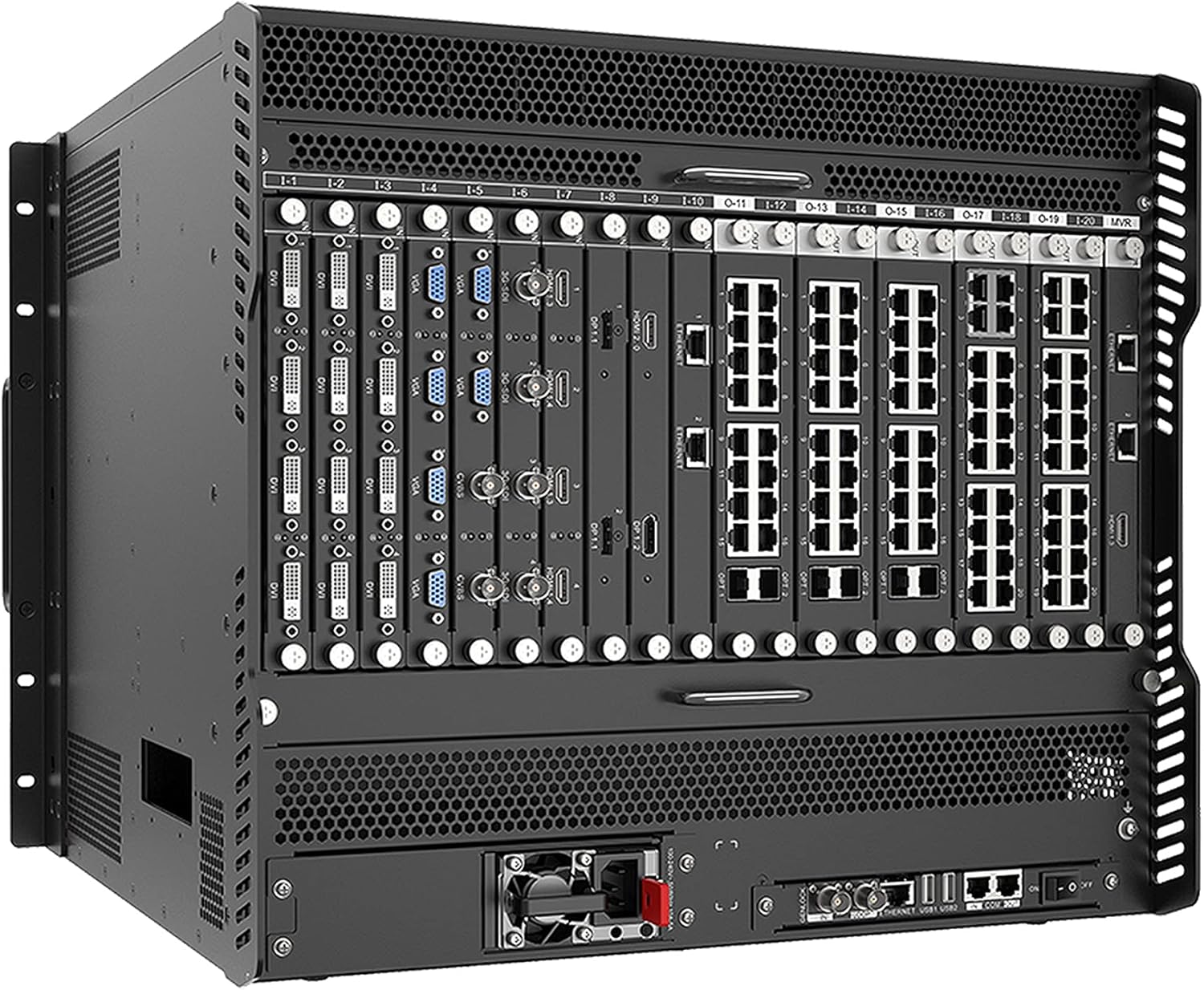
Figure 1: Front panel of the NovaStar H9 showing various input and output modules.
Katerangan Gambar: The image displays the front view of the NovaStar H9 9U chassis. The unit is black with a perforated top and bottom for ventilation. The front panel is populated with multiple modular cards. From left to right, there are several input cards featuring DVI and VGA ports, labeled 1-1 through 1-8. Following these are output cards with Ethernet ports, labeled 0-11 through 0-20, and additional HDMI 2.0 and Ethernet ports. The bottom section of the unit shows additional ventilation and a power supply fan on the right side of the rear panel, along with various network and control ports like GENLOCK, ETHERNET, USB, and COM ports.
- Input Modules (e.g., DVI, VGA): Connect your video sources (e.g., computers, media players) to the corresponding input ports on the front panel modules. Labels such as "DVI" and "VGA" are clearly marked.
- Output Modules (e.g., Ethernet, HDMI): Connect the Ethernet output ports to your LED receiving cards. The H9 also features HDMI 2.0 outputs for monitoring or additional display connections.
- Control Ports (Rear Panel): Utilize the GENLOCK, ETHERNET, USB, and COM ports on the rear for system control, synchronization, and firmware updates.
3. Operasi
3.1 Powering on / Pareum
- Daya Hurung: After all connections are secure, flip the power switch on the rear panel to the ON position. The unit will initiate its boot sequence.
- Pareum listrik: Before powering off, ensure all operations are saved and gracefully shut down any connected systems if necessary. Flip the power switch to the OFF position.
3.2 Konfigurasi Dasar
Initial configuration of the H9 is typically performed via a connected computer running NovaStar's control software. This software allows for detailed setup of input sources, output resolutions, splicing modes, and other advanced parameters.
- Connect a computer to the H9 via the Ethernet control port on the rear panel.
- Launch the NovaStar control software.
- Follow the software's interface to detect the H9 unit and begin configuring input sources, output mappings, and display parameters.
- Refer to the software's dedicated user manual for detailed instructions on specific configuration steps.
3.3 Splicing and Display Management
The H9's primary function is to splice multiple video inputs and output them to large LED displays. The control software provides tools for:
- Pilihan Sumber Input: Choose which input (DVI, VGA, HDMI) is active.
- Manajemén Lapisan: Create and manage multiple video layers for complex display layouts.
- Output Resolution and Mapping: Define the resolution of the LED display and map the video content to the physical layout of the LED panels.
- Manajemén prasetél: Save and recall various display configurations for quick changes during events.
4. Pangropéa
4.1 beberesih
- Ensure the unit is powered off and disconnected from the power source before cleaning.
- Anggo kaén anu lembut sareng garing pikeun ngusap permukaan luar.
- Pikeun kokotor nekad, a rada damp cloth with a mild, non-abrasive cleaner can be used, followed by a dry cloth.
- Periodically clean the ventilation grilles to prevent dust buildup, which can impede airflow and cause overheating. Use compressed air to clear dust from vents.
4.2 Apdet firmware
NovaStar may release firmware updates to improve performance, add features, or fix bugs. Always refer to the official NovaStar website or contact technical support for the latest firmware and update instructions.
- Download the official firmware package from the NovaStar support portal.
- Follow the specific update procedure provided with the firmware, typically involving a USB drive or network connection.
- Awas: Do not interrupt the power supply during a firmware update, as this may damage the unit.
5. Cara ngungkulan
| Masalah | Mungkin Cukang lantaranana | Solusi |
|---|---|---|
| Taya kakuatan | Power cable disconnected; Power switch off; Power outlet fault. | Check power cable connection; Ensure power switch is ON; Test power outlet with another device. |
| Taya kaluaran video | Input source not connected; Incorrect input selected; Output resolution mismatch; Cable fault. | Verify input source connections; Select correct input in software; Adjust output resolution; Check video cables. |
| Control software cannot connect to H9 | Network cable disconnected; IP address conflict; Firewall blocking connection. | Check Ethernet cable; Verify IP settings; Temporarily disable firewall for testing. |
| Gambar kedip-kedip atanapi distorsi | Poor cable quality; Signal interference; Incorrect refresh rate. | Use high-quality shielded cables; Ensure proper grounding; Adjust refresh rate in software. |
If the problem persists after attempting these solutions, please contact NovaStar technical support for further assistance.
6. Spésifikasi
| Fitur | Rincian |
|---|---|
| merek | Novastar |
| Runtuyan | H9 |
| Ngaran modél | H9 |
| Item Beurat | 90 pon |
| Jumlah USB 3.0 palabuhan | 4 |
| Jenis Kasus | terpadu |
| Dianjurkeun Mangpaat | Usaha |
| Métode Cooling | Hawa |
| Warna | Hideung |
| ASIN | B096H72FY3 |
| Kahiji Sadia | 9 Désémber 2022 |
7. Garansi jeung Rojongan
7.1 Garansi Produk
The NovaStar H9 All-In-One Splicer and Controller is covered by a manufacturer's warranty. Please refer to the warranty card included with your product or visit the official NovaStar websitus kanggo syarat sareng katangtuan anu lengkep ngeunaan jangkauan garansi, durasi, sareng prosedur layanan. Simpen bukti pameseran anjeun kanggo klaim garansi.
7.2 Rojongan Téknis
For technical assistance, troubleshooting beyond this manual, or inquiries regarding product operation and maintenance, please contact NovaStar technical support. Support contact information can typically be found on the official NovaStar websitus atanapi dina dokuméntasi disadiakeun kalawan pameseran Anjeun.
- Sumberdaya Online: Visit the NovaStar official websitus kanggo FAQ, artikel basis pangaweruh, sareng unduhan perangkat lunak.
- Inpormasi kontak: Refer to your product packaging or the NovaStar website for phone numbers and email addresses for technical support.