
1. Bubuka
This manual provides essential information for the setup, operation, maintenance, and troubleshooting of your HP Z4 G4 Workstation. Please read these instructions carefully before using the product to ensure proper functionality and longevity.
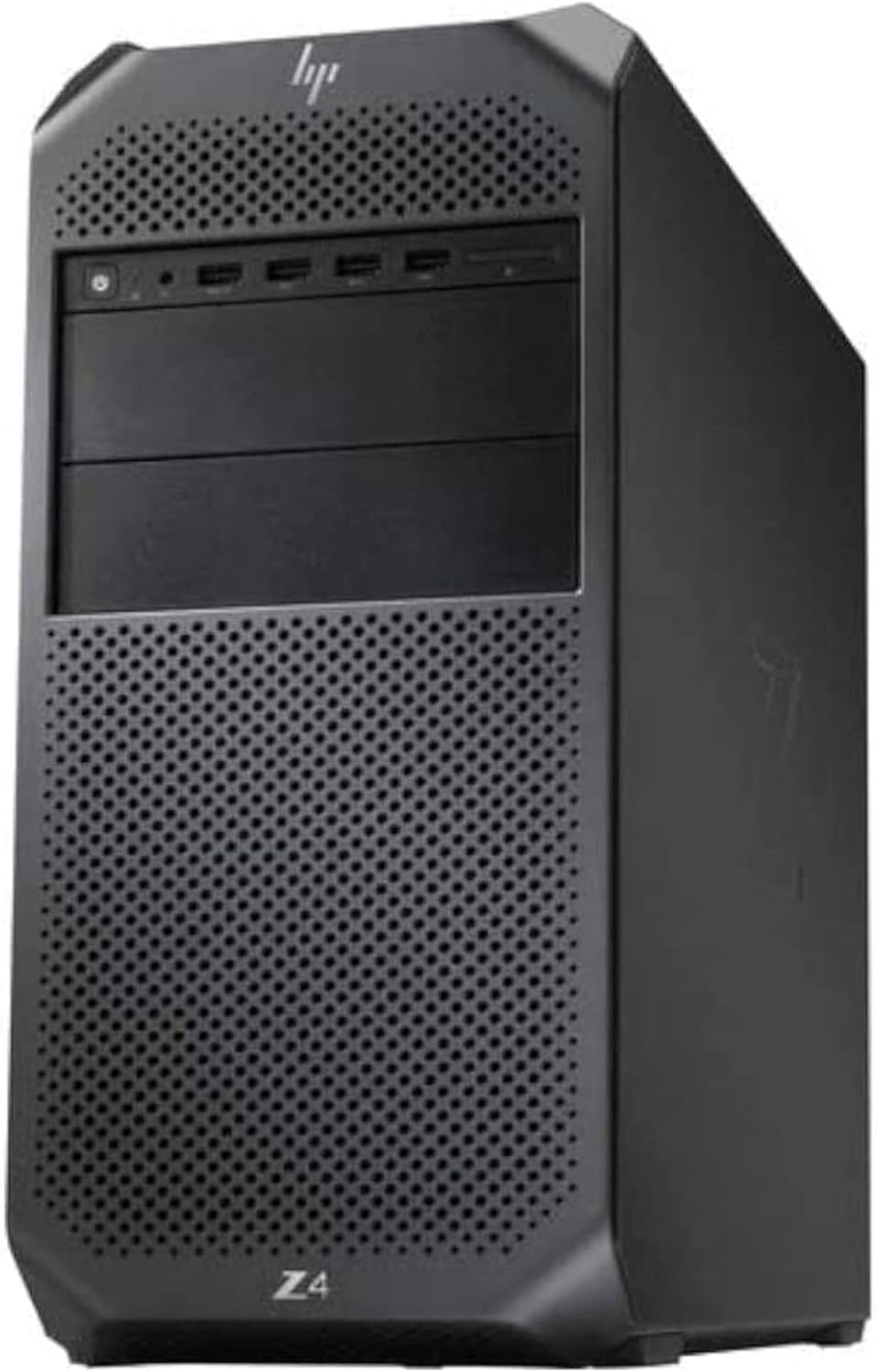
Gambar 1.1: Hareupeun view of the HP Z4 G4 Workstation. The workstation features a black chassis with a perforated front panel for airflow, housing various front I/O ports and an optical drive bay.
2. Setélan
2.1 Unboxing jeung Nempatkeun
- Carefully remove the workstation from its packaging. Retain all packaging materials for future transport or service.
- Place the workstation on a stable, flat surface with adequate ventilation. Ensure no vents are obstructed.
- Avoid placing the workstation near heat sources or in direct sunlight.
2.2 Nyambungkeun périferal
- Kakuatan Kabel: Connect the power cable to the workstation's power input and then to a grounded electrical outlet.
- Monitor: Connect your monitor(s) to the graphics card's display ports (Mini Display Ports). The Nvidia Quadro P400 supports up to three displays.
- Keyboard sareng Mouse: Connect your keyboard and mouse to the available USB ports on the front or rear of the workstation. PS/2 ports are also available on the rear.
- Jaringan: Connect an Ethernet cable to one of the 1GbE LAN ports for wired network access.
- Audio: Connect speakers or headphones to the audio output port on the rear or the headset port on the front.

Gambar 2.1: Tukangeun view of the HP Z4 G4 Workstation, showing various connectivity ports including USB, Ethernet, audio jacks, and PS/2 ports.
2.3 Daya Awal Hurung
- Pencét tombol daya anu aya di payun workstation.
- The system will boot into Windows 11 Pro. Follow the on-screen instructions for initial operating system setup, including user account creation and network configuration.
3. Parentah Operasi
3.1 Daya Hurung/Pareuman
- Pikeun Ngahurungkeun: Pencét tombol daya dina panel hareup.
- Pikeun mareuman: In Windows 11 Pro, click the Start button, then Power, and select "Shut down."
- Pikeun ngamimitian deui: In Windows 11 Pro, click the Start button, then Power, and select "Restart."
3.2 Hareupna I / O Palabuhan
The front panel provides convenient access to frequently used ports:
- Tombol Daya: With power/fault LED indicator.
- Headset Audio Port: For connecting headphones with a microphone.
- USB 3.1 G1 Type-A Ports (x4): One port supports charging (1.5A at 5V).
- Gim Optik: DVD drive for disc media.

Image 3.1: Close-up of the HP Z4 G4 Workstation's front panel, highlighting the power button, USB ports, and optical drive.
3.3 pungkur I / O palabuhan
The rear panel offers additional connectivity options:
- USB 3.1 G1 Type-A Ports (x6): Pikeun nyambungkeun rupa-rupa alat USB.
- 1GbE LAN Ports (x2): Pikeun sambungan jaringan kabel.
- Port audio: One Line out, one Line in.
- PS/2 Port: One for mouse, one for keyboard.
- Rear Power Button: An additional power control.
4. Pangropéa
4.1 beberesih
- Bersihkeun bagian luar workstation sacara rutin nganggo lawon anu lemes sareng garing.
- Use compressed air to clear dust from ventilation grilles and ports. Ensure the workstation is powered off and unplugged before cleaning.
- Do not use liquid cleaners directly on the workstation.
4.2 Apdet parangkat lunak
- Keep your Windows 11 Pro operating system updated by regularly checking for updates through the Windows Update settings.
- Ensure graphics drivers (Nvidia Quadro P400) and other system drivers are kept current for optimal performance and stability.
4.3 Internal Components and Upgrades
- The workstation is designed for professional use and may be upgraded. Consult a qualified technician for internal component upgrades such as RAM (DDR4), additional storage (NVMe M.2 SSD, SATA HDD), or graphics cards.
- Always power off and unplug the workstation before opening the chassis.
5. Cara ngungkulan
5.1 Isu umum jeung Solusi
- Henteu aya kakuatan:
- Pastikeun kabel daya disambungkeun pageuh kana workstation sareng stop kontak listrik.
- Pastikeun stop kontak listrik fungsina.
- Henteu aya tampilan:
- Check that the monitor is powered on and connected correctly to the graphics card's display ports.
- Pastikeun sumber input anu bener dipilih dina monitor anjeun.
- Sistem slowdown:
- Tutup aplikasi anu teu perlu.
- Check for sufficient free space on the primary drive (512GB NVMe M.2 SSD).
- Jalankeun scan sistem pikeun malware atanapi virus.
- Pastikeun Windows sareng supirna parantos diropéa.
- Periferal Teu Ngaréspon:
- Try connecting the peripheral to a different USB or PS/2 port.
- Pareuman terus hurungkeun deui workstation.
5.2 Neangan Bantuan Salajengna
If you encounter issues that cannot be resolved with the above steps, please refer to the support section for contact information.
6. Spésifikasi
| Fitur | Rincian |
|---|---|
| merek | HP |
| Nomer modél | Z4 G4 |
| Sistem operasi | Windows 11 Pro 64-bit |
| Prosesor | Intel Xeon W-2133 (6-Core, 3.6GHz base, up to 3.9GHz Turbo) |
| Mémori (RAM) | 64GB DDR4 |
| Panyimpenan | 512GB NVMe M.2 SSD (boot) + 2TB HDD (storage) |
| Kartu Grafis | Nvidia Quadro P400 2GB (3x Mini Display Ports) |
| Girang optik | DVD |
| I/O hareup | Power button, 1 Headset audio port, 4x USB 3.1 G1 Type A (1 charging) |
| I/O pungkur | 6x USB 3.1 G1 Type-A, 2x 1GbE LAN ports, Audio (1 Line out, 1 Line in), 1 PS/2 mouse port, 1 PS/2 keyboard port, 1 Rear power button |
| Sasayogian tanaga | 750W PSU (90% efficiency) with 2x 6-pin graphics power adapters |
| Dimensi (Item) | 15.2 x 6.65 x 15.2 inci |
| Beurat | (Henteu disebatkeun dina data anu disayogikeun) |
| Konektipitas | Ethernet (wired), Wi-Fi (802.11ax), Bluetooth |
| Fitur Kaamanan | Windows Defender, Windows Hello, Secure Boot |
7. Garansi jeung Rojongan
7.1 Garansi Produk
This HP Z4 G4 Workstation is a renewed product. It is tested and certified to look and work like new. It ships with a minimum 90-day warranty. For specific details regarding your warranty coverage, please refer to the Amazon Renewed program terms and conditions or contact your seller.
7.2 Rojongan Téknis
For technical assistance or support, please contact the seller, StallionTek Certified, through your Amazon order details. You may also find additional resources and support documentation on the official HP support websitus.