1. Bubuka
This manual provides detailed instructions for the installation, operation, and maintenance of your Jennov PTZ Outdoor Wi-Fi Security Camera. Please read this manual thoroughly before using the product to ensure correct usage and optimal performance. This camera is designed for outdoor surveillance, offering 1080p HD video, pan/tilt/zoom capabilities, night vision, two-way audio, and motion detection.
2. Pancegahan Kasalametan
- This camera operates exclusively with 2.4 GHz jaringan Wi-Fi. It is not compatible with 5 GHz Wi-Fi.
- Ensure the camera is connected to a stable power source using the provided power cable. Wireless connectivity refers to data transmission, not power supply.
- Avoid using special characters in your Wi-Fi password, as this may cause connection issues.
- Ulah ngalaan kaméra kana suhu anu ekstrim di luar rentang operasina (-40°C dugi ka 50°C).
- Nanganan kaméra kalayan ati-ati pikeun nyegah karuksakan fisik.
3. Eusi Paket
Pastikeun yén sadaya item aya dina bungkusan:
- 1 x Jennov 1080p HD Wi-Fi IP Camera
- 1 x Screw Pack for installation
- 1 x Manual Pamaké
- 1 x Cat5 Cable
- 1 x adaptor kakuatan
- 1 x Kartu Micro SD 32GB (tos dipasang sateuacanna)
4. Produk Langkungview
The Jennov PTZ Outdoor Wi-Fi Security Camera is a robust surveillance solution featuring 1080p resolution, pan/tilt/zoom functionality, and advanced night vision modes. It includes a pre-installed 32GB SD card for local storage and supports cloud storage options.

Gambar 4.1: Jennov PTZ Outdoor Wi-Fi Security Camera with included 32GB Micro SD card. This image displays the camera's main body, dual antennas, and the Micro SD card.
5. Setélan
5.1 Sambungan Jaringan
The camera supports both 2.4 GHz Wi-Fi and RJ45 wired connections.
- Sambungan Wi-Fi: Ensure your Wi-Fi network is 2.4 GHz. The camera does not support 5 GHz Wi-Fi.
- Sambungan kabel: Connect the camera to your router using the provided Cat5 cable for a stable network connection.
5.2 Pamasangan Aplikasi
Unduh CamHipro application on your mobile device (iOS or Android) or use compatible software for Windows (e.g., Blue Iris, iSpy).
5.3 Initial Configuration (AP Mode)
The camera supports AP (Access Point) mode for initial setup without scanning a QR code:
- Hurungkeun kaméra.
- On your mobile phone, connect to the camera's Wi-Fi hotspot (usually named something like 'IPCAM-XXXXXX').
- Open the CamHipro app.
- Add the IP security camera via the "LAN search" function within the app.
- Follow the on-screen prompts to connect the camera to your home Wi-Fi network.
6. Parentah Operasi
6.1 Kontrol Pan, Dengdekkeun, sareng Zoom (PTZ).
The camera offers a 355° horizontal pan and 90° vertical tilt, along with 4X digital zoom, allowing you to adjust the viewing angle remotely via the app.

Gambar 6.1: Illustration of the camera's 355° pan and 90° tilt capabilities, along with 4X digital zoom. The image shows a wide outdoor scene with children playing, demonstrating the camera's field of view and zoom function.
6.2 Modeu Visi Peuting
The camera features 8 built-in white LEDs and 8 infrared LEDs, supporting three night vision modes:
- Mode Infrabeureum: Provides clear black and white images in low light.
- Modeu Warna pinuh: Utilizes white LEDs to capture full-color images at night.
- Smart Mode: Automatically switches between infrared and full-color based on detected motion.

Gambar 6.2: Comparison of FHD-Color Mode and FHD-Infrared Mode for night vision. The left side shows a clear, colored night view, while the right side shows a black and white infrared view.
6.3 Motion Detection & Humanoid Detection
The camera can automatically track and detect suspicious objects. It features a humanoid sensor to distinguish human movement from other objects, reducing false alarms.

Gambar 6.3: Demonstration of Humanoid Detection. The camera accurately identifies a person (left) while ignoring a pet (right), minimizing irrelevant alerts.
When motion is detected, the camera can trigger various alerts:
- Push Bewara: Receive instant alerts on your mobile device.
- Panggeuing Surélék: Configure email notifications with snapshots.
- FTP Upload: Automatically upload alarm videos to an FTP server.
- Acoustic Alarm: Activate an audible alarm from the camera to deter intruders.
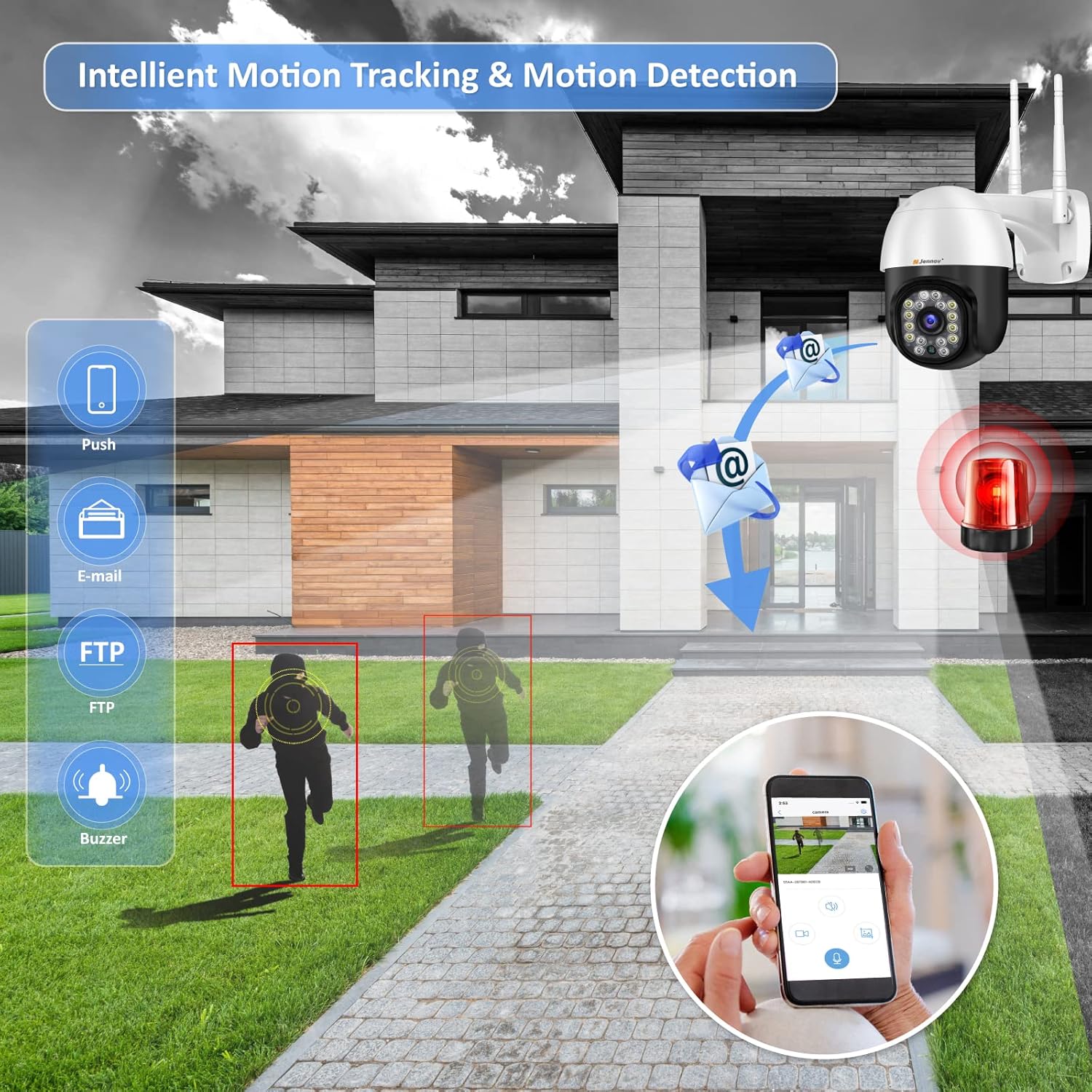
Gambar 6.4: Intelligent Motion Tracking and Detection features. The image shows the camera detecting movement and sending various alerts such as push notifications, email, FTP, and triggering a buzzer.
6.4 Audio Dua Arah
Equipped with high-quality speakers and noise-resistant microphones, the camera enables clear two-way communication through the app. You can speak to visitors or deter unwanted individuals.

Gambar 6.5: Multi-User Live View and Two-Way Audio functionality. The image depicts multiple users accessing the live feed and a scenario where a user communicates with a delivery person via the camera's two-way audio.
6.5 Rékam & Panyimpenan
The camera comes with a pre-installed 32GB Micro SD card for continuous 24-hour recording. It supports up to a 64GB Micro SD card. Older videos are automatically overwritten when the storage is full. The camera uses H.264+ compression for efficient storage.

Gambar 6.6: Built-in 32GB SD Card and Cloud Storage support. The image shows the camera with icons representing local SD card storage and cloud storage options, along with a mobile app interface displaying recorded footage.
6.6 Aksés Multi-Pamaké
The Jennov camera supports simultaneous viewing and control by multiple users across various devices, including mobile phones, tablets, and computers.
7. Pangropéa
- Bersihkeun lénsa kaméra sacara rutin nganggo lawon anu lemes sareng garing pikeun mastikeun kualitas gambar anu jelas.
- Pastikeun sambungan listrikna aman sareng bébas tina karusakan.
- Check for firmware updates through the CamHipro app to ensure optimal performance and security.
- The camera is IP66 waterproof, dustproof, and resistant to heat and cold, making it suitable for various outdoor environments.

Gambar 7.1: IP66 Waterproof rating and suitability for diverse environments. The image shows the camera installed outdoors, highlighting its resistance to heat, dust, water, and cold, and its applicability in various settings like shops, parking lots, courtyards, and homes.
8. Cara ngungkulan
- Henteu aya kakuatan: Pariksa adaptor daya sareng sambungan kabelna. Pastikeun stop kontakna tiasa dianggo.
- Masalah Sambungan Wi-Fi: Verify your Wi-Fi network is 2.4 GHz. Ensure the Wi-Fi password does not contain special characters. Move the camera closer to the router if the signal is weak.
- Kualitas Gambar goréng: In the CamHipro app, click the "HD" symbol in the lower right corner of the real-time screen for higher image quality. Clean the camera lens.
- Kartu SD Teu Ngarekam: Ensure the SD card is properly inserted. Check if the card is full; older videos are overwritten automatically. Format the SD card via the app if issues persist.
- PTZ Control Malfunction: Ensure a stable network connection. If issues persist, restart the camera.
9. Spésifikasi
| Fitur | Spésifikasi |
|---|---|
| Resolusi | HD 1920 x 1080p |
| Format pidéo | H.264 + |
| widang View | 355 ° Pan, 90 ° Dengdekkeun |
| Zum Digital | 4X |
| Wengi Sawangan Sawangan | 20 méter |
| Sambungan Jaringan | 2.4 GHz Wi-Fi, RJ45 Ethernet Port |
| Panyimpenan | Built-in 32GB Micro SD Card (supports up to 64GB), Cloud Storage |
| Suhu Operasi | -40°C ~ 50°C |
| Sasayogian tanaga | DC 12V, 2A |
| Diménsi | 20 x 18 x 12 cm |
| Beurat | 710 g |
| Kasaluyuan | Windows, iOS, Android (CamHipro app), Blue Iris, iSpy |
| Kaamanan | Enkripsi 128-bit AES |
| Résistansi Cuaca | IP66 Waterproof |
10. Garansi jeung Rojongan
Jennov offers a 12-month quality guarantee and customer support from the date of purchase. You may return or exchange the product within 30 days without stating reasons.
For technical assistance or warranty claims, please contact Jennov customer support through the official channels provided at the point of purchase or on the Jennov websitus.


