Bubuka
Welcome to the user manual for your new Coolpad Tasker 10" HD Android 10 Tablet. This guide provides essential information to help you set up, operate, maintain, and troubleshoot your device. Designed for both entertainment and productivity, your tablet features a vibrant 10-inch HD display, a powerful Qualcomm 64-bit processor, 3GB RAM, and 32GB of internal storage, expandable up to 128GB with a Micro SD card. It also includes a 6000mAh battery with Quick Charge 3.0 support and comes with a shock-absorbing protective case for enhanced durability.

Gambar 1: Hareup jeung tukang View of the Coolpad Tasker Tablet. The tablet features a sleek design with a camera on the rear and a large display on the front.
Naon dina Box
Upon unboxing your Coolpad Tasker Tablet, please ensure all the following items are present:
- Coolpad Tasker 10" HD Android 10 Tablet
- Kabel USB-C
- Perjalanan Wisata
- Coolpad Tasker Shock Protection Case

Figure 2: Coolpad Tasker Tablet and its Shock Protection Case. The image displays the tablet alongside its durable protective case, highlighting the included accessory.
Guide Setup
1. Ngecas Awal
Before first use, it is recommended to fully charge your tablet. Connect the provided USB-C cable to the tablet's charging port and the travel charger, then plug it into a power outlet. The tablet supports Quick Charge 3.0 for faster charging.
2. Powering on / Pareum
- Pikeun Ngahurungkeun: Press and hold the Power button (usually located on the side or top edge) until the Coolpad logo appears.
- Pikeun mareuman: Pencét jeung tahan tombol Daya nepi ka menu pilihan daya nembongan, teras pilih "Pareuman".
3. Setelan Android Awal
Upon first power-on, you will be guided through the Android 10 setup process. Follow the on-screen prompts to select your language, connect to a Wi-Fi network, set up your Google account, and configure basic settings.
4. Nyelapkeun Kartu Micro SD (Pilihan)
To expand your tablet's storage, you can insert a Micro SD card (up to 128GB). Locate the SIM/SD card tray on the side of the tablet. Use the provided tool (if any) or a paperclip to eject the tray, place the Micro SD card into the designated slot, and reinsert the tray firmly.

Figure 3: Micro SD Card Slot. The image shows the tablet with its Micro SD card slot open, ready for memory expansion.
Ngoperasikeun Tablet Anjeun
Napigasi Dasar
Your Coolpad Tasker Tablet uses a capacitive touchscreen for navigation. Use gestures such as tapping, swiping, pinching, and spreading to interact with apps and content. The Android 10 operating system provides an intuitive user experience.

Figure 4: Android 10 Interface. This image illustrates the clean and secure interface of Android 10 on the Coolpad tablet.
Konektipitas Wi-Fi
To connect to the internet, navigate to Setelan > Jaringan & Internét > Wi-Fi. Select your desired network from the list and enter the password if prompted. The tablet supports 802.11ac wireless standards for fast and reliable connections.

Figure 5: Wi-Fi Connectivity. The tablet is shown with a Wi-Fi signal icon, indicating active wireless internet connection.
Pamakéan kaméra
Your tablet is equipped with a 5MP HDR rear-facing camera and a 2MP front-facing camera. Open the Camera app to capture photos, selfies, or record videos. Tap the screen to focus and press the shutter button to take a picture.
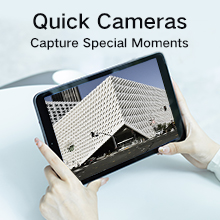
Figure 6: Capturing Moments with the Camera. The image shows the tablet's camera in use, ready to capture special moments.
Manajemén batré
The 6000mAh battery provides extended usage time. To optimize battery life, reduce screen brightness, close unused applications, and disable Wi-Fi or Bluetooth when not in use. Utilize the Quick Charge 3.0 feature for rapid recharging.

Figure 7: 6000mAh Battery Capacity. This image highlights the tablet's large battery, designed for extended productivity.
Pamasangan Aplikasi
Download and install applications from the Google Play Store. Ensure you have a stable internet connection and a Google account logged in to access the store.
Pangropéa
Ngabersihan Tablet anjeun
Anggo lawon anu lemes sareng henteu ngaganggu pikeun ngabersihkeun layar sareng awak tablet anjeun. Pikeun kokotor anu bandel, radaampen lawon kalayan cai atanapi solusi beberesih layar. Ulah make bahan kimia kasar atawa bahan abrasive.
Software Apdet
Pariksa apdet sistem sacara périodik pikeun mastikeun tablet anjeun ngagaduhan fitur sareng patch kaamanan pangénggalna. Buka Setélan > Sistem > Apdet sistem pikeun mariksa tur masang apdet sadia.
Perawatan batré
To prolong battery lifespan, avoid extreme temperatures and do not let the battery completely drain frequently. It is best to keep the battery charge between 20% and 80% for optimal long-term health.
Kasus pelindung
The included shock protection case is designed to safeguard your tablet from accidental drops and impacts. It is recommended to keep the case on your tablet during daily use.
Pamérésan masalah
Tablet Teu Dihurungkeun
- Pastikeun tablet tos dicas cekap. Sambungkeun kana carjer teras antosan sababaraha menit sateuacan nyobian hurungkeun deui.
- Try holding the Power button for an extended period (10-15 seconds) to force a restart.
Masalah Konektipitas Wi-Fi
- Balikan deui router Wi-Fi anjeun sareng tablet.
- Pohokeun jaringan dina setélan Wi-Fi teras sambungkeun deui.
- Pastikeun anjeun aya dina jangkauan sinyal Wi-Fi.
Aplikasi nabrak atanapi katirisan
- Tutup sareng buka deui aplikasina.
- Hapus cache sareng data aplikasi dina Setélan > Aplikasi & bewara > [Ngaran Aplikasi] > Panyimpenan & cache.
- Pastikeun aplikasi parantos diropéa kana vérsi pangénggalna ti Google Play Store.
Reset pabrik
If you encounter persistent issues, a factory reset can resolve many software-related problems. Perhatosan: Ieu bakal mupus sadaya data dina tablet anjeun. Nyadangkeun data penting sateuacan neraskeun. Pindah ka Setélan> Sistem> Pilihan Reset> Pupus sadaya data (reset pabrik) tur turutan parentah.
spésifikasi
Below are the key technical specifications for the Coolpad Tasker Tablet 3667AT 10IN WiFi:
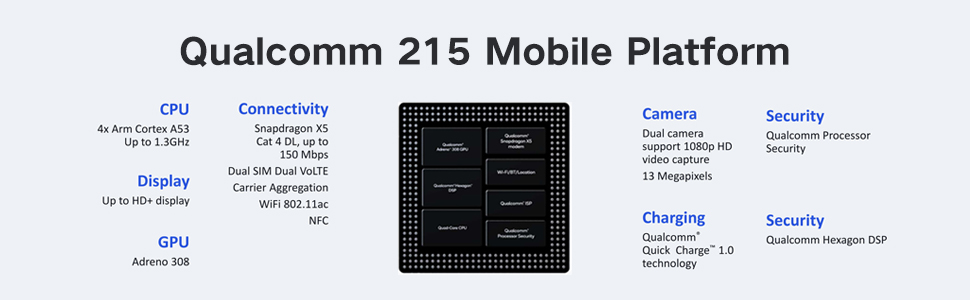
Figure 8: Qualcomm 215 Mobile Platform. This diagram details the capabilities of the Qualcomm 215 processor, including CPU, GPU, connectivity, camera, charging, and security features.
| Fitur | Spésifikasi |
|---|---|
| Ngaran modél | Coolpad Tasker Tablet 3667AT 10IN WiFi |
| Sistem operasi | Android 10 |
| Ukuran tampilan | 10 inci |
| Resolusi layar | 1280 x 800 Piksel (HD) |
| Prosesor | Qualcomm 64-bit Processor (QM215 Quad-Core) |
| Ram | 3 GB DDR3 SDRAM |
| Panyimpenan internal | 32 GB eMMC |
| Panyimpenan Expandable | Micro SD nepi ka 128 GB |
| Kaméra tukang | 5 MP HDR |
| Kaméra hareup | 2 MP |
| Kapasitas batré | 6000 mAh |
| Ngecas | Ngecas Gancang 3.0 |
| Tipe Wireless | 802.11ac |
| Item Beurat | 2.07 pon (kira-kira 939 gram) |
| Dimensi produk | 10 x 6 x 0.35 inci (254 x 152 x 9.2 mm) |

Figure 9: Tablet Dimensions and Weight. This image illustrates the physical dimensions (254*152*9.2mm) and weight (526.8 Gram) of the tablet, noting it is 15% lighter than comparable devices.

Figure 10: 10" IPS TFT WXGA 1280*800 Display. The image showcases the tablet's high-definition display, emphasizing its vibrant and clear visual quality.
Garansi sareng Rojongan
Your Coolpad Tasker Tablet comes with a standard manufacturer's warranty. For detailed warranty information, including terms and conditions, please refer to the warranty card included with your product or visit the official Coolpad website. For technical support, troubleshooting assistance beyond this manual, or service inquiries, please contact Coolpad customer support through their official channels.
Anjeun tiasa mendakan langkung seueur inpormasi sareng sumber dukungan ku nganjang ka Coolpad Store on Amazon.


