
1. Bubuka
This manual provides instructions for the Arducam 16MP Autofocus USB Camera, Model B0290. This camera module features a 16-megapixel IMX298 sensor, offering sharp images and accurate color reproduction. It is designed for various applications including home surveillance, 3D printer monitoring, object recognition, and machine vision.

Figure 1: Arducam 16MP Autofocus USB Camera Module (Model B0290).
2. Fitur konci
- High Quality Imaging: Adopts a 16MP IMX298 sensor for sharp images and accurate color reproduction. Maximum still picture resolution: 4656 x 3496.
- Pokus otomatis: Automatically adjusts focus for objects at various distances without manual lens adjustment.
- Rates pigura: Supports MJPG 10fps@4656x3496/4160x3120/3264x2448/2592x1944; 30fps@2320x1744/1080P/720; YUY2 10fps@1024x768/800x600/640x480.
- Plug & Play: UVC-compliant, requiring no additional drivers for installation on compatible operating systems.
- Aplikasi: Suitable for home surveillance, 3D printer monitoring, object recognition, tracking, and other machine vision tasks requiring high resolution.
3. Naon dina Box
- Kabel USB
4. Parentah Setup
The Arducam 16MP Autofocus USB Camera is UVC-compliant, allowing for plug-and-play functionality on most compatible operating systems without the need for additional driver installations.
4.1 Connecting to a Computer (Windows, Linux, Mac OS)
- Teangan hiji port USB sadia dina komputer Anjeun.
- Connect the provided USB cable to the camera module.
- Colokkeun ujung kabel USB nu sejen ka port USB komputer Anjeun.
- The operating system should automatically detect and install the necessary drivers.
- Open a camera application (e.g., Camera app on Windows, Guvcview on Linux, Photo Booth on Mac) to verify the camera's functionality.

Figure 2: Connecting the camera to a laptop via USB.
4.2 Connecting to a Raspberry Pi
- Ensure your Raspberry Pi is powered off.
- Connect the provided USB cable to the camera module.
- Plug the other end of the USB cable into an available USB port on your Raspberry Pi.
- Power on your Raspberry Pi. The camera should be recognized as a standard UVC device.
- Use appropriate software (e.g., `fswebcam`, `motion`, or custom Python scripts) to access the camera feed.

Figure 3: Connecting the camera to a Raspberry Pi.
4.3 Connecting to an Android Device
For Android devices, a USB-C to USB-A adapter (not included) may be required if your device uses a USB-C port. Ensure your Android device supports USB OTG (On-The-Go) functionality.
- Connect the provided USB cable to the camera module.
- If necessary, connect the USB-A end of the cable to a USB-C to USB-A adapter.
- Plug the adapter (or USB-A end directly) into your Android device's USB port.
- Install a compatible USB camera application from the Google Play Store (e.g., 'USB Camera' by ShenYao).
- Open the application and select the Arducam camera as the input source.
4.4 Produk Leuwihview Video
Video 1: Hiji leuwihview demonstrating the Arducam 16MP IMX298 Autofocus USB Camera (Model B0290) connected to various devices and showcasing its autofocus capabilities.
5. Parentah Operasi
Once connected, the Arducam 16MP Autofocus USB Camera operates as a standard webcam or camera module, depending on the host device and software used.
5.1 Fungsi Fokus Otomatis
The camera features automatic autofocus. Simply point the camera at your desired subject, and the lens will adjust to achieve a clear image. This eliminates the need for manual focus adjustments, making it suitable for dynamic environments or varying object distances.
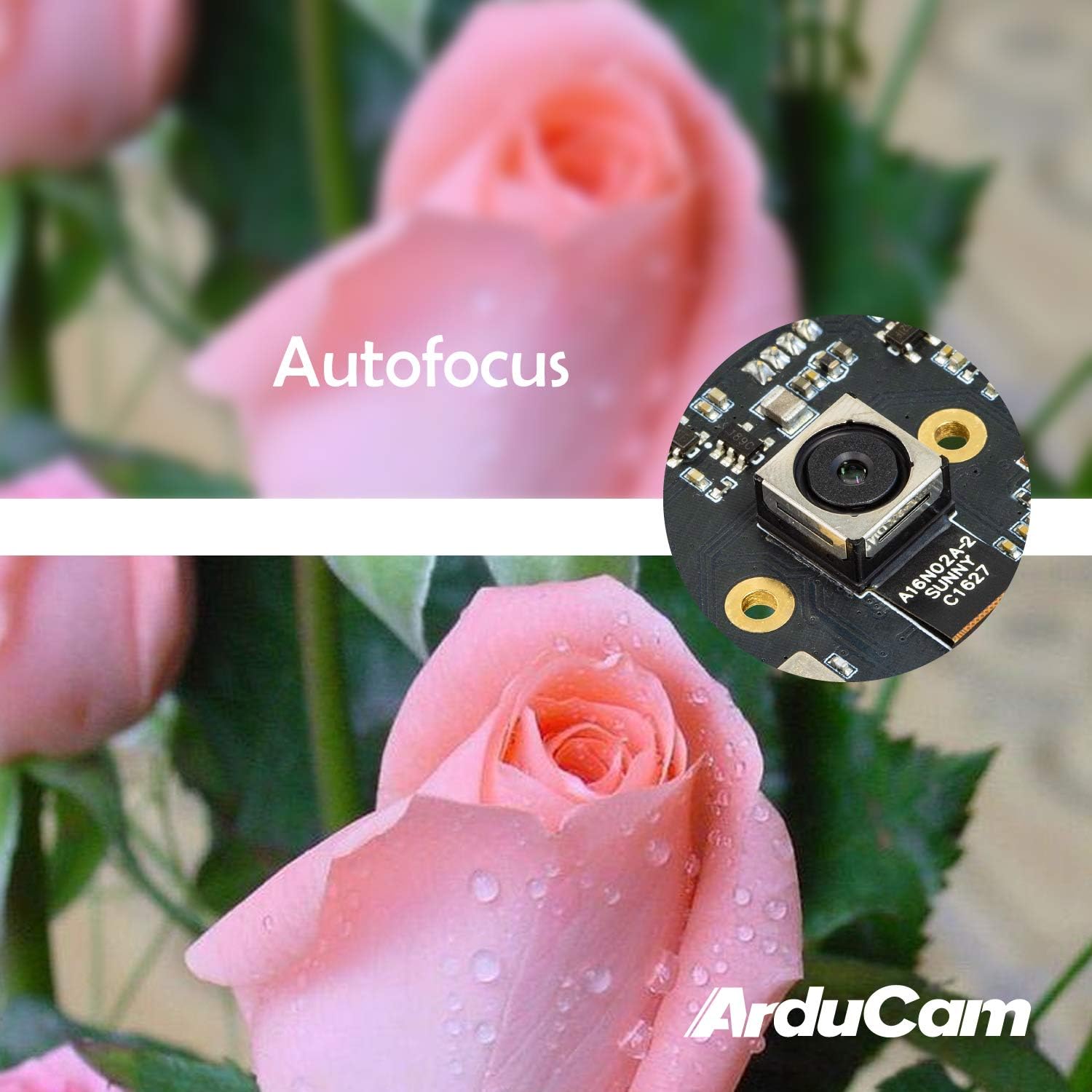
Figure 4: Demonstration of the camera's autofocus capability.
5.2 Kasaluyuan Software
The camera is compatible with standard UVC (USB Video Class) software. On Windows, you can use the built-in Camera app or third-party webcam software. On Linux, applications like Guvcview or Cheese can be used. For Mac OS, Photo Booth or QuickTime Player can access the camera. For advanced applications, programming libraries such as OpenCV can be utilized.
6. Spésifikasi
| Fitur | Rincian |
|---|---|
| merek | Arducam |
| Nomer modél | B0290 |
| Téhnologi Sénsor Poto | CMOS |
| Resolusi Masih Éféktif | 16 MP |
| Resolusi Capture Video | 1080 p |
| Panjang Fokus Maksimum | 100 milimeter |
| Panjang Fokus Minimum | 100 milimeter |
| Tipe Fokus | Pokus Otomatis |
| Téhnologi konektipitas | USB |
| Kasaluyuan System Operasi | Linux, Mac, Windows |
| Item Beurat | 0.07 kg |
| Ukuran Sénsor Poto | 1/2.8 inci |
| Format Gambar Anu Didukung | MJPG/YUY2 |
| Format Audio Dirojong | AAC, MP3, or PCM |
| Fitur | Cahaya Lemah |

angka 5: luhur jeung handap views of the camera module with dimensions.
7. Pangropéa
To ensure the longevity and optimal performance of your Arducam 16MP Autofocus USB Camera, follow these maintenance guidelines:
- beberesih: Use a soft, dry, lint-free cloth to gently wipe the camera lens and module surface. Avoid using liquid cleaners or abrasive materials, as they can damage the lens or electronic components.
- Panyimpenan: When not in use, store the camera in a cool, dry place away from direct sunlight, extreme temperatures, and high humidity. Keep it protected from dust and physical impact.
- Penanganan: Handle the camera module by its edges to avoid touching the lens or sensitive electronic components.
8. Cara ngungkulan
If you encounter issues with your Arducam 16MP Autofocus USB Camera, consider the following troubleshooting steps:
- Kaméra Teu Dideteksi:
- Ensure the USB cable is securely connected to both the camera and the host device.
- Try connecting the camera to a different USB port on your device.
- Test the camera on another computer or compatible device to rule out a device-specific issue.
- Balikan deui komputer atanapi alat host anjeun.
- Henteu aya gambar atanapi layar hideung:
- Verify that the correct camera is selected in your camera application settings.
- Close and reopen the camera application.
- Check if any other application is currently using the camera, as some systems only allow one application to access it at a time.
- Poor Image Quality / Focus Issues:
- Pastikeun lénsa kaméra bersih sareng bébas tina lebu atanapi kokotor.
- Provide adequate lighting for your subject.
- For autofocus, ensure there is sufficient contrast in the scene for the camera to lock focus.
- Masalah kasaluyuan:
- Confirm that your operating system and software are compatible with UVC devices.
- For Android, ensure USB OTG is supported and enabled.
9. Garansi jeung Rojongan
For warranty information and technical support, please refer to the official Arducam websitus atanapi hubungi penjual langsung. Simpen resi pameseran anjeun kanggo klaim garansi.
Anjeun tiasa nganjang ka Arducam Store pikeun émbaran produk tambahan jeung sumber.