
Bubuka
This manual provides comprehensive instructions for the Attoe Bluetooth Wireless Mouse, Model XYH20. This device offers versatile connectivity options, customizable RGB lighting, and an ergonomic design for extended use. Please read this manual thoroughly to ensure proper setup and operation of your new mouse.
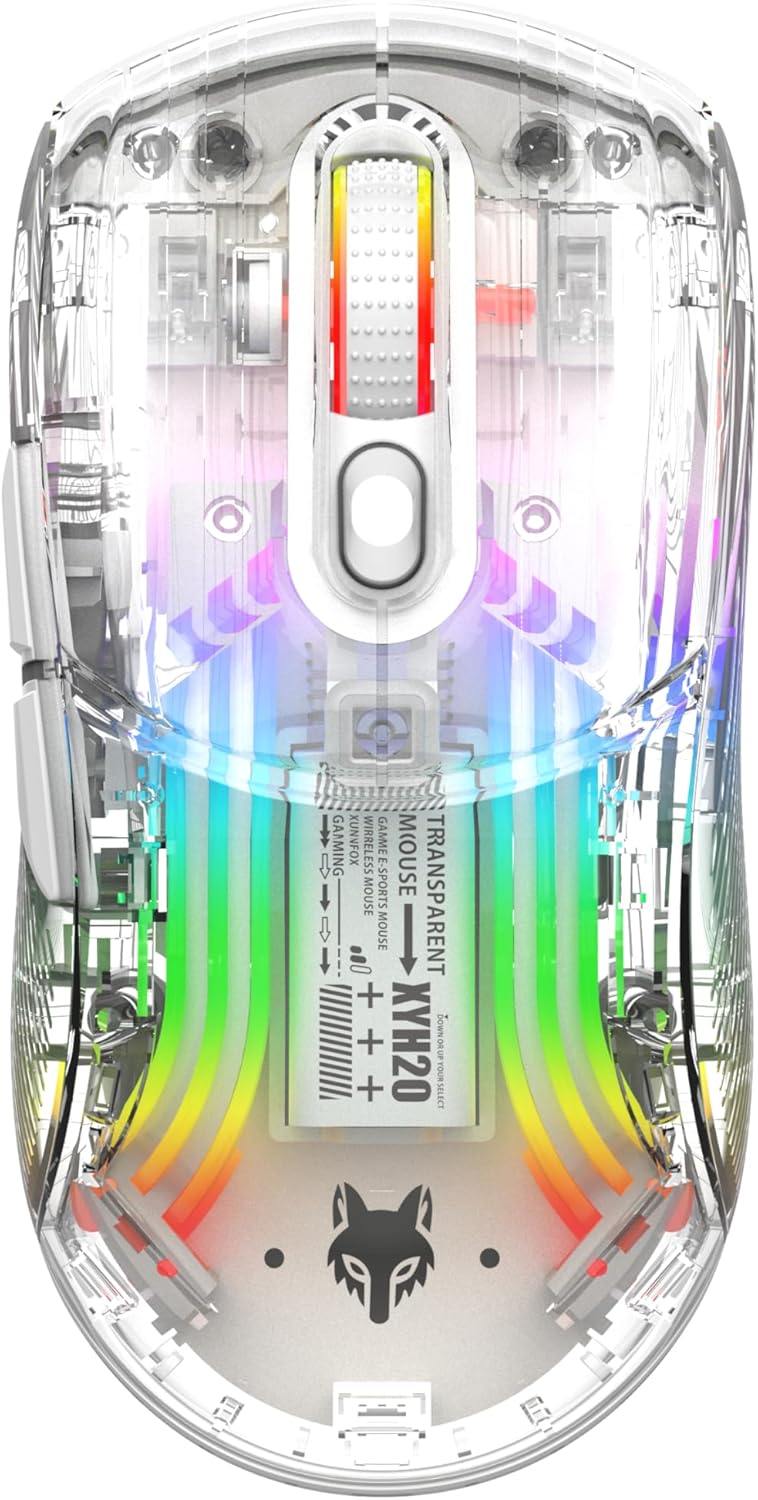
Gambar: Top view of the Attoe Bluetooth Wireless Mouse, showcasing éta transparan casing and vibrant internal RGB lighting.
Fitur produk
- Desain cangkang transparan: Unique transparent casing with internal components visible.
- Konektipitas Dual Mode: Supports 2.4GHz wireless via USB receiver and Bluetooth connection.
- Lampu tukang RGB: Multiple adjustable RGB lighting effects.
- Desain ergonomis: Shaped for comfortable grip during prolonged use.
- Quiet Click Buttons: Designed for silent operation.
- DPI adjustable: 5-speed DPI settings (800-1200-1600-2000-2400) for precise control.
- Batré anu tiasa dicas deui: Built-in 500mAh large capacity rechargeable battery with Type-C charging.
- Kasaluyuan lega: Compatible with Windows 7/8/10/XP, Vista 7/8, Linux, and Mac OS. (Note: Two left side buttons are not available in Mac OS).
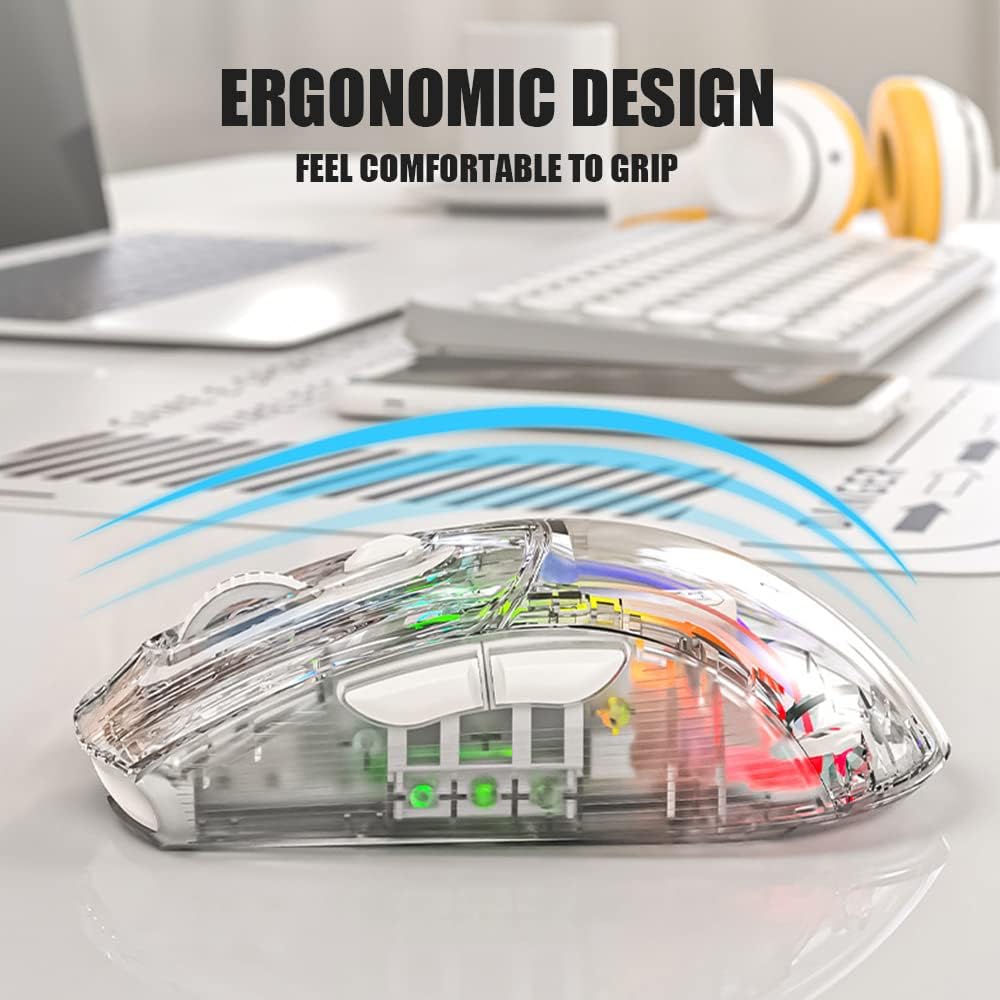
Gambar: Sisi view of the Attoe Bluetooth Wireless Mouse, illustrating its ergonomic contour for comfortable handling.
Naon dina Box
- Attoe Bluetooth Wireless Gaming Mouse
- Kabel Ngecas USB Tipe-C
- Manual pangguna (dokumén ieu)
Disetél
The Attoe Bluetooth Wireless Mouse offers three connection modes: 2.4GHz wireless, Bluetooth, and wired via USB-C cable.
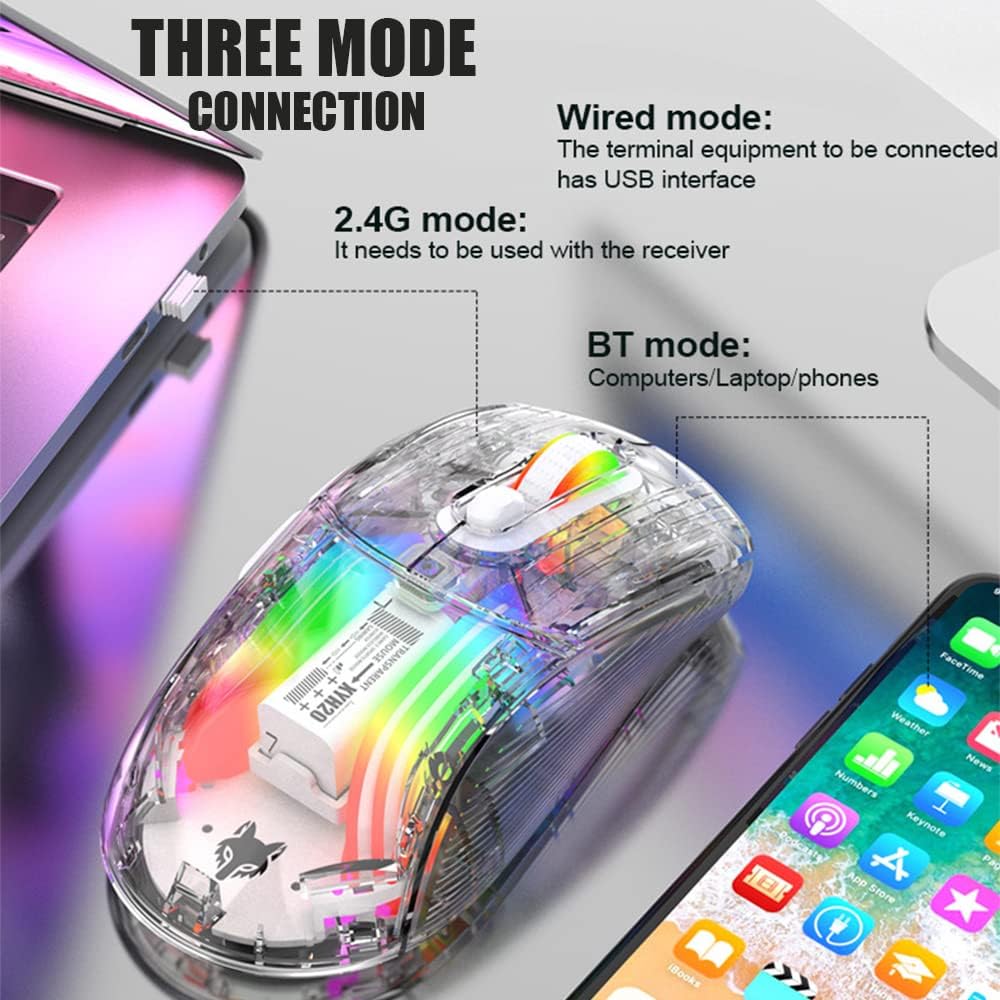
Image: Diagram illustrating the three connection modes: 2.4G wireless, Bluetooth, and wired USB, with examples sahiji alat.
Sambungan nirkabel 2.4GHz
- Locate the USB receiver stored in the bottom compartment of the mouse.
- Colokkeun panarima USB ka port USB nu sadia dina komputer Anjeun.
- Setel saklar modeu di handapeun beurit ka posisi 2.4G.
- Mouse kedahna nyambung sacara otomatis.
Sambungan Bluetooth
- Set the mode switch on the bottom of the mouse to the Bluetooth position.
- Long press the Left, Middle (scroll wheel), and Right buttons simultaneously for 4 seconds to enter pairing mode. The mouse's indicator light will flash.
- Dina komputer atawa alat Anjeun, buka setelan Bluetooth tur neangan alat anyar.
- Select "Attoe Mouse" (or similar name) from the list of available devices to pair.
- Sakali dipasangkeun, lampu indikator bakal eureun kedip-kedip.
Sambungan kabel
You can also use the mouse in wired mode while charging or as an alternative connection. Simply connect the provided USB Type-C cable from the mouse to a USB port on your computer.
Parentah Operasi

Image: Detailed diagram of the Attoe mouse, labeling its buttons, receiver storage, charging port, and switches.
Fungsi Tombol
- Left Button (1): Fungsi klik kénca standar.
- Right Button (2): Fungsi klik katuhu standar.
- Scroll Button (3): Scroll wheel for vertical navigation; also functions as a middle-click button.
- Tombol DPI (4): Siklus ngaliwatan setélan DPI.
- Forward Button (5): Navigates ka hareup web browser atawa file penjelajah.
- Tombol Balik (6): Navigates ka tukang web browser atawa file penjelajah.
Adjustment DPI
The mouse features 5 adjustable DPI (Dots Per Inch) settings to control cursor sensitivity and speed. Press the DPI Button (4) located below the scroll wheel to cycle through the following settings:
- 800 DPI
- 1200 DPI
- 1600 DPI
- 2000 DPI
- 2400 DPI

Image: The Attoe mouse highlighting the DPI button and its 5-speed adjustment range from 800 to 2400.
Kontrol Lampu RGB
The mouse features various RGB lighting effects. To adjust or turn off the lighting, use the Light Switch (10) located on the bottom of the mouse.

Image: The Attoe mouse displaying its vibrant RGB lighting effects, with an inset showing the location of the light switch on the shell bottom.
Quiet Click Feature
The mouse is designed with mute buttons, providing a quiet clicking experience suitable for environments where noise reduction is desired.

Image: The Attoe mouse with an overlay indicating its quiet click functionality, designed not to disturb others.
Ngecas sareng Batré
The Attoe Bluetooth Wireless Mouse is equipped with a 500mAh rechargeable battery. Use the provided USB Type-C cable to charge the mouse.
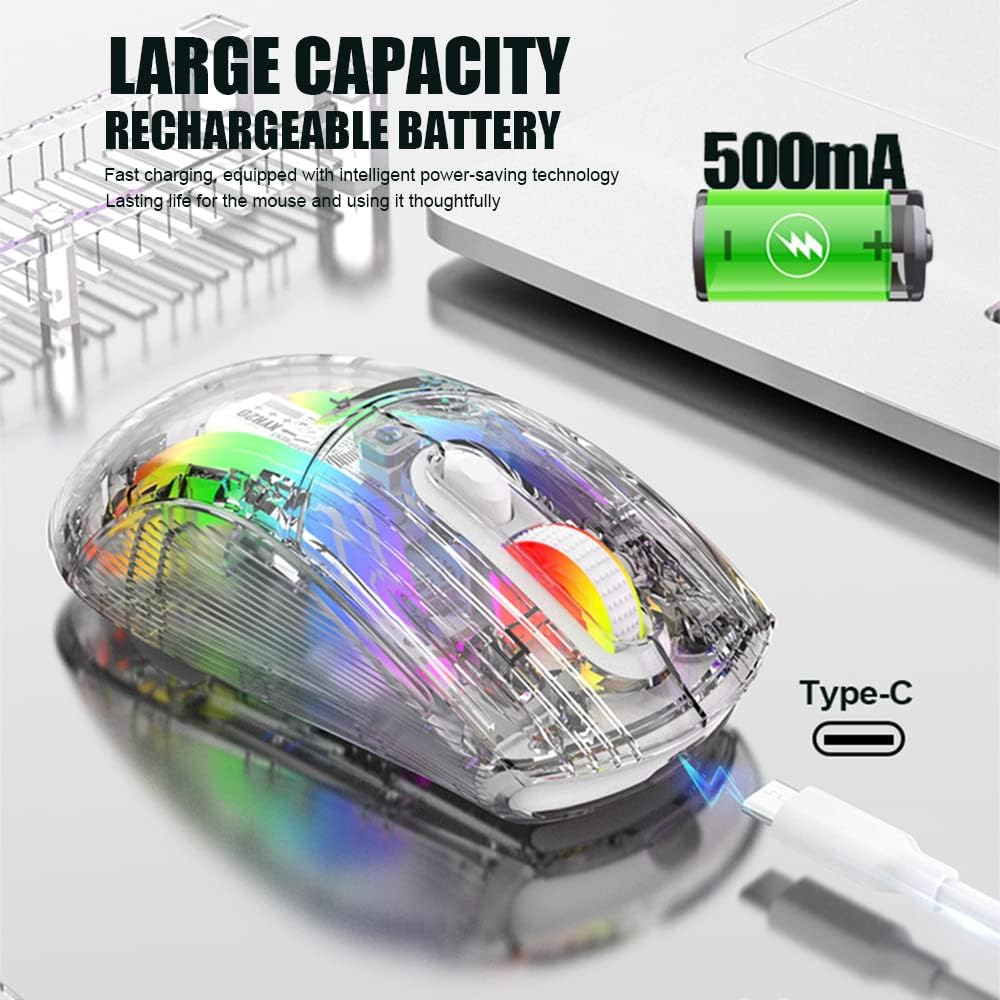
Image: The Attoe mouse connected via a Type-C cable for charging, with an icon indicating its 500mAh rechargeable battery capacity.
- Connect the Type-C end of the charging cable to the Charging Port (11) on the front of the mouse.
- Sambungkeun tungtung kabel ngecas USB-A kana sumber daya USB (contona, port USB komputer, adaptor témbok USB).
- The mouse can be used while charging in wired mode.
Pangropéa
To ensure the longevity and optimal performance of your Attoe Bluetooth Wireless Mouse, follow these maintenance guidelines:
- beberesih: Anggo kaén anu lembut sareng garing pikeun ngusap permukaan beurit. Keur kokotor bandel, rada dampen lawon ku cai atawa solusi beberesih hampang. Hindarkeun bahan kimia anu kasar atanapi bahan abrasive.
- Perawatan sénsor: Tetep sénsor optik dina handapeun beurit beresih jeung bébas tina lebu atawa lebu pikeun mastikeun tracking akurat.
- Panyimpenan: Lamun teu dipaké pikeun période nambahan, nyimpen mouse dina tiis, tempat garing.
- Perawatan batré: Avoid fully discharging the battery frequently. Charge the mouse when the battery level is low.
Pamérésan masalah
| Masalah | Mungkin Cukang lantaranana | Solusi |
|---|---|---|
| Mouse not connecting (2.4GHz) | USB receiver not properly inserted; mouse not in 2.4G mode; low battery. | Ensure receiver is fully inserted. Set mode switch to 2.4G. Charge the mouse. Try a different USB port. |
| Beurit teu nyambung (Bluetooth) | Mouse not in pairing mode; Bluetooth disabled on device; low battery; device incompatibility. | Set mode switch to Bluetooth. Long press Left/Middle/Right buttons for 4s to enter pairing. Ensure device Bluetooth is on. Charge the mouse. Check device compatibility (Mac OS side buttons not supported). |
| Lampu RGB teu jalan | Lampu dipareuman; batré lemah. | Press the Light Switch on the bottom of the mouse to cycle through modes or turn on. Charge the mouse. |
| Cursor movement is erratic or unresponsive | Sensor optik kotor; permukaanana teu cocog; batréna lemah. | Clean the optical sensor. Use a mouse pad or a smooth, non-reflective surface. Charge the mouse. |
| Tombol samping teu jalan dina Mac OS | Watesan sistem operasi. | This is a known limitation; the two left side buttons are not available in Mac OS. |
spésifikasi
| Fitur | Rincian |
|---|---|
| Modél | XYH20 |
| Dimensi produk | 4.8 x 2.8 x 0.04 inci (12.6 x 6.2 x 3.85 cm) |
| Item Beurat | 3.52 ons (110g) |
| Téhnologi konektipitas | Bluetooth, 2.4GHz Wireless, Wired (USB Type-C) |
| Téhnologi Deteksi Gerakan | Optik |
| Setélan DPI | 800, 1200, 1600, 2000, 2400 |
| Fitur husus | Ergonomic Design, LED Lights (RGB), Portable, Rechargeable, Soundless (Quiet Click), Wireless |
| Kapasitas batré | 500 mah |
| Port ngecas | USB Tipe-C |
| Kasaluyuan | Windows 7/8/10/XP, Vista 7/8, Linux, Mac OS (Note: Left side buttons not available in Mac OS) |
Garansi sareng Rojongan
Attoe products are designed for reliability and performance. For any issues or questions regarding your Attoe Bluetooth Wireless Mouse, please contact our customer support. We are committed to providing assistance and ensuring your satisfaction.
Please refer to your purchase documentation for specific warranty details. If you encounter problems, you can contact us at any time; we provide 24-hour after-sales service.