1. Produk Langkungview
The Roku Ultra LT is a high-performance streaming player designed to deliver a seamless 4K/HDR/HD viewing experience. It features a quad-core processor for smooth operation and offers both wired (Ethernet) and dual-band wireless connectivity for reliable streaming. The enhanced voice remote includes private listening capabilities and TV control functions, simplifying your entertainment experience.

Figure 1: Roku Ultra LT device, enhanced voice remote, and headphones.
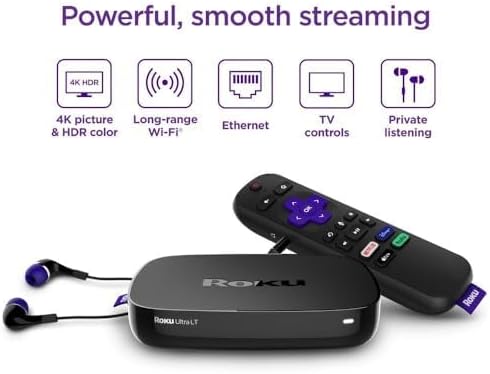
Figure 2: Key features of the Roku Ultra LT streaming player.
Fitur konci:
- Kinerja anu kuat: Quad-core processor for smooth HD, 4K, and HDR streaming.
- Konéktipitas Fleksibel: Dual-band wireless and Ethernet port for stable internet connection.
- Remote Sora Anu Ditingkatkeun: Features voice search, TV power/volume/mute buttons, and a headphone jack for private listening.
- MicroSD Port: Provides additional storage for channels.
- Premium HDMI Cable: Includes a 6FT 4K HDR ready HDMI cable for optimal picture quality.
2. Setup Guide
2.1. Naon Kaasup
Sateuacan ngamimitian, pastikeun sadaya komponén aya dina pakét anjeun:
- Pamuter Streaming Roku Ultra LT
- Enhanced Voice Remote
- Headphone pikeun ngupingkeun swasta
- Adaptor kakuatan
- Premium 6FT 4K HDR Ready HDMI Cable
- 2 Batré AAA (kanggo remot)
2.2. Connecting Your Roku Ultra LT
- Nyambung ka TV: Colokkeun hiji tungtung kabel HDMI anu disayogikeun kana port HDMI dina Roku Ultra LT anjeun sareng tungtung anu sanésna kana port HDMI anu sayogi dina TV anjeun.
- Nyambung ka Daya: Plug the power adapter into the DC IN port on your Roku Ultra LT, then plug the other end into a wall outlet. The device will power on automatically.
- Internet Connection (Optional Ethernet): For a wired connection, plug an Ethernet cable (not included) into the Ethernet port on your Roku Ultra LT and the other end into your router. If using Wi-Fi, proceed to the on-screen setup.
- Selapkeun Batré Jauh: Open the battery compartment on the back of the enhanced voice remote and insert the two included AAA batteries, matching the polarity indicators.
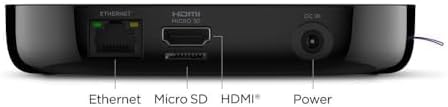
Figure 3: Rear ports of the Roku Ultra LT device.
2.3. On-Screen Guided Setup
Once connected, follow the on-screen instructions to complete the setup:
- Pilih Basa: Pilih basa anu anjeun pikaresep.
- Sambungan jaringan: If not using Ethernet, select your wireless network from the list and enter your Wi-Fi password.
- Pembaruan parangkat lunak: The device may download and install the latest software. This can take several minutes.
- Roku Account Activation: You will be prompted to activate your Roku account. Follow the instructions to link your device to an existing account or create a new one.
- Add Channels: Browse and add your favorite streaming channels.
Video 1: Hiji leuwihview of the Roku Ultra LT, including initial setup and features. This video demonstrates the physical device and remote, and discusses its capabilities.
3. Ngoperasikeun Roku Ultra LT Anjeun
3.1. Using the Enhanced Voice Remote
The enhanced voice remote provides intuitive control over your Roku device and TV.
- Pilarian Sora: Press and hold the microphone button and speak your command to search for movies, shows, actors, or launch channels.
- Tombol Aksés Gancang: Dedicated buttons provide instant access to popular streaming services like Netflix, Disney+, Apple TV+, and Hulu.
- Kontrol TV: Use the power, volume, and mute buttons to control your television directly from the Roku remote.
- Dengekeun Pribadi: Plug the included headphones into the headphone jack on the side of the remote to enjoy your content without disturbing others.
3.2. Napigasi Antarmuka Roku
The Roku home screen provides easy access to all your installed channels and features.
- Layar Utama: Displays your installed streaming channels. You can customize the order of channels.
- Toko streaming: Browse and add new channels from the Roku Channel Store.
- Pilarian: Use the search function (via voice or on-screen keyboard) to find content across various channels.
- Setélan: Access device settings, network configuration, display type, audio options, and more.
Video 2: A demonstration of the Roku Ultra LT in use, showcasing its interface, remote control functions, and various streaming options.
4. Pangropéa
4.1. Kaperawatan Umum
- Keep the device and remote in a dry, clean environment.
- Hindarkeun ngalaan alat ka suhu anu ekstrim atanapi sinar panonpoé langsung.
- Do not block ventilation openings on the device.
4.2. beberesih
- Use a soft, dry cloth to clean the exterior of the Roku Ultra LT and its remote.
- Ulah nganggo cairan pembersih atanapi aerosol langsung kana alat.
4.3. Apdet parangkat lunak
- The Roku Ultra LT automatically checks for software updates. Ensure your device is connected to the internet to receive the latest features and improvements.
- Anjeun tiasa mariksa apdet sacara manual ngalangkungan Setélan > Sistem > Apdet parangkat lunak.
5. Cara ngungkulan
5.1. No Power / No Indicator Light
- Pastikeun adaptor daya disambungkeun pageuh kana Roku Ultra LT sareng stop kontak témbok anu tiasa dianggo.
- Coba colokkeun adaptor daya kana stop kontak anu béda.
5.2. No Picture on TV
- Pastikeun kabel HDMI parantos nyambung kalayan pageuh kana Roku Ultra LT sareng TV anjeun.
- Pastikeun TV anjeun disetel ka sumber input HDMI anu bener.
- Cobi nganggo port HDMI anu béda dina TV anjeun atanapi kabel HDMI anu béda.
- Restart your Roku device by unplugging the power adapter for 5 seconds and then plugging it back in.
5.3. Jarak Jauh Teu Ngarespon
- Ganti batré AAA dina remot.
- Pastikeun teu aya halangan antara remot sareng alat Roku.
- If the remote is paired via Wi-Fi Direct, try re-pairing it by holding the pairing button inside the battery compartment for 5 seconds.
5.4. Buffering or Poor Streaming Quality
- Check your internet connection speed. A stable connection is crucial for 4K/HDR streaming.
- If using Wi-Fi, try moving your Roku device closer to your wireless router or connect via Ethernet for a more stable connection.
- Balikan deui router sareng modem anjeun.
- Close any unused apps on your Roku device or other devices on your network that might be consuming bandwidth.
6. Spésifikasi Téknis
| Fitur | Rincian |
|---|---|
| merek | Roku |
| Nomer modél | 4662 RW |
| Faktor Bentuk | Kotak TV |
| Resolusi | 4K (ngarojong HD, 4K, HDR) |
| Konektipitas | Dual-band Wireless, Ethernet |
| Palabuhan | HDMI, Ethernet, MicroSD, DC In |
| Tipe Controller | Enhanced Voice Remote |
| Fitur Jauh | Voice Control, TV Power/Volume/Mute, Private Listening (headphone jack) |
| Batré (Jauh) | 2 batré AAA (kaasup) |
| Warna | Hideung |
| Diménsi | 6 x 4 x 8 inci |
| Beurat | 1.37 pon |
7. Jaminan & Dukungan
7.1. Garansi produk
For detailed warranty information, please refer to the warranty card included in your product packaging or visit the official Roku support websitus. Sarat jeung kaayaan jaminan bisa rupa-rupa dumasar wewengkon sarta pangecér.
7.2. Rojongan Palanggan
If you encounter any issues or have questions about your Roku Ultra LT, please visit the Roku support website for FAQs, troubleshooting guides, and contact information for customer service. You can also find additional resources and community forums online.
Dukungan Online: www.roku.com/support


