Bubuka
This manual provides instructions for the KLIM Unity Wireless Keyboard and Mouse Set. This set is designed to offer a wireless input solution for various devices, including PCs, Macs, PS4, and PS5 consoles. It features a backlit keyboard with a semi-mechanical feel and an ergonomic mouse with adjustable DPI.

Image: The KLIM Unity Wireless Keyboard and Mouse Set, showcasing the keyboard's vibrant backlighting and the sleek design of the accompanying mouse.
Disetél
1. Unpacking sarta komponén
Pastikeun yén sadaya komponén aya:
- KLIM Unity Wireless Keyboard
- KLIM Unity Wireless Mouse
- USB Receiver (located underneath the mouse)
- Kabel Ngecas USB
2. Nyambungkeun Panarima USB
The KLIM Unity set operates wirelessly, connecting both the keyboard and mouse to your computer via a single USB receiver. The USB receiver is stored in a compartment underneath the mouse for convenience.
- Locate the USB receiver in its storage slot underneath the mouse.
- Insert the USB receiver into an available USB port on your computer or console.
- The devices should connect automatically.

Image: The wireless mouse and a portion of the keyboard, illustrating the compact USB receiver and key features like adjustable DPI.
3. Ngecas Awal
Both the keyboard and mouse feature built-in rechargeable batteries. For optimal performance, it is recommended to fully charge both devices before first use.
- Sambungkeun kabel ngecas USB anu disayogikeun kana port ngecas dina kibor sareng beurit.
- Connect the other end of the USB cable to a powered USB port (e.g., on your computer or a USB wall adapter).
- Charging indicators will typically show when the devices are charging and when they are fully charged.
Ngoperasikeun kibor
1. Kontrol Lampu Latar
The keyboard features colorful backlighting. You can adjust the lighting to suit your preference.
- Hurungkeun/Pareuman: Use the dedicated backlight control keys (often indicated by a light bulb icon or combined with a Function key) to toggle the backlighting.
- Nyaluyukeun Caang: Use the Function (Fn) key in combination with specific arrow keys or dedicated brightness keys to increase or decrease the backlight intensity.
- Changing Colors/Modes: Some models allow cycling through different color modes or static colors using Fn key combinations.
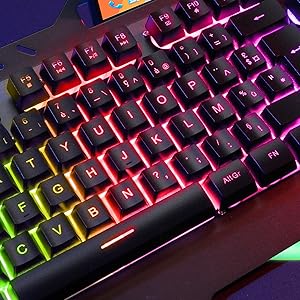
Gambar: A lengkep view of the keyboard keys, showcasing the colorful RGB backlighting.
2. Konci Fungsi sareng Jalan Pintas
The keyboard includes a special Function (Fn) key that, when pressed in combination with other keys, provides access to various shortcuts.
- Kadali Media: Common shortcuts include volume control (up, down, mute), play/pause, previous/next track.
- Application Shortcuts: Some keys may launch specific applications or functions.
3. Pangalaman Ngetik
The keyboard features hybrid keys, combining elements of mechanical keyboards for a responsive feel with reduced noise levels, suitable for both typing and gaming.

Image: The keyboard with a smartphone in its integrated holder, demonstrating a practical feature.
Ngoperasikeun Mouse
1. Desain sareng Cecekelan Ergonomis
The wireless mouse features an ergonomic design with anti-skid flanks for comfortable use during extended periods. Its symmetrical design accommodates both right-handed and left-handed users, though side buttons are located on one side only.
2. Adjustment DPI
The mouse includes adjustable DPI (Dots Per Inch) settings, allowing you to change cursor sensitivity to match your preferences or task requirements.
- Locate the DPI adjustment button, typically near the scroll wheel.
- Press the button to cycle through available DPI settings. The mouse's LED indicator may change color to indicate the current DPI level.
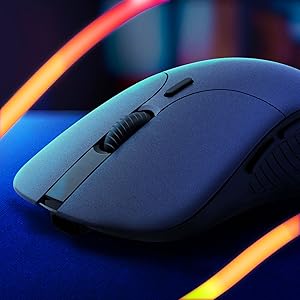
Gambar: A close-up view of the wireless mouse, highlighting its ergonomic contours.
Pangropéa
1. Ngecas
To charge the keyboard and mouse, use the provided USB cable. Connect the cable to the respective charging ports on each device and to a powered USB source. The devices are designed with long-lasting built-in batteries.
2. beberesih
To clean the keyboard and mouse:
- Ensure both devices are powered off.
- Use a soft, dry, lint-free cloth to wipe surfaces.
- Pikeun kokotor nekad, a rada damp lawon bisa dipaké, mastikeun euweuh Uap asup bukaan.
- Hindarkeun bahan kimia anu kasar atanapi bahan abrasive.
Pamérésan masalah
1. Masalah konektipitas
- Henteu aya sambungan: Ensure the USB receiver is securely plugged into a working USB port. Verify that both the keyboard and mouse are powered on.
- gangguan: Move the receiver closer to the devices or away from other wireless devices that might cause interference.
2. Lag or Delayed Response
- Batré lemah: Charge both the keyboard and mouse fully. Low battery can affect wireless performance.
- Jarak: Ensure the devices are within the operational range (up to 10 meters) of the USB receiver.
- Hemat Daya: Some devices may enter a power-saving mode after inactivity, which can cause a slight delay upon reactivation.
3. Lampu tukang Teu Gawé
- Check if the backlight is simply turned off using the dedicated control keys.
- Ensure the keyboard has sufficient battery charge, as backlighting consumes power.
spésifikasi
| Fitur | Rincian |
|---|---|
| Dimensi produk | 17.5 x 7.6 x 1.68 inci |
| Item Beurat | 1.98 pon |
| Produsén | KLIM |
| Nomer Modél Item | k108-6 |
| Batré | 1 batré Litium Polimér diperlukeun (kaasup) |
| Téhnologi konektipitas | Nirkabel |
| Fitur husus | Backlit, Ergonomic |
| Alat nu cocog | Mac, PS4, PS5, Personal Computer |
| Warna | Hideung |
Video Produk Resmi
Pidéo: Pajabat parantos réngséview of the KLIM Unity Wireless Keyboard and Mouse Set, demonstrating its features and design.
Garansi
The KLIM Unity Wireless Keyboard and Mouse Set comes with a garansi 5 taun, covering manufacturing defects and ensuring product reliability.
Ngarojong
For any questions, technical assistance, or warranty claims, please contact KLIM Customer Service. The support team aims to provide a response within 24 hours.
Kanggo inpo nu leuwih lengkep, mangga buka dina KLIM Toko on Amazon.


