1. Bubuka
This manual provides instructions for the NiTHO ADONIS Wireless Controller, model MLT-ADOB-BK. This controller is designed for use with PlayStation 4 consoles and Windows 10/11 PCs (wired connection). It features wireless Bluetooth connectivity for PS4, a touch pad, 6-axis motion sensing, dual vibration, a built-in speaker, and a headset jack.

Gambar 1.1: Hareupeun view of the NiTHO ADONIS Wireless Controller.
2. Produk Langkungview
2.1 Eusi pakét
- NiTHO ADONIS Wireless Controller
- USB Charging/Sync Cable
- Additional Rubber Grips
- Additional Thumb Grips
- Gancang Mimitian Guide
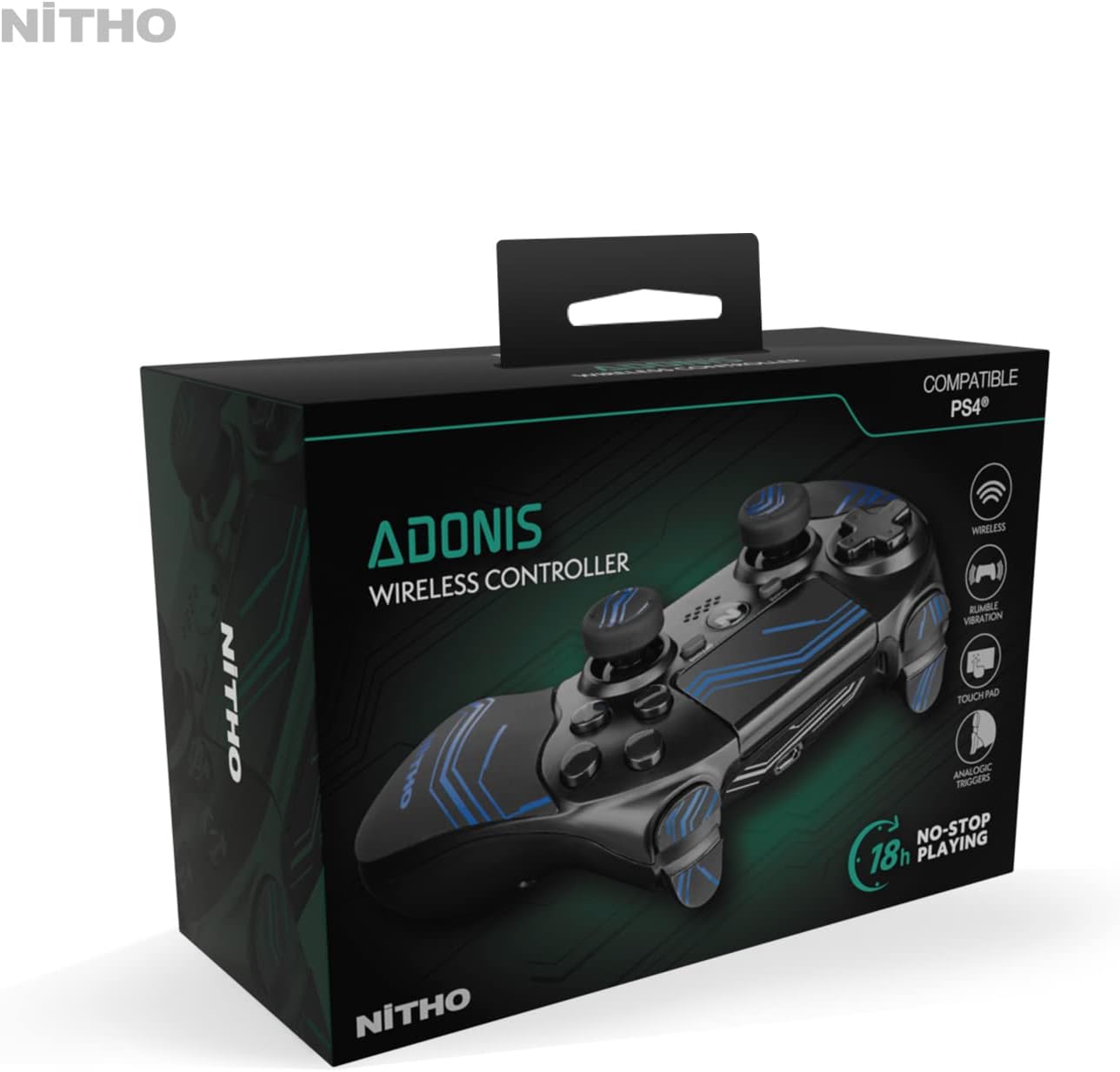
Image 2.1: The NiTHO ADONIS Wireless Controller with its included accessories, such as the USB cable, additional grips, and documentation.
2.2 komponén controller

Image 2.2: Labeled diagram highlighting key components: USB Port, Touch Pad, Built-In Speaker, 3.5mm Headset Jack, and Ergonomic Grips.
- Pad arah (D-Pad): Pikeun input arah.
- Stick Analog kénca: Pikeun gerakan sareng kontrol kaméra.
- Tombol SHARE: Kanggo ngabagikeun eusi midangkeun.
- Tombol OPTIONS: For in-game menus and options.
- Toél Pad: Multi-touch input surface with click mechanism.
- Tongkat Analog Kanan: Pikeun kontrol kaméra jeung dimaksudkeun.
- Tombol Aksi (Segitiga, Bunderan, Palang, Kotak): Pikeun lampah di-game.
- Tombol PS: To turn on the console, access the home screen, or power off.
- Speaker Diwangun-di: For audio output from the controller.
- 3.5mm Headset Jack: For connecting a headset for audio and chat.
- Port USB: For charging and wired connection to PC.
- Tombol L1/R1: Kancing taktak.
- L2/R2 pemicu: Pemicu analog.
- Bar Lampu: Indicates player number and status.
3. Setélan
3.1 Ngecas Awal
Before first use, fully charge the controller. Connect the supplied USB cable to the controller's USB port and the other end to a powered USB port on your PlayStation 4 console or a USB wall adapter. The light bar will slowly pulse orange during charging and turn off when fully charged.

Image 3.1: The controller connected to a PlayStation 4 console via USB cable for charging.
3.2 Connecting to PlayStation 4 (Wireless)
- Pastikeun konsol PS4 anjeun diaktipkeun.
- Connect the controller to the PS4 console using the supplied USB cable.
- Pencét éta Tombol PS on the controller. The controller will pair with the console.
- Once paired, you can disconnect the USB cable for wireless play. The light bar will glow a solid color (blue for Player 1, red for Player 2, etc.).
- To connect an already paired controller wirelessly, simply press the Tombol PS.
3.3 Nyambungkeun ka PC (Kabel)
The NiTHO ADONIS controller can be used with Windows 10/11 PCs via a wired USB connection.
- Connect the controller to your PC using the supplied USB cable.
- PC kedah otomatis ngadeteksi sareng masang panggerak anu diperyogikeun.
- The controller will function as a standard gamepad. Some games may require specific controller configurations.

Image 3.2: The controller connected via its USB cable, suitable for PC use or charging.
4. Parentah Operasi
4.1 Kadali Dasar
- Tongkat analog: Use for character movement, camera control, or aiming.
- D-Pad: For menu navigation or specific in-game actions.
- Tombol Aksi: Perform various actions as defined by the game.
- L1/R1 Buttons & L2/R2 Triggers: Used for actions like shooting, blocking, or menu navigation.
4.2 Toél Pad
The integrated touch pad supports multi-touch input and can be clicked. It is used for navigation within the PS4 user interface and for specific in-game functions.
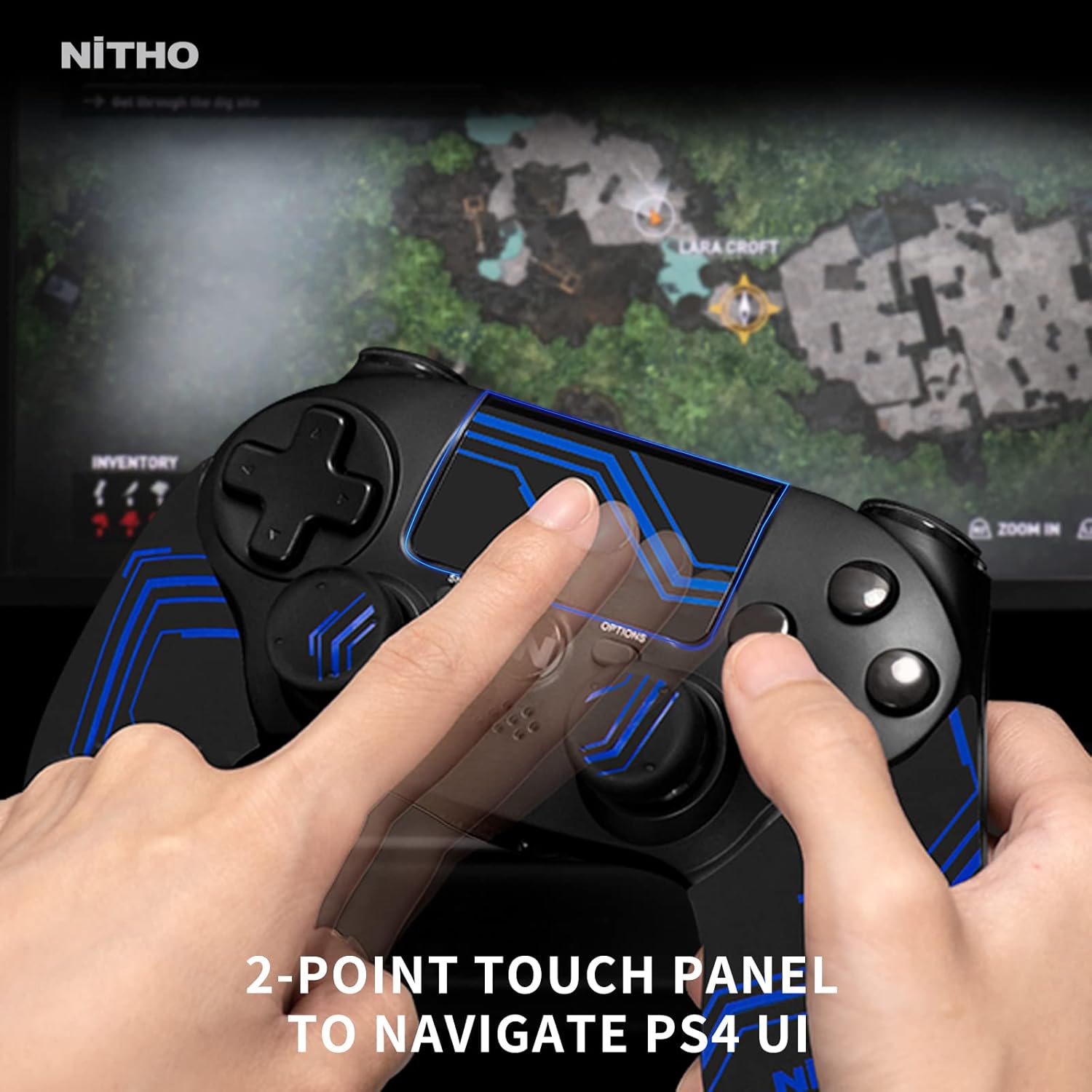
Image 4.1: A user interacting with the 2-point touch panel to navigate the PS4 user interface.
4.3 6-Axis Motion Sensor
The controller includes a 6-axis motion sensor (accelerometer and gyroscope) for motion-controlled gameplay. Tilt and rotate the controller to interact with compatible games.

Image 4.2: Visual representation of the 6-axis motion sensor functionality, showing controller movement.
4.4 Eupan Balik Getaran
Dual vibration motors provide tactile feedback during gameplay, enhancing immersion through rumbling effects for in-game events.

Image 4.3: Illustration of the dual shocking modules providing vibration feedback.
4.5 Fitur Audio
- Speaker Diwangun-di: Provides audio cues directly from the controller in compatible games.
- 3.5mm Headset Jack: Connect a compatible headset for stereo game audio and voice chat.

Image 4.4: The controller with a headset plugged into the 3.5mm headset jack.
4.6 Ergonomic Grips
The controller comes with additional rubber grips and thumb grips to enhance comfort and control during extended gaming sessions. These can be applied or removed as desired.

Gambar 4.5: Hiji ngabeledug view illustrating the ergonomic enhanced handles and thumb grips.
5. Ngecas Controller
The controller features a built-in rechargeable Lithium-ion battery, providing up to 10 hours of continuous gameplay on a full charge.
5.1 Prosedur ngecas
- Connect the small end of the USB charging cable to the controller's USB port.
- Connect the large end of the USB cable to a USB port on your PS4 console (when powered on or in rest mode) or a compatible USB wall charger.
- The light bar on the controller will slowly pulse orange to indicate charging.
- Once fully charged, the light bar will turn off.
It is recommended to fully charge the controller before its first use and whenever the battery level is low.
6. Pangropéa
6.1 beberesih
- Use a soft, dry cloth to clean the controller.
- Do not use liquid cleaners, solvents, or abrasive materials, as these can damage the surface or internal components.
- Ensure no moisture enters the ports or openings.
6.2 Panyimpenan
- Nyimpen controller dina tiis, tempat garing jauh ti sinar panonpoé langsung jeung hawa ekstrim.
- Ulah neundeun barang beurat dina controller.
7. Cara ngungkulan
| Masalah | Mungkin Cukang lantaranana | Solusi |
|---|---|---|
| Controller teu hurung. | Batré béak. | Connect the controller to a power source using the USB cable and allow it to charge. |
| Controller does not connect wirelessly to PS4. | Not paired or out of range. | Connect the controller to the PS4 with the USB cable and press the PS button to re-pair. Ensure no obstructions are blocking the signal. |
| Tombol atawa stik analog teu ngaréspon. | Gangguan perangkat lunak atanapi halangan fisik. | Restart the controller by pressing the PS button for 10 seconds. Ensure no debris is lodged around buttons. If wired to PC, try a different USB port. |
| Eupan balik geter teu jalan. | Game setting or controller issue. | Check in-game settings to ensure vibration is enabled. Some games may not support vibration. |
| Audio headset atanapi mikropon teu tiasa dianggo. | Headset connection or settings. | Ensure the headset is fully plugged into the 3.5mm jack. Check PS4 audio settings (Devices > Audio Devices) to ensure output and input are correctly configured. |
8. Spésifikasi
- model: MLT-ADOB-BK
- merek: NiTHO
- Konektipitas: Bluetooth (PS4), USB (PC)
- Jenis Batré: Litium-ion (Tiasa dicas deui)
- Kahirupan batré: Nepi ka 10 jam (kira-kira)
- Ukuran (L x W x H): 18 x 9 x 13 cm
- beurat: 330 gram
- Jumlah Kancing: 16
- Kasaluyuan Sistem Operasi: PlayStation 4, Windows 10/11 (wired)
- warna: Biru
9. Émbaran Kasalametan
- Ulah ngalaan controller ka suhu ekstrim, kalembaban, atawa sinar panonpoé langsung.
- Hindarkeun leupaskeun atanapi tundukkeun pangendali kana dampak anu kuat.
- Ulah nyobian ngabongkar atanapi ngarobih kontrolerna. Ieu bakal ngabatalkeun garansi naon waé.
- Jauhkeun tina jangkauan barudak leutik.
- Dispose of the battery according to local regulations. Do not dispose of in household waste.
10. Garansi jeung Rojongan
For warranty information, please refer to the documentation included with your product or visit the official NiTHO website. Information regarding spare parts availability and software updates is not provided in this manual. For further assistance, contact NiTHO customer support.