1. Bubuka
The MiraScreen G2M is a 2.4G wireless WiFi display dongle designed to mirror content from your iOS, Android, or Windows devices to a larger screen such as a TV, projector, or car display. It supports various wireless display protocols including DLNA, Miracast, and Airplay, enabling a seamless viewing experience for multimedia, presentations, and more.
2. Eusi Paket
- MiraScreen G2M Wireless Display Dongle
- USB WiFi Cable (for power and WiFi signal reception)
- Manual pamaké
Note: A 5V/1A USB power adapter is required (not included) to power the device. Many TVs have a compatible USB port.
3. Produk Langkungview
The MiraScreen G2M dongle features a compact design with an integrated HDMI connector and a micro-USB port for power and WiFi reception. A small button on the device allows for mode switching or resetting.

Gambar 3.1: Views of the MiraScreen G2M Wireless Display Dongle, showing its front, back, and the included USB WiFi cable. The dongle is black and circular with an integrated HDMI connector.
4. Setup jeung Instalasi
Follow these steps to set up your MiraScreen G2M dongle:
- Nyambung ka tampilan: Plug the MiraScreen G2M dongle directly into an available HDMI port on your TV, projector, or car display.
- Sambungkeun Kakuatan: Connect the USB WiFi cable to the micro-USB port on the dongle. Plug the other end of the USB cable into a 5V/1A USB power adapter (not included) or a USB port on your display device that provides sufficient power.
- Daya Hurung: Ensure your display device is powered on and switch its input source to the HDMI port where the MiraScreen dongle is connected.
- Layar Mimiti: The MiraScreen startup screen will appear on your display, showing instructions for connection.

Gambar 4.1: An illustration demonstrating the connection of the MiraScreen G2M dongle to a display device via HDMI and power via a USB port or power adapter.
5. Parentah Operasi
The MiraScreen G2M supports various mirroring protocols. The initial screen will display instructions for connecting your device. You may need to switch modes depending on your device and desired mirroring protocol.
5.1. Connecting with iOS Devices (Airplay)
- Ensure the MiraScreen dongle is in Airplay mode (usually the default for iOS). If not, press the small button on the dongle to switch modes.
- On your iOS device (iPhone, iPad), go to Setélan > Wifi and connect to the MiraScreen's WiFi network (SSID and password displayed on the TV screen).
- Buka Puseur kontrol on your iOS device and tap Pangeunteungan layar (or AirPlay Mirroring).
- Select the MiraScreen device from the list to begin mirroring.
- For internet access on your iOS device while mirroring, you can connect the MiraScreen dongle to your home WiFi network via its web interface (instructions usually on the initial screen).
5.2. Connecting with Android Devices (Miracast/DLNA)
- Ensure the MiraScreen dongle is in Miracast/DLNA mode. If not, press the small button on the dongle to switch modes.
- On your Android device, enable the wireless display function. This feature may be named differently depending on your device manufacturer (e.g., Smart View, Screen Cast, Wireless Display, MirrorShare, AllShare Cast, etc.). You can usually find it in Setélan > Alat disambungkeun or in the quick settings panel.
- Select the MiraScreen device from the list of available devices to connect.
5.3. Connecting with Windows Devices (Miracast)
- Ensure the MiraScreen dongle is in Miracast mode.
- On your Windows 10/11 PC, press Tombol Windows + P.
- Pilih Nyambung ka tampilan nirkabel.
- Choose the MiraScreen device from the list.
5.4. Using with Google Home/Chrome (DLNA/Cast)
The MiraScreen G2M can also be used with Google Home for casting content. This typically involves connecting the dongle to your home WiFi network first.
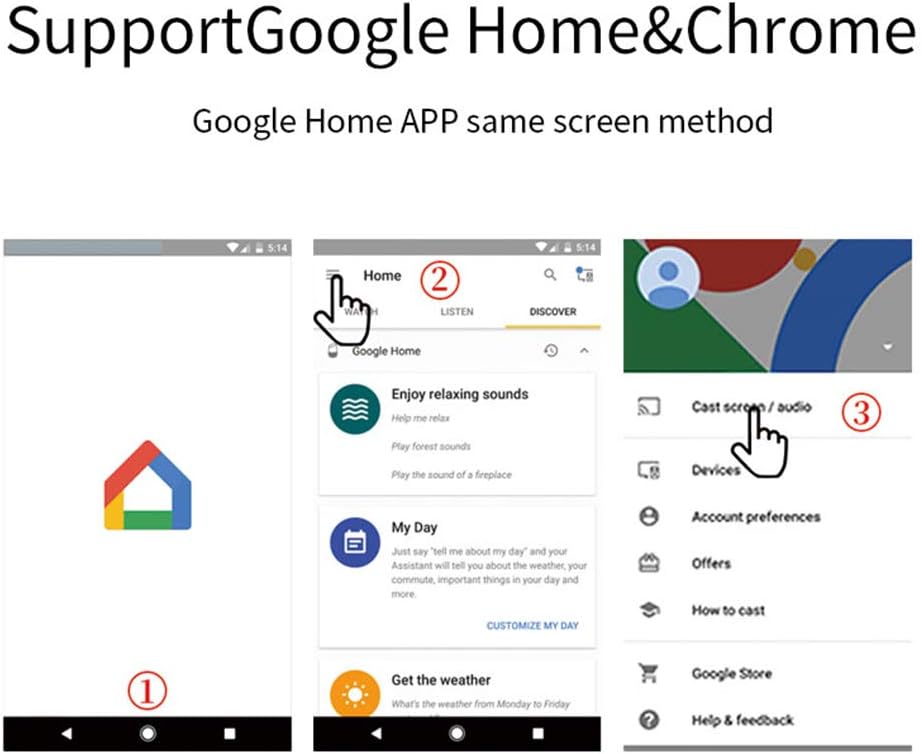
Gambar 5.1: A series of mobile phone screenshots illustrating the process of casting content using the Google Home application, showing steps to access casting options.
The device supports various applications, including home theater use and annotation editing through real-time mirroring.

Gambar 5.2: The MiraScreen G2M dongle connected to a display, showing a mobile phone mirroring content for a home theater experience.
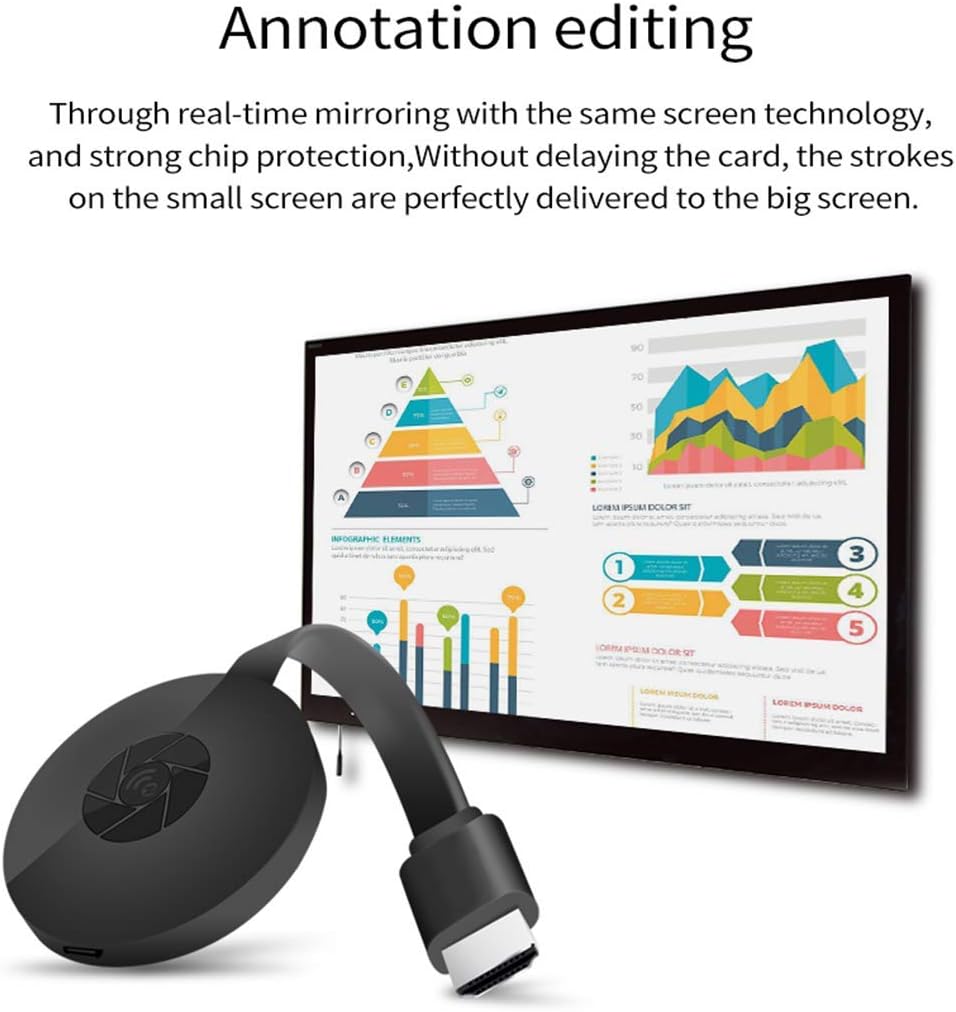
Gambar 5.3: The MiraScreen G2M dongle mirroring a device screen to a larger display, demonstrating its use for real-time annotation and editing.
6. Pangropéa
- Simpen alat dina lingkungan anu garing.
- Hindarkeun ngalaan alat ka suhu anu ekstrim.
- Bersihkeun alatna nganggo lawon anu lemes sareng garing. Ulah nganggo pembersih cair.
- Ulah nyobian ngabongkar atawa ngalereskeun alat sorangan.
7. Cara ngungkulan
- No display on TV:
- Ensure the dongle is securely plugged into the HDMI port.
- Verify the TV input source is set to the correct HDMI port.
- Check if the dongle is receiving adequate power from the USB source. Try a different USB port or a dedicated 5V/1A power adapter.
- Cannot connect to MiraScreen WiFi:
- Ensure the dongle is powered on and displaying its initial screen.
- Restart the dongle by unplugging and re-plugging the USB power cable.
- Ensure your device's WiFi is enabled and scanning for networks.
- Screen mirroring is laggy or disconnects frequently:
- Ensure your source device is close to the MiraScreen dongle to maintain a strong WiFi signal.
- Ngurangan gangguan tina alat nirkabel anu sanés.
- Ensure the MiraScreen dongle is connected to a stable home WiFi network (if applicable for your mirroring method).
- Check for any firmware updates for the MiraScreen dongle (instructions usually available via its web panganteur).
- Henteu aya audio:
- Check the volume settings on both your source device and the TV.
- Pastikeun sambungan HDMI aman.
- Device not found for Miracast/Airplay:
- Ensure the MiraScreen dongle is in the correct mode for your device (Airplay for iOS, Miracast for Android/Windows). Press the button on the dongle to switch modes.
- Restart both your source device and the MiraScreen dongle.
8. Spésifikasi
| Ngaran modél | G2M |
| merek | Layar Lalajo |
| Téhnologi konektipitas | Wi-Fi (2.4G) |
| Tipe Panyambung | HDMI |
| Resolusi | Nepi ka 1080p |
| Sistem Operasi anu Dirojong | ios, Android, Windows |
| Protokol anu dirojong | DLNA, Miracast, Airplay |
| Warna | Hideung |
| Item Beurat | 2.89 ons (kira-kira 82 gram) |
| Ukuran Paket | 8.7 x 3.11 x 0.94 inci |
9. Garansi jeung Rojongan
For warranty information and technical support, please refer to the official MiraScreen websitus atanapi ngahubungan layanan palanggan maranéhanana langsung. Simpen resi pameseran anjeun pikeun klaim jaminan.
Official MiraScreen Store: MiraScreen Store on Amazon


