Produk Leuwihview
The Microsoft Bluetooth Desktop Grey is a full-size keyboard and mouse set designed for seamless integration with Windows and Microsoft 365. This modern and slim set offers enhanced productivity with dedicated shortcut keys for Office 365, emojis, media control, applications, screenshot capture, calculator, and volume adjustments. Both the keyboard and mouse connect wirelessly via Bluetooth, eliminating the need for USB dongles and freeing up valuable ports on your computer.

Image: The Microsoft Bluetooth Desktop Grey, showing both the full-size keyboard and the ergonomic mouse.
Guide Setup
Follow these steps to set up your Microsoft Bluetooth Desktop Grey keyboard and mouse.
- Pasang Batré:
Insert the required batteries into both the keyboard and the mouse. Ensure correct polarity. (Note: Batteries are not included with the product.)
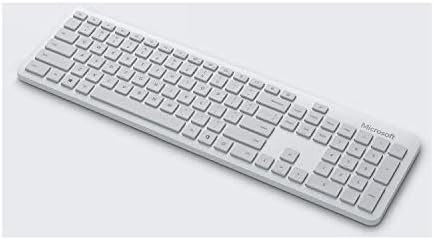

Image: Separate views of the Microsoft Bluetooth Keyboard and Mouse, indicating where batteries would be inserted (typically on the underside).
- Aktipkeun Bluetooth dina Alat Anjeun:
Ensure that Bluetooth is enabled on your Windows 10 or 8.1 device. This product is compatible with Bluetooth 4.0 or higher versions.
- Pair the Keyboard:
On the underside of the keyboard, locate the Bluetooth pairing button. Press and hold this button until the indicator light on the keyboard begins to flash, indicating it is in pairing mode.
- Pasangkeun Beurit:
Similarly, on the underside of the mouse, locate and press the Bluetooth pairing button until its indicator light flashes.
- Connect via Device Settings:
On your computer, navigate to Bluetooth settings (typically found in Settings > Devices > Bluetooth & other devices). Select "Add Bluetooth or other device" and choose "Bluetooth". Your keyboard and mouse should appear in the list of discoverable devices. Select each one to complete the pairing process. You may be prompted to enter a code for the keyboard.
Parentah Operasi
The Microsoft Bluetooth Desktop Grey is designed for intuitive use with Windows and Microsoft 365.
- Standard Typing and Navigation:
Use the full-size keyboard for comfortable and efficient typing. The mouse provides precise cursor control and smooth scrolling.
- Tombol Fungsi:
The keyboard features dedicated function keys for quick access to various features:
- Office 365 shortcuts
- konci Emoji
- Media control keys (play/pause, next/previous track)
- Application launch keys
- Screenshot capture key
- Konci kalkulator
- Volume control keys (mute, volume up/down)
These keys are designed to streamline your workflow and enhance productivity within the Windows environment.
Pangropéa
Proper maintenance ensures the longevity and optimal performance of your Microsoft Bluetooth Desktop Grey set.
- beberesih:
To clean the keyboard and mouse, use a soft, lint-free cloth lightly dampened with water or a mild cleaning solution. Avoid excessive moisture and abrasive cleaners. Do not spray liquids directly onto the devices.
- Ngagantian batré:
When the battery indicator light on your keyboard or mouse signals low power, replace the batteries promptly. Refer to the "Setup Guide" for battery installation instructions. Dispose of used batteries according to local regulations.
- Panyimpenan:
Lamun teu dipaké pikeun période nambahan, nyimpen kibor jeung mouse dina tiis, tempat garing jauh ti sinar panonpoé langsung jeung hawa ekstrim.
Pamérésan masalah
If you encounter issues with your Microsoft Bluetooth Desktop Grey, refer to the following common troubleshooting steps.
- Device Not Connecting/Responding:
- Pastikeun batré dipasang leres sareng gaduh muatan anu cekap. Ganti lamun perlu.
- Verify that Bluetooth is enabled on your computer and that the devices are within range (typically up to 10 meters).
- Try re-pairing the keyboard and mouse. Go to your computer's Bluetooth settings, remove the devices, and then follow the "Setup Guide" to pair them again.
- Balikan deui komputer anjeun.
- Check for updated Bluetooth drivers on your computer.
- Delayed Response or Input Lag:
To conserve battery life, the keyboard and mouse may enter a low-power sleep mode after a period of inactivity. There might be a brief delay (a few seconds) when waking them up by pressing a key or moving the mouse. This is normal behavior designed to extend battery life.
- Not Working in BIOS/Boot Screens or During OS Installation:
As a Bluetooth-only device, the Microsoft Bluetooth Desktop Grey keyboard and mouse will henteu function in pre-boot environments such as BIOS/UEFI settings, boot menus, or during operating system installation. These environments typically require a wired USB keyboard and mouse for input. Keep a wired peripheral available for such scenarios.
- gangguan:
Other wireless devices operating on the 2.4 GHz frequency band (e.g., Wi-Fi routers, cordless phones) can sometimes cause interference. Try moving the devices closer to your computer or reducing other wireless activity.
spésifikasi
| merek | Microsoft |
| Nomer modél | QHG-00042 |
| Warna | kulawu |
| Téhnologi konektipitas | Bluetooth (Keyboard: Bluetooth Low Energy compatible 4.x / 5.0; Mouse: Bluetooth Low Energy compatible 4.2) |
| Frékuénsi nirkabel | 2.4 rentang frékuénsi GHz |
| Alat nu cocog | Personal Computer (Windows 10 / 8.1 with Bluetooth 4.0 or higher) |
| Sumber Daya | Batré Powered |
| Batré Kaasup | No |
| Item Beurat | 860 g |
| Ukuran Paket | 51.1 x 13.2 x 5.08 cm |
| Tanggal Sadia munggaran | 4 Agustus 2020 |
Garansi sareng Rojongan
Pikeun inpormasi jaminan lengkep sareng dukungan téknis, mangga tingal dukungan resmi Microsoft website or the documentation provided with your purchase. Warranty terms and conditions may vary by region.
Pikeun pitulung salajengna, mangga buka: support.microsoft.com


