1. Bubuka
The AVMatrix SC2030 is a professional-grade cross converter designed for seamless conversion between SDI and HDMI signals. This versatile device supports up/down scaling and frame rate conversion, making it suitable for various broadcasting and AV post-production applications. It also features analog audio embedding for comprehensive signal management. Control and configuration are easily managed via built-in DIP switches or PC software through a micro USB connection.
Fitur konci:
- Input: 1x HDMI or 1x SDI, 1x Analog Audio
- Output: 2x 3G-SDI, 1x HDMI
- Up/down scaling and frame rate conversion capabilities
- Analog audio embedding
- Automatic detection and configuration for HDMI/SDI inputs
- Easy control via DIP switches or PC software (Micro USB)
- Dual threaded locking power for redundant power supply
- Desain bracket pisah pikeun témbok ningkatna
2. Émbaran Kasalametan
Please read and understand all safety instructions before operating this device. Failure to follow these instructions may result in electric shock, fire, or damage to the product.
- Sasayogian tanaga: Use only the specified power adapter. Ensure the power source voltage is compatible with the device. The device supports dual threaded locking power for redundancy.
- Ventilasi: Ulah ngahalangan liang ventilasi naon waé. Pastikeun aliran hawa anu cekap di sakitar unit pikeun nyegah panas teuing.
- Uap: Do not expose the device to rain, moisture, or liquids. Avoid placing objects filled with liquids on or near the device.
- beberesih: Pegatkeun sambungan kakuatan saméméh beberesih. Paké lawon garing, lemes. Entong nganggo pembersih cair atanapi aerosol.
- Palayanan: Entong nyobian ngalayanan produk ieu nyalira. Rujuk sadayana ngalayanan ka tanaga jasa anu mumpuni.
- panempatan: Place the device on a stable, flat surface. Avoid placing it in direct sunlight or near heat sources.
3. Produk Langkungview
The AVMatrix SC2030 is a compact and robust converter designed for professional video environments. Below is a visual guide to its various ports and controls.

Gambar 3.1: Hareup jeung Rear Panel Leuwihview of the SC2030 Converter. This image displays the input ports (SDI In, HDMI In, Audio In, USB) on one side and output ports (DC Power 2, DC Power 1, HDMI Out, SDI Out 2, SDI Out 1) on the other side, along with the DIP switches.
Palabuhan Input:
- SDI DI: Connect your 3G/HD/SD-SDI source here.
- HDMI IN: Connect your HDMI source here.
- AUDIO DI: Connect an analog audio source (3.5mm jack) for embedding into the output signal.
- USB: Micro USB port for PC software control and power supply.
Port kaluaran:
- SDI OUT 1 & 2: Two 3G-SDI outputs for connecting to SDI monitors or other devices.
- HDMI OUT: HDMI output for connecting to HDMI displays.
- POWER 1 & 2: Dual threaded locking power inputs for redundant power supply, ensuring continuous operation.

Gambar 3.2: Samping view of the SC2030 Converter highlighting the DIP switches for configuration.
4. Setup jeung Connection
Follow these steps to set up your AVMatrix SC2030 converter:
- Sambungan Daya: Connect the provided power adapter to either POWER 1 or POWER 2 input on the converter. For redundancy, connect a second power adapter to the other power input.
- Sambungan Sumber Input:
- For SDI input: Connect your SDI source device (e.g., camera, SDI DVR) to the SDI IN port using a BNC cable.
- For HDMI input: Connect your HDMI source device (e.g., camera, Blu-Ray DVD, game console) to the HDMI-IN port ngagunakeun kabel HDMI.
- For analog audio embedding: Connect your analog audio source to the AUDIO DI (3.5mm jack) port.
- Output Device Connection:
- For SDI output: Connect your SDI display or other SDI devices to the SDI OUT 1 jeung/atawa SDI OUT 2 ports using BNC cables.
- For HDMI output: Connect your HDMI display or projector to the HDMI OUT port ngagunakeun kabel HDMI.
- Configuration (DIP Switches): Before powering on, configure the desired output format, audio embedding, and control mode using the DIP switches. Refer to the "Operating Instructions" section for detailed DIP switch settings.
- Daya Hurung: Once all connections are secure and DIP switches are set, connect the power adapter(s) to a power outlet. The device will power on automatically.
5. Parentah Operasi
The SC2030 offers flexible control options via DIP switches or PC software. The device automatically detects the input signal (HDMI or SDI).
5.1 Konfigurasi Pindah DIP
The DIP switches allow you to set the output resolution, frame rate, audio embedding options, and control mode. The table below details the functions of each DIP switch (1=ON, 0=OFF).
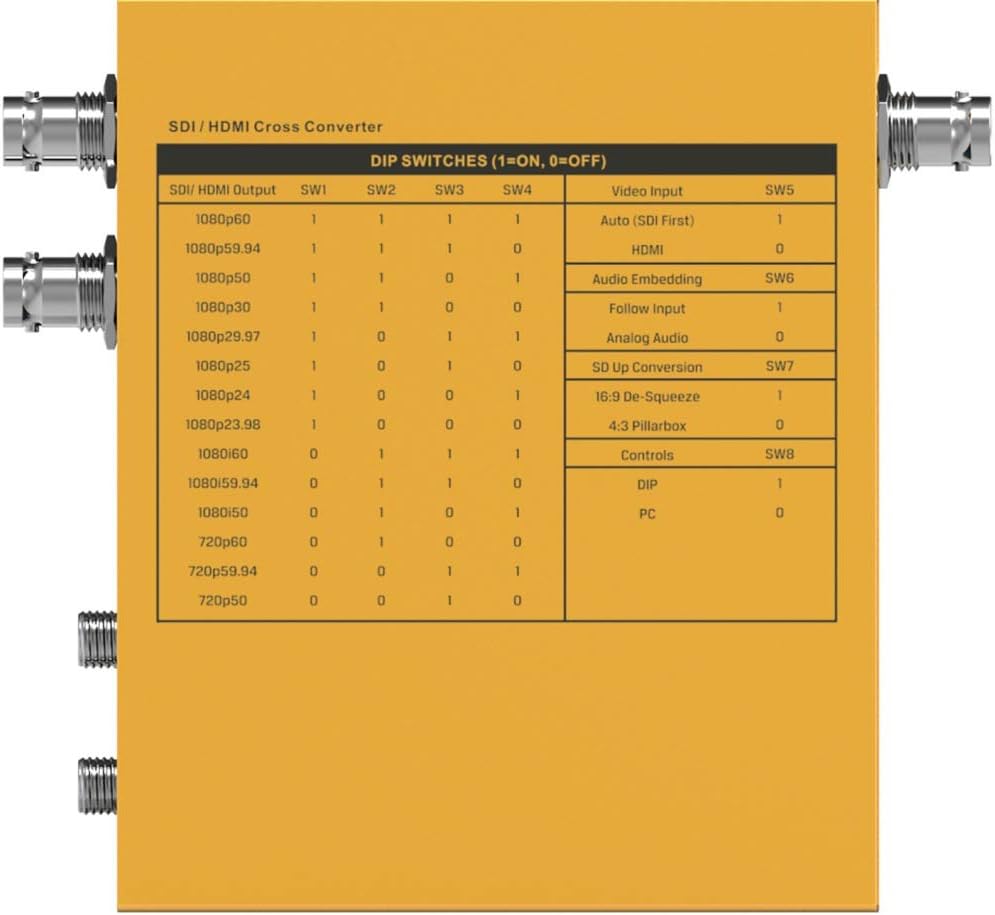
Gambar 5.1: Detailed DIP Switch Settings for the SC2030. This table shows how to configure SDI/HDMI output, video input, audio embedding, SD up conversion, and control modes using the 8 DIP switches.
Fungsi DIP Switch:
- SW1-SW4 (SDI/HDMI Output): These switches control the output resolution and frame rate. Refer to the table in Figure 5.1 for specific combinations (e.g., 1080p60, 1080p59.94, 720p60).
- SW5 (Video Input):
- 1: Auto (SDI First) - Prioritizes SDI input.
- 0: HDMI - Forces HDMI input.
- SW6 (Audio Embedding):
- 1: Follow Input - Audio follows the selected video input.
- 0: Analog Audio - Embeds audio from the 3.5mm analog audio input.
- SW7 (SD Up Conversion):
- 1: 16:9 De-Squeeze - Converts 4:3 SD input to 16:9.
- 0: 4:3 Pillarbox - Maintains 4:3 aspect ratio with pillarbox bars.
- SW8 (Controls):
- 1: DIP - Control via physical DIP switches.
- 0: PC - Control via PC software connected via USB.
5.2 PC Software Control
For advanced configuration and real-time monitoring, connect the SC2030 to a PC via the Micro USB port. Ensure SW8 is set to '0' (PC control mode). Download and install the official AVMatrix control software from the manufacturer's website. The software provides a graphical interface to adjust all settings available via DIP switches, plus potentially more granular control and firmware updates.
6. Pangropéa
Proper maintenance ensures the longevity and optimal performance of your SC2030 converter.
- beberesih: Regularly wipe the exterior of the device with a soft, dry, lint-free cloth. Do not use harsh chemicals, solvents, or abrasive cleaners.
- Ventilasi: Ensure that the ventilation holes are free from dust and obstructions.
- Sambungan kabel: Periodically check all cable connections for tightness and wear. Loose connections can lead to signal degradation.
- Panyimpenan: Upami nyimpen alat kanggo waktos anu lami, pegatkeun sambungan tina listrik teras simpen di tempat anu tiis, garing, sareng jauh tina sinar panonpoé langsung sareng suhu anu ekstrim.
- Pembaruan firmware: Check the AVMatrix website periodically for firmware updates. Keeping the firmware updated can improve performance and add new features.
7. Cara ngungkulan
If you encounter issues with your SC2030 converter, refer to the following common problems and solutions:
- Taya Kaluaran Video:
- Verify all cables (HDMI, SDI) are securely connected.
- Ensure the input source is active and outputting a signal.
- Check DIP switch settings for correct output resolution and input selection (SW5).
- Try a different input source or output display to isolate the problem.
- Pastikeun adaptor kakuatan disambungkeun tur alat diaktipkeun.
- Henteu aya Kaluaran Audio:
- Pariksa sambungan kabel audio.
- Verify DIP switch SW6 is set correctly for audio embedding (Follow Input or Analog Audio).
- Ensure the audio source is active and outputting sound.
- Check audio settings on the connected display or receiving device.
- Incorrect Resolution/Frame Rate:
- Adjust DIP switches SW1-SW4 to match the desired output resolution and frame rate.
- Ensure the connected display supports the selected resolution and frame rate.
- Device Not Responding to PC Software:
- Ensure SW8 is set to '0' (PC control mode).
- Verify the Micro USB cable is properly connected.
- Check if the AVMatrix control software is correctly installed and running on your PC.
- Try restarting the PC and the converter.
- Overheating:
- Pastikeun alatna gaduh ventilasi anu cekap sareng henteu katutup.
- Operate the device within its specified operating temperature range.
8. Spésifikasi
Below are the technical specifications for the AVMatrix SC2030 Updown Cross Converter:
| Fitur | Spésifikasi |
|---|---|
| merek | AVmatrix |
| Nomer modél | SC2030 |
| Tipe Pamasangan | Tembok Gunung |
| Tipe panganteur | HDMI, SDI |
| Jumlah Saluran | 2 |
| Dimensi produk | 6.8 x 6.7 x 3.7 inci |
| Item Beurat | 2.44 pon |
| SDI Video Input | SD/HD/3G-SDI x 1 |
| Input Video HDMI | HDMI type A x 1 |
| Input Audio Analog | 1/8" (3.5mm) jack x 1 |
| SDI Video Kaluaran | SD/HD/3G-SDI x 2 |
| Kaluaran Video HDMI | HDMI type A x 1 |
| Rojongan Format Input SDI | 1080p 60/59.94/50/30/29.97/25/24/23.98, 1080i 60/59.94/50, 720p 60/59.94/50/30/29.97/25/24/23.98, 625i, 525i |
| Rojongan Format Input HDMI | 1080p 60/59.94/50/30/29.97/25/24/23.98, 1080i 60/59.94/50, 720p 60/59.94/50, 480i, 60/59.94 |
| SDI minuhan | SMPTE 292M, SMPTE 259M, SMPTE 424M |
| SDI Warna Spasi jeung Precision | YUV 4:2:2 |
| HDMI Input Color Space and Precision | RGB 4:4:4, YUV 4:2:2, YUV 4:4:4 |
| SDI/HDMI Output Format Support | 1080p 60/59.94/50, 1080i 60/59.94/50, 720p 60/59.94/50 |
| Panyambung kakuatan | Threaded locking connector, Micro USB |
| Voltage Rentang | USB 3.3-5V, DC 6-23V |
| Konsumsi Daya | 4W |
| Suhu Operasi | -20°C ~ 60°C |
| Suhu Panyimpenan | -30°C ~ 70°C |
| Kalembaban rélatif | 0% ~ 90% non-condensing |
| Garansi | 3 taun jaminan kawates |

Gambar 8.1: Detailed Technical Specifications of the SC2030 Converter, including inputs, outputs, supported formats, power, and environmental conditions.
9. Garansi jeung Rojongan
9.1 Émbaran jaminan
The AVMatrix SC2030 converter comes with a 3-taun jaminan kawates from the date of purchase. This warranty covers defects in materials and workmanship under normal use. It does not cover damage caused by misuse, accident, unauthorized modifications, or external causes such as power surges.
For warranty claims, please retain your proof of purchase and contact AVMatrix customer support.
9.2 Rojongan Palanggan
For technical assistance, troubleshooting, or general inquiries regarding your AVMatrix SC2030, please visit the official AVMatrix website or contact their customer support team. You may find FAQs, driver downloads, and additional resources online.