Bubuka
This manual provides detailed instructions for the installation, operation, and maintenance of your GIGABYTE B460 AORUS PRO AC motherboard. Please read this manual thoroughly before beginning the installation process to ensure proper setup and to maximize the performance and longevity of your system.
The GIGABYTE B460 AORUS PRO AC is an ATX form factor motherboard designed for Intel LGA1200 processors, featuring the Intel B460 chipset. It supports DDR4 memory, dual M.2 slots, SATA 6Gb/s, USB 3.2 Gen 2, Intel 802.11ac wireless, and 2.5 GbE LAN, providing a robust foundation for your personal computer.
Eusi pakét
Verify that all items listed below are present in your motherboard package. If any items are missing or damaged, contact your retailer.
- GIGABYTE B460 AORUS PRO AC Motherboard
- Kabel SATA
- Manual pamaké
- Antenna Wi-Fi
- I/O Shield (if not pre-mounted)
- M.2 pakét screw
- CD/DVD supir (atawa link pikeun ngundeur drivers)
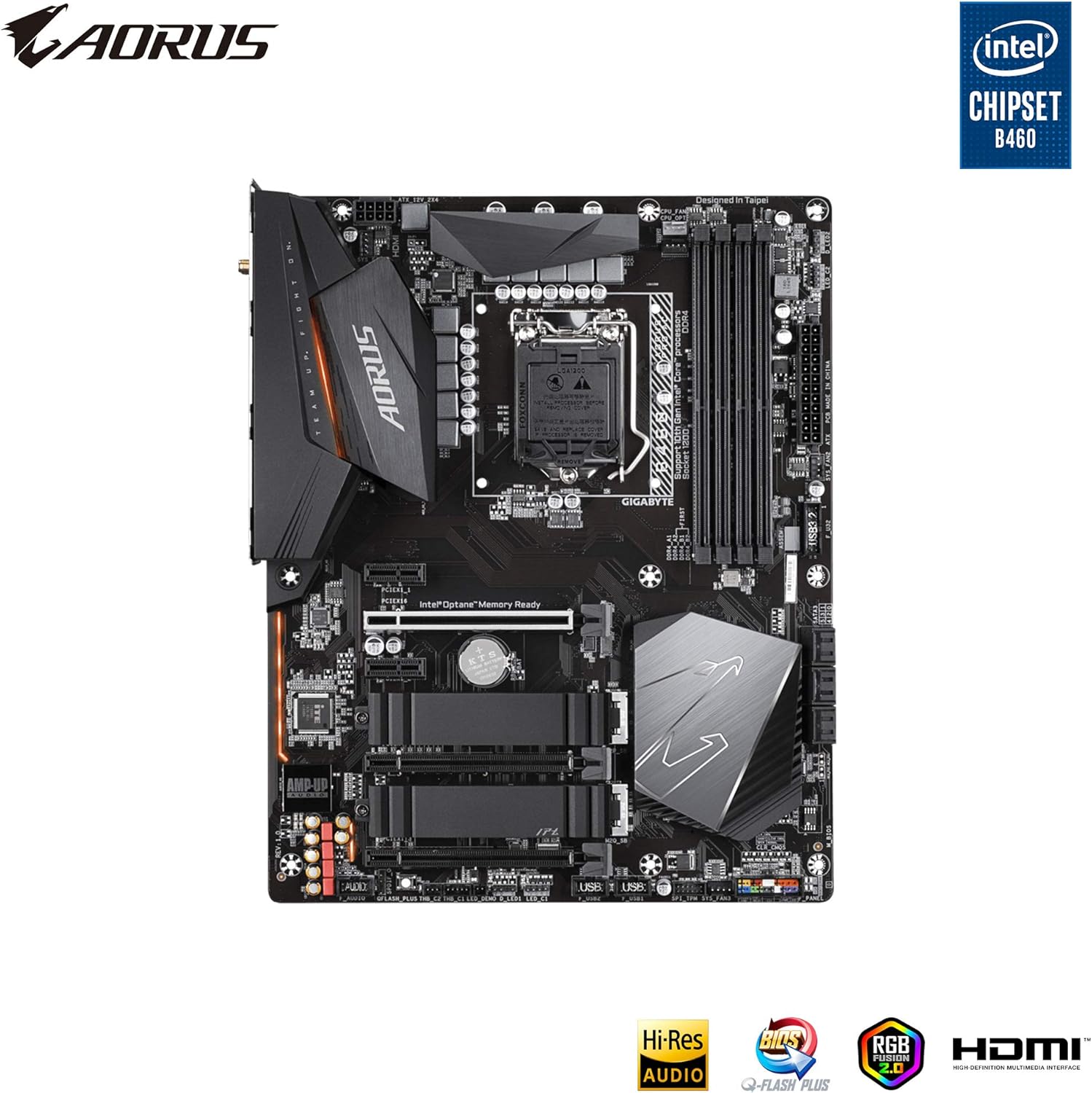
Gambar 1: Top-handap view of the GIGABYTE B460 AORUS PRO AC Motherboard, showing CPU socket, RAM slots, and M.2 slots.
Setup sareng Instalasi
Before installing the motherboard, ensure your workspace is clean, well-lit, and free of static electricity. Use an anti-static wrist strap or frequently touch a grounded metal object to discharge static electricity.
1. Nyiapkeun Sasisna
Install the I/O shield into the chassis's rear opening. If your chassis has a pre-mounted I/O shield, skip this step.
2. Pasang CPU
- Tangtukeun lokasi stop kontak LGA1200 CPU dina motherboard nu.
- Gently push down the load lever and pull it out to open the CPU socket cover.
- Align tanda triangular on CPU jeung tanda pakait dina stop kontak nu. Sacara saksama nempatkeun CPU kana stop kontak tanpa maksakeunana.
- Tutupkeun pelat beban teras pencét tuas beban deui kana tempatna dugi ka ngaklik.
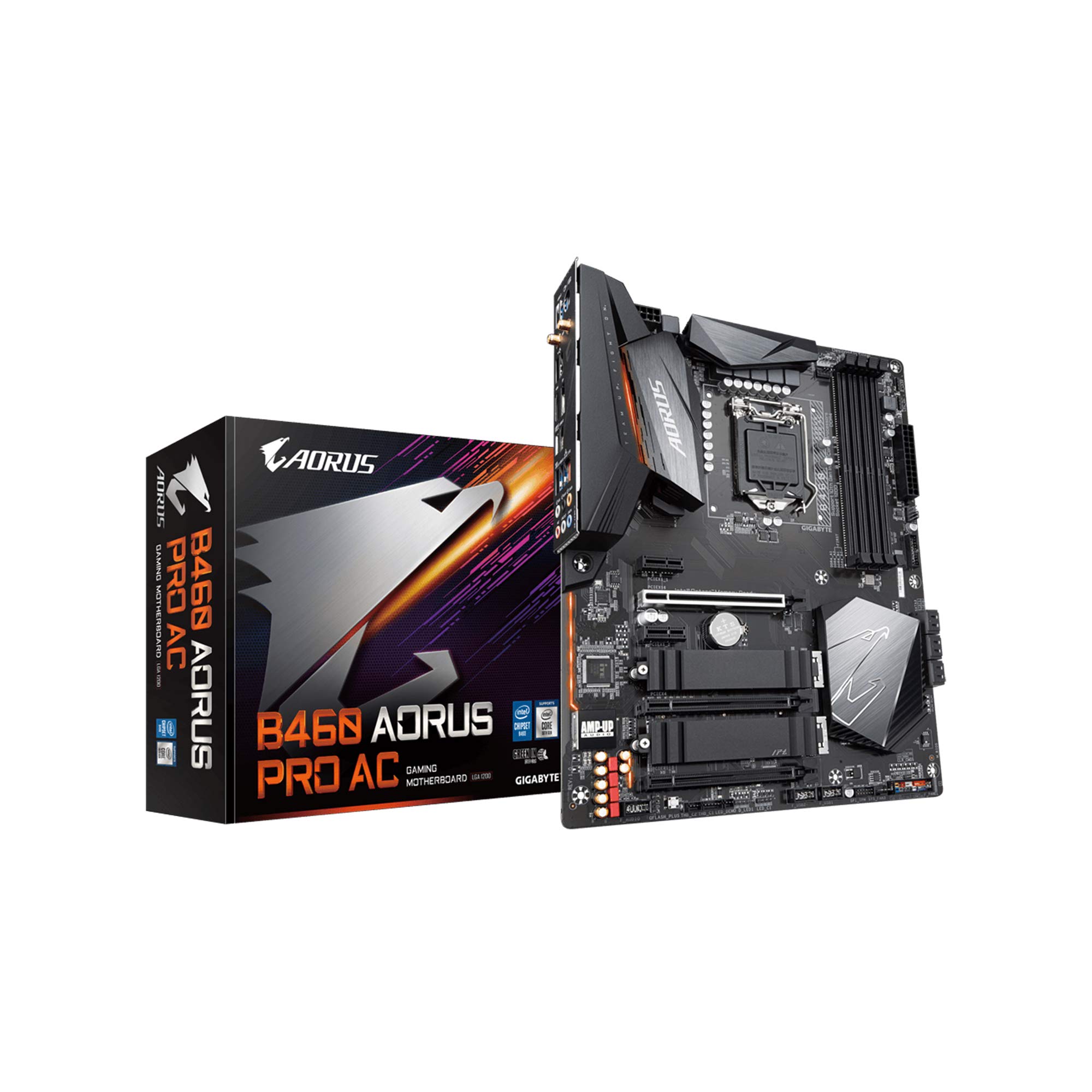
Figure 2: Close-up of the motherboard showing the LGA1200 CPU socket area.
3. Pasang Pendingin CPU
Follow the instructions provided with your CPU cooler to install it securely onto the motherboard. Ensure proper thermal paste application for optimal cooling.
4. Install Memory Modules (RAM)
- Buka klip dina kadua tungtung slot DIMM.
- Align kiyeu dina modul memori DDR4 jeung konci dina slot DIMM.
- Insert the module firmly into the slot until the clips snap into place. Install modules in the recommended slots for dual-channel operation (refer to the motherboard's printed manual for specific slot order).
5. Install M.2 SSDs
- Manggihan slot M.2 on motherboard nu.
- Remove the M.2 heatsink (if present) and the standoff screw from the desired M.2 slot.
- Selapkeun M.2 SSD kana slot dina sudut 30-gelar.
- Gently push down the SSD and secure it with the standoff screw. Reinstall the M.2 heatsink if applicable.
6. Pasangkeun Motherboard-na
Carefully place the motherboard into the chassis, aligning the screw holes with the standoffs. Secure the motherboard with screws, ensuring it is firmly seated but not overtightened.
7. Sambungkeun kabel Power
- Sambungkeun konektor kakuatan utama 24-pin ATX tina catu daya anjeun ka motherboard nu.
- Sambungkeun 8-pin (atawa 4 + 4-pin) ATX 12V konektor kakuatan CPU ka motherboard nu.
8. Sambungkeun Kabel Panel Hareup
Connect the power switch, reset switch, HDD LED, and power LED cables from your chassis to the corresponding pins on the motherboard's front panel header. Refer to the motherboard's printed manual for the exact pin layout.
9. Sambungkeun Alat Panyimpenan
Connect SATA data cables from your storage drives (HDDs, SSDs) to the SATA ports on the motherboard. Connect the power cables from your power supply to these drives.
10. Install Expansion Cards (e.g., Graphics Card)
Insert your graphics card into the primary PCIe x16 slot. Ensure it is fully seated and secured with the chassis latch or screw. Connect any required PCIe power cables from your power supply to the graphics card.

Gambar 3: Angled view of the motherboard, showing PCIe slots for expansion cards.
Parentah Operasi
1. Mimiti boot jeung BIOS Setup
- After connecting all components and peripherals, power on your system.
- Pencét éta DEL konci sababaraha kali nalika ngamimitian pikeun asup kana utilitas setelan BIOS / UEFI.
- Configure essential settings such as boot order, date/time, and enable XMP for memory if desired. Save changes and exit.
2. Pamasangan Sistem Operasi
Insert your operating system installation media (USB drive or DVD) and follow the on-screen prompts to install your preferred operating system.
3. Pamasangan supir
After OS installation, install the necessary drivers for your motherboard components. You can find the latest drivers on the official GIGABYTE website for the B460 AORUS PRO AC model. Install chipset drivers, LAN drivers, audio drivers, and Wi-Fi drivers.

Figure 4: Rear I/O panel, showing various ports including USB, LAN, Wi-Fi antenna connectors, and audio jacks.
Pangropéa
Regular maintenance helps ensure the stability and longevity of your motherboard and system.
- Ngaleungitkeun lebu: Périodik ngabersihan lebu tina motherboard sareng komponenana nganggo hawa anu dikomprés. Pastikeun sistem dipareuman sareng dicabut colokan sateuacan beberesih.
- Pembaruan BIOS: Pariksa GIGABYTE website for the latest BIOS updates. BIOS updates can improve system stability, compatibility, and performance. Follow the instructions carefully when updating the BIOS.
- Pembaruan supir: Tetep supir anjeun diropéa pikeun mastikeun kinerja optimal sarta kasaluyuan jeung software anyar jeung hardware.
- Manajemén Kabel: Pastikeun kabel internal dialirkeun rapih pikeun ningkatkeun aliran hawa sareng nyegah gangguan.
Pamérésan masalah
If you encounter issues with your system, refer to the following common troubleshooting steps:
- Henteu aya kakuatan:
- Pariksa sadaya sambungan daya (ATX 24-pin, CPU 8-pin, daya GPU).
- Pastikeun saklar catu daya aya dina posisi ON.
- Nguji catu daya sareng sistem anu sanés atanapi panguji catu daya.
- Henteu aya tampilan:
- Pastikeun monitor disambungkeun kana kartu grafis (lain kana port grafis terintegrasi motherboard upami GPU khusus dipasang).
- Pasang deui kartu grafik sareng modul RAM.
- Coba boot ku ngan hiji iteuk RAM.
- Instabilitas Sistem / Kacilakaan:
- Pariksa suhu CPU sareng GPU.
- Jalankeun alat diagnostik mémori pikeun mariksa kasalahan RAM.
- Pastikeun yén sadaya supir parantos diropéa.
- Verify BIOS settings are stable (e.g., disable XMP temporarily).
- Periferal Teu Dideteksi:
- Coba sambungkeun periferal ka port anu béda.
- Pasang atanapi ngapdet panggerak anu relevan.
- Check BIOS settings for port enablement.
For more advanced troubleshooting or persistent issues, consult the comprehensive user manual provided with your motherboard or visit the GIGABYTE support websitus.
spésifikasi
Key technical specifications for the GIGABYTE B460 AORUS PRO AC Motherboard:
| Fitur | Spésifikasi |
|---|---|
| merek | GIGABYTE |
| Nomer modél | B460 AORUS PRO AC |
| CPU Socket | LGA1200 |
| Chipset | Intel B460 |
| Faktor Bentuk | ATX |
| Tipe RAM | DDR4 SDRAM |
| Laju mémori | Up to 2933 MHz (with compatible CPU) |
| Tipe Wireless | 802.11ac |
| LAN | 2.5 Gigabit Ethernet |
| palabuhan USB | USB 3.2 Generasi 2, USB 2.0 |
| Panyimpenan Interface | Dual M.2, SATA 6Gb/s |
| Ukuran produk (L x W x H) | 13.18 x 10.62 x 3.14 inci |
| Item Beurat | 4.41 pon |
Garansi sareng Rojongan
For warranty information, technical support, driver downloads, and BIOS updates, please visit the official GIGABYTE website. You can find detailed support resources specific to the B460 AORUS PRO AC model.
Rojongan GIGABYTE Websitus: www.gigabyte.com/support
Always refer to the latest information available on the manufacturer's website for the most accurate and up-to-date support details.