1. Bubuka
Welcome to the ZONKO K105-36 10-inch Android Tablet. This device is designed to provide a versatile mobile computing experience, featuring a 10.1-inch HD touchscreen, 3G phone call support, Wi-Fi, Bluetooth, and GPS capabilities. This manual provides essential information for setting up, operating, maintaining, and troubleshooting your tablet.
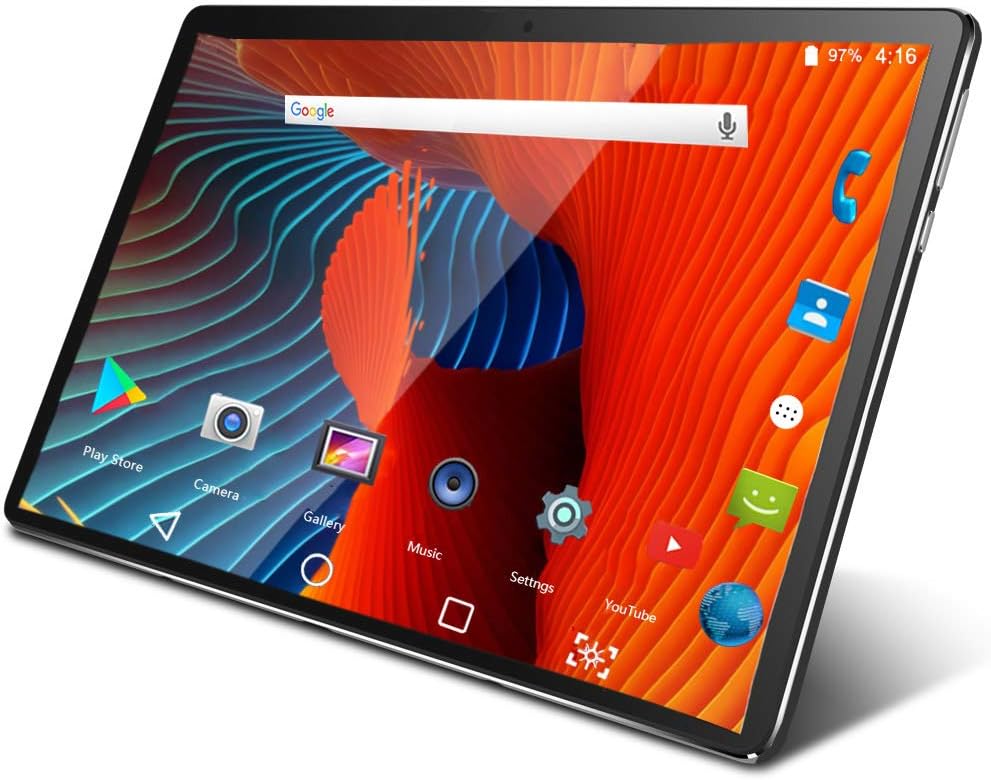
Image 1.1: ZONKO K105-36 Tablet Front View. This image shows the tablet's display with a colorful wallpaper and various application icons, including Google search bar, Play Store, Camera, Gallery, Music, Settings, YouTube, and phone call icon.
2. Eusi Paket
Mangga parios pakét kanggo barang-barang ieu:
- ZONKO K105-36 Tablet
- Charger
- Manual pamaké
3. Tata perenah
Familiarize yourself with the physical components of your ZONKO K105-36 tablet.

Image 3.1: Tablet Dimensions. This image illustrates the tablet's thinness (19.9mm) and weight (0.85kg), emphasizing its portable design.
Specific button and port locations may vary slightly, but generally include:
- Tombol Daya: Located on the side, used to turn the device on/off or wake/sleep the screen.
- Tombol Volume: Saluyukeun tingkat audio.
- Port USB: Pikeun ngecas sareng mindahkeun data.
- Jack headphone: Pikeun nyambungkeun headphone kabel.
- Slot Kartu SIM/MicroSD: Pikeun nyelapkeun kartu SIM sareng panyimpenan anu tiasa dilegaan.
- Kaméra hareup: Pikeun nelepon video sareng selfies.
- Kaméra tukang: Pikeun nyandak poto sareng pidéo.
- Panyatur: Pikeun kaluaran audio.
4. Setup Awal
4.1. Ngecas Batré
Before first use, fully charge your tablet. Connect the provided charger to the USB port on the tablet and plug it into a power outlet. The battery indicator on the screen will show charging status.
4.2. Powering on / Pareum
- Pikeun Ngahurungkeun: Press and hold the Power button until the ZONKO logo appears.
- Pikeun mareuman: Pencét terus tahan tombol Daya dugi ka pilihan daya némbongan, teras pilih "Pareuman".
- Pikeun Saré / Hudang: Pencét sakeudeung tombol Daya.
4.3. Pamasangan Kartu SIM
The tablet supports dual SIM cards for 3G phone calls and mobile data.
- Locate the SIM card slot on the side of the tablet.
- Carefully open the slot cover.
- Insert the SIM card(s) into the designated slot(s) with the gold contacts facing down, ensuring correct orientation.
- Close the slot cover securely.
4.4. Pamasangan Kartu MicroSD
Expand your tablet's storage up to 128GB with a MicroSD card (sold separately).
- Locate the MicroSD card slot, often combined with the SIM card slot.
- Insert the MicroSD card into the slot with the gold contacts facing down until it clicks into place.
- You may be prompted to format the card for optimal use with the tablet.
4.5. Konfigurasi awal
Saatos dihurungkeun pikeun anu munggaran, turutan pitunjuk dina layar pikeun:
- Pilih basa anjeun.
- Nyambung ka jaringan Wi-Fi.
- Set up your Google account or create a new one. This is essential for downloading apps from the Google Play Store.
- Review sareng nampi sarat sareng kaayaan.
5. Operasi dasar
5.1. Gerakan Layar Toél
- Ketok: Pilih hiji item atawa buka aplikasi.
- Toel & Tahan: Aksés menu kontekstual atanapi pindahkeun item.
- Gesek: Navigate through screens or scroll lists.
- Ciwit: Ngazum gede atawa leutik dina gambar na web kaca.
5.2. Napigasi Layar Utama
The home screen is your central hub. You can customize it with widgets and app shortcuts. Swipe left or right to access additional home screens.
5.3. Bewara sareng Setélan Gancang
Gesek ka handap ti luhur layar pikeun view notifications and access quick settings like Wi-Fi, Bluetooth, and screen brightness.
5.4. App Manajemén
Download new applications from the Google Play Store. To uninstall an app, touch and hold its icon, then drag it to the "Uninstall" option.

Image 5.1: Tablet Applications in Daily Life. This collage demonstrates the tablet's versatility, showing it used for GPS navigation, reading e-books, browsing news websites, and interacting on social media platforms.
6. Konektipitas
6.1. Sambungan Wi-Fi
- Pindah ka Setélan > Jaringan & internét > Wifi.
- Togél Wi-Fi On.
- Pilih jaringan anu dipikahoyong tina daptar sareng lebetkeun kecap akses upami dipenta.
6.2. 3G Mobile Data
With a properly installed SIM card, you can access 3G mobile data.
- Pindah ka Setélan > Jaringan & internét > Jaringan mobile.
- Mastikeun data mobile is toggled On.
- You may need to configure APN settings provided by your mobile carrier.

Image 6.1: Network Connection Methods. This image visually represents the tablet's capability to connect via both Wi-Fi (2.4G/5G) and 3G mobile data, offering flexible internet access.
6.3. Papasangan Bluetooth
- Pindah ka Setélan > Alat disambungkeun > Bluetooth.
- Pindahkeun Bluetooth On.
- The tablet will scan for available devices. Select the device you wish to pair with and follow any on-screen prompts.
7. Fungsi kaméra
The ZONKO K105-36 features a 5MP rear camera for capturing photos and videos.

Image 7.1: Key Specifications. This diagram visually summarizes the tablet's main features, including its 2MP front camera and 5MP rear camera, 10-inch IPS screen, 1280x800 resolution, 2GB RAM, 32GB ROM, and 6000mAh battery.
7.1. Nyandak Poto sareng Pidéo
- Buka na Kaméra aplikasi.
- Tap the shutter button to take a photo or switch to video mode and tap to start/stop recording.
7.2. Setélan kaméra
Within the Camera app, you can adjust settings such as flash, white balance, exposure, and switch between front and rear cameras.
8. Manajemén gudang
Your tablet comes with 32GB of internal storage, expandable via MicroSD card.

Image 8.1: Powerful Storage Capacity. This image shows the tablet running multiple applications, including messaging, gaming, and video streaming, illustrating its capability to handle various entertainment and productivity apps with its 32GB internal storage.
8.1. Panyimpenan internal
Ka view storage usage, go to Setélan > Panyimpenan. Here you can see how much space is used by apps, photos, videos, and other files.
8.2. Expanding Storage with MicroSD
Once a MicroSD card is inserted, you can move compatible apps and files to it to free up internal storage. Some apps may allow you to set the MicroSD card as the default storage location for new downloads.
9. Manajemén batré
The tablet is equipped with a 6000mAh rechargeable battery, providing approximately 6-8 hours of mixed use.

Image 9.1: Battery Capacity. This image shows the tablet playing a video, highlighting its battery performance. The tablet is equipped with a 6000mAh battery for extended usage.
9.1. Ngecas
Use only the provided charger or a compatible charger to avoid damage. Avoid using the tablet while charging in extremely hot conditions.
9.2. Ngaoptimalkeun Kahirupan Batré
- Ngurangan kacaangan layar.
- Pareuman Wi-Fi, Bluetooth, sareng GPS upami teu dianggo.
- Tutup aplikasi anu henteu dianggo jalan di latar tukang.
- Aktipkeun modeu panghemat batré dina Setélan > Batré.
10. Pangropéa sarta perawatan
10.1. beberesih
Anggo lawon anu lemes sareng henteu lint pikeun ngabersihan layar sareng awak tablet. Ulah make bahan kimia kasar atawa bahan abrasive.
10.2. Apdet parangkat lunak
Pariksa apdet sistem sacara périodik pikeun mastikeun kinerja sareng kaamanan anu optimal. Buka Setélan > Sistim > Pembaruan sistem.
10.3. Reset pabrik
If your tablet experiences persistent issues, a factory reset can resolve them by restoring the device to its original settings. Awas: This will erase all data on your tablet. Back up important files before proceeding. Go to Setélan > Sistim > Reset pilihan > Hapus sadaya data (reset pabrik).
11. Cara ngungkulan
Bagian ieu ngabahas masalah umum anu anjeun tiasa pendak sareng tablet anjeun.
| Masalah | Solusi |
|---|---|
| Tablet teu hurung. | Pastikeun batréna geus dieusian. Sambungkeun carjer sareng antosan sababaraha menit sateuacan nyobian hurung deui. |
| Masalah sambungan Wi-Fi. | Check if Wi-Fi is enabled in settings. Restart your router and the tablet. Ensure you are entering the correct password. |
| Aplikasi nabrak atanapi katirisan. | Close and restart the app. Clear the app's cache in Settings > Apps. If the problem persists, uninstall and reinstall the app. Consider a factory reset if multiple apps are affected. |
| kinerja lalaunan. | Tutup aplikasi latar tukang anu teu dianggo. Hapus cache sareng aplikasi samentawis files. Consider uninstalling rarely used apps or moving files to a MicroSD card. |
| Cannot make 3G phone calls. | Ensure a valid SIM card is correctly inserted and activated. Check mobile network settings and signal strength. |
12. Spésifikasi produk
Detailed technical specifications for the ZONKO K105-36 tablet.
| Fitur | Spésifikasi |
|---|---|
| Modél | K105-36 |
| Ukuran layar | 10.1 inci |
| Resolusi layar | 1280x800 IPS |
| Sistem operasi | Android 9 Pie |
| Prosesor | 1.3 GHz Quad Core (MediaTek) |
| Ram | 2 GB DDR3 SDRAM |
| Panyimpenan internal | 32 GB |
| Panyimpenan Expandable | MicroSD nepi ka 128GB |
| Kaméra tukang | 5 MP |
| Konéktipitas Wireless | 2.4 GHz Wi-Fi, Bluetooth |
| Konéktipitas Mobile | 3G Phone Call Support (Dual SIM) |
| Batré | 6000mAh Litium Polimér |
| Item Beurat | 1.76 pon (0.8 kg) |
| Ukuran produk (L x W x H) | 9.84 x 7.09 x 0.39 inci (25 x 18 x 1 cm) |
13. Garansi jeung Rojongan
For specific warranty details, please refer to the documentation included with your purchase or contact your retailer. ZONKO provides customer support for product inquiries and technical assistance.
For further assistance, please visit the official ZONKO websitus atanapi ngahubungan departemén layanan palanggan maranéhna.


