ZONKO 10.1 inch Android Tablet User Manual
Modél: K105-36
1. Bubuka
This manual provides detailed instructions for setting up, operating, and maintaining your ZONKO 10.1 inch Android Tablet. Please read this manual thoroughly before using your device to ensure proper functionality and longevity.
2. Produk Langkungview
The ZONKO 10.1 inch Android Tablet is a versatile device designed for communication, entertainment, and productivity. It features a vibrant 10.1-inch IPS HD display, a powerful Quad-Core processor, and supports 3G phone calls with dual SIM card capability, making it ideal for on-the-go use.
2.1 Fitur konci
- 3G Phone Call & 2.4G WIFI Connect: Supports two phone card insertions, enabling calls and messages anywhere, along with fast Wi-Fi connectivity.
- Incredible Storage: Equipped with 2GB RAM and 32GB internal storage, expandable up to 128GB via MicroSD card, perfect for various applications and media.
- Excellent in Fast Response: Runs on Android 9.0 operating system with a high-performance 1.3 GHz Quad Core CPU, ensuring ultra-smooth gaming and speedy multimedia experiences.
- Hebat ViewPangalaman: Features a 10.1 inch 800x1280 IPS display with a 178-degree viewing angle, ideal for watching HD movies, playing games, and reading eBooks.
- Huge Capacity Battery: A 6000mAh built-in rechargeable battery provides 6-8 hours of mixed-use on a single charge.
2.2 Komponen Tablet
Familiarize yourself with the tablet's physical components and their functions.
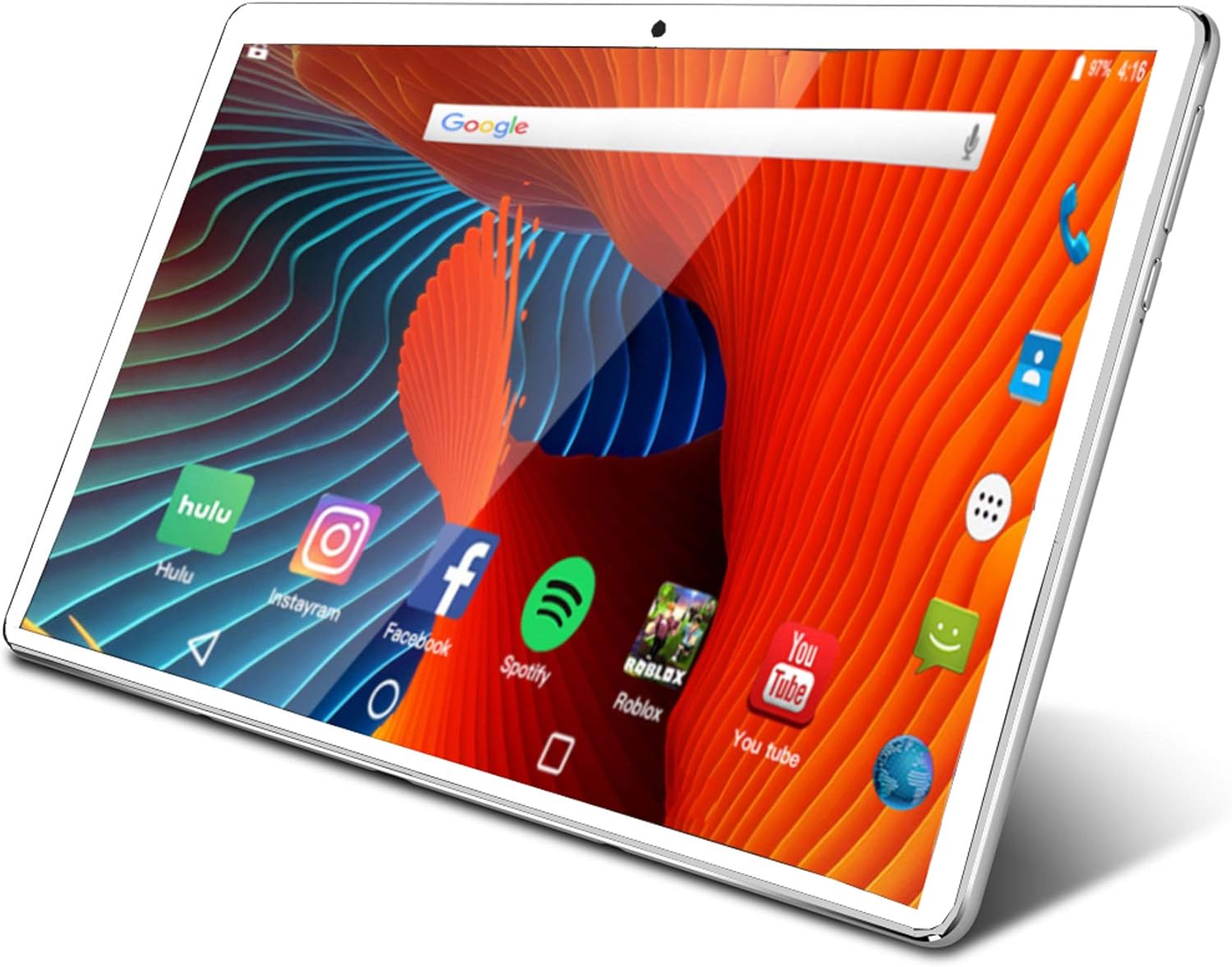
Gambar: Hareupeun view of the ZONKO 10.1 inch Android Tablet displaying the home screen with various app icons.

Image: Diagram highlighting key specifications including 10-inch IPS screen, 2GB RAM, 32GB ROM, 1280x800 resolution, and 6000mAh battery.
3. Setélan
3.1 Ngecas Awal
Before first use, it is recommended to fully charge your tablet. Connect the included charger to the tablet's charging port and plug it into a standard power outlet. The battery indicator on the screen will show the charging status. A full charge for the 6000mAh battery typically takes several hours.
3.2 Powering on / Pareum
- Pikeun kakuatan dina: Press and hold the power button located on the side of the tablet until the ZONKO logo appears on the screen.
- Pikeun pareum: Press and hold the power button, then select "Power off" from the options that appear on the screen.
3.3 Kartu SIM sareng Pamasangan Kartu MicroSD
Your tablet supports dual SIM cards for 3G phone calls and a MicroSD card for expandable storage up to 128GB.
- Pilari slot kartu SIM/MicroSD di sisi tablet.
- Gently open the slot cover using your fingernail or a small tool.
- Insert the SIM cards and MicroSD card into their respective trays, ensuring correct orientation as indicated by the icons near the slots.
- Close the slot cover securely until it clicks into place.
3.4 Wizard Setup Awal
Upon first power-on, the tablet will guide you through an initial setup wizard. Follow the on-screen prompts to configure your device:
- Pilih basa anu anjeun pikaresep.
- Nyambung ka jaringan Wi-Fi pikeun ngaksés internét.
- Sign in with your Google account or create a new one to access Google services like the Play Store.
- Set up screen lock (PIN, pattern, or password) and other security features.
4. Ngoperasikeun Tablet anjeun
4.1 Android 9.0 Pie Operating System
Your ZONKO tablet runs on Android 9.0 Pie, offering a user-friendly interface and access to millions of applications through the Google Play Store.

Image: The Google Play Store interface displayed on the tablet, showing various app categories and popular applications.
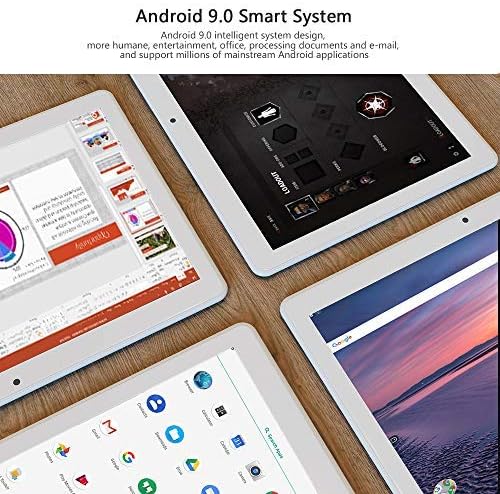
Image: Multiple ZONKO tablets showcasing the Android 9.0 Smart System interface, emphasizing its intelligent design for entertainment, office, and email applications.
4.2 Napigasi Dasar
- Layar Utama: Tap the home button (usually a circle icon) at the bottom of the screen to return to the main home screen.
- Tombol Balik: Tap the back button (usually a triangle icon) to go to the previous screen or close the current application.
- Aplikasi panganyarna: Ketok tombol aktip panganyarna (biasana ikon pasagi) pikeun view sareng pindah antara aplikasi anu nembe dianggo.
- Panel Bewara: Swipe down from the top of the screen to access notifications and quick settings toggles (e.g., Wi-Fi, Bluetooth, brightness).
4.3 Konéktipitas
4.3.1 Sambungan Wi-Fi
To connect your tablet to a Wi-Fi network:
- Pindah ka Setélan > Jaringan & Internét > Wifi.
- Ensure Wi-Fi is turned on.
- Pilih jaringan anu dipikahoyong tina daptar teras lebetkeun kecap akses upami diperyogikeun.
4.3.2 3G Phone Calls
With a valid SIM card inserted into the tablet, you can make and receive phone calls and send messages just like a smartphone.
- Buka na Telepon app to dial numbers and manage calls.
- Buka na Talatah app for sending and receiving SMS/MMS.
4.4 Kaméra Fungsionalitas
The tablet features a 2MP front camera and a 5MP rear camera for capturing photos and videos.

Image: A collage showing the ZONKO tablet being used for various activities, including video calls, browsing, and watching videos, demonstrating its versatility.
- Buka na Kaméra aplikasi tina layar utama atanapi laci aplikasi.
- Ketok tombol jepret pikeun nyandak poto.
- Switch between front and rear cameras as needed for selfies or general photography.
4.5 GPS sareng Navigasi
The built-in GPS allows for accurate location tracking and navigation, making your tablet a useful tool for travel.
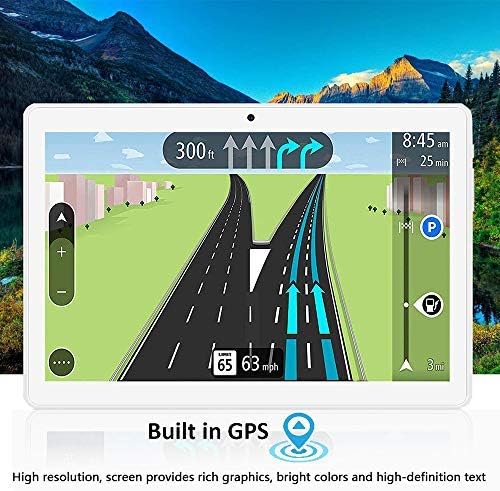
Image: The tablet screen showing a GPS navigation map with route information and current speed, indicating its navigation capabilities.
- Anggo aplikasi peta anu tos dipasang sateuacanna atanapi unduh aplikasi navigasi anu anjeun pikaresep ti Google Play Store.
4.6 Média Playback
Enjoy music, videos, and other media content on your tablet's high-definition display.

Image: The tablet screen showing a music player interface with album art and song details, demonstrating its multimedia capabilities.
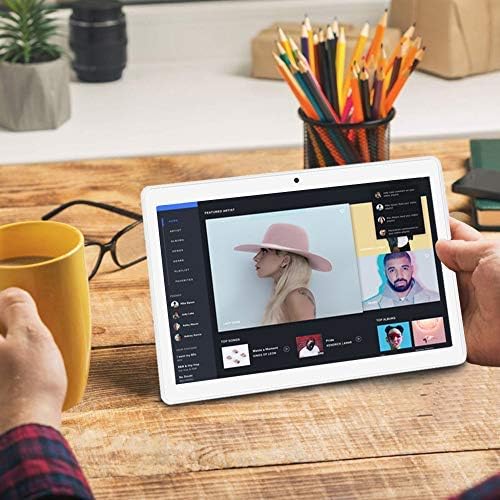
Image: A person holding the ZONKO tablet, viewing a media application with album art and artist information, illustrating typical usage.
The tablet's 1280x800 IPS HD display provides a great viewpangalaman dina ngolah eusi multimedia.
4.7 Manajemén batré
The 6000mAh battery provides extended usage for various activities.

Image: Icons indicating approximate battery life for various activities: 8 hours of video, 20 hours of calls, 28 hours of music, and 300 hours of standby.
- To conserve battery life, reduce screen brightness, disable Wi-Fi/Bluetooth when not in use, and close unused applications running in the background.
- Monitor battery usage and optimize settings in Setélan > Batré.
5. Pangropéa
5.1 beberesih
- Use a soft, lint-free cloth to gently clean the screen and body of the tablet.
- Avoid using harsh chemicals, abrasive materials, or excessive moisture, as these can damage the device.
5.2 Apdet parangkat lunak
Regularly check for system updates to ensure optimal performance, security, and access to new features.
- Pindah ka Setélan > Sistim > Maju > Pembaruan sistem.
- Follow the on-screen instructions to download and install any available updates. Ensure your tablet is sufficiently charged or connected to power during updates.
5.3 Manajemén Panyimpenan
To maintain smooth performance, it is important to manage your tablet's storage effectively.
- Regularly clear cache data from applications (Setélan > Aplikasi & bewara > [Ngaran Aplikasi] > Panyimpenan & cache > Hapus cache).
- Copot aplikasi anu teu dianggo pikeun ngosongkeun rohangan.
- Transfer ageung files (photos, videos, documents) to external storage (MicroSD card) or cloud services.
- Check storage usage in Setélan > Panyimpenan to identify what is consuming space.
6. Cara ngungkulan
This section addresses common issues you might encounter with your ZONKO tablet and provides potential solutions.
| Masalah |
Solusi |
| Tablet teu hurung. |
Pastikeun batréna tos dicas. Sambungkeun carjer teras antosan sababaraha menit sateuacan nyobian ngahurungkeun deui. Upami teu ngaréspon, cobian pencét tombol daya salami 10-15 detik kanggo mareuman deui sacara paksa. |
| Layar rampa teu ngaréspon. |
Restart the tablet by holding the power button until it reboots. If the issue persists, ensure the screen is clean and free of debris. As a last resort, perform a factory reset (note: this will erase all data). |
| Masalah sambungan Wi-Fi. |
Ensure Wi-Fi is enabled in settings. Restart your Wi-Fi router. Forget the network in tablet settings and reconnect. Ensure you are within range of the Wi-Fi signal. |
| Aplikasi ngalambatkeun atanapi ngadat. |
Close background applications. Clear app cache (see Storage Management). Free up internal storage space. Restart the tablet. |
| Kualitas kaméra goréng. |
Ensure the camera lens is clean and free from smudges. Check lighting conditions; adequate lighting is crucial for good photo quality. |
6.1 Reset pabrik
If severe issues persist and cannot be resolved by other troubleshooting steps, a factory reset may be necessary. This process will erase all data on the tablet, returning it to its original factory settings. Back up any important data before proceeding.
- Pindah ka Setélan > Sistim > Maju > Reset pilihan.
- Pilih "Hapus sadaya data (reset pabrik)".
- Confirm the reset when prompted. The tablet will restart and begin the reset process.
7. Spésifikasi
Detailed technical specifications for the ZONKO 10.1 inch Android Tablet.
| Fitur |
Rincian |
| Modél |
K105-36 |
| Ukuran layar |
10.1 inci |
| Resolusi layar |
1280x800 IPS HD |
| Prosesor |
1.3 GHz Quad Core (MediaTek) |
| Ram |
2GB SDRAM DDR3 |
| Panyimpenan internal |
32 GB |
| Panyimpenan Expandable |
Nepi ka 128 GB (MicroSD) |
| Sistem operasi |
Android 9 Pie |
| Kaméra tukang |
5 MP |
| Kaméra hareup |
2 MP |
| Tipe Wireless |
802.11bgn |
| Batré |
6000mAh Litium Polimér |
| Item Beurat |
1.87 pon |
| Dimensi produk |
5.91 x 3.94 x 1.18 inci |
8. Garansi jeung Rojongan
For detailed warranty information and customer support, please refer to the documentation included with your purchase or visit the official ZONKO website. You can also find additional product information and support resources by visiting the ZONKO Store on Amazon.


