
Bubuka
This manual provides detailed instructions for the installation, operation, and maintenance of your Foscam D2EP IP Camera. The D2EP is a high-definition 2-megapixel outdoor security camera designed for reliable surveillance with features such as infrared night vision, smart motion detection, and wired connectivity. Please read this manual thoroughly before using the product to ensure correct setup and optimal performance.
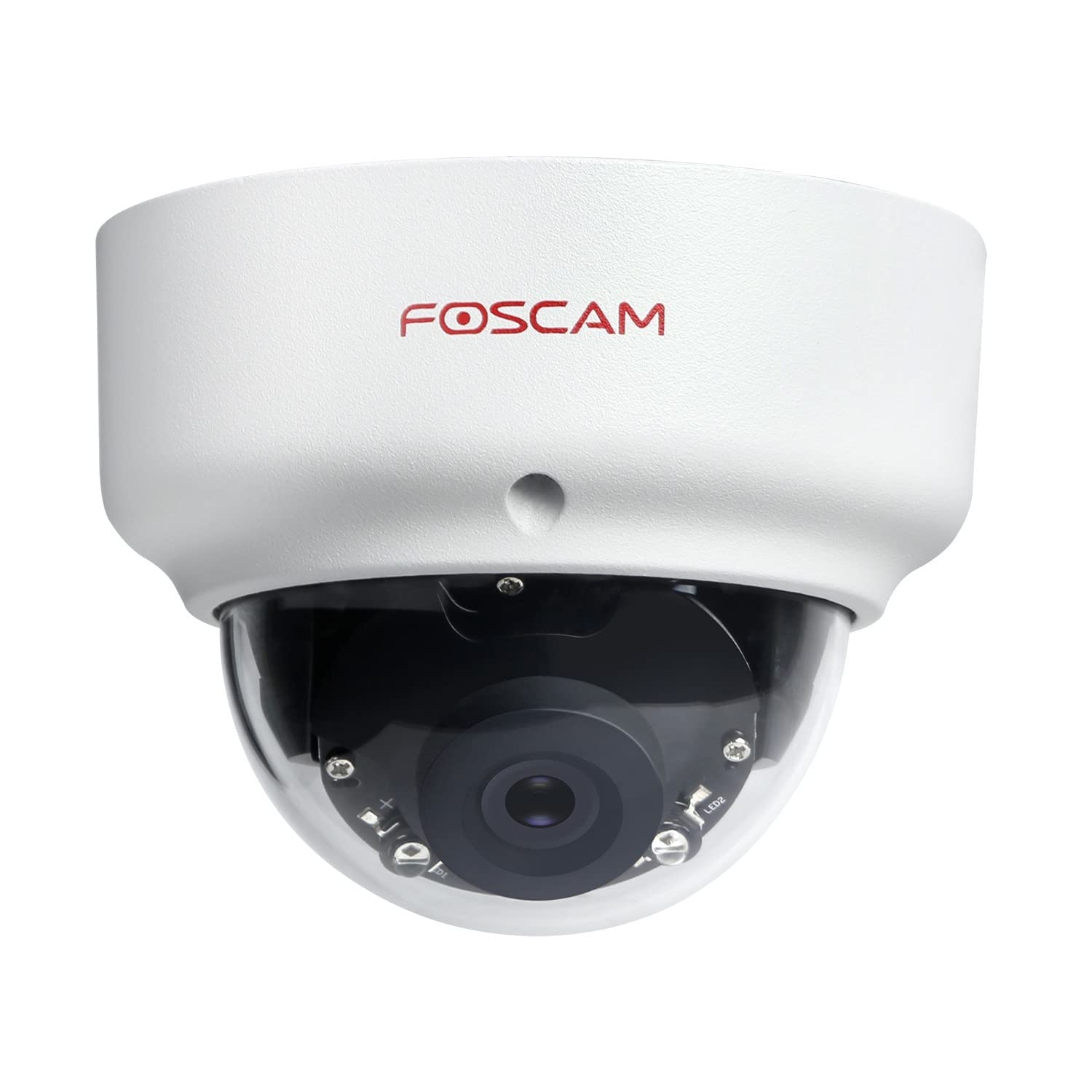
Image: The Foscam D2EP IP Camera, showcasing its compact, dome-shaped design suitable for outdoor environments.
1. Setup jeung Instalasi
1.1 Eusi pakét
Sateuacan ngamimitian pamasangan, mangga pariksa yén sadaya komponén aya dina pakét:
- Foscam D2EP IP Camera
- Pemasangan Screws sareng Colokan Tembok
- Kabel Ethernet
- Adaptor kakuatan
- Guide Instalasi Gancang

Image: Foscam D2EP IP Camera with its power and Ethernet cables, illustrating the main components included in the box.
1.2 Instalasi fisik
The Foscam D2EP camera is designed for outdoor use with an IP66 waterproof rating. Choose a suitable location that provides the desired viewing angle and is within reach of a power source and network connection.
- Lokasi Pasang: Identify a secure mounting surface, such as a wall or ceiling, that offers a clear view wewengkon nu Anjeun hoyong monitor.
- liang bor: Use the provided mounting template (if included) or the camera base to mark and drill pilot holes for the mounting screws. Insert wall plugs if mounting on masonry.
- Kaméra Aman: Attach the camera base securely to the mounting surface using the provided screws.
- Saluyukeun Sudut: Loosen the adjustment screws on the camera body to position the lens for the optimal viewing angle. Tighten the screws once the desired angle is achieved.

Image: Foscam D2EP IP Camera mounted under an outdoor patio roof, demonstrating a typical installation scenario for outdoor surveillance.
1.3 Jaringan sareng Sambungan Daya
- Sambungkeun kabel Ethernet: Connect one end of the Ethernet cable to the camera's network port and the other end to your router or network switch.
- Sambungkeun Adaptor Daya: Plug the power adapter into the camera's power input and then into a suitable electrical outlet.
- Lampu Indikator: Wait for the camera's indicator light to show a stable status, indicating it is powered on and connected to the network. Refer to the Quick Installation Guide for specific indicator light behaviors.
1.4 Konfigurasi Awal
To access and configure your camera, download the Foscam app on your smartphone or use the Foscam client software on your computer.
- Unduh Aplikasi/Parangkat Lunak: Milarian pikeun "Foscam" in your app store (iOS/Android) or visit the official Foscam website for desktop software.
- Tambahkeun kaméra: Follow the in-app or software instructions to add your D2EP camera. This typically involves scanning a QR code on the camera or manually entering its UID.
- Setel kecap akses: For security, change the default password immediately upon first access.
- Setélan jaringan: Configure any necessary network settings, such as static IP (if required by your network).
2. Parentah Operasi
2.1 Hirup View jeung Rékam
Once configured, you can access the live video feed from your Foscam D2EP camera through the Foscam app or desktop client.
- Hirup View: Pilih kaméra anjeun tina daptar alat pikeun view the real-time 1080p HD video stream.
- Ngarekam Manual: Most Foscam applications allow you to manually start and stop video recordings directly from the live view panganteur.
- Potret: Candak gambar poto tina feed langsung.
2.2 Deteksi Gerak
The D2EP features smart motion detection to alert you to activity in the monitored area.
- Aktipkeun Deteksi Gerakan: Navigate to the camera settings in the Foscam app/software and enable motion detection.
- Konfigurasi Area Deteksi: Nangtukeun wewengkon husus dina kaméra urang view where motion should be detected, ignoring irrelevant zones.
- Saluyukeun sensitipitas: Set the motion detection sensitivity to minimize false alarms while ensuring important events are captured.
- Setélan Siaga: Configure how you receive alerts (e.g., push notifications, email).
2.3 Visi Siang sareng Peuting
The camera automatically switches between day (color) and night (infrared black and white) vision modes based on ambient light conditions. The infrared LEDs provide clear vision up to 20 meters in low-light environments.
2.4 Amazon Alexa Compatibility
The Foscam D2EP camera is compatible with Amazon Alexa, allowing for voice control and integration into your smart home system. Refer to the Foscam website or Alexa app for detailed instructions on linking your Foscam account and controlling your camera via Alexa commands.
3. Pangropéa
3.1 Ngabersihan Kaméra
Regularly clean the camera lens and housing to ensure optimal image quality and prevent debris buildup, especially for outdoor installations.
- Ngagunakeun lemes, damp cloth to wipe the camera body.
- Pikeun lensa, paké lawon beberesih lensa khusus sareng solusi pikeun nyegah goresan.
- Ulah make bahan kimia kasar atawa bahan abrasive.
3.2 Apdet firmware
Foscam regularly releases firmware updates to improve camera performance, add new features, and enhance security. It is recommended to keep your camera's firmware up to date.
- Check for updates through the Foscam app or desktop client.
- Follow the on-screen instructions carefully during the update process. Do not power off the camera during an update.
4. Cara ngungkulan
4.1 Camera Not Connecting to Network
- Pariksa Kabel: Ensure the Ethernet cable is securely connected to both the camera and the router/switch.
- kakuatan: Verify the camera is powered on and the power adapter is working correctly.
- Status router: Confirm your router is functioning and providing network access.
- Konflik Alamat IP: If using a static IP, ensure it does not conflict with other devices on your network. Try DHCP first.
- Reset kaméra: If issues persist, perform a factory reset (refer to the Quick Installation Guide for reset button location and procedure).
4.2 Kualitas Gambar Miskin
- Lensa bersih: Ensure the camera lens is clean and free from dirt or smudges.
- Pencahayaan: Verify adequate lighting in the monitored area during the day.
- Visi Peuting: In night mode, ensure there are no obstructions blocking the infrared LEDs.
- Setélan Resolusi: Check that the camera's resolution is set to 1080p (2MP) in the app/software settings.
4.3 Motion Detection Not Working or Too Many False Alarms
- Aktipkeun Fitur: Confirm motion detection is enabled in the camera settings.
- Wewengkon Deteksi: Adjust the detection zone to cover only relevant areas.
- Sensitipitas: Increase sensitivity if events are missed; decrease if there are too many false alarms (e.g., from moving trees, shadows).
- Jadwal: Check if motion detection is scheduled to be active during the desired times.
5. Spésifikasi
| Ngaran modél | D2EP |
| merek | Foscam |
| Resolusi | 2 Megapixel (1080p) |
| Téhnologi konektipitas | Dikabel |
| Dianjurkeun Paké | Kaméra Kaamanan Luar |
| Résistansi Cuaca | IP66 Waterproof |
| Wengi Sawangan Sawangan | Nepi ka 20 méter (Infrared) |
| Fitur konci | Motion Sensor, Day/Night Vision, Amazon Alexa Compatible |
6. Émbaran jaminan
The Foscam D2EP IP Camera comes with a garansi 2 taun from the date of purchase. This warranty covers manufacturing defects and ensures the product functions as described under normal use. Please retain your proof of purchase for warranty claims. For detailed warranty terms and conditions, please visit the official Foscam websitus.
7. Rojongan Palanggan
If you encounter any issues or have questions regarding your Foscam D2EP IP Camera that are not covered in this manual, please refer to the following resources:
- Foscam Resmi Websitus: Nganjang www.foscam.com for FAQs, support articles, and the latest firmware.
- Bantosan Téknis: Contact Foscam technical support directly via their websitus atanapi inpormasi kontak anu disayogikeun dina bungkusan produk anjeun.