1. Bubuka
This manual provides essential information for the proper use and installation of the Pioneer Carrozzeria AVIC-VH09 genuine USB connection cable. This cable is designed to connect external devices such as iPods, USB memory devices, and dedicated data communication modules to your compatible Carrozzeria navigation system.
2. Produk Langkungview
The Pioneer Carrozzeria AVIC-VH09 USB connection cable is an authentic accessory designed for seamless integration with your AVIC-VH09 or AVIC-VH09CS navigation unit. It facilitates data transfer and connectivity for various USB-compatible external devices.
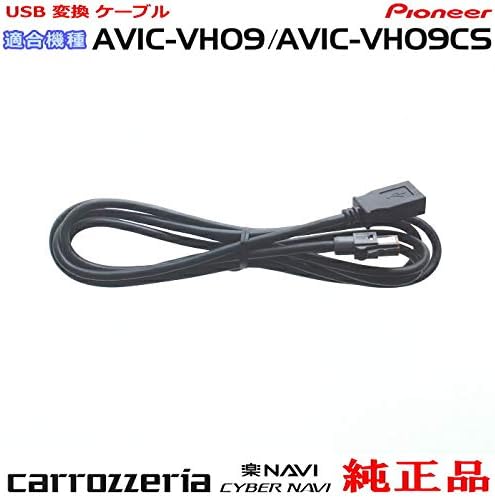
Figure 2.1: A black USB connection cable with a standard USB-A female connector on one end and a proprietary connector for the Carrozzeria unit on the other. The cable is coiled neatly.
3. Parentah Setup
3.1 Connecting the USB Cable
Follow these steps to correctly connect the USB cable to your Pioneer Carrozzeria AVIC-VH09 or AVIC-VH09CS navigation system.
- Ensure your Carrozzeria navigation unit is powered off before making any connections.
- Locate the dedicated USB input port on the rear of your AVIC-VH09/VH09CS unit. Refer to the diagram below for the exact location.
- Connect the proprietary end of the USB cable to this port. Ensure a firm and secure connection.
- Once the cable is connected to the navigation unit, you can connect your external USB device (e.g., iPod, USB memory stick, data communication module) to the standard USB-A female end of the cable.
- Power on your navigation unit and verify that the external device is recognized.

Figure 3.1: This diagram illustrates the rear panel of the Carrozzeria AVIC-VH09 and AVIC-VH09CS navigation units. It shows various connection points, including the specific port for the USB connection cable. The image also depicts the USB cable connecting to the unit, with an additional 'Option' cable for external devices, emphasizing that additional purchases might be needed for multiple connections. A warning about using genuine parts and avoiding damage is also present.
4. Parentah Operasi
4.1 Using External USB Devices
Once the USB cable and your external device are connected, you can access its functions through your Carrozzeria navigation system.
- iPod/iPhone: Connect your Apple device to the USB cable. The navigation unit should automatically detect it, allowing you to browse and play music or videos through the unit's interface.
- Alat Mémori USB: Insert a USB flash drive containing audio or video files. The system will typically display the contents, enabling playback. Ensure your files aya dina format cocog.
- Data Communication Module: If using a dedicated data communication module, connect it via the USB cable. Refer to the module's specific manual for setup and usage instructions with the Carrozzeria system.
For detailed operation of specific external devices, please consult their respective user manuals.
5. Pangropéa sarta perawatan
To ensure the longevity and optimal performance of your USB connection cable, follow these simple maintenance guidelines:
- Nanganan kalayan ati-ati: Avoid bending, twisting, or pulling the cable excessively, especially near the connectors, as this can cause internal damage.
- Tetep Bersih: Periodically wipe the cable and connectors with a soft, dry cloth to remove dust and debris. Do not use harsh chemicals or abrasive cleaners.
- Panyimpenan: When not in use, store the cable in a clean, dry place, away from direct sunlight and extreme temperatures. Avoid tangling the cable.
- Mariksa sacara teratur: Check the cable and connectors for any signs of wear, fraying, or damage. If damage is observed, discontinue use and replace the cable to prevent potential issues with your navigation unit or connected devices.
6. Cara ngungkulan
If you encounter issues while using the USB connection cable, refer to the following common problems and solutions:
| Masalah | Mungkin Cukang lantaranana | Solusi |
|---|---|---|
| External device not recognized | Sambungan leupas | Ensure the USB cable is securely connected to both the navigation unit and the external device. |
| Incompatible device/format | Check if your external device or file format is supported by the AVIC-VH09. Refer to your navigation unit's manual. | |
| Kabel ruksak | Inspect the cable for visible damage. If damaged, replace it with a genuine Pioneer cable. | |
| sambungan intermittent | Cable wear or damage | Replace the cable if it shows signs of wear or damage. |
| Dust/debris in ports | Gently clean the USB ports on both the navigation unit and the external device. |
If problems persist, consult the user manual for your Pioneer Carrozzeria AVIC-VH09 navigation system or contact Pioneer customer support.
7. Spésifikasi
| Fitur | Rincian |
|---|---|
| merek | Panaratas |
| Produsén | Panaratas |
| Nomer modél | U01-CDP1373-AVIC-VH09 |
| Tipe Kabel | USB |
| Tipe Panyambung | USB |
| Fitur husus | Mindahkeun Data |
| Model cocog | Pioneer Carrozzeria AVIC-VH09, AVIC-VH09CS |
| ASIN | B07W6HCMFR |
| Tanggal Sadia munggaran | 6 Agustus 2019 |
8. Émbaran Kasalametan
- Use this cable only with compatible Pioneer Carrozzeria navigation systems as specified.
- Do not attempt to modify or repair the cable. Unauthorized modifications can lead to damage or malfunction.
- Keep the cable away from water, moisture, and extreme temperatures.
- Ensure the cable is routed safely within the vehicle to avoid interference with driving controls or becoming a tripping hazard.
9. Garansi jeung Rojongan
This Pioneer genuine accessory is covered by the standard warranty provided by Pioneer. For specific warranty terms and conditions, please refer to the documentation included with your Carrozzeria navigation system or visit the official Pioneer websitus.
For technical support or inquiries regarding this product, please contact Pioneer customer service. You can find contact information on the official Pioneer website or in your navigation system's user manual.


