1. Bubuka
This manual provides detailed instructions for the setup, operation, maintenance, and troubleshooting of your MoKo Wireless Digital Microscope. Please read this manual thoroughly before using the device to ensure proper functionality and to maximize your user experience.
The MoKo Wireless Digital Microscope is a versatile tool designed for exploring the microscopic world. It features a 2.0 MP camera with 50x to 1000x magnification, 8 adjustable LED lights, and wireless connectivity to various devices.
2. Eusi Paket
Punten parios yén sadaya barang anu didaptarkeun di handap kalebet kana pakét anjeun:
- MoKo Wireless Digital Microscope
- Flexible Tube Stand
- Kabel Ngecas USB
- Manual pangguna (dokumén ieu)
3. Produk Langkungview
Familiarize yourself with the components of your digital microscope:

Image: The MoKo Wireless Digital Microscope mounted on its flexible tube stand, positioned over a white measurement grid base. The microscope is white with a black lens and a focus wheel.
- Awak Mikroskop: Contains the camera, LED lights, and control buttons.
- Roda fokus: Located on the side of the microscope body, used to adjust image clarity.
- Tombol Capture: On top of the microscope, used to take still images.
- Lampu LED: 8 built-in white LED lights around the camera lens for illumination.
- Penyesuaian Caang LED: Controls the intensity of the LED lights.
- WiFi/PC Channel Switch: Button to switch between Wi-Fi and PC connection modes.
- Palabuhan Ngecas USB: Pikeun ngecas batré internal.
- Flexible Tube Stand: Provides stable support and allows for precise positioning of the microscope.
- Measurement Base: A flat base with a grid and scale bar for convenient measurement of specimens.

Image: A diagram illustrating the 8 built-in LED lights surrounding the microscope lens, showing different brightness levels. Below it, a graph depicts the 3-hour continuous work time provided by the internal rechargeable battery.
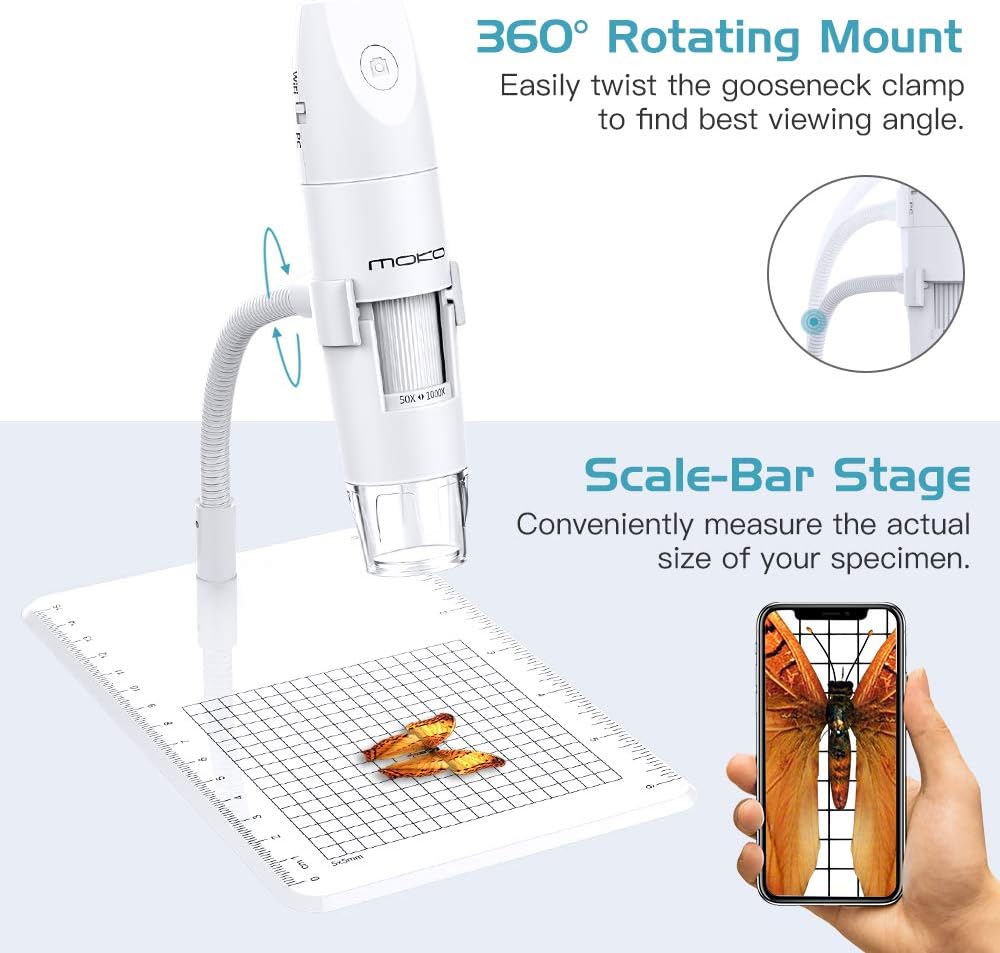
Image: The MoKo microscope on its stand, highlighting the 360° rotating mount for flexible viewing angles and the scale-bar stage for measuring specimen size. An example image of a magnified butterfly is shown on a smartphone screen.

Image: A visual comparison showing the compact size of the MoKo Wireless Digital Microscope next to a much larger traditional laboratory microscope, emphasizing its pocket-sized portability and light weight of 285g (10.05oz).
4. Setup Guide
Follow these steps to set up your MoKo Wireless Digital Microscope:
- Ngeusi batre alat: Before first use, fully charge the microscope using the provided USB cable. Connect the USB cable to the microscope's charging port and a standard USB power adapter (not included). The charging indicator light will show charging status.
- Unduh Aplikasi:
For mobile devices (iOS/Android): Milarian pikeun "Inskam" in the App Store (iOS 8.0+) or Google Play Store (Android 4.3+).
For PC (Windows/Mac): Visit the official MoKo website or refer to the included card for the PC software download link. Compatible with Windows 7/8/10 and Mac 10.8 or later.
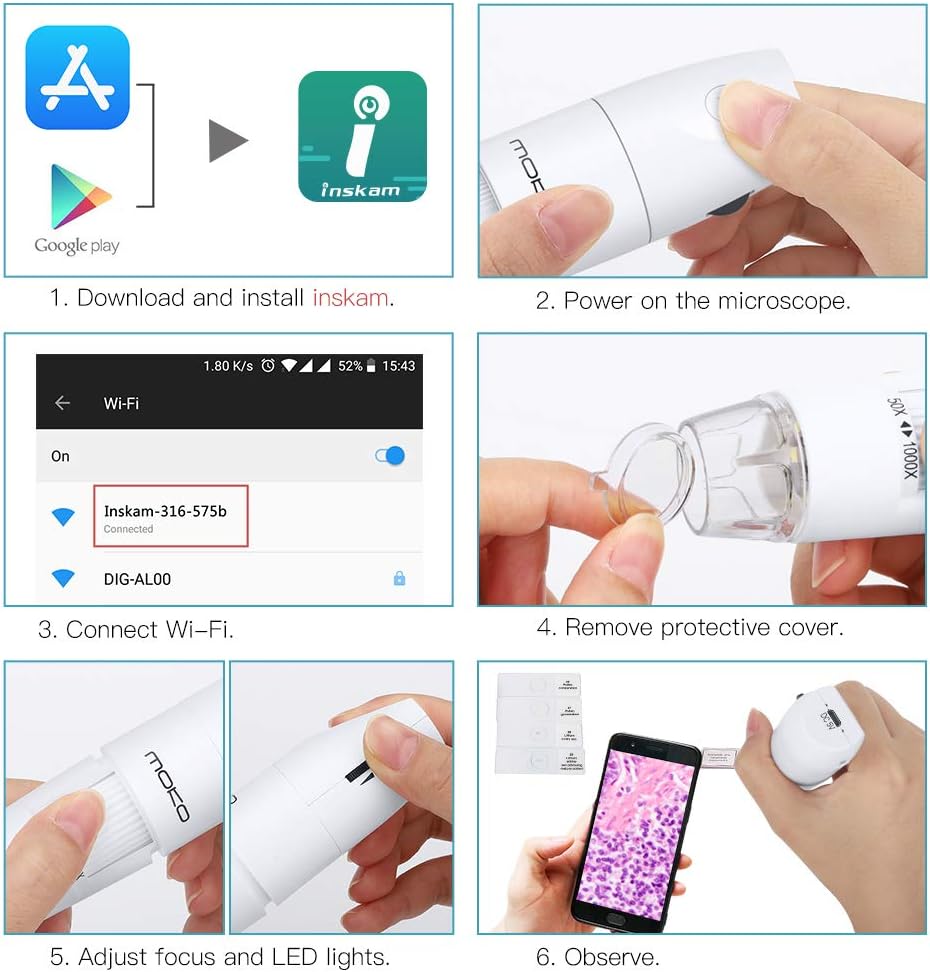
Image: A six-panel guide showing the setup process: 1. Download and install the "Inskam" app. 2. Power on the microscope. 3. Connect to the microscope's Wi-Fi network. 4. Remove the protective cover from the lens. 5. Adjust focus and LED lights. 6. Begin observation.
- Daya Hurung: Press and hold the power button on the microscope until the indicator light turns on.
- Nyambung ka Alat Anjeun:
For Wi-Fi Connection (Mobile Devices):
- Ensure the microscope's WiFi/PC switch is set to the Wifi posisi.
- On your mobile device, go to Wi-Fi settings and connect to the network named "Inskam-XXXX" (where XXXX is a unique identifier).
- Open the "Inskam" application. The microscope's live view kedah muncul.
For PC Connection (USB):
- Ensure the microscope's WiFi/PC switch is set to the PC posisi.
- Connect the microscope to your computer using the USB cable.
- Open the installed PC software. The microscope's live view kedah muncul.

Image: A diagram illustrating the two connection methods: USB connection to Windows 7/8/10 or Mac 10.8+ computers by setting the switch to "PC", and Wi-Fi connection to iOS 8.0+ or Android 4.3+ mobile devices by setting the switch to "WiFi".
- Cabut panutup pelindung: Gently remove the transparent protective cap from the microscope lens before use.
- Position the Microscope: Place the microscope on the flexible tube stand. Adjust the gooseneck to position the lens directly above your specimen. The 360° rotating mount allows for optimal viewdina sudut.
5. Parentah Operasi
5.1 Adjusting Focus and Magnification
Rotate the focus wheel on the microscope body to achieve a clear image. The microscope offers a magnification range of 50x to 1000x. Adjust the distance between the lens and the object to change the magnification level. Closer distance generally results in higher magnification.
5.2 Nyaluyukeun Lampu LED
The 8 built-in LED lights provide illumination for your subject. Use the LED brightness adjustment control (usually a small wheel or button on the microscope body) to increase or decrease the light intensity for optimal viewkaayaan ing.
5.3 Capturing Images and Recording Videos
Once connected to your device and viewing a live feed:
- To Capture an Image: Press the dedicated capture button on the microscope body, or use the capture button within the "Inskam" application. Images are saved in 1080P resolution.
- To Record Video: Use the record function within the "Inskam" application. Videos will be saved directly to your connected device.
5.4 Aplikasi
The MoKo Wireless Digital Microscope is suitable for a wide range of applications, including but not limited to:
- Tujuan atikan
- Skin and hair examination
- Plant dissection and examination
- Textile inspection
- Jewelry inspection
- Collections/coin inspection
- Inspeksi percetakan
- PCB or PCBA inspection

Image: A collage demonstrating various applications of the microscope, showing magnified views of a bee, a butterfly wing, biological tissue, and a circuit board, highlighting the 2-megapixel camera and 50x-1000x magnification capabilities.
6. Pangropéa
6.1 beberesih
- Use a soft, dry cloth to clean the microscope body.
- For the lens, use a lens cleaning cloth and a specialized lens cleaning solution. Do not use abrasive materials or harsh chemicals.
- Pastikeun alat dipareuman sateuacan beberesih.
6.2 Panyimpenan
- Simpen mikroskop dina tempat anu tiis sareng garing jauh tina sinar panonpoé langsung sareng suhu anu ekstrim.
- Always replace the protective lens cap when not in use to prevent dust and scratches.
6.3 Perawatan Batré
- The microscope contains a built-in rechargeable Lithium Ion battery.
- Hindarkeun sering-sering ngeusi batre.
- Upami disimpen kanggo waktos anu lami, ngecas batréna dugi ka sakitar 50% unggal sababaraha bulan pikeun ngajaga kaséhatan batréna.
7. Cara ngungkulan
| Masalah | Mungkin Cukang lantaranana | Solusi |
|---|---|---|
| Mikroskop teu hurung. | Batré béak. | Charge the microscope using the USB cable. |
| No image on screen (mobile/PC). | Incorrect connection mode (WiFi/PC switch). Not connected to Wi-Fi/USB. App/software not open or not recognizing device. | Ensure the WiFi/PC switch is in the correct position. Verify Wi-Fi connection (for mobile) or USB connection (for PC). Restart the app/software and ensure it's detecting the microscope. |
| Gambar blur. | Fokus teu disaluyukeun. Protective cap still on lens. | Rotate the focus wheel until the image is clear. Remove the transparent protective cap from the lens. |
| LED lights are not working or too dim/bright. | Kacaangan LED teu disaluyukeun. | Adjust the LED brightness control on the microscope. |
| Aplikasi nabrak atanapi macet. | Vérsi aplikasi luntur. Device compatibility issues. | Update the "Inskam" app to the latest version. Ensure your device meets the minimum OS requirements (iOS 8.0+, Android 4.3+, Windows 7/8/10, Mac 10.8+). |
8. Spésifikasi
| Fitur | Rincian |
|---|---|
| merek | MoKo |
| Nomer modél | MK-Wifi-Miscope-316-190802F-wht-fA |
| Rentang Magnification | 50x nepi ka 1000x |
| Resolusi kaméra | 2.0 MP (up to 1080P for images) |
| Paneangan | 8 Adjustable White LED Lights |
| Konektipitas | Wi-Fi, USB |
| Sistem Operasi cocog | iOS (8.0+), Android (4.3+), Mac (10.8+), Windows (7/8/10) |
| Sumber Daya | Built-in Rechargeable Lithium Ion Battery (3.7 Volts) |
| Kahirupan batré | Approx. 3 hours continuous work |
| Dimensi produk | 7.32 x 4.72 x 1.89 inci |
| Item Beurat | 9.2 ons (kira-kira 260g) |
| Bahan | palastik |
| Warna | Bodas |
9. Garansi jeung Rojongan
9.1 Émbaran jaminan
MoKo products typically come with a standard manufacturer's warranty. Please refer to the product packaging or the official MoKo website for specific warranty terms and conditions applicable to your region. Keep your purchase receipt as proof of purchase for warranty claims.
9.2 Rojongan Palanggan
If you encounter any issues not covered in this manual or require further assistance, please contact MoKo customer support through their official website or the contact information provided with your product. Provide your model number and a detailed description of the issue for faster service.
For the latest information and support resources, visit the official MoKo store: MoKo Official Store


