1. Bubuka
This manual provides detailed instructions for the installation, operation, and maintenance of your Amcrest 4K POE Security Camera System. This system includes an 8-channel Network Video Recorder (NVR) with a pre-installed 2TB hard drive and four 8-megapixel (4K) IP PoE outdoor turret cameras. The system is designed for comprehensive surveillance, offering Ultra HD resolution, advanced video compression, and remote access capabilities.

Image: The Amcrest 4K POE Security Camera System, featuring the NVR unit, a 2TB hard drive, and four 4K turret cameras.
2. Naon dina Box
Pariksa yén sadaya komponén aya sateuacan neraskeun pamasangan:
- 1x Amcrest 8-Channel PoE NVR (Model: NV4108E-A2)
- 1x Pre-Installed 2TB Seagate SkyHawk Security Surveillance Hard Drive
- 4x Amcrest 8-Megapixel (4K) IP PoE Outdoor Turret Cameras (Model: IP8M-T2599EW)
- 4x Ethernet Cables (60ft each)
- 1x USB Mouse
- 1x Kabel Jaringan
- 1x Power Adapter for NVR
- Gancang Mimitian Guide
3. Setup Guide
3.1 NVR Connections
Familiarize yourself with the NVR's front and back panels for proper connections.

Gambar: Detil view of the NVR's front panel (USB 2.0 Port, LED Display) and back panel (DC Power Port, 8 PoE Ports, Ethernet Port, VGA Output, Audio Input/Output, HDMI Output, USB 2.0 Port).
- Sambungkeun kaméra: Plug each PoE camera into one of the 8 PoE ports on the NVR's back panel using the provided Ethernet cables. These ports supply both power and data.
- Nyambung kana Jaringan: Connect the NVR's Ethernet port to your router or network switch using the provided network cable.
- Sambungkeun tampilan: Connect a monitor to the NVR using either the HDMI or VGA output port.
- Sambungkeun Beurit USB: Plug the USB mouse into one of the USB 2.0 ports (front or back panel) for NVR navigation.
- Daya Hurung: Connect the NVR's power adapter to the DC Power Port and then to a power outlet. The NVR will power on automatically.
3.2 Konfigurasi Awal
Upon first boot, follow the on-screen wizard to set up basic NVR settings, including language, date/time, network settings, and password creation.
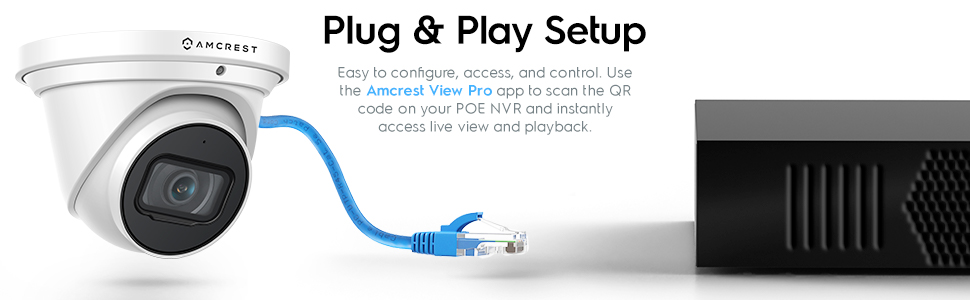
Image: Illustration demonstrating the simple plug-and-play setup, connecting a camera directly to the NVR via an Ethernet cable.
3.3 Setélan Aplikasi Mobile
Pikeun jauh viewing and control, download the Amcrest View Pro app on your smartphone or tablet.
- Unduh Amcrest View Pro app from the Apple App Store or Google Play Store.
- Jieun akun atawa asup.
- Scan the QR code displayed on your NVR's monitor (or found in the NVR's network settings) to add your device.
- Follow the in-app instructions to complete the setup and access live view sareng playback.

Image: A smartphone displaying the Amcrest View Pro app interface, showing multiple camera feeds for remote monitoring.
4. Parentah Operasi
4.1 Hirup View sareng Playback
Aksés feed kaméra langsung sareng review dirékam footage directly from the NVR's connected monitor or via the Amcrest View Aplikasi Pro.
- Hirup View: The NVR will automatically display live feeds from connected cameras. Use the mouse to navigate the interface, switch views, and access settings.
- Playback: Klik-katuhu dina live view screen and select 'Playback' to access recorded footage. Use the timeline to select specific dates and times for review.
4.2 Modeu ngarékam
The NVR supports various recording modes, including continuous recording and motion detection recording. The pre-installed 2TB hard drive provides ample storage, enhanced by H.265 compression.
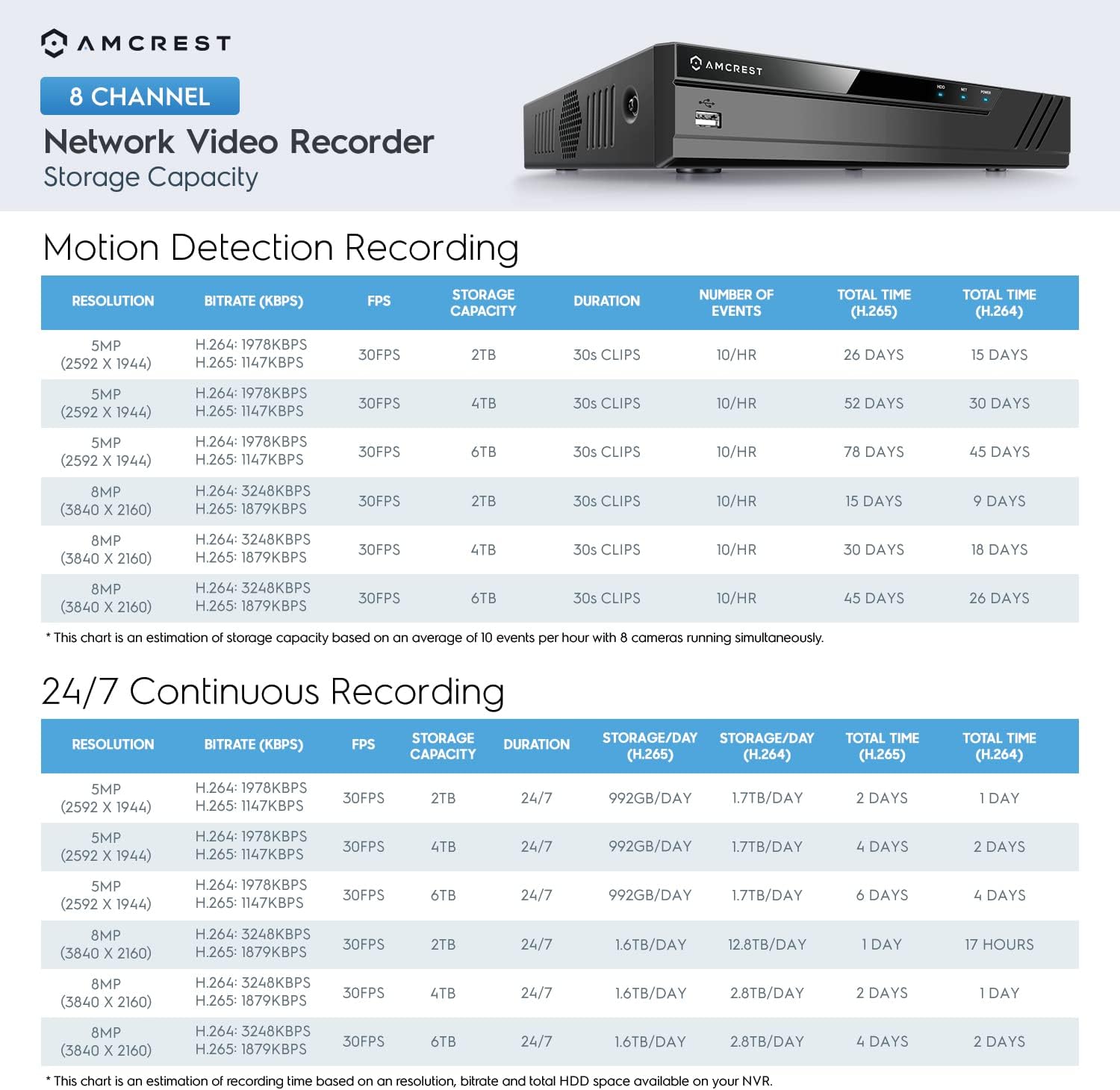
Image: Table illustrating estimated storage capacity and recording duration for motion detection and 24/7 continuous recording at various resolutions (5MP, 8MP) and H.264/H.265 compression, based on 2TB, 4TB, and 6TB HDD.

Image: Visual representation of H.265 compression reducing storage requirements by up to 50% compared to H.264, alongside an image of the NVR with a 2TB hard drive.
4.3 Advanced Camera Features
The 4K turret cameras offer several advanced features for enhanced surveillance.

Gambar: Leuwihview of Amcrest 4K camera features including Premium UltraHD, Starlight Technology, Built-in IVS Features, Wide Dynamic Range (WDR), Wide View Angle, HEVC Compression (H.265), Flexible Storage, One-Way Audio, Weatherproof (IP67), and PoE Networking.
- 4K UltraHD Resolution: Provides 8-megapixel (3840x2160) video for clear imaging.
- Téknologi Starlight: Ningkatkeun pisibilitas dina kondisi cahaya remen.
- Built-in IVS Features: Includes intelligent video analytics such as Tripwire and Intrusion detection.
- Wide Dynamic Range (WDR): Balances exposure in scenes with both bright and dark areas.
- 105 ° Lega Viewdina Angle: Covers a broad area with a 2.8mm super-wide angle lens.
- Audio Hiji Arah: Built-in microphone allows for audio monitoring.
- IP67 Tahan Cuaca: Cameras are designed to withstand harsh weather conditions.
4.4 Perimeter Protection (IVS)
Configure Intelligent Video System (IVS) rules to trigger events based on specific activities within defined areas.

Image: Illustration of Perimeter Protection features, showing how Tripwire (trigger an event when a human or vehicle crosses a set line) and Intrusion (be alerted when a human or vehicle enters a defined area) work.
- Tripwire: Draw a virtual line in the camera's field of view. An event is triggered when an object crosses this line.
- Intrusi: Define a virtual area. An event is triggered when an object enters or exits this area.
These features help in reducing false alarms and focusing on relevant events.
5. Pangropéa
- Ngabersihan rutin: Bersihkeun lénsa kaméra sacara berkala nganggo sabun anu lemesamp lawon pikeun mastikeun kualitas gambar jelas. Ngahindarkeun cleaners abrasive.
- Pembaruan firmware: Pariksa Amcrest website for the latest firmware updates for your NVR and cameras. Keeping firmware updated ensures optimal performance and security.
- Kaséhatan Hard Drive: The NVR's pre-installed 2TB Seagate SkyHawk hard drive is designed for surveillance. Monitor its health through the NVR's system settings. Consider replacing it if signs of failure appear or if more storage is needed (supports up to 10TB).
- Nyadangkeun USB: Utilize the USB backup feature to regularly save important footage to an external USB drive for archiving or evidence.
6. Cara ngungkulan
6.1 No Video/Offline Cameras
- Check PoE Connection: Ensure the Ethernet cable is securely connected to both the camera and the NVR's PoE port.
- Siklus kakuatan: Cabut sareng sambungkeun deui adaptor daya NVR.
- Integritas kabel: Inspect Ethernet cables for damage. Try a different cable if necessary.
- NVR Port Status: Check the NVR's interface to see if the specific PoE port is active.
6.2 Masalah Aksés Jarak Jauh
- Sambungan jaringan: Verify the NVR is connected to the internet. Check network cable and router status.
- Login Aplikasi: Ensure you are logged into the Amcrest View Pro app with the correct credentials.
- Firewall/Port Forwarding: If direct access is configured, ensure necessary ports are forwarded on your router. Consult your router's manual or ISP for assistance.
- NVR Network Settings: Confirm the NVR's IP address, subnet mask, gateway, and DNS settings are correct.
6.3 Kualitas Gambar Miskin
- Lensa bersih: Ensure the camera lens is clean and free from dirt, dust, or water spots.
- Setélan Resolusi: Verify that the camera's resolution is set to 4K (3840x2160) in the NVR settings. Note that displaying 4K on a non-4K monitor will downscale the image.
- Kaayaan Pencahayaan: Ensure adequate lighting for optimal performance, especially for night vision.
- WDR Settings: Adjust Wide Dynamic Range (WDR) settings if there are significant light contrasts in the scene.

Image: A visual comparison demonstrating the difference in detail between Full HD (1920x1080) and 4K UltraHD (3840x2160) resolutions, highlighting the superior clarity of 4K.
7. Spésifikasi
7.1 NVR (NV4108E-A2)

Image: Technical specifications for the Amcrest 4K UltraHD 8 Channel 8 Port PoE Network Video Recorder, including recording compression, video input/output, storage, network interface, and physical dimensions.
- model: NV4108E-A2
- Saluran: 8-Kanal
- Komprési pidéo: H.265/H.264
- Video Input: 8 Kaméra IP
- Kaluaran Video: HDMI (up to 4K), VGA
- Bandwidth asup: Max 80Mbps
- Panyimpenan: 1 SATA Port, up to 10TB (2TB pre-installed)
- Port PoE: 8
- Antarmuka USB: 2x USB 2.0
- Ukuran (L x W x H): 10.2 x 9.15 x 1.9 inci
- beurat: 2.03 lbs (without HDD)
7.2 4K Turret IP Cameras (IP8M-T2599EW)

Image: Technical specifications for the Amcrest 8-Megapixel PoE Outdoor Security Turret IP Camera, including camera sensor, resolution, lens, audio, video compression, frame rate, network, storage, construction, and dimensions.
- model: IP8M-T2599EW
- Sénsor Gambar: CMOS 1/2.7" 8MP
- Resolusi: 4K UltraHD (3840x2160) @ 15fps
- Lensa: 2.8mm Fixed, Super-Wide Angle
- Viewdina Angle: 105° (Horizontal), 56° (Vertical), 125° (Diagonal)
- Wengi Visi Range: Up to 98 ft (2 IR LEDs)
- Audio: 1-Way Audio with Built-in Mic
- Peunteun Cuaca: IP67
- kakuatan: Power over Ethernet (PoE)
- ukuran: 3.97" x 4.33"
- beurat: 1.1 pon
8. Garansi jeung Rojongan
Your Amcrest 4K POE Security Camera System is backed by a 1-Taun Garansi AS from the date of purchase. Amcrest also provides Lifetime US Support pikeun produk ieu.
For technical assistance, troubleshooting, or warranty claims, please contact Amcrest customer support directly. Refer to the official Amcrest websitus pikeun inpormasi kontak sareng sumber pangrojong pang anyarna.


