1. Bubuka
This manual provides essential information for the installation, operation, and maintenance of the Allen Bradley PanelView Plus 2711P-T7C4D8 Human Machine Interface (HMI) terminal. The PanelView Plus 2711P-T7C4D8 is a 6.5-inch color unit with touch input, designed for industrial control applications, and powered by a DC power supply. Please read this manual thoroughly before attempting to install or operate the device.
For detailed programming and configuration information, refer to the PanelView Plus documentation available from Rockwell Automation.
2. Émbaran Kasalametan
Salawasna perhatikeun tindakan pencegahan kaamanan ieu pikeun nyegah tatu pribadi sareng karusakan kana alat:
- Personil anu mumpuni: Installation, adjustment, operation, programming, maintenance, and repair must be performed by qualified personnel familiar with industrial control systems and safety procedures.
- Pegatkeun daya: Disconnect all power to the equipment before performing any installation, wiring, or maintenance. Failure to do so may result in electric shock or equipment damage.
- Grounding anu leres: Ensure the device is properly grounded according to local and national electrical codes.
- Kaayaan Lingkungan: Operate the device within its specified environmental limits (temperature, humidity, vibration).
- Wiring: Use appropriate wire gauges and insulation for all connections. Ensure all connections are secure.
3. Eusi Paket
Upon opening the package, verify that all components are present and undamaged. The standard package for the Allen Bradley PanelView Plus 2711P-T7C4D8 typically includes:
- Panel Allen BradleyView Plus 2711P-T7C4D8 Terminal (6.5" Color, Touch Input)
- Mounting hardware (e.g., clips, screws)
- Dokuméntasi (contona, Panduan Mimitian Gancang, Inpormasi Kasalametan)
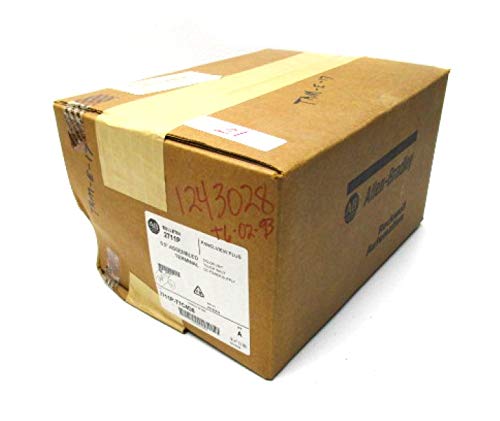
Figure 1: Allen Bradley PanelView Plus 2711P-T7C4D8 in its original shipping box. The box features the Allen-Bradley logo and a product label indicating "BULLETIN 2711P PANELVIEW PLUS 6.5" ASSEMBLED TERMINAL COLOR UNIT TOUCH INPUT DC POWER SUPPLY CAT 2711P-T7C4D8".
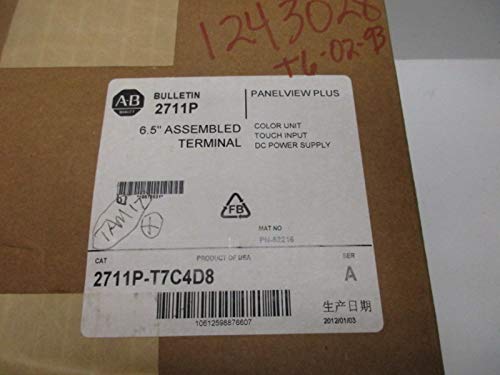
angka 2: Tutup-up view of the product label on the shipping box. The label clearly displays the model number "2711P-T7C4D8", indicating it is a 6.5-inch PanelView Plus terminal with color display, touch input, and DC power supply. It also shows "SER A" and a manufacturing date of "20121003".
4. Setélan
4.1 Pamasangan
- Potongan Panel: Prepare a panel cutout according to the dimensions specified in the PanelView Plus installation guide for the 6.5-inch model.
- Insert Terminal: Selapkeun PanelView Plus terminal into the cutout from the front of the panel.
- Pamasangan Aman: Use the provided mounting clips or clamps to secure the terminal firmly to the panel. Ensure even pressure to create a proper seal.
4.2 Kabel
The 2711P-T7C4D8 requires a DC power supply. Refer to the terminal's wiring diagram for exact pin assignments.
- Sambungan Daya: Connect the DC power supply to the designated power terminals. Observe correct polarity.
- Grounding: Connect the protective earth ground to the terminal's ground screw.
- Komunikasi: Connect communication cables (e.g., Ethernet, serial) to the appropriate ports for connection to a PLC or other network devices.
4.3 Mimiti Power-Up
After all connections are secure and verified, apply power to the PanelView Plus terminal. The terminal should power on and display the boot-up sequence. Follow any on-screen prompts for initial configuration.
5. Nyuping
The PanelView Plus 2711P-T7C4D8 is a touch-screen HMI. Interaction is primarily through touching the screen elements.
- Napigasi: Navigate through screens and menus by touching the corresponding buttons or areas on the display.
- Éntri Data: Use the on-screen keypad for entering numerical or textual data when prompted.
- Application Loading: Applications are typically loaded onto the PanelView Plus from a development environment (e.g., FactoryTalk View Studio) via network or removable media. Refer to the software documentation for detailed instructions.
- Menu Sistim: Access the system menu for settings, diagnostics, and file management by pressing a specific area of the screen or a dedicated button (if configured).
6. Pangropéa
6.1 beberesih
To maintain optimal performance and readability, periodically clean the display and housing.
- tampilan: Make lawon anu lemes, teu aya serat dampened with a mild, non-abrasive cleaner (e.g., screen cleaner) to wipe the touch screen. Do not spray cleaner directly onto the screen.
- Perumahan: Ngusap perumahan exterior ku iklanamp lawon. Hindarkeun bahan kimia atanapi pangleyur anu keras.
6.2 Apdet firmware
Periodically check the Rockwell Automation website for firmware updates for your PanelView Plus terminal. Firmware updates can provide new features, performance improvements, and bug fixes. Follow the instructions provided with the firmware update package carefully.
7. Cara ngungkulan
This section provides solutions to common issues. For more complex problems, contact technical support.
| Masalah | Mungkin Cukang lantaranana | Solusi |
|---|---|---|
| Terminal does not power on. | No power supply, incorrect wiring, faulty power supply. | Pariksa sambungan kakuatan sarta voltage. Check power supply functionality. |
| Display is blank or distorted. | Backlight failure, incorrect display settings, hardware issue. | Check display settings in the system menu. Power cycle the unit. If problem persists, contact support. |
| Layar rampa teu ngaréspon. | Calibration issue, debris on screen, hardware failure. | Clean the screen. Attempt touch screen recalibration from the system menu. |
| Kasalahan komunikasi sareng PLC. | Incorrect communication settings, faulty cable, network issue. | Verify communication settings on both HMI and PLC. Check cable integrity and network status. |
8. Spésifikasi
| Fitur | Rincian |
|---|---|
| Nomer modél | 2711P-T7C4D8 |
| Runtuyan | A |
| Ukuran tampilan | 6.5 inci |
| Tipe tampilan | Warna |
| Tipe Input | Layar cabak |
| Sasayogian tanaga | Daya DC |
| Produsén | Allen Bradley (Rockwell Automation) |
9. Garansi jeung Rojongan
The Allen Bradley PanelView Plus 2711P-T7C4D8 is covered by the standard manufacturer's warranty. For specific warranty terms and conditions, please refer to the documentation provided with your product or visit the official Rockwell Automation websitus.
For technical assistance, troubleshooting beyond this manual, or to inquire about repairs, please contact Rockwell Automation technical support or your authorized distributor.


