1. Bubuka
This manual provides essential information for the proper installation, operation, and maintenance of your Dell Networking N2024 24-Port 1GbE Ethernet Switch. Please read this guide thoroughly before using the device to ensure optimal performance and safety. Keep this manual for future reference.
2. Produk Langkungview
The Dell Networking N2024 is a high-performance 1U rack-mountable Ethernet switch designed for reliable network connectivity. It features 24 1GbE Base-T ports and two 10GbE SFP+ uplink ports, providing flexible connectivity options for various network environments. The switch operates on OS6 and includes an integrated 100W PSU and internal fans for efficient cooling.
Fitur konci:
- 24 x 10/100/1000 Base-T Ethernet Ports
- 2 x 10GbE SFP+ Uplink Ports
- 2 x Rear-Stacking Ports
- 1 x USB Type-A Port
- 1 x RJ45 Management Port (RS232 Signaling)
- Integrated 100W Power Supply Unit (PSU)
- Internal Cooling Fans
- Operating System: OS6
- 1U rak-Mountable Desain
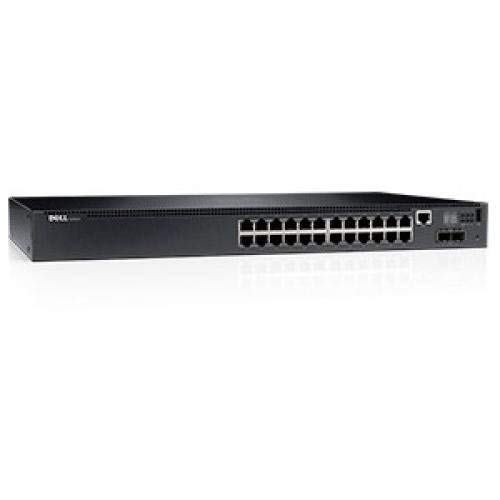
Gambar 1: Hareupeun view of the Dell N2024 24-Port 1GbE Ethernet Network Switch, showing the 24 1GbE ports and two 10GbE SFP+ uplink ports.
3. Setup jeung Instalasi
3.1. Eusi Paket
Pastikeun yén sadaya komponén aya dina bungkusan:
- Dell Networking N2024 Switch
- Rack-mounting ears
- Kabel konsol
- Kabel listrik
3.2. Instalasi fisik
The N2024 switch is designed for rack-mounting. Follow these steps for secure installation:
- Attach the provided rack-mounting ears to the sides of the switch using the screws included.
- Secure the switch into a standard 19-inch equipment rack using appropriate rack screws. Ensure adequate ventilation around the switch.
3.3. Nyambungkeun Saklar
- Sambungan Daya: Connect the power cord to the switch's integrated power supply and then to a grounded AC power outlet.
- Sambungan jaringan: Connect your network devices (servers, workstations, other switches) to the 1GbE Base-T ports using standard Ethernet cables. For high-speed uplinks, insert SFP+ transceivers (not included) into the 10GbE SFP+ ports and connect fiber optic cables.
- Management Connection: For initial configuration or direct management, connect the console cable from your computer's serial port to the RJ45 management port on the switch.
- Stacking Connections (Optional): If deploying multiple N2024 switches in a stack, connect the rear-stacking ports using compatible stacking cables (not included).
4. Operasi
4.1. Daya Awal Hurung
Once all connections are made, power on the switch. The switch will perform a self-test and boot up its operating system (OS6). Observe the LED indicators on the front panel to confirm proper power and port status.
4.2. Konfigurasi Dasar
Access the switch's command-line interface (CLI) via the console port or a network-based management interface (e.g., Telnet, SSH, Web GUI) once an IP address is assigned. Refer to the Dell Networking OS6 documentation for detailed configuration instructions, including setting up IP addresses, VLANs, and other network parameters.
5. Pangropéa
5.1. Kaperawatan Umum
- Ensure the switch is installed in a clean, dry, and well-ventilated environment.
- Regularly check for dust accumulation on ventilation openings and clean as necessary to prevent overheating.
- Verify that all cables are securely connected.
5.2. Apdet firmware
Periodically check the Dell support website for firmware updates for the N2024 switch. Keeping the firmware updated ensures optimal performance, security, and access to new features. Follow the instructions provided with the firmware update package carefully.
6. Cara ngungkulan
This section provides solutions to common issues you might encounter with your Dell N2024 switch.
Masalah umum sareng Solusi:
- Henteu aya kakuatan:
- Check if the power cord is securely connected to both the switch and the power outlet.
- Pariksa yén stop kontak listrik geus fungsi.
- Teu aya Tautan dina Port:
- Pastikeun kabel Ethernet disambungkeun kalayan leres di dua tungtungna.
- Pariksa yén alat anu nyambung parantos dihurungkeun sareng fungsina leres.
- Test with a different cable or port.
- Teu Bisa Ngaksés Antarmuka Manajemén:
- If using the console port, ensure correct serial port settings (baud rate, data bits, parity, stop bits).
- If using network management, verify the switch's IP address and network connectivity.
- Check firewall settings on your management workstation.
- Overheating:
- Ensure adequate airflow around the switch.
- Clean any dust from the ventilation openings.
- Verify that internal fans are operating.
7. Spésifikasi Téknis
| Fitur | Spésifikasi |
|---|---|
| merek | Dell |
| Modél | N2024 |
| Palabuhan | 24 x 10/100/1000 Base-T, 2 x 10GbE SFP+ Uplink |
| Palabuhan Tambahan | 2 x Rear-Stacking, 1 x USB Type-A, 1 x RJ45 Manage (RS232) |
| Saklar Ukuran | 1U |
| Sistem operasi | OS6 |
| Sumber Daya | AC (Integrated 100W PSU) |
| Item Beurat | 8.14 pon |
| Ukuran produk (L x W x H) | 22 x 20 x 6.6 inci |
8. Garansi jeung Rojongan
8.1. Émbaran jaminan
This Dell Networking N2024 switch typically comes with a No-Nonsense Next Business Day Warranty. For specific details regarding your product's warranty coverage, including duration and terms, please refer to the documentation provided at the time of purchase or contact your reseller.
8.2. Rojongan Téknis
For technical assistance, troubleshooting beyond this manual, or inquiries regarding product condition and warranty, please contact your product vendor or Dell's official support channels. You can find Dell's official support resources on their websitus: www.dell.com/support


