1. Bubuka
This manual provides detailed instructions for the installation, operation, and maintenance of your Anlapus 8 Channel 720P DVR Security Camera System Recorder. Please read this manual thoroughly before using the product to ensure proper setup and optimal performance. Keep this manual for future reference.
2. Émbaran Kasalametan
To prevent injury to yourself or others, or damage to your device, read all safety information before using the device. Failure to follow these instructions may result in electric shock, fire, or other hazards.
- Paké ngan adaptor kakuatan disadiakeun kalawan alat.
- Do not expose the DVR to water, moisture, or extreme temperatures.
- Pastikeun ventilasi ditangtoskeun pikeun nyegah overheating.
- Ulah nyobian muka atawa ngalereskeun alat sorangan. Rujuk sadayana jasa ka tanaga anu mumpuni.
- Jauhkeun alat tina médan magnét anu kuat.
3. Eusi Paket
Please check the package contents upon opening. If any items are missing or damaged, contact customer support immediately.
- Anlapus 8 Channel 720P DVR Recorder (with pre-installed 1TB Hard Drive)
- Adaptor kakuatan
- Mouse USB
- Gancang Mimitian Guide
- Screws for HDD (if applicable)
4. Produk Langkungview
The Anlapus 8 Channel 720P DVR is a versatile security recording solution supporting multiple camera types including 960H Analog, 720P/1080P AHD, 720P/1080P TVI, and CVI cameras. It comes with a pre-installed 1TB hard drive for continuous recording.
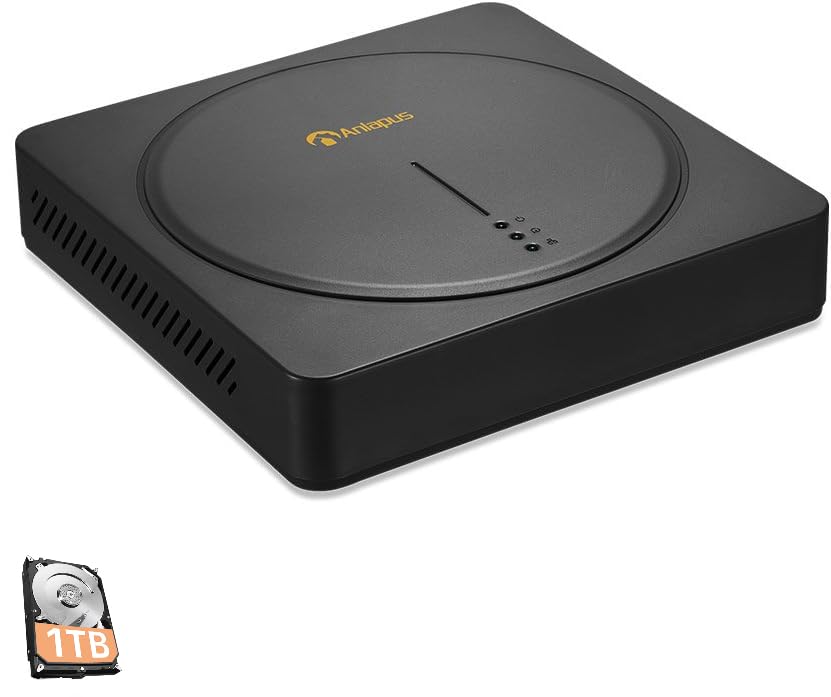
An image showing the Anlapus 8 Channel 720P DVR unit, a black square device with a circular indentation on top, featuring the Anlapus logo and indicator lights. A small icon of a 1TB hard drive is also visible in the bottom left corner.
Panel hareup
- Lampu Indikator: Power, HDD activity, Network status.
Panel tukang
- Input Video: 8 BNC ports for camera connections.
- Kaluaran Video: HDMI, VGA for monitor connection.
- Input/Kaluaran Audio: RCA ports for audio.
- Palabuhan Jaringan: RJ45 Ethernet port for internet connection.
- Port USB: For mouse, USB backup, or Wi-Fi adapter (if supported).
- Input kakuatan: Jack kakuatan 12V DC.
5. Setup Guide
5.1 Panyambung Hardware
- Sambungkeun kaméra: Connect your security cameras to the BNC video input ports on the rear of the DVR.
- Sambungkeun Monitor: Sambungkeun monitor ka DVR nganggo port HDMI atanapi VGA.
- Sambungkeun Mouse: Plug the USB mouse into one of the USB ports.
- Connect Network (Optional but Recommended): Connect an Ethernet cable from the DVR's network port to your router or network switch for remote access and email alerts.
- Sambungkeun Kakuatan: Colokkeun adaptor daya kana input daya DVR teras kana stop kontak. DVR bakal otomatis hurung.
5.2 Konfigurasi Awal
Upon first boot, the system will guide you through an initial setup wizard. Follow the on-screen prompts to:
- Jieun kecap akses anu kuat pikeun akun administrator.
- Konpigurasikeun setélan tanggal sareng waktos.
- Adjust network settings (DHCP is usually sufficient).
- Format the pre-installed 1TB hard drive if prompted (this will erase any existing data).
5.3 Setélan Aplikasi Mobile
Pikeun jauh viewing and alerts, download the free Anlapus mobile application (available for Android and iOS devices).
- Download the app from your device's app store by searching for "Anlapus" or by scanning the QR code displayed on the DVR's monitor under the network settings or P2P menu.
- Jieun akun atawa asup.
- Add your DVR device by scanning the device's QR code (usually found on a sticker on the DVR or in the network settings menu) or by manually entering the device ID.
- Sakali ditambahkeun, anjeun tiasa view hirup footage, play back recordings, and receive alerts from your smartphone or tablet.
6. Parentah Operasi
6.1 Hirup View
Saatos setelan anu suksés, DVR bakal nampilkeun eupan pidéo langsung ti sadaya kaméra anu nyambung dina monitor. Anjeun tiasa ngalih antara kaméra tunggal view jeung multi-kaméra grid view ngagunakeun kadali dina layar atawa beurit.
6.2 Modeu ngarékam
DVR ngadukung sababaraha modeu rekaman:
- Rékam Kontinyu: Rékaman 24/7.
- Ngarekam Deteksi Gerak: Records only when motion is detected, saving hard drive space.
- Rekaman Dijadwalkeun: Rékam salami période waktos anu khusus.
- Ngarekam Manual: Mimitian / eureun ngarékam sacara manual.
Configure recording schedules and settings via the DVR's main menu (right-click with mouse).
6.3 Playback
Pikeun ulangview dirékam footage:
- Tina ménu utama, pilih "Playback".
- Choose the date and camera channel you wish to review.
- Anggo garis waktu pikeun nganapigasi rekaman. Warna anu béda dina garis waktu nunjukkeun jinis rekaman anu béda (contona, kontinyu, gerakan).
6.4 Motion Detection and Email Alerts
The DVR features customizable motion detection with instant email alerts.
- Navigate to the "Alarm" or "Motion Detect" settings in the main menu.
- Enable motion detection for desired channels.
- Adjust sensitivity and define detection areas.
- Configure email settings under "Network" or "Alarm" to receive alerts with images when motion is detected. Ensure your network settings are correct for email functionality.
6.5 Nyadangkeun Data
You can back up recorded footage kana flash drive USB.
- Insert a USB flash drive into a USB port on the DVR.
- Tina ménu utama, pilih "Nyadangkeun".
- Choose the camera channel, time range, and file type for backup.
- Start the backup process.
7. Pangropéa
- Manajemén hard drive: Hard drive 1TB bakal otomatis nimpa foo pangkolotnatage when full. Regularly check the HDD status in the system settings.
- Pembaruan firmware: Periodically check the Anlapus official website for firmware updates. Updates can improve performance and add new features. Follow the instructions provided with the firmware carefully.
- beberesih: Use a soft, dry cloth to clean the exterior of the DVR. Do not use liquid cleaners or aerosols. Ensure ventilation openings are free from dust.
- Kaamanan kecap akses: Regularly change your DVR and app passwords to maintain security.
8. Cara ngungkulan
Bagian ieu ngabahas masalah umum anu anjeun tingali.
- Taya Kaluaran Video:
- Check power connection to DVR and monitor.
- Ensure HDMI/VGA cable is securely connected.
- Verify monitor input source is correctly selected.
- Teu Aya Tampilan Kaméra:
- Pariksa catu daya kaméra.
- Ensure BNC cables are securely connected to both camera and DVR.
- Verify camera compatibility with the DVR (960H Analog, 720P/1080P AHD, TVI, CVI).
- Jauh ViewTeu Jalan:
- Ensure DVR is connected to the internet (check network status light).
- Verify network settings (DHCP enabled or static IP configured correctly).
- Check if the device is added correctly in the mobile app.
- Ensure your router's firewall is not blocking the connection (port forwarding may be required for advanced setups).
- Henteu aya rékaman:
- Check if the hard drive is detected and formatted.
- Verify recording schedules are set correctly.
- Ensure motion detection is configured if using that mode.
- Email Alerts Not Received:
- Pariksa sambungan jaringan.
- Verify email server settings (SMTP, port, encryption) are correct in the DVR.
- Pariksa folder spam email anjeun.
Pikeun pitulung salajengna, tingal bagian Garansi sarta Rojongan.
9. Spésifikasi
| Fitur | Spésifikasi |
|---|---|
| Modél | B07MX7VHKT |
| Input Video | 8 Channels (BNC) |
| Kasaluyuan Video | 960H Analog, 720P/1080P AHD, 720P/1080P TVI, CVI |
| Kaluaran Video | HDMI, VGA |
| Hard Drive | 1TB Security Grade (Pre-installed) |
| Résolusi ngarékam | Up to 720P on all 8 channels |
| Konektipitas | Ethernet (RJ45), USB |
| Deteksi gerak | Yes, with Email Alert |
| Rojongan Mobile App | Android, iOS (via QR Code Scan) |
| Sasayogian tanaga | DC 12V |
| Diménsi | 16.77 x 10.87 x 3.58 inci (kira-kira) |
| Beurat | 3.7 pon (kira-kira) |
10. Garansi jeung Rojongan
Anlapus provides a garansi 2 taun for this product from the date of purchase. This warranty covers manufacturing defects and malfunctions under normal use. It does not cover damage caused by misuse, accidents, unauthorized modifications, or natural disasters.
For technical assistance, troubleshooting, or warranty claims, please contact Anlapus customer support. We offer rojongan teknis hirupna to ensure your system operates smoothly.
Inpormasi kontak:
Please refer to the contact details provided on the Anlapus official website or your purchase documentation for the most current support channels (e.g., email, phone, online chat).
When contacting support, please have your product model (B07MX7VHKT) and purchase information ready.


