1. Bubuka
This manual provides essential information for the safe and efficient operation of your DNP DS620A Dye Sub Professional Photo Printer. Please read this manual thoroughly before using the printer and keep it for future reference.
The DNP DS620A is designed for high-speed, high-quality dye-sublimation photo printing, offering versatile print sizes from 2x6 inches to 6x8 inches. It features optimized energy consumption and media waste, along with advanced status information for efficient operation.
2. Émbaran Kasalametan
Always observe the following safety precautions to prevent injury or damage to the printer.
- Sasayogian tanaga: Use only the power cable supplied with the printer. Ensure the power outlet matches the printer's voltage syarat.
- Ventilasi: Ulah ngahalangan liang ventilasi. Pastikeun aya rohangan anu cekap di sakitar printer pikeun aliran hawa anu leres.
- panempatan: Place the printer on a stable, level surface. Avoid locations with excessive dust, humidity, or direct sunlight.
- Handling Media: Handle print media and ribbon cartridges carefully. Avoid touching the print surface of the media.
- Komponén internal: Do not attempt to open or service the printer yourself. Refer all servicing to qualified personnel.
- Darurat: In case of smoke, unusual odors, or abnormal operation, immediately disconnect the power cable and contact support.
3. Eusi Paket
Pastikeun yén sadaya item aya dina bungkusan:
- DNP DS620A Photo Printer Unit
- Kabel Daya
- USB Cable (for connection to computer)
- Manual pangguna (dokumén ieu)
- Media Spacers (for different print sizes)
- Kotak runtah
- Sample Print Media and Ribbon (may vary by region/package)
4. Setup Guide
4.1 Ngabongkar sareng Nempatkeun
Carefully remove the printer from its packaging. Place the printer on a sturdy, flat surface with adequate space for ventilation and media loading/unloading.
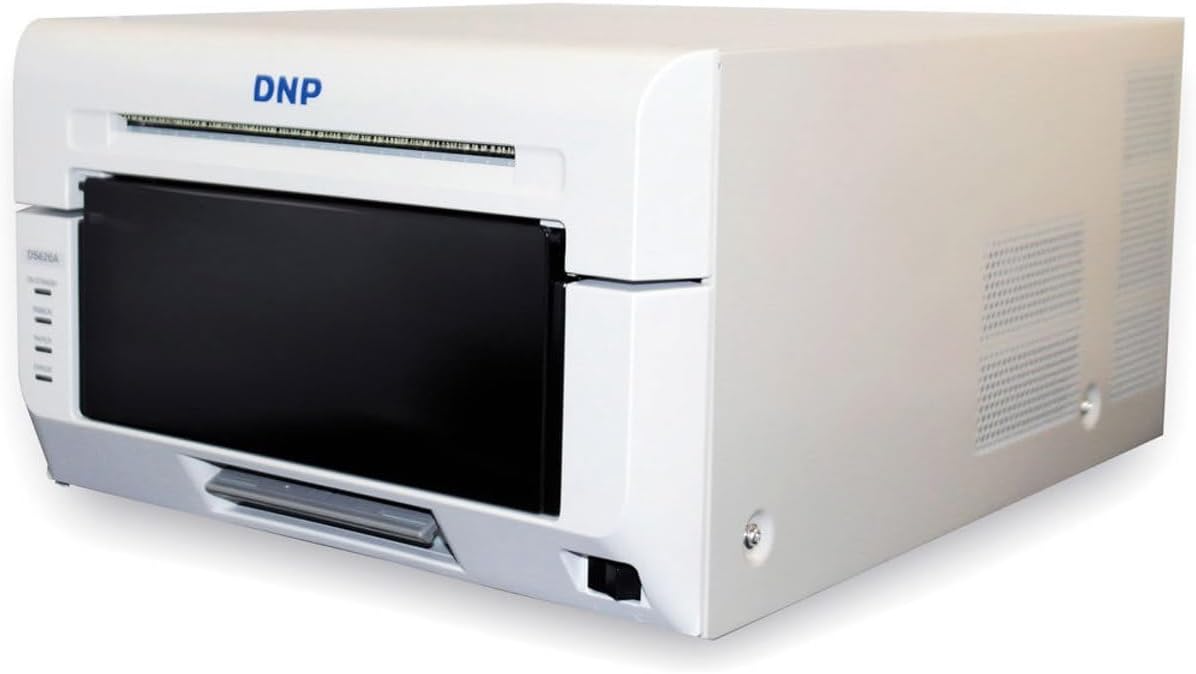
Gambar 4.1: Hareup-katuhu view of the DNP DS620A printer.
4.2 Nyambungkeun Printer
- Sambungkeun kabel daya ka printer teras ka stop kontak anu dihubungkeun ka ground.
- Connect the USB cable from the printer's USB port to your computer's USB port.
- Power on the printer using the power switch, typically located on the front or side.
4.3 Installing Print Media and Ribbon
The DS620A uses a combination of paper roll and ribbon cartridge for printing. Ensure you use DNP genuine media for optimal performance.
- Buka panutup hareup printer.
- Insert the paper roll onto the spindle, ensuring it is correctly oriented.
- Place the ribbon cartridge into its designated slot. Follow the arrows or guides inside the printer for correct alignment.
- Close the front cover securely. The printer will automatically feed the media.

Gambar 4.3: Hareupeun view of the DNP DS620A, showing the media loading area.
4.4 Pamasangan Supir
Install the latest printer drivers from the official DNP website. Do not use outdated drivers or drivers from unofficial sources. Follow the on-screen instructions during installation.
5. Parentah Operasi
5.1 Printing a Photo
- Pastikeun printer parantos dihurungkeun sareng nyambung ka komputer anjeun.
- Open the image you wish to print using your preferred photo editing or viewsoftware dina.
- Access the print dialog (File > Citak).
- Select the DNP DS620A as your printer.
- Adjust print settings such as paper size (e.g., 4x6, 5x7, 6x8), print quality, and finish (glossy or matte) in the printer preferences.
- Click "Print". The printer will process and output the photo.

Figure 5.1: Photo being printed and ejected from the DNP DS620A.
5.2 Understanding Printer Status Indicators
The printer features LED indicators on the front panel to communicate its status:
- kakuatan: Nunjukkeun status kakuatan.
- RIBBON: Indicates ribbon status (e.g., low, empty, error).
- Kertas: Indicates paper status (e.g., low, empty, jam).
- ERROR: Illuminates when an error occurs. Refer to the troubleshooting section for details.

Figure 5.2: Status indicators on the DNP DS620A.
6. Pangropéa
6.1 Ngabersihan Printer
Beberesih rutin ngabantosan ngajaga kualitas citak sareng manjangkeun umur printer.
- Luar: Wipe the exterior with a soft, dry, lint-free cloth. Do not use abrasive cleaners or solvents.
- Interior: Periodically clean the interior of the printer, especially the print head area, using a cleaning kit recommended by DNP. Always power off and unplug the printer before cleaning.
- Waste Box: Empty the waste box regularly to prevent paper dust accumulation.
6.2 Replacing Media and Ribbon
When the ribbon or paper runs out, the printer status indicators will alert you. Follow the steps in Section 4.3 to replace them.
7. Cara ngungkulan
Bagian ieu ngabahas masalah umum anu anjeun tingali.
| Masalah | Mungkin Cukang lantaranana | Solusi |
|---|---|---|
| Printer teu hurung | kabel kakuatan dipegatkeun; Masalah stop kontak | Pariksa sambungan kabel listrik; Cobi stop kontak anu béda |
| Taya kaluaran print | Incorrect driver; Media/ribbon empty or incorrectly loaded; USB connection issue | Install correct driver; Reload media/ribbon; Check USB cable |
| Kualitas cetak goréng | Dirty print head; Old or incompatible media; Incorrect print settings | Clean print head; Use genuine DNP media; Adjust print settings (resolution, finish) |
| Kertas macét | Incorrect media loading; Obstruction in paper path | Open cover and carefully remove jammed paper; Ensure media is loaded correctly |
| Printer is loud | Normal operation noise; Loose components | Some operational noise is normal for dye-sub printers. If excessive, contact support. |
If the problem persists after attempting these solutions, please contact DNP customer support.
8. Spésifikasi Téknis
- model: DNP DS620A
- Métode percetakan: Ngalelep-sublimation mindahkeun termal
- Resolusi citak: 300 x 300 dpi
- Laju nyitak: Approximately 8.3 seconds for 4x6 inch prints
- Print Sizes: 2x6, 3.5x5, 4x6, 5x7, 6x8 inches
- Media Capacity: Up to 400 sheets per roll (4x6 inch)
- Pilihan finish: Glossy and Matte (selectable via driver)
- panganteur: USB
- Ukuran (W x D x H): Kira-kira 19.75 x 15.75 x 13.25 inci
- beurat: Kurang leuwih 29.7 pon
- Konsumsi Daya: Optimized with standby mode (Less than 0.5W)
9. Garansi jeung Rojongan
9.1 Émbaran jaminan
The DNP DS620A printer typically comes with an Advance Exchange (AE) Warranty. This warranty provides for a replacement unit to be shipped to you in the event of a covered hardware failure, minimizing downtime. Please refer to your purchase documentation or the official DNP website for specific warranty terms, duration, and registration procedures.

Figure 9.1: DNP DS620A with an indication of its Advance Exchange Warranty.
9.2 Rojongan Palanggan
For technical assistance, driver downloads, or warranty claims, please visit the official DNP support website or contact their customer service department. Have your printer's serial number and proof of purchase ready when contacting support.
DNP Official Websitus: www.dnpphoto.com


